
Website feedback video: record it for your web designer in one tab
Record a website feedback video in one Chrome tab: say the page, what you see and what you want, then send your designer the MP4 and a timed list of changes.
A website feedback video lets you show your web designer exactly what you mean, on the real page, in your own words. You are the client here: someone else built the site, you do not know what each part is called, and a long email of "the thing near the top" is hard to act on. This guide shows you how to record your comments in one Chrome tab, keep everything else out of the file, and send the designer a short video plus a numbered list of changes with times.
Why a website feedback video beats a long email
When you write feedback, you have to describe a page from memory. When you record it, the designer sees the page you were looking at while you talk about it. You scroll to the photo you dislike and say why. You press the button that does nothing and they see that nothing happens.
You also save time. Five minutes of talking through four pages covers what would take half an hour to type. And with the live transcript on, every sentence you say is written down with the time you said it, so the designer can jump to any comment in the video without watching it all twice.
Cheap Recorder runs in Google Chrome on Mac, Windows and Linux, and saves one MP4 to a folder on your own computer. The site you are reviewing only needs to open in a Chrome tab.
Get the site ready in one tab
Before you record, set up the page you will talk about.
- Open the address your designer sent you (often a preview or test link) in a new Chrome tab.
- Close the tabs and apps you do not need, and silence notifications. The course guide puts it plainly: anything on the shared screen ends up in the file.
- Make a short list of the pages you want to cover, in the order you will visit them. Home first, then the inside pages, then any forms.
- Keep the whole review in that one tab. Anything you open in another tab stays out of the recording, so if a link opens a new tab, paste its address into the shared tab instead.
If the review page asks you to sign in or fill in a form, use details you are happy for the designer to see. Whatever you type in the shared tab is in the video.
Share the tab, not the whole screen
Sharing one browser tab is what keeps your email, your other tabs and your messages out of the file. Here are the steps from the screen and webcam guide:
- Open the recorder, sign in, and allow the microphone when Chrome asks.
- Under Where to save, press Choose folder... and pick a folder. Each recording gets its own folder inside it, named with the date and the recording's name.
- Under What to capture, choose A browser tab. Chrome opens its own sharing box. Pick the tab with the site and press Share.
- Decide on your face. Leave Record my webcam on to sit in a corner, or switch it off so the file holds the page alone. The preview is the recording, so what you see there is what the designer gets.
- Type a name into Name this recording, such as "Site review round 2", and press Start recording.
Leave the tab-audio box unticked in Chrome's sharing box unless the site plays a sound you want to comment on. Your voice comes from the microphone either way. The no sound guide explains when a tab's own sound is recorded.
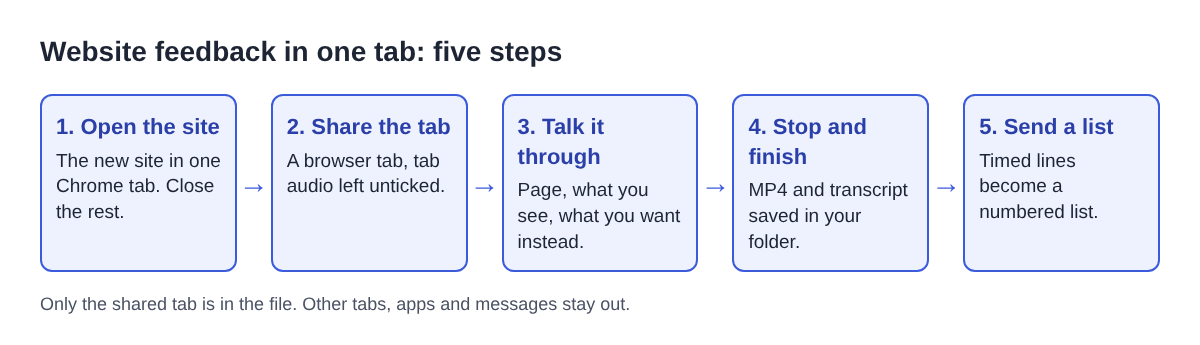
When you are done, press Stop and finish on the recorder. Do not press Chrome's own Stop sharing bar: the recorder takes that as the end and finishes the recording early.
Say three things for every comment
You did not build the site, so you may not know that the strip at the top is the header or that the moving pictures are a carousel. That is fine. Your designer needs three things, in plain words:
- The page. Say its name out loud as you arrive: "Now the menu page."
- What you see. Describe it by colour, words or place: "the green button under the form", "the second photo".
- What you want instead. A change, a question, or "keep this as it is".
Saying the page name is what makes the transcript useful later, because the written lines then start with where you were. Say what you like too. A designer who hears "keep the map exactly as it is" will not change the map in the next round.
Scroll slowly and pause on the part you are talking about. Do a 30-second test first and play it back, so you see exactly what the file shows and hear that your voice is clear.
A worked example: four pages of a bakery site
Say you run a small bakery and a designer has sent you the new site. You want to cover the home page, the menu, the order form and the contact page in one take.
- Open the preview link in one tab, close everything else, and pick A browser tab in the recorder.
- Check under Options that Live transcript is ticked, and pick the language you will speak. There are 25, and the language is set when the recording starts, so choose it first.
- Name the recording "Bakery site review 1" and start.
- On the home page: "Home page. The photo at the top is cut off, I can't see the cakes."
- On the menu: "Menu page. The prices for the sourdough are from last year."
- On the order form, fill in a test order with your own shop's details and press the button: "Order page. The green button under the form does nothing when I press it."
- On the contact page: "Contact page. I love this map. Keep it exactly as it is."
- Press Stop and finish.
Four minutes, four comments, and each one is tied to a page and a time. Your recording's folder now holds "Bakery site review 1.mp4" and "Bakery site review 1 - transcript.txt" next to it.
Turn the transcript into a list your designer can work through
The transcript file is plain text with a time on every line, counted from the start of the recording. It opens in any text editor and is easy to paste into an email. The live transcript guide has the details.
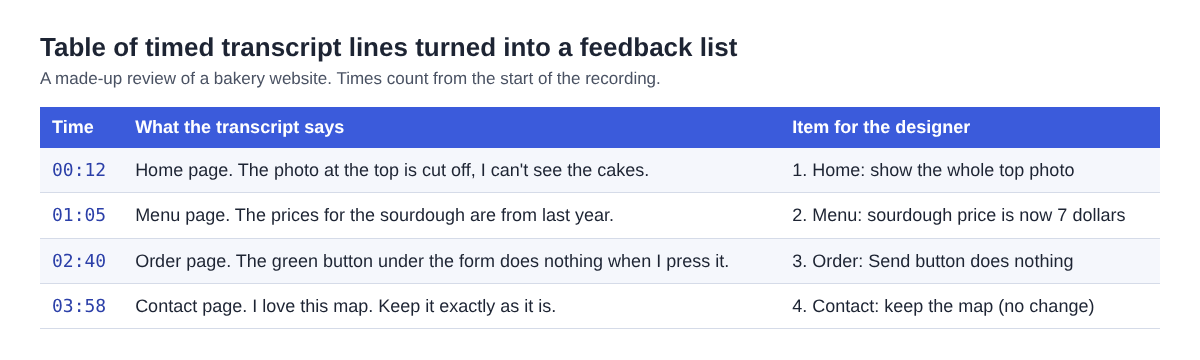
Read the transcript once and turn each comment into one numbered item: the page, then the change. Keep the time next to it, so the designer can open the video at that point when they need to see what you saw. Fix any word the speech recognition got wrong, such as a product name or a price, before you send it.
The design review post covers the other side of this: a team reviewing its own designs. For a sales or product demo in one tab, see the Chrome tab demo post.
What to check before you send it
- Play it back. The Your recording card has a player. Check that your voice is clear and that each page you named is on screen when you name it.
- Look at what was typed. Anything you filled in on a form is in the video.
- Know what left your computer. The recording is saved to your folder and is not uploaded, unless you use Convert or Download MP3, which send it to the Cheap Recorder server to be converted and delete it there when done. While the live transcript is on, Chrome sends your microphone audio to Google to turn it into text. The recorder's activity log holds the folder and file names you chose and your microphone's name, and the AI button sends the transcript to Anthropic only when you press it.
- Send both files. The MP4 for seeing, the list for doing. The captions are not drawn into the video, so the video stays clean.
If anyone else speaks in the recording, such as a business partner on the same review, let them know they are being recorded before you start.
Frequently asked questions
Does my web designer need Cheap Recorder to watch the video?
No. You send an MP4 file, which plays on any computer or phone. The transcript is a plain text file.
Should I leave my webcam on?
It is up to you. With Record my webcam off, the file holds the tab alone; with it on, your face sits in a corner, and you can drag it where it covers nothing important.
How long should a website feedback video be?
Short enough to cover one round of changes, often a few minutes. The Free plan includes 12 hours of recording a month, and if the month's minutes run out, the recording stops.
What if I forget a comment?
Record a second short video and name it so it sorts next to the first, such as "Bakery site review 1b". Each recording gets its own folder.
Get started
The Free plan needs no card and includes screen, microphone and webcam recording with a live transcript. Create a free account, open the site in one Chrome tab, and record your first round of feedback.
Screen recording that is cheap and easy.
Visit cheaprecorder.com↗

