
Record a design review and keep the feedback as a transcript
Record a design review in Chrome: share the design tab, say the screen name before each comment, and turn the timed transcript into a feedback list for the designer.
A design review is mostly spoken. "Move that up," "too tight," "I would drop the second step." A day later, nobody agrees which screen the comment was about. This post shows how to record a design review in Google Chrome with Cheap Recorder, so you keep the screen, the voices and a timed transcript, and can turn it into a feedback list the designer can work from.
Record a design review by sharing one Chrome tab
Open the design (a prototype link, a staging site, a shared file in the browser) in its own Chrome tab. In Cheap Recorder, go to What to capture and choose A browser tab. Chrome opens its own sharing box; pick the design tab there and press Share.
One tab is better than the whole screen for a review. Sharing one window or tab keeps your other tabs, chat and private things out of the file, while anything on a shared screen ends up in the recording. Close what you do not need and silence notifications before you start.
If the design plays sound, the tab gives it only when you tick the tab-audio box in Chrome's sharing window. A shared window gives no sound.
Say the screen name before every comment
The transcript only has what was said out loud. It has no idea which frame you were pointing at. The fix costs nothing: start each comment with the name of the screen, then a one-word label.
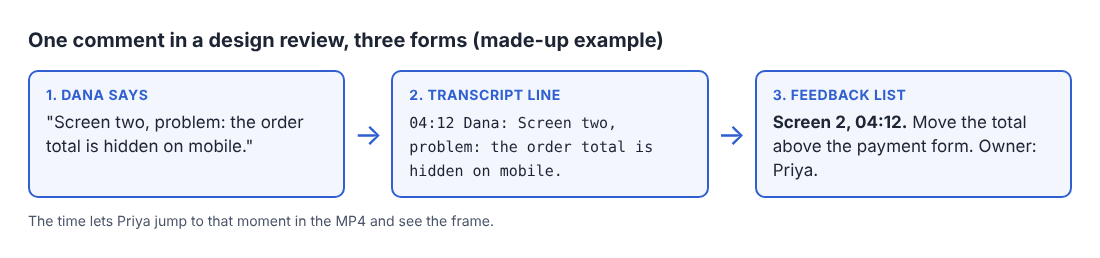
Screen two, problem: the order total is hidden on mobile.
Use the same few labels every time: problem, question, keep, change. When you read the transcript later, you can search for "problem" and get every issue in order, each with a time.
For a change that needs a decision, finish it with the owner: "Change: move the total above the payment form. Owner: Priya." That one line becomes a task without any extra writing.
A worked example: a checkout redesign
This example is made up. Dana is reviewing a three-screen checkout redesign that Priya made. Dana records alone, so Priya can watch whenever she likes, with no meeting to schedule.
- Dana opens the prototype in one tab and Cheap Recorder in another.
- She presses Choose folder... under Where to save, and allows Chrome to edit files there. Until she does, Start recording stays greyed out.
- She types
Checkout redesign reviewin Name this recording. - Under What to capture she picks A browser tab and shares the prototype tab.
- Under Options she checks that Live transcript is ticked and that the language menu shows the language she will speak. The menu goes back to its default each time the page opens, so she checks it every time.
- She records a 30-second test and plays it back. A wrong microphone or a muted tab shows up in 30 seconds, not after a 20-minute review.
- She presses Start recording and talks through three screens, using the labels above.
When she presses Stop and finish, the MP4 is in her folder. If the transcript caught speech, a plain-text file named Checkout redesign review - transcript.txt sits beside it, with the time of each line.
Turn the transcript into a feedback list
Open the transcript text file. Each line carries the time it was said, measured from the start of the recording. Search for "problem" and "change", and copy each hit into a list with its time and screen name:
- Screen 2, 04:12: order total hidden on mobile. Change: move above the payment form. Owner: Priya.
- Screen 3, 09:40: the confirm button reads "Submit". Question: could it say what happens?
The time is the point. Priya reads the line, then jumps to that moment in the MP4 and sees the frame Dana was looking at. The words give the instruction and the video gives the context.
Each line is also labelled with the sound source that was loudest while it was spoken, which here is Dana's microphone name. Above the transcript there is one Speaker box per label. Type a real name, press Save captions, and the lines start with it, for example Dana: Screen two, problem: the order total is hidden on mobile.
One thing to know: the times come from Chrome's speech recognition, which reports a time for each line, not each word. They are close, not exact, so use them to land near the moment and then scrub a few seconds either way.
Add markers for each screen
Press M or Add marker at the start of each new screen, and a short note confirms the time. Markers are not added while you are typing in a text box.
There is a catch. Markers are written to files (a markers list and a chapters file) only when Also save every source separately is ticked under Options. With the default single MP4, the notes show while you record but are not saved. If you skip that tick, spoken screen names do the same job, which is one more reason to say them.
Review live on a call
When the review is a live meeting on Google Meet or Microsoft Teams, the call has to be open in a Chrome tab for its sound to be recorded. In the Call audio tile, press Pick the call tab..., choose the call's tab in Chrome's window and tick the tab-audio box. Your microphone and the call are mixed into one recording.
Still share the design tab under What to capture, with its tab audio left unticked. If you filmed the call tab and also ticked tab audio there, the other side would be recorded twice. Wear headphones, so the other people's voices do not come out of your speakers and back into your microphone.
On a call, the transcript labels the far end as Meeting. Everyone on the other side shares that one label, so if three reviewers speak, ask each to start with their name: "Sam, screen two, question: ..." The Google Meet guide covers the sharing window in detail. If the tab share ends partway, the other side is silent from then on, and picking the tab again does not add it back to a running recording. End with Stop and finish, and not Chrome's own Stop sharing bar, which also finishes the recording.
Tell everyone you are recording. Depending on where you and they are, you may need agreement from everyone on the call.
Send the files and keep the privacy note in mind
The folder is the hand-off. The recording is an MP4 that plays almost anywhere, and the transcript is a plain text file that opens in any text editor. Send both to the designer. The guide to where recordings are saved shows what lands in each folder. Caption files are not saved in the folder; if you want an .srt, press Captions .srt in the recording's card while the recorder page is open.
If a side comment should not travel with the notes, open the Transcript fold, click the words to cut them and press Save captions. In a normal one-file recording that changes the transcript and captions, not the MP4, so cut the video in an editor if the sound must go too.
One privacy note. While the live transcript is on, Chrome sends your microphone audio to Google to turn it into text. If a review must not leave your computer in any form, untick Live transcript before Start recording. The transcript cannot be added afterwards if it was off.
The same setup works for other reviews: see the posts on a code review walkthrough and a client check-in call with action items. The live transcript guide explains the languages and the files.
Frequently asked questions
Do I need a call to record a design review?
No. You can record alone, share the design tab and talk through it, then send the MP4 and the transcript to the designer to watch later.
Does the transcript know which screen I was talking about?
No. It only holds the words and the time of each line. Say the screen name before every comment, or add markers with Also save every source separately ticked.
Can I record a design review on the free plan?
Yes. The Free plan includes recording, the live transcript and captions, 12 hours of recording a month and 1 device, and needs no card.
Can I add a transcript after the review if I forgot?
No. The transcript is made only while you record. If Live transcript was off, there is no way to add one to that recording afterwards.
Will the transcript name each reviewer on a call?
Not by itself. Lines are labelled by sound source, so the whole far end shows as Meeting. Ask each reviewer to say their name first, or type names in the Speaker boxes for one-microphone labels.
Get started
Record a 30-second test on your next review, then read the transcript back before you rely on it. Start on the free plan in Chrome; your recordings stay on your own computer.
Screen recording that is cheap and easy.
Visit cheaprecorder.com↗

