
Record a client check-in call and keep action items
Record a client check-in call in Chrome with both voices and a transcript, save it on your own computer, and turn it into an action list with owners and due dates.
To record a client check-in call and keep the action items, the recording is the easy part. The hard part is what happens after. Someone says "I will send that over by Friday" and nobody writes it down. This post shows how to capture the call in Chrome, then pull the promises out of the transcript while the call is still fresh.
Why a check-in call needs a recording
A check-in is short and full of small promises. The client asks for a change, you agree a date, and someone on your side takes a task. Notes typed during the call are usually partial, because you cannot listen well and type at the same time.
A recording keeps the exact words. A transcript lets you search and skim them. Recording calls may need everyone's agreement, depending on where you and your client are, so say at the start that you are recording and wait for a yes.
What to set up before the call
Do this five minutes before the call. It saves you from finding out afterwards that nothing was captured.
- Open the call in a Chrome tab. Cheap Recorder runs in Google Chrome, and the call has to be open in a Chrome tab for its sound to be captured.
- Choose a folder. Under Where to save, press Choose folder... Until you do, Start recording stays greyed out, and the words next to the button say why.
- Name the recording. Type the client and a number in Name this recording, for example
Acme check-in 04. The name is used for the file and its folder, and the folder name also gets the date and time. - Keep Live transcript ticked. It is under Options and ticked by default. A transcript cannot be added to a recording afterwards. Check the language menu too, because it goes back to its default each time the recorder page opens.
- Wear headphones. They stop your client's voice going from your speakers back into your microphone.
- Leave Record the microphone untouched unticked. It turns off echo and noise clean-up, which you want on for a call.
Then record a 30-second test and play it back. It catches a wrong microphone or a muted tab. Our Google Meet guide covers the call setup in more detail.
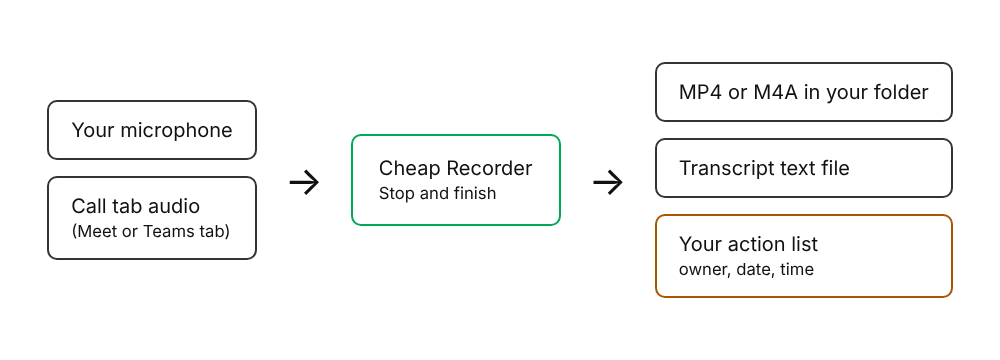
How to record a client check-in call in Chrome
- Join the call in a Chrome tab.
- Open Cheap Recorder and allow the microphone when Chrome asks. Make sure the microphone you speak into is ticked.
- In the Call audio tile, press Pick the call tab.... In Chrome's sharing window choose the Meet or Teams tab, tick Share tab audio (some Chrome versions say Also share tab audio) and press Share.
- If you only need the conversation, switch off Record my webcam and pick no screen. The result is an M4A audio file instead of an MP4.
- Tick Also save every source separately under Options if you want the far end in a file of its own next to your microphone. Everyone on the far end shares that one track.
- Say that you are recording, then press Start recording.
- When the call ends, press Stop and finish. Chrome's own Stop sharing bar also finishes the recording, but it is easy to hit by mistake.
Your microphone and the call are mixed into one recording. By the time the card appears, the file is already saved in your folder.
One catch: if the tab share ends during the call (the recorder says Meeting audio sharing stopped.), the other side is silent from then on, and picking the tab again does not add it to a running recording. Leave the call tab open for the whole call.
Mark action items as they happen
Press M or the Add marker button when someone commits to something. A short note confirms the time. Markers are not added while you are typing in a text box.
Markers are written to files only when Also save every source separately is ticked. With the default single file, the notes show while you record but are not saved. If you did not tick it, jot the times on paper.
Turn the transcript into action items
With Live transcript on, a plain-text transcript is saved in the recording's folder. It opens in any text editor. Work through it like this:
- Open the transcript next to a blank notes page.
- Search for phrases that signal a commitment: "I will", "can you", "by Friday", "next week", "let's".
- For each hit, copy the line and its time into your notes.
- Turn each one into a task: a verb, a thing and a date.
A line like "Priya: I can send the revised quote tomorrow" becomes Send revised quote, tomorrow, with the time beside it so you can check the exact wording later.
Speaker labels follow sound sources, not voices. Your lines carry your microphone's name, and the other side of the call is labelled Meeting. Above the transcript there is one Speaker box per label: type a real name and press Save captions. Two clients on the same call share the one label Meeting, so tell them apart by context.
The transcript comes from Chrome's speech recognition, which sends your microphone audio to Google. Check any name, number or date against the recording before you act on it. The AI button on the card sends the transcript with speaker names to Anthropic, and only when you press it; read what it gives back before you rely on it.
Assign owners and due dates while it is fresh
Do this within an hour of the call, while the context is still in your head. For each item, write three things: an owner (one name, because if two people own it nobody does), a due date (a real date, not "soon") and the source time in the recording.
Here is a made-up example of a finished list:
- Send revised quote. Owner: you. Due: Thursday. Source: 00:12:40.
- Share access to the staging site. Owner: client lead. Due: Friday. Source: 00:21:05.
- Confirm launch date. Owner: you. Due: next check-in. Source: 00:34:18.
Cheap Recorder does not manage tasks, so paste the list into whatever tracker your team already uses, or save it as a text file in the recording's folder so the list and its source stay together.
Send the client a short recap
Send a recap the same day: the action list, the date of the next check-in and one sentence on anything still open. Clients rarely want the full recording, and a short list gets read.
To send captions, press Captions .srt on the card. It is not saved in the folder, so download it while the recorder page is open.
If the client does need the recording with its transcript in one place, the client demo guide explains the publish page: a player, chapters and the transcript, opened from the folder. It needs the Creator plan or above, and you must tick Also save every source separately before you record. Each marker becomes a chapter, so your action-item markers turn into jump points. Send the whole recording folder, zipped, not just the page.
Keep check-in recordings easy to find
After a few months you will have a lot of calls. Name every recording the same way, client first and then a number, and sort by name to group a client or by date to see the order. Each recording gets its own folder, so one parent folder per client keeps things tidy.
Recordings are ordinary files on your computer. The card, with its download and Convert buttons and transcript edits, lasts only while the recorder page is open, so finish those first. Convert and Download MP3 send the file to the server, which deletes its copy when it finishes; otherwise nothing is uploaded.
The same habits work for other recurring conversations. See how we handle an onboarding call and a user research interview.
Frequently asked questions
Can I record a client check-in call on the free plan?
Yes. The Free plan includes recording, live transcript and captions, with 12 hours of recording a month on 1 device and no card needed. Publish pages need Creator or above.
Does Cheap Recorder upload my call?
No. The recording is written to a folder you choose on your own computer. The exceptions are Convert and Download MP3, which send the file to the server and delete it when the conversion finishes. The live transcript also sends your microphone audio to Google through Chrome.
Will the client's voice be recorded separately from mine?
Yes, if you tick Also save every source separately before you start. The other side of the call is saved as its own file next to your microphone, and everyone on the far end shares that one track.
Do markers save to a file?
Only when Also save every source separately is ticked. With the default single file the marker notes appear while you record but are not saved.
What if the call tab stops sharing midway?
The other side goes silent from that point, and picking the tab again does not add it to a running recording. Test first, and leave the call tab open the whole time.
Get started
Choose the folder, do a 30-second test, and record your next check-in. Then spend ten minutes writing the action list while the call is fresh. Start with the free plan, no card needed. If you are comparing tools first, read our comparison with other recorders.