
Record a customer onboarding call and keep the transcript
Record a customer onboarding call in Chrome with both voices and a transcript, save it on your own computer, and turn it into a follow-up email.
To record a customer onboarding call and keep the transcript, you need three things: your voice, the customer's voice and a text copy you can search later. Cheap Recorder does this in Google Chrome. You get one MP4 on your own computer, and a transcript beside it.
Why record a customer onboarding call
An onboarding call is full of small decisions. The customer says which team will use the product, which integration comes first and what "done" looks like. It is hard to take good notes while you also talk and share your screen.
A recording fixes that, and a transcript fixes it better. You can search it for a name, a date or a promise without scrubbing through video. Teammates who join the account later can read what was agreed instead of asking you.
Ask before you hit record
Always let people know they are being recorded. Say it at the start of the call and in the invite. Rules differ by country, so if the customer says no, do not record, and take notes by hand.
A simple line works: "I'm recording this call so I can send you a written summary. Is that okay?" Also tell them how the text is made. While the live transcript is on, Chrome sends your microphone audio to Google to turn it into text.
What to set up before the call starts
- Use Chrome. Open the call in a Chrome tab, such as Google Meet or Microsoft Teams in the browser, so the recorder can take its sound.
- Wear headphones. They stop the customer's voice coming out of your speakers and back into your microphone, which is what causes echo.
- Check your internet. There is no offline mode. Start recording stays greyed out until the recorder can reach Cheap Recorder.
- Check the transcript language. The menu sits beside Live transcript under Options. It goes back to its default each time the recorder page opens, so check it before every call.

Record a customer onboarding call in Chrome, step by step
Open the recorder at cheaprecorder.com/app. The Free plan has recording, the live transcript and captions, with 12 hours of recording a month and no card.
- Choose where to save. Press Choose folder... and allow Chrome to edit files in it. You pick the folder again on each visit.
- Name the recording. Type something like
Acme onboarding 01. The folder gets that name plus the date and time, and numbering keeps one customer's calls in order. - Tick your microphone. Allow it when Chrome asks. A level bar moves while you talk, so you can see it works.
- Pick the call tab. The next section covers this step.
- Check Live transcript. It is ticked by default under Options. If it was off, a transcript cannot be added to that recording afterwards.
- Press Start recording. If it is greyed out, read the note beside it. It gives one reason at a time, such as choose a folder first.
- Press Stop and finish. Chrome's own Stop sharing bar also finishes the recording, so use Stop and finish. The file is already saved in your folder.
Before the first real call, do a 30-second test: say a sentence, stop and play it back. It catches a wrong microphone while the fix is still cheap.
Capture the customer's voice as well as yours
Your microphone alone will not hear the customer clearly. The Call audio tile does.
- Press Pick the call tab....
- In Chrome's sharing window, choose the Meet or Teams tab.
- Tick Share tab audio. Some Chrome versions say Also share tab audio.
- Press Share.
The recorder keeps only that tab's sound, and your microphone and the call are mixed into one recording. The guides for recording a Google Meet call and recording a Microsoft Teams call have the details for each service.
Two things to watch. If the tab share ends, you will see Meeting audio sharing stopped. and the customer is silent from then on. Picking the tab again does not add it to a running recording, so leave the call tab open. And leave Record the microphone untouched unticked for calls: it turns off echo, noise and volume correction, which you want on.
Keep each voice on its own file
If you may need to clean up the audio later, tick Also save every source separately under Options before you start. You still get the MP4, and a Separate sources folder holds one audio file per microphone plus audio_meeting_far_end.webm for the customer's side. It cannot be added afterwards. Everyone on the far end shares that one track, so three colleagues on the customer's side are on the same file.
Keep the transcript and name the speakers
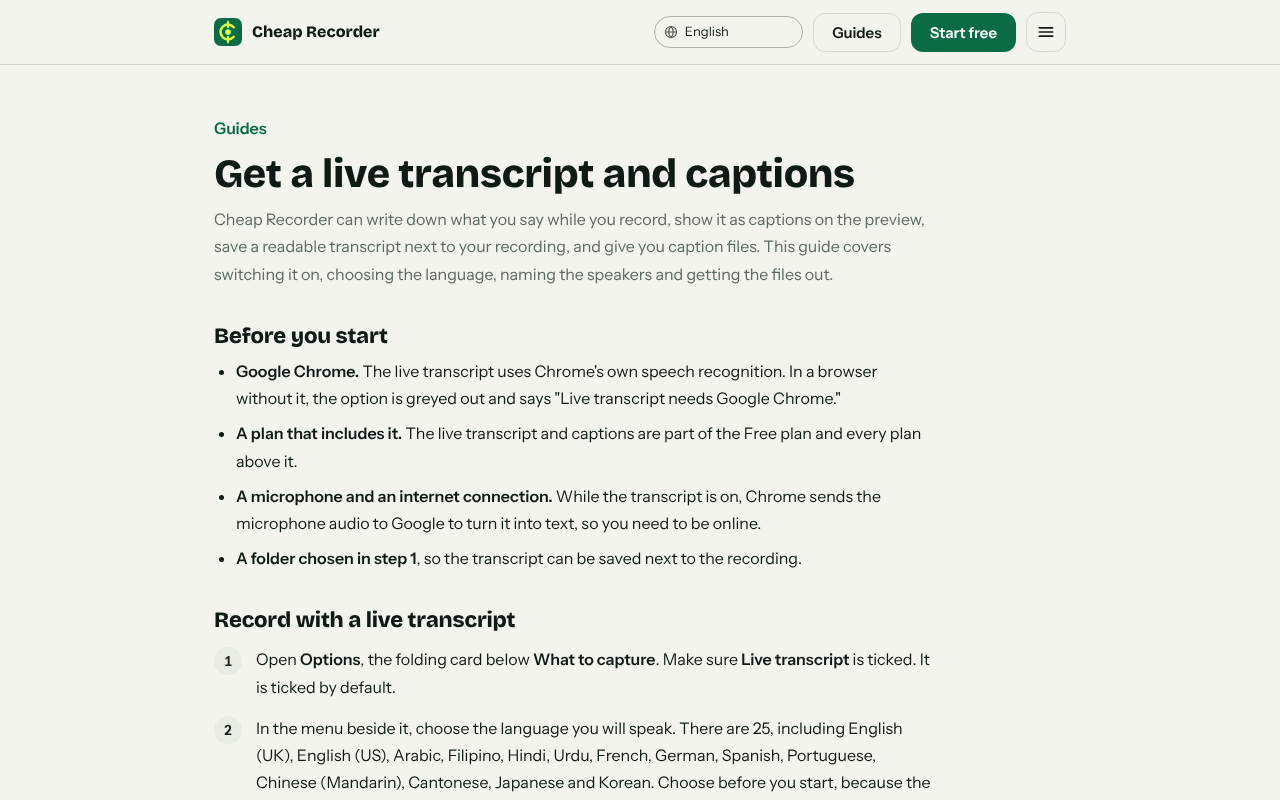
After Stop and finish, the recording appears on the page with a player. The folder holds a plain-text transcript with times, for example Acme onboarding 01 - transcript.txt. It opens in any text editor.
Each line is labelled with the loudest source while it was spoken: your microphone's name, or Meeting for the customer's side. Above the transcript there is one Speaker box per label. Type a real name such as Priya and press Save captions, and lines then read "Priya: We need the CRM import done before the 15th."
The Captions .srt file is made in the page and is not written to your folder, so download it from the card while the recorder page is open. Chrome can mishear names, so skim for the customer's company and product names before you send anything.
A worked example: from transcript to follow-up
This example is made up. Open the transcript and search for words that signal a commitment: "by Friday", "can you", "we need", "next week". Copy those lines into an email with their times:
Thanks for your time today. Here is what we agreed. At 00:12:40 you asked for the CRM import to be ready before the 15th. At 00:31:05 we agreed I would send the admin setup guide. The full transcript is attached.
The times let anyone jump to the exact moment in the MP4. If you want a how-to for the customer's team, turn the transcript into step-by-step instructions.
You can also press M or Add marker at the start of each new topic. Markers are saved only when Also save every source separately is ticked. With the default single MP4, the notes show while you record but are not saved, so jot down any times you need.
Where the recording goes and who sees it
The recording is written to the folder you picked, and Cheap Recorder does not keep a copy. The exceptions are Convert and Download MP3, which send the file to the server and which delete their copy when done. The AI button sends the transcript with speaker names to Anthropic, but only when you press it. The privacy page also says the activity log holds the folder and file names you chose and your microphones' names.
A sensible habit is one parent folder per customer, with each call in its own dated subfolder. To share, attach the transcript text or send the MP4. On Creator and up, ticking Also save every source separately gives a publish.html with a player, chapters from your markers and the transcript. Zip and send the whole recording folder, not just the page.
Cutting words in a normal one-file recording changes the transcript and captions, not the MP4. For related setups, see recording a webinar with a transcript and a product walkthrough for a new teammate.
Frequently asked questions
Do I need the customer's permission to record an onboarding call?
Often yes, depending on where you both are. Tell the customer you are recording, at the start and in the invite, and do not record if they say no.
Can I record a customer call on the Free plan?
Yes. The Free plan includes recording, the live transcript and captions, 12 hours of recording a month and 1 device, with no card needed.
Why is the customer silent in my recording?
Usually the call tab was not shared with its audio, or the share ended mid-call. Press Pick the call tab..., choose the call's tab and tick Share tab audio before you start.
Can I add a transcript after the call?
No. If Live transcript was off, a transcript cannot be added to that recording afterwards. Check it under Options before you press Start recording.
Is the recording uploaded anywhere?
No, it is saved to your folder. Convert and Download MP3 send the file to the server to be converted, and while the live transcript is on, Chrome sends your microphone audio to Google.
Get started
Pick a folder, run a 30-second test, then record your next onboarding call with the customer's agreement. Start on the Free plan with no card. Comparing tools first? See how Cheap Recorder compares with Loom, Camtasia, Descript and Riverside.