
Chrome tab demo: keep other tabs out of the recording
Record a Chrome tab demo that shows only the tab you pick: other tabs and apps stay out, the sound is set in one place, and the MP4 saves on your computer.
A Chrome tab demo shows one web page and nothing else. You share a single tab instead of your screen, so your email, your chat and the other tabs in your window never reach the file. With Cheap Recorder you make one in Google Chrome and get an MP4 on your own computer.
Why a Chrome tab demo keeps other tabs out
When you share your whole screen, anything on it ends up in the recording. That includes the notification that pops up halfway through and the tab you forgot about at the edge of the window. A demo for a client is the wrong place to find out what was open.
The Cheap Recorder guides say it plainly: for a web app, A browser tab keeps your other tabs and apps out of the demo. Sharing one window or one tab keeps private things out of shot.
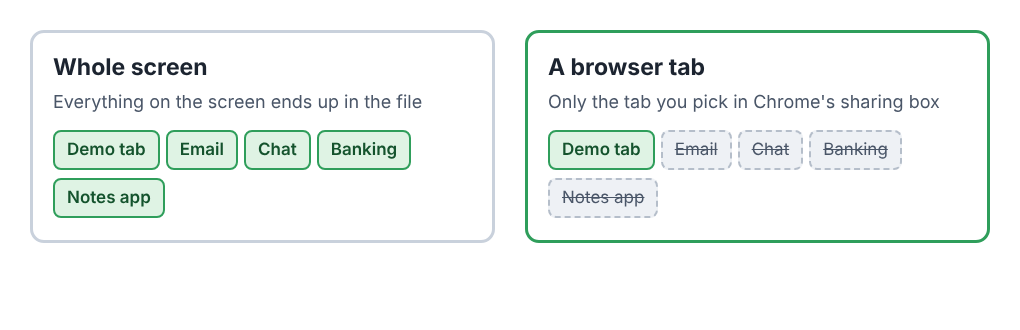
This works for a web app, a dashboard, a settings page or a website you want to walk someone through. It does not work for a demo that moves between desktop programs. For that, share a window or the whole screen, and tidy it first.
Get the demo into one tab before you press anything
A tab share records the tab you picked. So the demo has to live there. Open the page you will show, sign in to the account you will use, and load the screens in the order you plan to visit them.
Then do the housekeeping the guides ask for. Close the tabs and apps you do not need and silence notifications. A tab share leaves the rest of the screen out, but a quiet screen is still the safest start.
Use a demo account where you can. If the page shows another customer's name or data, pick a different page or a different account. Also tell the people in the demo that you are recording.
Pick the tab in four steps
- Open the recorder in Chrome and sign in. Under 1 Where to save, press Choose folder... and pick a folder. Chrome asks if the page may save files there; allow it.
- Under 2 What to capture, choose A browser tab. Chrome opens its own sharing box.
- In that box, pick the demo tab. Tick the tab-audio option only if the demo plays sound you want in the file (the next section says more). Press Share.
- The preview appears at the bottom of the page. Check that it shows your demo tab and nothing else.
Until you pick something, the preview shows only the camera, so an empty preview means the share did not happen yet. Type a title into Name this recording, press Start recording, and give your demo. Press Stop and finish when you are done.
Leave Record my webcam on if you want your face in the corner. Switch it off for a screen-only demo. The Layout menu in the preview heading has Picture in picture, Side by side, Screen only and Camera only. The screen and webcam guide covers moving and sizing the camera.
Set the sound in one place
Your voice comes from the microphone. The sound of the page is separate. Chrome hands over a tab's sound only when you choose A browser tab and tick the tab-audio option in its sharing box. A shared window gives no sound, and on a Mac a whole-screen share has none either.
Sound from other programs on your computer cannot be recorded this way. If your demo needs a video or a sound clip, play it in a Chrome tab. Leave that tab open for the whole recording, because if it closes, Chrome stops sharing its sound.
If the demo is a call, such as a Google Meet tab, tick tab audio in one place only. Ticked in the sharing box and again under Call audio, the voices go into the file twice. The no sound guide has the full rules.
A worked example: a made-up invoice demo
This example is made up. Dana sells invoicing software and has to show a new client how to send an invoice. Her browser has fourteen tabs: her email, a chat, a spreadsheet of client names and the demo account.
- She opens the demo account in its own tab, loads the invoice list and the new invoice form, and closes the email and chat.
- In the recorder she chooses her Videos folder and types "Invoice demo for Northwind" into Name this recording.
- She picks A browser tab, chooses the demo account tab in Chrome's box and presses Share. She leaves tab audio unticked, because the demo has no sound.
- She records a 30-second test: she says her name, opens the form and stops. She plays it back and checks her voice and that only the demo account shows.
- She starts the real take and walks through the invoice. She presses Stop and finish at the end, not Chrome's Stop sharing bar.
The file is in a new folder inside the folder she chose, named with the date and the recording's name. She does not have to wonder whether the spreadsheet of client names slipped in, because it was never in the shared tab.
Run a 30-second test first
The course guide recommends a 30-second test at the start of each session, played back. It catches a wrong microphone or a muted tab before you lose a whole demo. For a tab share, the test also answers three questions:
- Does the preview show the right tab?
- Can you hear your voice, and the tab's sound if you ticked it?
- Is the camera where you want it, if it is on?
The test is a short recording like any other. Play it, then delete or keep it, and start the real one.
What a tab share does not do
- It does not rescue a messy tab. Everything inside the shared tab is in the file, so look at the tab itself before you start.
- It ends if you press Chrome's Stop sharing bar. The recorder takes that as the end and finishes the recording. Use Stop and finish instead.
- It needs the tab open. If you close the tab that is playing sound, Chrome stops sharing its sound.
- It only works in Chrome. Cheap Recorder runs in Google Chrome on macOS, Windows and Linux.
Where the file goes is covered in the where recordings are saved guide. For a short video to send to a new client, see our welcome video for a new client post.
Frequently asked questions
Does a tab share hide my bookmarks bar and address bar?
The guides do not say what Chrome draws around a shared tab, so do not rely on it. Press Share, look at the preview and read what it shows before you start.
Can I add a second tab after I start?
The guides do not describe adding a second tab to a running recording. If the demo needs two tabs, record two takes, one tab each, or put the second page in the first tab.
Is the demo uploaded anywhere?
No. The file is saved straight into the folder you chose, and nothing is uploaded unless you use Convert or Download MP3, which send the file to the Cheap Recorder server and delete it there when they finish. The privacy page says the recorder's activity log holds the folder and file names you chose and your microphones' names.
Does the live transcript leave my computer?
While Live transcript is on, Chrome sends the microphone audio to Google to do it. Switch it off under Options if you do not want that.
Does it cost anything?
The Free plan covers recording, a live transcript and captions, 12 hours of recording a month and 1 device, with no card needed.
Get started
Open the recorder in Chrome, choose A browser tab, pick your demo tab and record a 30-second test. The free plan needs no card: start a free recording.
Screen recording that is cheap and easy.
Visit cheaprecorder.com↗

