Volunteer training session on Google Meet: record it to reuse
Record a volunteer training session on Google Meet in Chrome, jot the time of each block, and send new volunteers the video, the transcript and a list of times.
A volunteer training session takes an hour of your evening, and then a new volunteer signs up the next week and needs the same hour. If you run your training on Google Meet, you can record it once in Chrome with Cheap Recorder and give every later volunteer the video, a transcript and a short list of where each part starts. This post shows the setup, how to run the session so the recording is easy to use, and what to send afterwards.
Why record a volunteer training session
Most groups teach the same things to every new volunteer: where to go, who to ask, what is safe, and the steps of the job itself. Saying it live to each person costs the organiser time, and the details drift a little each time.
- Latecomers get the real session. Someone who joins in month three hears the same words as the first group, not a rushed version in the car park.
- Volunteers can look things up. A volunteer who forgot the check-in steps can jump to that part instead of asking you again.
- You keep one version. When a step changes, you know exactly which part of the training to record again.
This is different from a recorded workshop for the people who attended, or a software training video you record alone. Here the audience is people who were not on the call at all, so the recording has to make sense without you there to explain it.
Before the session: consent, headphones and a test
Tell everyone you are recording before you start. Put it in the Meet chat when you send the link, and say it again out loud once the recording is running, so the agreement is in the file. Add one more line that a workshop recording does not need: "This video will be shown to volunteers who join later." People ask different questions when they know strangers will hear them.
Offer a way out, too. Say that anyone with a personal question, such as about their schedule or their health, can ask it after you stop recording. The law on recording calls differs from place to place, and some places need everyone to agree, so follow the rules where you and your volunteers are.
Then check your own side:
- Wear headphones. They stop the volunteers' voices coming out of your speakers and back into your microphone.
- Check your minutes. Each plan has a number of recorded minutes a month. Open your name in the top right of the recorder to see how many are left. If they run out mid-session, the recording stops.
- Do a one-minute test. Before the real session, make a short test call with a friend, play it back in the player on the page, and check that you can hear both of you.
Set up the recorder to film the Meet tab
A training session usually has slides or a shared screen, so you want the picture as well as the sound. The Google Meet guide covers this case: film the Meet tab itself, and take its sound once, through the Call audio tile.
- Open the Meet call, or its waiting screen, in a Chrome tab. Open Cheap Recorder in another tab and sign in.
- Under Where to save, press Choose folder... and pick a folder. Each recording gets its own folder inside it, named with the date, the time and the recording's name.
- In the Call audio tile, press Pick the call tab..., choose the Meet tab, tick Share tab audio (some versions of Chrome say "Also share tab audio"), then press Share. The tile changes from "not captured" to "on" followed by the tab's name. This tile keeps only the tab's sound, not its picture.
- Under What to capture, choose A browser tab and pick the same Meet tab. Chrome offers tab audio in this window too. Leave it unticked. If you tick it in both places, the volunteers' voices go into the file twice.
- Tick Live transcript under Options. The transcript is only made while you record; if it was off, there is no way to add one afterwards.
- Type a name in Name this recording, such as "Volunteer training November", and press Start recording.
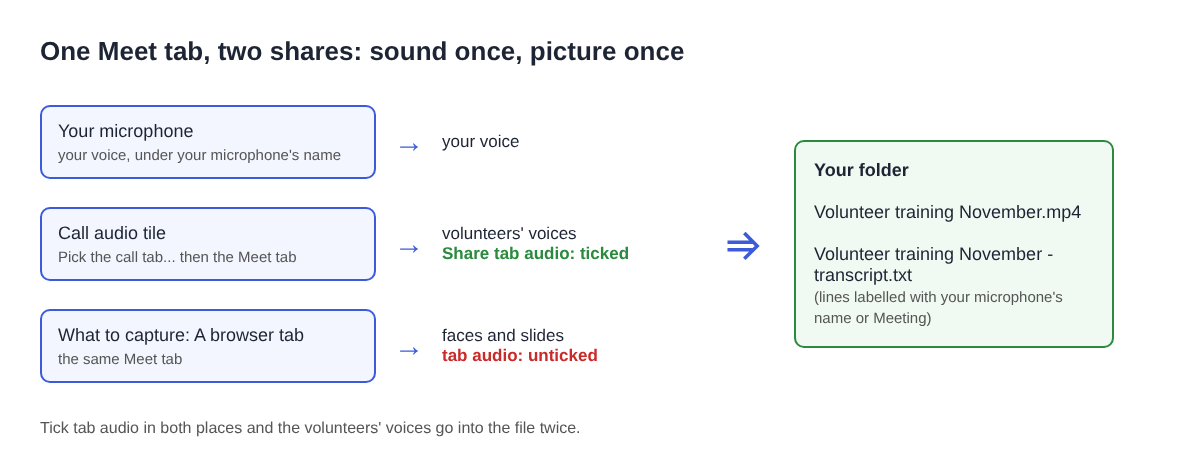
Present your slides in Meet as you normally would. Because you are filming the Meet tab, the recording shows the faces and any shared slides, the same view the volunteers see.
Run the session in blocks and jot the times
A later volunteer will rarely watch the whole hour. Make it easy for them to find their part by running the training in clear blocks and saying the name of each one out loud: "Next, the check-in desk."
Keep paper or a notes window beside you, and write down the timer at the start of each block. You can press M or Add marker as well, but with the default single MP4 the marker notes appear while you record and are not saved, so the written times are what you will send.
Two things to watch while it runs:
- Keep the Meet tab open. If it closes, or its sharing is stopped from Chrome's bar, "Meeting audio sharing stopped." appears and the volunteers are silent from then on. Picking the tab again does not add it to a recording already running, so stop and start a new recording, and tell the call you are doing it.
- Repeat questions before you answer. Everyone on the far side of the call shares one label in the transcript, Meeting. Saying "Sam asks whether we can bring kids" puts the question in your own voice, so a later reader knows who asked and what the answer is about.
When the training ends, press Stop and finish before the personal questions start. The recording is already saved in your folder.
A worked example: a food bank training evening
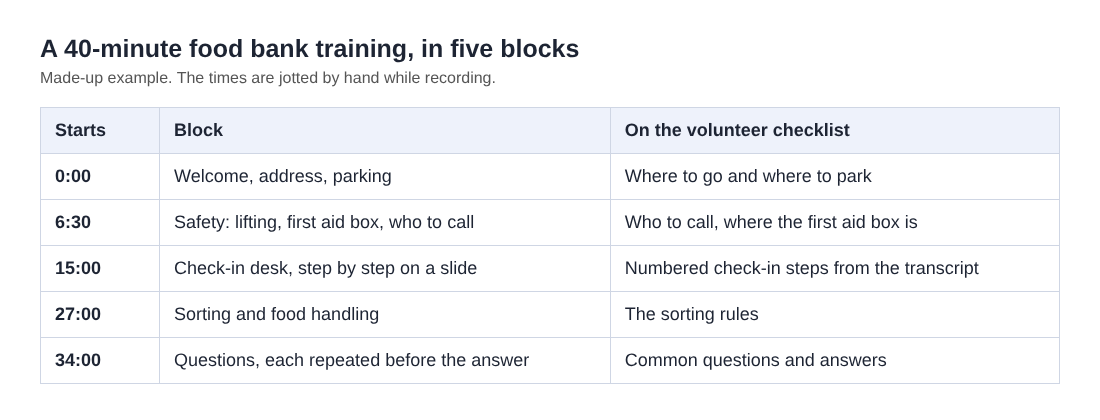
Say you coordinate volunteers at a food bank and run a 40-minute training on Meet once a month. You record it as above and jot these times:
- 0:00, welcome, the address and where to park.
- 6:30, safety: lifting, the first aid box, who to call.
- 15:00, the check-in desk, step by step on a shared slide.
- 27:00, sorting and food handling.
- 34:00, questions, each one repeated before the answer.
Afterwards, open the recording's folder. Next to the MP4 is Volunteer training November - transcript.txt, plain text with times and speaker names. Your lines carry your microphone's name, and the volunteers' questions carry Meeting. You can type your own name into the box for your label and press Save captions to write the transcript again with it.
Now copy the check-in desk part of the transcript, from about 15:00 to 27:00, into a document and tidy it into numbered steps. Chrome reports a time for each line, not each word, so the times are close rather than exact; play the video around any step you are unsure of. That gives a new volunteer three things: the video, the list of five times, and a one-page checklist they can print. Send them the way your group already shares files.
Next month, if the check-in steps change, you record only that block again, under a name like "Volunteer training check-in update", and replace that line on the list. For more on transcript labels and files, see the live transcript guide.
What the recording cannot do
A few limits are worth knowing before the recording becomes your training:
- One label for every volunteer. The transcript cannot tell the people on the call apart; they are all Meeting. Repeating questions, as above, is the workaround.
- The live transcript uses Google. While it is on, Chrome sends the microphone audio to Google. The recording is not uploaded anywhere; it stays in the folder you chose and leaves your computer only if you use Convert.
- The AI button sends text. If you press an AI button, the transcript with its speaker names is sent to Anthropic. Nothing is sent unless you press one.
- It does not replace hands-on training. A video can show where the first aid box is. It cannot check that a volunteer can lift a crate safely, so keep the in-person parts in person.
If your group also meets in smaller circles, the study group call post shows how to share notes from a call where everyone talks.
Frequently asked questions
Do I have to tell volunteers the session is recorded?
Yes. Say it in the chat and again out loud once recording starts, and tell them the video will be shown to volunteers who join later. The law differs from place to place, and some places need everyone to agree.
Why do the volunteers' voices sound twice in my recording?
You ticked tab audio both in the Call audio tile and in the browser tab share. Leave it unticked in the browser tab share and take the sound only through Pick the call tab..., then record again.
Can I add a transcript after the session?
No. The transcript is only made live while you record. If Live transcript was off, there is no way to add one to that recording afterwards.
Will the transcript name each volunteer who asked a question?
No. Everyone on the far side of the call shares the Meeting label. Repeat each question out loud with the person's name before you answer, so it is in your own lines.
Get started
The Free plan needs no card and gives you 12 hours of recording time with the live transcript, and your files stay on your disk. Run a one-minute test call with a friend, then record your next volunteer training session once and reuse it. Start recording for free.
Screen recording that is cheap and easy.
Visit cheaprecorder.com↗