
Software training video for new hires: record one in Chrome
Record a software training video for new hires in Chrome: plan short numbered lessons, share one tab with its sound, mark each step and keep a transcript they can search.
A software training video lets you teach a tool once and have every new hire watch it on their first morning. You do not need a studio or an editing suite. You need Chrome, a microphone and a plan for what you will show. Cheap Recorder runs in Chrome on macOS, Windows and Linux and saves one MP4 on your own computer, with a transcript if you want one.
This post follows one made-up example: training new support hires on a web-based ticketing tool, in four short lessons. The steps work for any software you can open in a browser tab.
Why a software training video beats a live session
A live session helps the people in the room. A recording helps everyone who starts after them. The next hire can pause it, rewatch the confusing part and come to you with better questions.
If you want a wider tour of your product for one teammate, see record a product walkthrough for a new teammate. This post is narrower: one tool, taught lesson by lesson.
Plan the lessons before you record
Long, unbroken recordings are hard to use. Keep each lesson to one job, and give each a number so the files sort in order. Name this recording is used for the file and its folder, so numbering such as Support tool 01 - Queue keeps lessons in sequence.
For the ticketing tool, the four lessons could be:
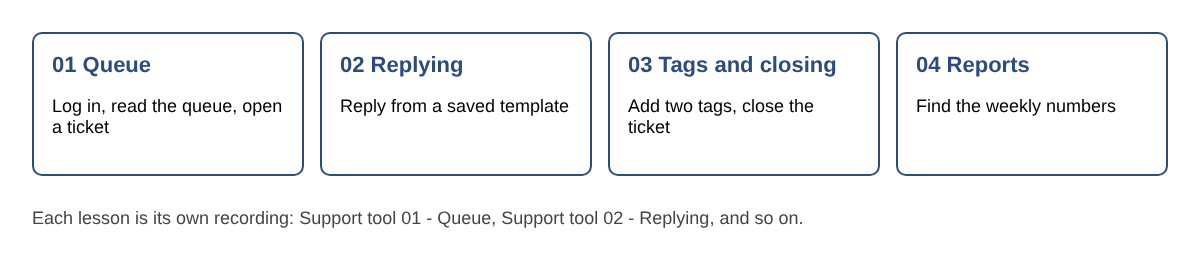
- 01 Queue: log in, read the queue, open a ticket.
- 02 Replying: write a reply from a saved template.
- 03 Tags and closing: add two tags and close the ticket.
- 04 Reports: find the weekly numbers.
Each lesson then runs about five minutes, and a new hire can find and rewatch the right one.
Prepare the screen and the sound
Ten minutes of setup saves a retake.
- Use a test account. Everything on the shared screen ends up in the file, so keep real customer names and emails out of view.
- Close what you do not need. Shut extra tabs and apps and silence notifications.
- Share one browser tab, not the whole screen. That keeps other tabs, apps and private things out of the recording.
- Pick the microphone you speak into. Open Change or add microphones, tick it, and watch its level bar move while you talk.
Sound from the tool, such as a video inside it or a chime, comes with the screen pick only when Chrome shares it. Choose A browser tab and tick the tab-audio option in Chrome's sharing window. When you share a window, Chrome does not hand over its sound, and on a Mac a whole-screen share has none either. Keep the tab open for the whole recording, because if it closes, Chrome stops sharing its sound. If a take has no sound at all, the no sound in screen recording guide covers the usual causes.
Record the training session in Chrome
- Open the recorder in Chrome and sign in. When Chrome asks, allow the microphone.
- Under Where to save, press Choose folder... and pick a folder. Chrome asks whether the page may edit files in that folder; allow it. The recorder does not remember the folder between visits, so you choose it again each time.
- Type the lesson name in Name this recording.
- Under What to capture, choose A browser tab. In Chrome's sharing box, pick the tab with your training tool, tick the tab-audio option and press Share.
- Decide on your camera. Many trainers leave Record my webcam on so new hires see a face. The default layout is Picture in picture, bottom right. Switch the webcam off for a screen and voice recording.
- Press Start recording. If it is greyed out, read the words beside the button; they say why, for example choose a folder first.
- When you finish, press Stop and finish. Do not use Chrome's own Stop sharing bar, because that also ends the recording.
While you record, the file is written to your folder about once a second, so a long take does not fill your computer's memory. After you stop, the recording appears on the page with a player and is already saved in your folder.
Record 30 seconds first
Do a 30-second test, play it back, and check that you can hear your voice and that the right tab is shown. It is the cheapest way to catch a wrong microphone or a muted tab.
Talk through each lesson so new hires can follow
Say what you are about to do before you do it. For lesson 02, you might start like this:
"In this lesson I will open a ticket, write a reply from a saved template and send it. Let's start with the queue."
Press M, or Add marker, at the start of each new step while you record. A short note confirms the time. There is a catch: markers are written to files only when you tick Also save every source separately before recording. With the default single MP4, the notes show on screen but are not saved, so jot down any times you need.
With that option on, the Separate sources folder holds a markers list, and the publish page turns each marker into a chapter. The publish page is on Creator and up. The record a course or tutorial guide goes deeper on lessons, and how-to video for a team wiki covers the written side of the same job.
Keep a transcript so training is searchable
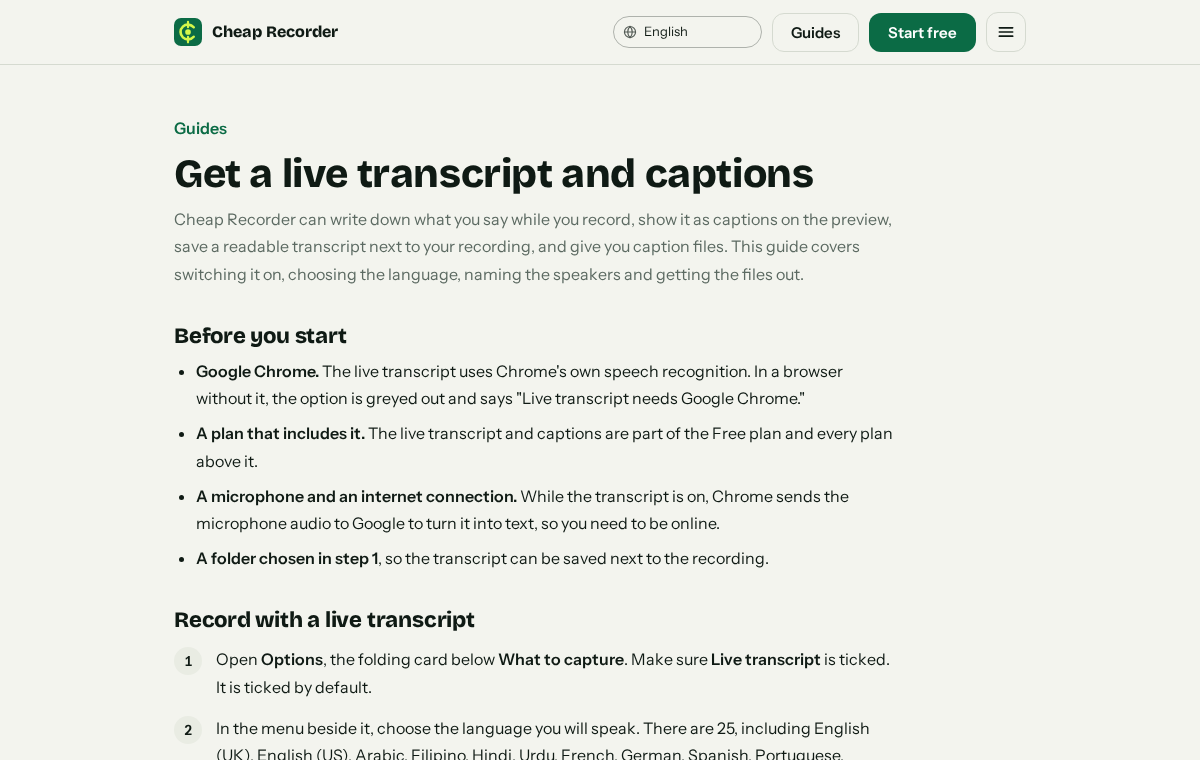
Live transcript is ticked by default under Options, and it is on the Free plan. Beside it is a language menu with 25 languages. Chrome listens for one language per recording, and the menu goes back to its default each time the recorder page opens, so check it before every recording. If the transcript was off, you cannot add one afterwards.
After Stop and finish, the card gives you Captions .srt and Transcript downloads. The recording's folder also holds a plain-text file such as Support tool 01 - Queue - transcript.txt with the time of each line. A new hire can open it in any text editor and search for a word like "refund" to find the right lesson.
Two things to know:
- While the live transcript is on, Chrome sends your microphone audio to Google to turn it into text. If a recording must not leave your computer in any form, untick Live transcript before you press Start recording.
- Caption files are not saved in the folder. Press Captions .srt on the card to download one while the recorder page is open.
Organise and share the lessons
Each recording gets its own folder: the name you typed, then the date and time it began, for example Support tool 01 - Queue - 2026-10-21 10.30. Sort by name to keep lessons in order. Put the folders in a shared drive or wiki your company already uses, because Cheap Recorder does not upload your recordings. The where recordings are saved guide lists what each folder holds.
The MP4 uses H.264 video and AAC sound and plays almost anywhere. Download MP3 and Convert make other formats, but both send the file to the Cheap Recorder server, which deletes its copy when it finishes. The original in your folder is never changed.
Frequently asked questions
Can I record a software training video on the Free plan?
Yes. The Free plan includes recording, live transcript and captions, 12 hours of recording a month, and 1 device, with no card needed.
Do I need to install anything?
No. It runs in Google Chrome on macOS, Windows and Linux. Use Chrome for long sessions, because it writes the recording to your folder as you go instead of holding it in memory.
Does the recording include sound from the software?
Only if Chrome shares it. Choose A browser tab and tick the tab-audio option in Chrome's sharing window. Sound from other programs on your computer cannot be recorded this way.
Are my recordings uploaded?
No. They are saved to a folder on your own computer. The exceptions are Convert and Download MP3, which send the file to the server to be converted and then delete it.
Do I need to tell people I am recording?
Yes. If anyone else is in the session, tell them you are recording. Recording may need everyone's agreement depending on where you and they are.
Get started
Pick one tool, write a four-line lesson list, and record lesson 01 as a test. Start on the free plan, no card needed, and your recordings stay on your own disk.