
Record a virtual workshop in Chrome with a transcript for attendees
Record a virtual workshop in Chrome as short takes, mark the exercises, and send attendees the video, transcript and captions, with what leaves your computer said plainly.
If you run workshops online, you want to record a virtual workshop for two groups of people: attendees who missed it, and attendees who want to find one step again. Both are served by the same three files: the video, a transcript, and a caption file. This post shows how to get all three in Chrome, with a made-up 90-minute workshop as the worked example.
It is written for the person at the front of the room. If you are the one watching, the post on recording a webinar you attend is the better fit.
What a recorded workshop gives your attendees
A workshop is mostly doing. People follow a demo, try something, get stuck and ask. The recording helps most in three moments:
- Someone missed a block. They can watch the part they missed, not the whole afternoon.
- Someone is stuck on step four. They search the transcript for the word you used and jump to that spot.
- Someone wants to share it. The caption file lets a video site show your words beside the picture.
It is not a replacement for the room. Exercises, questions and group work stay in the session. The recording is what you leave behind.
How to record a virtual workshop in Chrome
You need Google Chrome on a Mac, Windows or Linux computer, with the workshop open in a Chrome tab. If you teach from a call such as Google Meet or Microsoft Teams in the browser, that call must be in a tab too. The Free plan has recording, live transcript and captions, and 12 hours of recording a month on one device. It needs no card.
- Tidy the screen. Close tabs and apps you do not need, and silence notifications. Anything on the shared screen ends up in the file.
- Choose a folder. Under Where to save, press Choose folder... and pick one. The recorder does not remember it, so you choose it again each visit.
- Pick what to capture. A browser tab is the safest choice for a workshop: it keeps your other tabs out of shot. If the tab plays sound, such as a demo video, and Chrome offers to share its audio, that sound goes into the recording.
- Add the attendees' voices. In the Call audio tile press Pick the call tab..., choose the call's tab, tick Share tab audio (some versions say Also share tab audio) and press Share. Your microphone and the call are then mixed into one recording.
- Check the microphone and the transcript. The Microphone tile names the microphone it will use. Under Options, Live transcript is ticked by default.
- Name it and test. Type a name in Name this recording, record 30 seconds, press Stop and finish and play it back.
Two traps from the Google Meet recording guide. If you tick tab audio in both the Call audio tile and a browser tab share, the voices go into the file twice, so tick it in one place. And if the tab share ends, for example because the call tab was closed, the other side is silent from then on, and picking the tab again does not add it to a recording that is already running. Wear headphones so attendees' voices do not come out of your speakers and back into your microphone.
Record each block as its own take
Do not record a three-hour workshop as one file if it has natural breaks. Press Stop and finish at each break and start a new recording. Each recording gets its own folder, named with what you typed, the date and the time, so the pieces stay apart.
The worked example, made up for this post: a 90-minute workshop on writing a project brief, with an intro, a group exercise and a wrap-up.
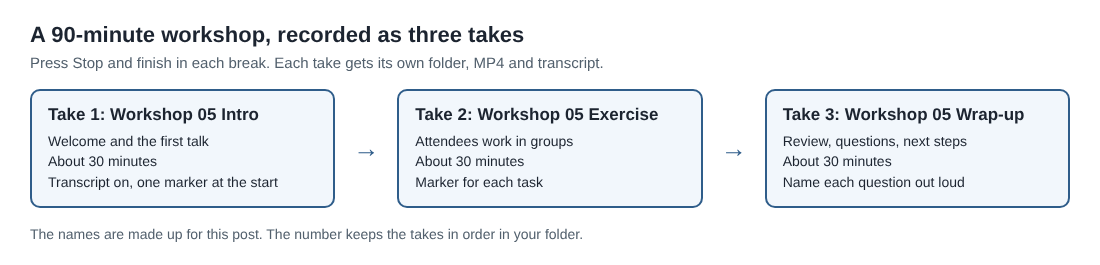
- Name the first take
Workshop 05 Introand record the welcome and the first talk. - At the break press Stop and finish, and read the transcript's first lines to see that it caught your voice.
- Name the next one
Workshop 05 Exerciseand record while attendees work. Your microphone is mostly quiet then, which is fine. - Finish with
Workshop 05 Wrap-up.
The number at the start keeps the takes in order when you sort the folders by name. Short takes also mean an attendee who missed 20 minutes opens one small recording. Check your plan's minutes first. Each plan has a number of recorded minutes a month, and a recording stops if they run out. Your name at the top right shows how many are left.
Two more facts help on a long day. Cheap Recorder signs you out after 15 minutes without activity, but a running recording counts as activity. And press Stop and finish to end a take, not Chrome's own Stop sharing bar, which also finishes the recording.
Mark the exercises as you go
At the start of each exercise press M or the Add marker button. Markers are only added while you are recording, and not while you are typing in a text box.
There is a catch. Markers are written to files only when you tick Also save every source separately under Options before you start. Then the take's folder gets a Separate sources folder, with a list of markers among its files. With the default single MP4 the marker notes show while you record, but they are not saved, so write down the clock time of anything you want to find. The same trick is in the course and tutorial checklist.
Check the transcript, then download the files before you close the page
The transcript is made live, while you record. It cannot be added afterwards, so check Live transcript before every take. The menu offers 25 languages, you choose before you start, and Chrome listens for one language per recording. If your workshop switches language midway, expect odd results.
When you press Stop and finish, the transcript is saved next to the recording as plain text with the time of each line, for example Workshop 05 Intro - transcript.txt. Each line is labelled with the loudest sound source: your microphone's name for you, and Meeting for the other side of a call you picked with Pick the call tab.... That means all attendees share one label, so the transcript will not say which attendee asked a question. Ask people to say their name before they speak, or have yourself repeat each question aloud.
Caption files work differently. They are not saved in the folder. Press Captions .srt on the recording's card to download one, because the card lasts only while the recorder page stays open and is gone after a reload. The files in the folder stay. The live transcript and captions guide has the details.
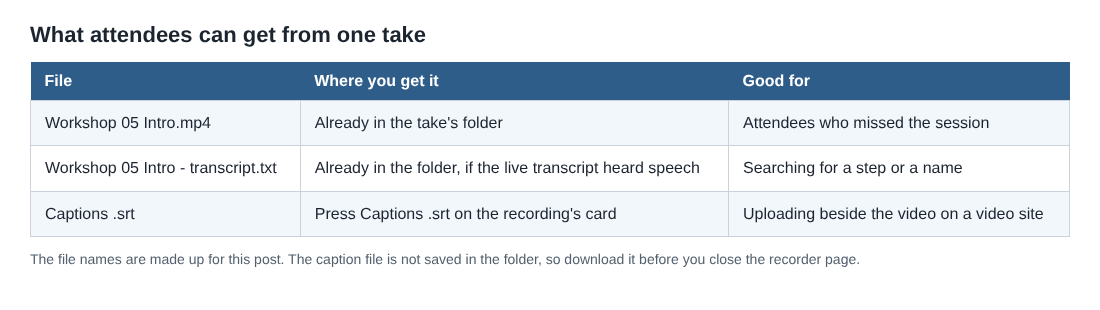
Chrome reports one time for each line, not for each word, so caption timings can be a moment early or late. They suit captions, but check them if you need frame-accurate subtitles. The captions on the preview are not drawn into your video, so your MP4 stays clean and you add the .srt where you publish it.
Tell attendees and know what leaves your computer
The law on recording calls differs from place to place, and some places need everyone to agree. Say it at the start and again on the invitation: "This workshop is recorded, and a transcript is made." Give people a way to switch their camera off or ask a question in writing instead.
- The recording stays on your disk. It is written to the folder you pick. Convert is the exception: it sends the file to the server, which deletes it when it is done.
- The transcript goes through Google. While Live transcript is on, Chrome sends your microphone audio to Google to turn it into text, so you must be online. Untick it before you start if a workshop must not leave your computer in any form.
- The AI button sends the transcript to Anthropic, with speaker names, when you press it.
- The activity log holds names you chose, such as the folder and file names and your microphones' names.
The privacy page says this in full. For another long session recorded in parts, see the lecture post.
Frequently asked questions
Can I record a workshop that runs in Google Meet or Microsoft Teams?
Yes, if the call is open in a Chrome tab. Use Pick the call tab... in the Call audio tile and tick Share tab audio, and your microphone and the call are mixed into one recording.
Does the transcript say which attendee spoke?
Not by name for the far end of a call. Everyone on the other side shares the label Meeting, so ask attendees to say their name or repeat their question yourself.
Why is my caption file not in the folder?
Caption files are not saved in the folder. Press Captions .srt on the recording's card to download one before you close the recorder page.
Are my markers saved?
Only if you tick Also save every source separately before recording. With the default single MP4, the notes show while you record but are not saved.
Is the Free plan enough?
The Free plan has 12 hours of recording a month on one device, with recording, live transcript and captions, and no card needed. A few workshops of 90 minutes fit well inside that.
Get started
Run a 30-second test before your next workshop, check that the folder holds the recording and the transcript, then record the real thing in short takes. Start on the Free plan. It needs no card, and your recordings stay on your own disk.
Screen recording that is cheap and easy.
Visit cheaprecorder.com↗

