
Podcast show notes from a transcript: write them fast
Write podcast show notes from a transcript: record in Chrome with the live transcript on, name the voices, then pull a summary, timestamps and quotes from the timed lines.
Ask your guest, then record with the transcript on
Podcast show notes are the page that sits under an episode: a short summary, a list of timestamps, the links you mentioned and a few lines worth quoting. You can write podcast show notes from a transcript without listening to the whole episode again. Cheap Recorder writes one while you record, in Chrome, and saves it next to the audio.
Before you press anything, ask your guest. Recording calls may need everyone's agreement, depending on where you and they are, so say you are recording and wait for a clear yes. The podcast guide says the same.
Then set up so the transcript is worth reading:
- Under Where to save, press Choose folder... and pick a folder. Each episode gets its own folder inside it, named with the date, the time and the recording name.
- Open Options. Live transcript is ticked by default. Check the language in the menu beside it, because the language is set when the recording begins and Chrome listens for one language per recording.
- For a sound-only podcast, switch Record my webcam off and do not pick a screen.
- For a guest on a call, press Pick the call tab... in the Call audio tile, choose the call's tab and tick Share tab audio. For a guest in the room, give every person their own microphone, plugged into the same computer, and headphones so no microphone hears a speaker.
- Tick Also save every source separately if you want your markers saved (more on that below).
The transcript is only made live, while you record. If it was off, there is no way to add one to that recording later. Run a 30-second test first, with everyone saying their name, and open the folder to check it. The transcript comes from what Chrome hears on your microphone, so a headset or a desk microphone close to your mouth beats a laptop's built-in one.
How to write podcast show notes from a transcript
After you press Stop and finish, the transcript is a plain text file in the episode's folder, such as Episode 14 - transcript.txt beside Episode 14.m4a. Each line has the time it was said, counted from the start of the recording, and a speaker label. The live transcript guide has the full detail.
First, put real names on the labels. Every line is labelled with the sound source that was loudest while it was spoken: your microphone's name, or Meeting for the other side of a call. Open the Transcript fold on the recording's card, type your name and your guest's name in the Speaker boxes and press Save captions. Lines then start like Priya: Welcome to the weekly update. Naming speakers is on plans that include it, and What you can do on this plan, in your account menu, says whether yours does.
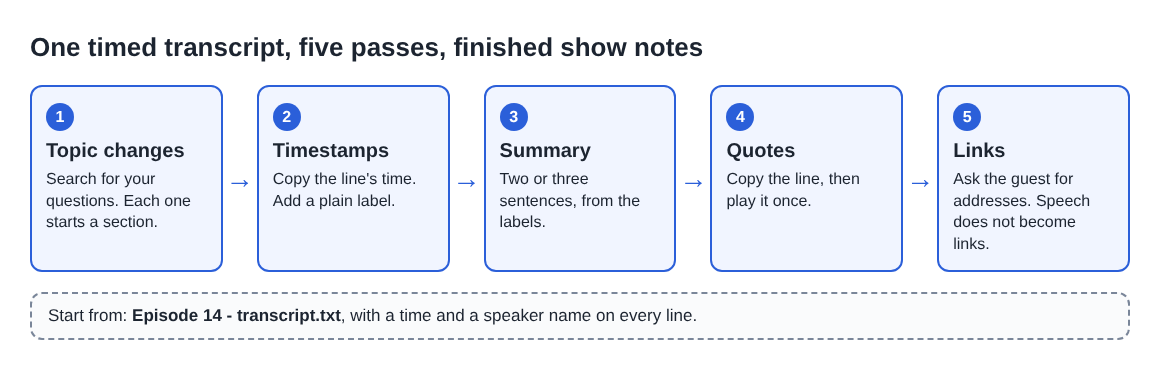
Then work through the text in this order:
- Find the topic changes. Search for the questions you asked. Each new question is usually a new section, and its line holds the time you need.
- Write the timestamp list. One line per section: the time, then a short plain label.
- Write the summary last. Two or three sentences, in your own words, from the section labels.
- Pick two or three quotes. Copy the line exactly, with the speaker's name, then play that moment once to confirm the words.
- Add the links. Search the text for "site", "book", "link" and "check out". A spoken address does not come out as a link, so ask your guest for the right one.
Keep the guest's biography out of the transcript work. Ask the guest for two sentences and a link, and paste them in as written.
A worked example: episode 14 with Priya
Here is a made-up episode. Sam hosts a podcast about running a small studio, and records episode 14 with Priya, a bookkeeper, who joins from a Google Meet tab. Sam names the Meeting label Priya and the microphone label Sam. The lines that matter look like this:
00:40 Sam: Today's guest is Priya, who keeps the books for small studios.03:15 Priya: Most people undercharge because they only count the hours they can see.12:50 Sam: Let's talk about quoting a fixed price.13:05 Priya: A fixed price works once you have done the same job ten times.27:30 Sam: What should a new listener do this week?27:45 Priya: Write down your hours for five days. Then compare them with what you billed.
From those six lines Sam writes four timestamps, a summary and one quote:
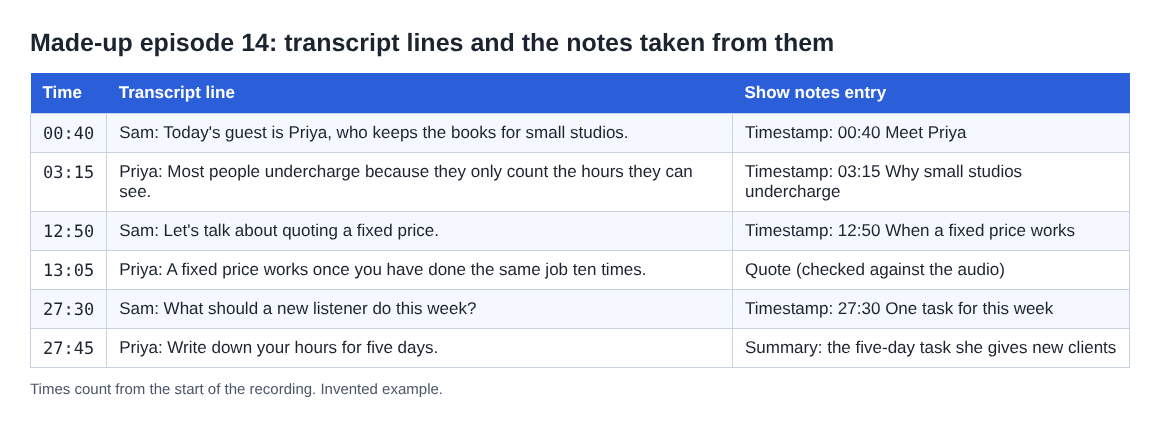
Sam's timestamp list reads: 00:40 Meet Priya, 03:15 Why small studios undercharge, 12:50 When a fixed price works, 27:30 One task for this week. The summary is "Priya explains why small studios undercharge, when a fixed price is safe, and the five-day task she gives new clients." The quote is Priya's line at 13:05, checked against the audio.
That took a few minutes, not an hour, because every section start was already a line with a time on it. For an episode that runs long, add a short line to the summary for each extra section.
Chapters that match the audio you publish
Transcript times are a good first draft, not a stopwatch. Chrome reports one time for each line, not for each word, so timestamps can land a moment early or late. For chapters, that is usually fine. A listener who taps a chapter and lands a few seconds before the topic will not mind.
For exact marks, press M or Add marker whenever a new topic starts. A short note confirms the time. Markers are only added while you are recording, and not while you are typing in a text box. They are written to a file only when Also save every source separately is ticked under Options. Then each marker time is saved in markers.md, in the Separate sources folder inside the recording's folder. With the default single file the note shows on screen but nothing is saved, so write the time down.
One more check: the times count from the start of the recording. If you cut the first minute before you publish, take that minute off every timestamp. If your published audio starts with a 15-second intro that was not in the recording, add 15 seconds.
Check what the speech recognition got wrong
A transcript made while you talk is a draft. Before you publish anything from it, read it for these:
- Names. Company names, guest names and product names are the usual misses. Check each against the guest's own site.
- Numbers. Prices, dates and counts should be checked against what the guest actually said.
- Two voices on one microphone. Labels follow sound sources, not voices. If two people share a microphone, they share a label, and so do all guests on the far end of a call. Add a name in front of those lines by hand.
- Silence and gaps. A mumble the speech recognition did not write down is not in the text. If a section looks thin, play that part.
The caption file is separate. Press Captions .srt on the card to download it while the page is open. It is not saved in the folder, and the Captions .srt and Transcript buttons only appear when the transcript caught some speech. If you want to put captions on a video version, see the where recordings are saved guide for what lands in the folder.
What leaves your computer
Your recording goes to the folder you chose on your own computer. While the live transcript is on, Chrome sends your microphone audio to Google to turn it into text. If an episode must not leave your computer in any form, untick Live transcript before you press Start recording, and write the notes from the audio instead. The AI button sends the transcript only when you press it, and the site does not say what it writes, so read anything it makes as a draft. Tell your guest all of this when you ask for their agreement.
Looking for the next step? Podcast intro and outro: record each as a separate take covers the parts around the interview, and recording a one-on-one meeting shows the same speaker naming for two voices.
Frequently asked questions
Can I get show notes from a transcript if I forgot to turn it on?
No. The transcript is only made live, while you record, and there is no way to add one to a recording afterwards. Leave Live transcript ticked before you press Start recording.
Will my guest on a call get their own label?
The other side of the call is labelled Meeting. If you have one guest, type their name in that Speaker box. Several guests on the far end share the one label.
How exact are the timestamps?
Close, not exact. Chrome gives one time per line, so a timestamp can land a moment early or late. Press M or Add marker during the episode, with Also save every source separately ticked, for exact times.
What language does the transcript use?
The one you choose in the menu beside Live transcript, from 25 languages, before you start. Chrome listens for one language per recording, and the menu goes back to its default each time the recorder page opens.
Does the Free plan cover a weekly show?
The Free plan has recording, live transcript and captions, 12 hours of recording a month, on 1 device, and needs no card. A weekly 45-minute episode is about 3 hours a month of that.
Get started
Open Chrome, choose a folder, tick Live transcript and record a 30-second test with everyone saying their name. Start on the free plan, no card needed, and your episodes stay on your own disk. If you are comparing recorders first, see Cheap Recorder against Loom, Camtasia, Descript and Riverside.
Screen recording that is cheap and easy.
Visit cheaprecorder.com↗

