
Record a one-on-one meeting and keep the transcript as notes
Record a one-on-one meeting in Chrome, name both voices in the transcript and turn it into decisions and actions. Ask first, then follow these steps.
A one-on-one is the easiest meeting to lose track of. There are two of you, you agree on things quickly, and a week later neither of you remembers if it was Thursday or Friday. If you record a one-on-one meeting in Google Chrome and keep the transcript, you have the record, and because there are exactly two voices, the transcript can carry both names. This post shows how to set it up, how to name the two voices, and how to turn the file into notes in five minutes.
Ask first, and say what happens to the file
Recording calls may need everyone's agreement, depending on where you and the other person are. Tell them you are recording before you start, and let them say no. If they do, take notes the old way.
A line that works: "I'd like to record these so we both have what we agreed. The file stays on my computer. Is that okay?" Only say the second sentence if it is true for how you handle the file, and read "What leaves your computer" below before you promise anything. For a touchy topic, such as a performance concern, it is reasonable to stop the recording.
How to record a one-on-one meeting in Chrome
These steps are for a one-on-one on Google Meet. The Meet call needs to be open in a Chrome tab, and Cheap Recorder runs in a second tab. The Google Meet guide has the full detail.
- Under Where to save, press Choose folder... and pick a folder. Chrome asks if the page may edit files there. Allow it. The recorder does not remember the folder, so you choose it every visit.
- In the Call audio tile, press Pick the call tab..., choose the Meet tab, tick Share tab audio (some Chrome versions say Also share tab audio) and press Share. Your microphone and the call are mixed into one recording.
- Decide what to film. For a one-on-one, sound is usually enough: switch Record my webcam off and do not pick a screen. You get an M4A audio file instead of an MP4.
- Open Options. Live transcript is ticked by default. Check the language in the menu beside it, because the language is set when the recording begins.
- Type a name in Name this recording, such as
Priya one-on-one, then press Start recording. - When the meeting ends, press Stop and finish. The recording is already in your folder.
Wear headphones, so Priya's voice does not come back into your microphone. Leave Record the microphone untouched unticked for calls.
Before the first real meeting, record 30 seconds with a friend or alone, say a sentence, and play it back in the player on the page. Then open the transcript and check it. That one test catches a wrong microphone or a muted tab. If the tab share ends in the middle of a meeting, the recorder says "Meeting audio sharing stopped." and the other side is silent from then on. Picking the tab again does not add it to the running recording.
Put names on the two voices
Every transcript line is labelled with the sound source that was loudest while it was spoken. In a call that is either your microphone's name or Meeting, the label for the other side of the call you picked with Pick the call tab.... In a one-on-one that means every line is either you or them.
That is why a one-on-one suits a transcript so well. After you stop, open the Transcript fold on the card for your recording. Above it there is one Speaker box per label. Type your name where your microphone's name is, and the other person's name next to Meeting. Press Save captions. The transcript is written again with the names, and its lines start like Priya: Welcome to the weekly update. Naming speakers is on plans that include it; What you can do on this plan, in your account menu, says whether yours does.
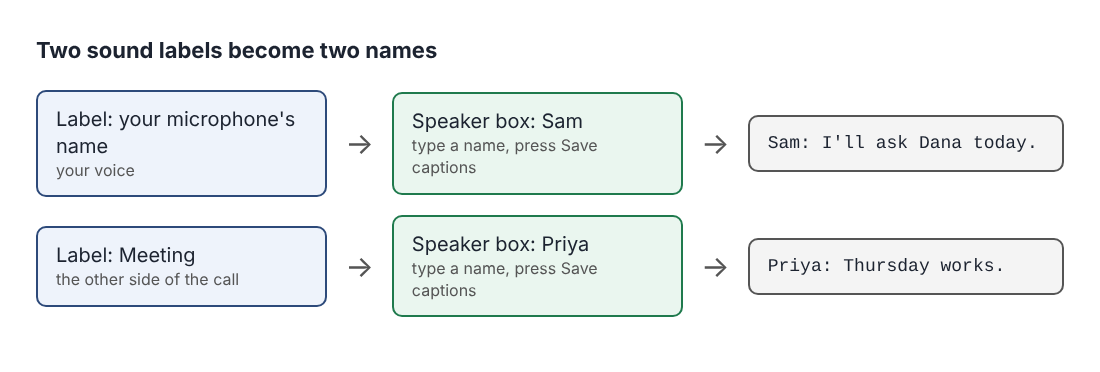
The transcript is also made from what Chrome hears on your microphone, so a headset or desk microphone close to your mouth beats a laptop's built-in one in a noisy room. Times are per line, not per word, so expect them to be close, not exact.
A worked example: Sam and Priya
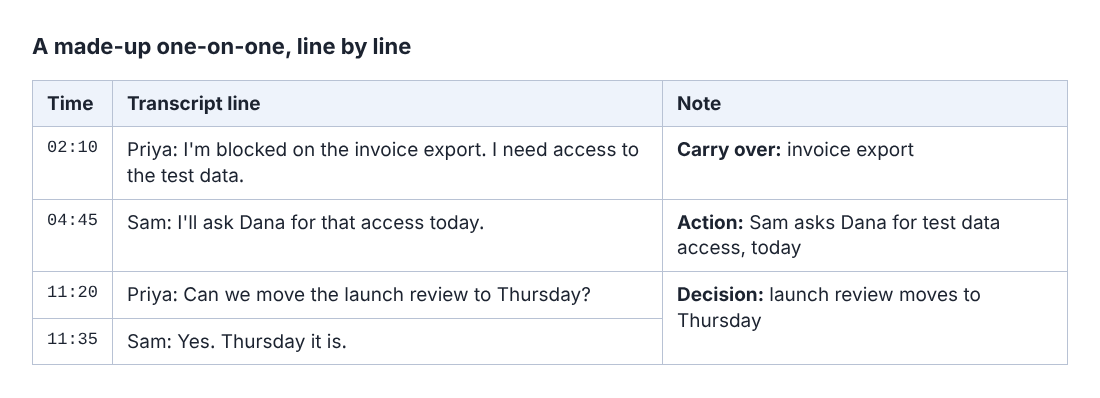
Here is a made-up weekly one-on-one. Sam manages Priya, and they meet for 25 minutes on Meet. Sam records sound only, and later names the two voices. The part of the transcript that matters looks like this:
02:10 Priya: I'm blocked on the invoice export. I need access to the test data.04:45 Sam: I'll ask Dana for that access today.11:20 Priya: Can we move the launch review to Thursday?11:35 Sam: Yes. Thursday it is.
Sam reads it with a search in a text editor and writes three notes: a decision (the launch review moves to Thursday), an action (Sam asks Dana for test data access, today) and a carry-over (the invoice export, next week). Each note keeps its time, so Sam can jump to that moment in the recording if the wording matters.
A habit makes this faster: when you agree on something, say it back in one sentence. "So I'll ask Dana today" is a line you can find. A vague "okay, sounds good" is not.
If you want a spot to find again, press M or Add marker during the meeting. Markers are saved only when Also save every source separately is ticked under Options. Without it the note shows on screen but is not written to a file, so write the time down. Markers are not added while you are typing in a text box. The earlier posts on a client check-in call and a team retrospective use the same idea with more people.
Meeting in person on one laptop
For two people in one room, use one microphone and no call tab: switch Record my webcam off, pick no screen and press Start recording. The catch is that both of you now speak into the same microphone. Labels follow sound sources, not voices, so everything on that microphone carries one label and the transcript will not tell you who said what.
Two fixes. Say the name before each decision, as in "Priya: Thursday works", or take turns near the microphone. If you can, run the meeting on a call instead, with each of you on your own device, and the two labels do the work.
What leaves your computer
The recording goes to the folder you chose on your own computer, and the Cheap Recorder site does not keep copies. Say that, and then the rest of the list:
- While Live transcript is on, Chrome sends your microphone audio to Google to turn it into text. If a meeting must not leave your computer in any form, untick Live transcript before you press Start recording. A transcript cannot be added to that recording afterwards.
- Convert, or Download MP3, sends the file to the Cheap Recorder server to be converted, and deletes it as soon as it finishes.
- The AI button sends the transcript with the speaker names to Anthropic, and only when you press it.
- The recorder's activity log holds the folder and file names you chose and your microphones' names. A file called
Priya one-on-oneputs that name in the log, so name files for yourself, not for the topic.
The privacy page has the full text. Where the files live is in the where recordings are saved guide: one folder per recording, named with your recording name, the date and the time, with a plain-text transcript inside. The caption file (.srt) is not in the folder; press Captions .srt on the card to download it while the page is open.
Frequently asked questions
Do I have to tell the other person I am recording?
Yes. Recording calls may need everyone's agreement depending on where you both are, so say you are recording and wait for a clear yes before you press Start recording.
Can I record a one-on-one with sound only?
Yes. Switch Record my webcam off and do not pick a screen, and the recording is an M4A audio file. Live transcript still works if it is ticked.
Why does the transcript show my microphone's name instead of mine?
Lines are labelled with the sound source that was loudest, so your own lines carry your microphone's name until you type your name in its Speaker box and press Save captions. The other side of a call is labelled Meeting.
Can I add a transcript to a meeting after it is over?
No. The transcript is made live while you record, and there is no way to add one to that recording afterwards. Leave Live transcript ticked before you press Start recording.
Does the Free plan cover weekly one-on-ones?
The Free plan has recording, live transcript and captions, 12 hours of recording a month, on 1 device, and needs no card. A 30-minute weekly one-on-one is about two hours a month of that.
Get started
Open Chrome, choose a folder, name the recording and run the 30-second test. Start on the free plan, no card needed, and your recordings stay on your own disk. If you are comparing recorders first, see Cheap Recorder against Loom, Camtasia, Descript and Riverside.
Screen recording that is cheap and easy.
Visit cheaprecorder.com↗

