
Record a team retrospective call and keep the action items
Record a team retrospective call in Chrome, mark its three parts, and turn the transcript into action items with owners, with what leaves your computer said plainly.
A retro is where a team agrees what to change, and most of it is forgotten by the next morning. If you record a team retrospective call, you keep the whole discussion, a transcript you can search and the exact words behind every action. Cheap Recorder gets you the first two from Chrome. You write the action list from the transcript in a few minutes.
Why record a retro
Retros move fast. Someone raises a problem, two people disagree, a third suggests a fix, and the facilitator is typing notes while also running the room. Something always gets lost.
- The facilitator can listen. The recording holds the details, so nobody has to scribble while people talk.
- You can settle small arguments. A week later someone says "I thought we agreed to drop Friday deploys." The transcript has the exact words.
- The next retro can start with the last one's actions. That check is where retros pay for themselves.
The screen side of a team meeting is in the weekly team update post. A retro is different because the voices matter more than the screen.
Three kinds of content a retro leaves
Do not try to keep everything. A retro has three kinds of content, and each needs its own handling.
- Discussion. The back and forth about what went well and what did not. You rarely replay it, but you want it searchable.
- Decisions. The moments where the team says "we will try this next sprint." These are what you check later.
- Action items. A task, an owner and a date. The recording never gives you these in a clean form. You pull them out of the transcript.
One habit makes the transcript far easier to mine: the facilitator says each action out loud with a name, for example "Action: Dana writes the rollback checklist by Thursday."

How to record a team retrospective call in Chrome
You need Google Chrome on macOS, Windows or Linux, with the call open in a Chrome tab. The Free plan has recording, live transcript and captions, and 12 hours of recording a month on one device. No card is needed.
- Choose a folder. Under Where to save, press Choose folder... and pick one. If Start recording is greyed out, the words beside it say why.
- Name the recording. Use something like
Sprint 24 retro. The name is used for the file and its folder, along with the date and time, so retros sort in order. - Add the call's sound. In the Call audio tile press Pick the call tab..., choose the Meet or Teams tab, tick Share tab audio (some versions say Also share tab audio) and press Share. Your microphone and the call are mixed into one recording.
- Check Options. Leave Record the microphone untouched unticked for calls. For sound only, switch Record my webcam off and pick no screen. Nobody needs the video of a retro.
- Run a 30-second test. Start, say a sentence, ask a teammate to say one, press Stop and finish and play it back. This catches a wrong microphone or a muted tab.
- Record the retro. Press Start recording, and at the end press Stop and finish, not Chrome's Stop sharing bar.
Wear headphones, so teammates' voices do not come out of your speakers and back into your microphone. The Google Meet recording guide has the call steps in detail.
Two traps. If you also tick tab audio in a browser tab share, the voices go into the file twice, so tick it in one place only. And if the tab share ends mid call, the other side is silent from then on, and picking the tab again does not add it to a recording already running. Keep that tab open until the retro is over.
Mark the three parts as you go
At the start of each part, press M or the Add marker button. For a typical retro that is three presses: what went well, what did not, and actions.
There is a catch. Markers are written to files only when you tick Also save every source separately under Options before you start. With the default single MP4 you see the notes while recording, but they are not saved, so jot the clock times down yourself if you want them. Separate files take more room.
Check the transcript before every retro
Live transcript is ticked by default under Options. Check two things each time:
- The language. The menu lists 25 languages, chosen before you start, and it goes back to its default each time the recorder page opens.
- That it is on. A transcript cannot be added to a recording afterwards.
When you finish, the transcript is a plain text file in the recording's folder, with the time of each line, next to the MP4 or M4A. It opens in any text editor. The live transcript and captions guide explains the labels.
Each line is labelled by the loudest source: your microphone's name, or Meeting for the call tab. That means everyone on the far end shares one label, and the transcript will not tell you which teammate spoke. This is why saying a name with each action matters.
Turn the transcript into action items
Do this within an hour of the call, while you still remember the room. Open the text file and search it.
- Search for the words your team uses when it commits:
action,I will,by Friday,let's try,next sprint. - Copy each hit into a list, with a few lines of context above it.
- Rewrite every item as a verb, an owner and a date.
- If you saved markers, read the list against the times of the actions part.
A worked example, made up for this post. The transcript has these lines, as the transcript file shows times and a label for each line:
00:41:12 Meeting: Our deploys keep failing on Fridays. Dana, can you write down the rollback steps?
00:41:20 Meeting: Yes, I can get that done before next Thursday.
That becomes one line in your action list: Write the rollback checklist. Owner: Dana. Due: the Thursday date. Source: Sprint 24 retro, 00:41. Turn "next Thursday" into a real calendar date when you write it, since the transcript holds only the words that were spoken.
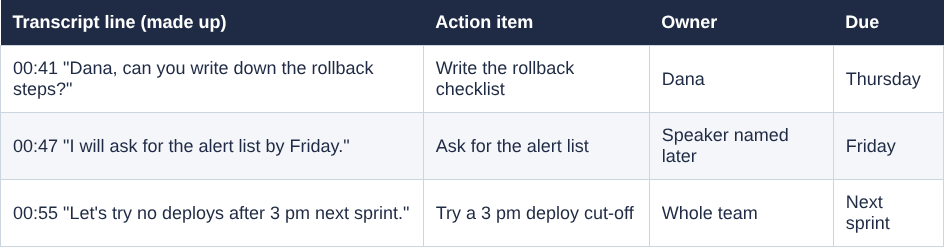
Save the list as a text file in the same folder, so the recording, the transcript and the decisions stay together. A recording card also has an AI button. It sends the transcript with the speaker names to Anthropic only when you press it, so read whatever comes back against the transcript before you share it. The same method works for a client check-in call.
Say you are recording and know what leaves your computer
The law on recording calls differs from place to place, and some places need everyone to agree. Say at the start, "I am recording this so we can pull out the actions," and give people a clear way to object.
Retros can get personal. Agree before you start whether sensitive parts are recorded, not after.
- The recording stays on your disk. It is written to the folder you pick, except when you use Convert or Download MP3, which send the file to the server and delete it when done.
- The transcript goes through Google. While Live transcript is on, Chrome sends your microphone audio to Google to turn it into text. Untick Live transcript before you start if a retro must not go through Google.
- The AI button sends the transcript to Anthropic, only when you press it.
- The activity log holds names you chose, such as the folder and file names and your microphones' names.
The privacy page says all of this in full.
Frequently asked questions
Can I record a retro that runs in Google Meet or Microsoft Teams?
Yes, as long as the call is open in a Chrome tab. Use Pick the call tab... in the Call audio tile and tick Share tab audio, and your microphone and the call are mixed into one recording.
Does the transcript say which teammate spoke?
Not by name for the far end. Everyone on the other side of the call shares one label, Meeting, so write owners into your action items yourself, or have people say their name when they volunteer.
Are the markers I press saved?
Only if you tick Also save every source separately before recording. With the default single MP4, the marker notes show while you record but are not saved.
Can I add a transcript if I forgot to turn it on?
No. A transcript cannot be added to a recording afterwards, so check Live transcript under Options before you press Start recording.
Is the Free plan enough for weekly retros?
The Free plan has 12 hours of recording a month on one device, with no card needed. Weekly retros of an hour fit well inside that.
Get started
Run a 30-second test before your next retro, check that the folder holds the recording and the transcript, then record the real thing. Start on the Free plan. It needs no card, and your recordings stay on your own disk.
Screen recording that is cheap and easy.
Visit cheaprecorder.com↗

