
Weekly team update: record it on your screen in Chrome
Record a five-minute weekly team update in Chrome: what the recorder remembers each week, a folder name that sorts by date, and the minutes it uses.
A weekly team update works well as a short recording: you talk through what shipped, what is stuck and what comes next, and your team watches when it suits them. This post shows how to record a weekly team update on your screen in Chrome with Cheap Recorder, set it up once, and repeat it every week in a few minutes. It also covers the settings the recorder keeps from one week to the next, the ones it forgets, and how many of your plan's minutes a month of updates uses.
What a recorded weekly team update needs
Cheap Recorder runs in Google Chrome on macOS, Windows and Linux, and saves one MP4 plus a transcript into a folder on your own computer. For a weekly update you need:
- Google Chrome on a computer. The live transcript needs Chrome, and Chrome writes the recording to your disk about once a second as you go.
- A free account. The Free plan includes recording, live transcript and captions and 12 hours of recording a month, with no card needed.
- An internet connection to start. Your plan comes from the Cheap Recorder server, so there is no offline mode. If the connection drops during a recording, the recording keeps going.
- A microphone close to your mouth. The transcript is made from what Chrome hears on your microphone, so a headset or desk microphone beats a laptop's built-in one in a noisy room.
- One folder for every update, for example a folder called Team updates.
Plan it in three headings
Write three headings in a note you keep and reuse every week:
- Done this week. Two or three items, one sentence each.
- Stuck or at risk. What you need, and from whom.
- Next week. The one or two things that matter most.
Before you record, open what you will show (a dashboard, a document, a board) in Chrome tabs, in the order you will talk about them. If you need a reply from someone, name them near the start, so they hear it even if they stop watching early.
Record it in Chrome, step by step
- Open the recorder and sign in.
- Under 1 Where to save, press Choose folder… and pick your Team updates folder. Chrome asks whether the page may edit files in that folder; allow it. Until you do, the start bar says choose a folder first.
- Under 2 What to capture, choose A browser tab, A window or Whole screen, then pick it in Chrome's sharing box and press Share. Sharing one tab or one window keeps your other tabs and apps out of the file; anything on a shared screen ends up in the recording.
- Decide on your camera. Leave Record my webcam on to appear in the corner (Picture in picture, bottom right is the default layout), or switch it off for a screen-only update.
- Under Options, check that Live transcript is ticked and that the language menu beside it shows the language you will speak.
- Type the name into Name this recording. The next section explains which name to use.
- When the note beside the button reads ready to record, press Start recording and talk through your three headings.
- Press Stop and finish. Do not use Chrome's own Stop sharing bar: it also finishes the recording, so use the recorder's button. A Recording saved. message appears, and the file is already in your folder.
If anyone else speaks in your update, tell them they are being recorded before you start. The screen and webcam guide covers the layout and camera choices in more detail.
What the recorder remembers from last week
A weekly routine is only quick when you know what to check. Some settings carry over in the same browser, and some reset every time the recorder page opens.
Kept from last time:
- The microphone you ticked under Change or add microphones.
- Where your camera sits and how big it is in picture in picture.
Chosen again every visit:
- The folder. The recorder does not remember it between visits. Chrome's folder picker normally reopens where you were last time, so it takes a moment.
- The transcript language. The menu goes back to its default each time the page opens. If you speak anything other than the default, check it every week.
Record a 30-second test the first week, or any week you change microphone, and play it back. It catches a wrong microphone or a muted tab before you lose a whole update.
Keep the same name every week
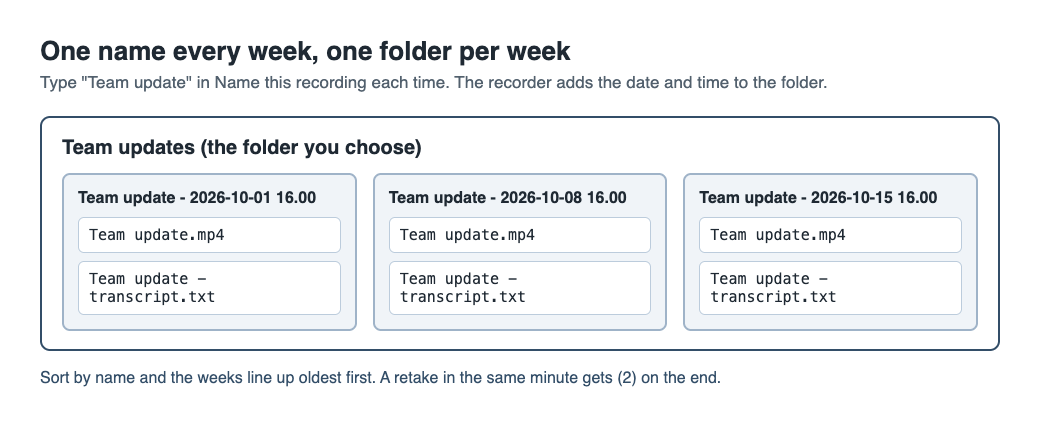
Every recording gets its own folder inside the folder you chose. The folder's name is the name you typed, then the date and the time the recording began on your clock. So if you type Team update every week, the folders look like this:
Team update - 2026-10-01 16.00Team update - 2026-10-08 16.00Team update - 2026-10-15 16.00
Because the date comes straight after the name, sorting by name puts the weeks in order with no numbering on your part. A second recording with the same name in the same minute gets (2) on the end, so a retake never mixes with the first.
Inside each folder you will find two files: the recording, Team update.mp4, and, when the live transcript heard speech, Team update - transcript.txt, plain text with the time of each line. Caption files are not saved in the folder; press Captions .srt on the card while the recorder page is open if you want one. The guide to where recordings are saved lists every file and the characters a name cannot hold.
The one catch: every week's video is called Team update.mp4. They are ordinary files, so rename the copy you send if your team keeps them all in one place. Finish any download or Convert from the card first, because the card reads the file from where it was saved.
A worked example: five Thursdays in October
Say you send your update every Thursday at 4 pm. October 2026 has five Thursdays: the 1st, 8th, 15th, 22nd and 29th.
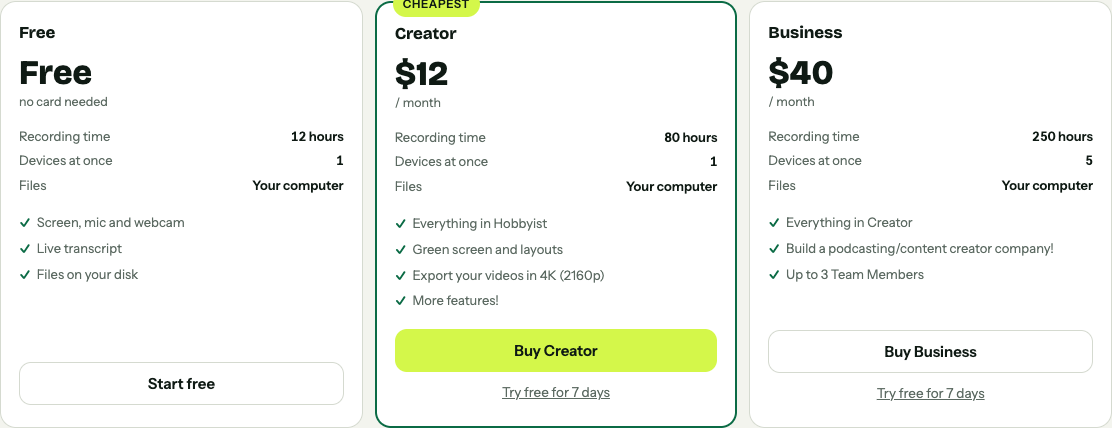
The minutes. Each update runs about 6 minutes, and you record a 30-second test before the first one and after you swap microphones once mid-month. That is 5 × 6 = 30 minutes of updates plus 1 minute of tests, 31 minutes in all. The Free plan gives 12 hours of recording a month, which is 720 minutes, so October's updates use about 4% of it. Creator gives 80 hours and Business 250 hours, if you record much more than updates. Open your name in the top right to see how many minutes are left; if they run out mid-recording, the recording stops.
The week of 15 October. You open the recorder, choose the Team updates folder, check the language menu, pick the tab with your board, type Team update and press Start recording. At about 1 minute 40 you reach Stuck or at risk, and at about 4 minutes 10 you reach Next week.
The chapter times. Pressing M or Add marker shows a note with the time of each marker, but in a normal single-MP4 recording the markers are not saved to a file. Jot the two times down and put them in your message: "1:40 what is stuck, 4:10 next week". If you want markers saved as a list and a chapters file, tick Also save every source separately under Options before you record. It cannot be added afterwards, it takes more room, and in that mode the card does not offer Download MP4 or Convert, so for a plain weekly update the single MP4 is simpler.
The message. Post Team update.mp4 where your team shares files, and paste the transcript from Team update - 2026-10-15 16.00 into the message for anyone who would rather read. The transcript file opens in any text editor and is easy to paste into notes or an email. On plans that include speaker detection you can rename your Speaker box to your own name and press Save captions, and each line then starts with it.
Your recording is not uploaded: it is written to your folder. While the live transcript is on, Chrome sends your microphone audio to Google to turn it into text, and Convert or Download MP3 send the file to the server, which deletes it when done. The live transcript guide covers the language menu and captions.
Frequently asked questions
Can I record a weekly team update for free?
Yes. The Free plan includes recording, the live transcript and captions, and 12 hours of recording a month, with no card needed.
Why do I have to choose the folder every week?
The recorder does not remember the folder between visits, so you choose it again each time you open the page. Chrome's folder picker normally reopens where you were last time.
Can I add a transcript after I have recorded?
No. If Live transcript was off, a transcript cannot be added to that recording afterwards, so check it is ticked under Options before you start.
Why did my update stop by itself?
Either the month's recorded minutes ran out, or Chrome's own Stop sharing bar was pressed, which finishes the recording. Use Stop and finish instead.
Get started
Write your three headings, make a Team updates folder and record this week's update. If you record lessons as well as updates, the course checklist uses the same setup. Start with the Free plan: no card, and your recordings stay on your own disk.