Podcast pre-interview: record the prep call and plan the episode
Record a podcast pre-interview on Google Meet as sound only, then turn its transcript into the questions, facts to check and stories for the real episode.
A podcast pre-interview is the short call you have with a guest a few days before you record the episode. You learn what they want to talk about, which stories they have, how to say their name and what is off limits. This post shows how to record that call on Google Meet as sound only with Cheap Recorder in Chrome, and how to turn its transcript into three lists you take into the real episode.
What a podcast pre-interview is for
The pre-interview is a scouting trip, not a rehearsal. In fifteen to thirty minutes you want:
- The stories. Which moments from the guest's life or work would make good listening.
- The facts. Dates, numbers, names of companies and places that you should check before you say them on air.
- The name. How the guest says their own name, and how they want to be introduced.
- The limits. Anything they would rather not discuss on the show.
Taking notes by hand means writing instead of listening. Recording the call lets you stay in the conversation and do the note work afterwards, from a transcript.
This is a different job from recording the episode itself or recording a source interview for exact quotes. Nothing from this call is meant to be played or printed.
Ask first, and say the file is only for prep
Ask for consent twice. Put it in the Meet chat or the invite ("I'd like to record our prep call so I can plan the episode. It won't be published. Is that all right?"), then ask again out loud after you press record, so their yes is on the file. The law on recording calls differs from place to place, and some places need everyone to agree, so follow the rules where you and your guest are.
Saying "this will not be published" matters, and so does keeping it: the file lives in a folder on your computer and goes nowhere unless you send it.
Two more things to mention if your guest asks about privacy:
- While the live transcript is on, Chrome sends the microphone audio to Google to turn it into text.
- If you later press an AI button on the recording, the transcript with its speaker names is sent to Anthropic. Nothing is sent unless you press one.
Set up the recorder for a sound-only prep call
You do not need video for a pre-interview, so record sound only. The steps follow the Google Meet guide.
- Put on headphones. They stop your guest's voice coming out of your speakers and back into your microphone.
- Open the Meet call, or its waiting screen, in a Chrome tab. Open Cheap Recorder in another tab and sign in.
- Under Where to save, press Choose folder... and pick a folder for your show. Each recording gets its own folder inside it, named with the date, the time and the recording's name.
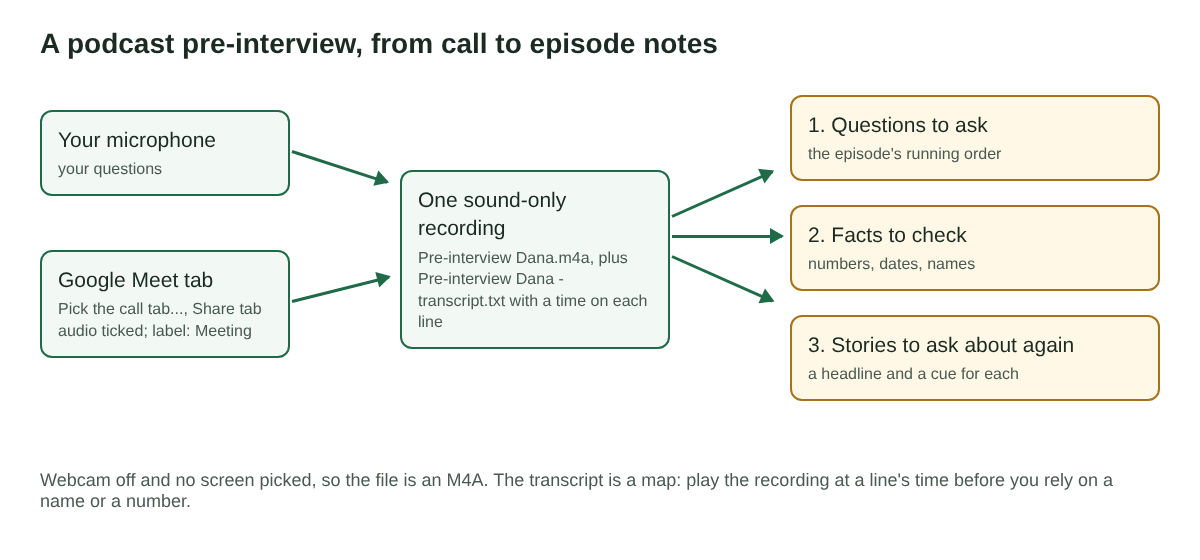
- In the Call audio tile, press Pick the call tab..., choose the Meet tab, tick Share tab audio (some versions of Chrome say "Also share tab audio"), then press Share. The tile changes from "not captured" to "on" followed by the tab's name.
- Switch the webcam off and do not pick a screen. The recording is then an M4A audio file instead of an MP4.
- Open Options and check that Live transcript is ticked (it is by default) and that the language menu beside it shows the language you will both speak. The language is set when the recording begins.
- Type a name in Name this recording, such as "Pre-interview Dana", and press Start recording.
A prep call is short, but check your minutes anyway. Open your name in the top right of the recorder to see how many are left this month. If they run out mid-call, the recording stops.
Run the call so the episode stays fresh
The risk of a good pre-interview is that the guest tells their best story in full, to you, and then tells it a second time on the episode. So ask for headlines, not full tellings.
- Save the rest for the show. When a story starts, let it get going, then say something like "That's a great one, let's save the rest for the show."
- Get the name on tape early. In the first minute, ask the guest to say their full name and how they want to be introduced. You can play that moment back before the episode.
- Ask what is off limits. Do it near the end, plainly: "Is there anything you would rather we did not get into?"
- Jot the timer. Keep a notes window open and write down the time shown at the top of the recorder whenever a story, a number or a limit comes up, with two or three words. You can also press M or Add marker, but with the default single file the marker notes are not saved, so the jotted times are what you will use.
Keep the Meet tab open the whole time. If it closes or its sharing is stopped from Chrome's bar, "Meeting audio sharing stopped." appears, and from that point your guest is silent in the recording. Picking the tab again does not add it to a recording already running, so stop and start a new one.
Press Stop and finish when you have said goodbye. The file is already in your folder.
Turn the transcript into the host's notes
Open the recording's folder. Next to the M4A is the transcript, named after the recording (for example Pre-interview Dana - transcript.txt): plain text with a time on each line, which opens in any text editor. On plans that include speaker detection, each line is labelled with the loudest source: your microphone's name for you, and Meeting for your guest. Type real names into the Speaker boxes and press Save captions to write it again with those names. The live transcript guide covers the labels in more detail.
Now read it once, top to bottom, with three empty lists beside you:
- Questions to ask. The episode's running order, in your words.
- Facts to check. Every number, date and proper name the guest said.
- Stories to ask about again. Each headline, with a cue that will bring it back ("Tell me about the swarm at the school").
Treat the transcript as a map, not a record. Speech recognition can mishear names and numbers, and Chrome gives a time for each line, not each word, so times are close rather than exact. When a line matters, play the M4A from just before its time and listen.
A worked example: a 25-minute prep call
Say your show is about small food businesses and your guest, Dana, keeps bees and sells honey. Your jotted times say 0:50, 7:40, 12:20, 16:05 and 21:30. Here is what each line of the transcript turns into:
- 00:00:52, "dana ruiz beekeeper": you play it back, hear how she says her surname, and write it phonetically at the top of the notes.
- 00:07:41, a swarm landing in a school playground. You stopped her kindly at the headline. Stories list: "the swarm at the school".
- 00:12:20, "we sell about four hundred jars a year". It goes on the facts list: confirm the number with her before the show, since "about" is doing work.
- 00:16:05, losing most of her hives one winter. Stories list, and also the first question for the second half.
- 00:21:33, she would rather not talk about her old job. That goes at the top of the notes, in capitals.
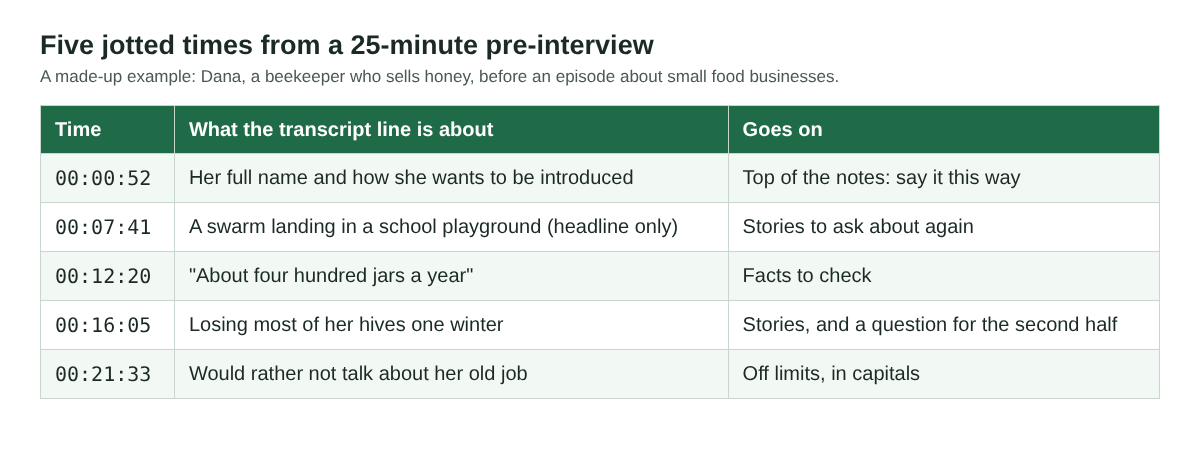
From a 25-minute call you now have a pronunciation, two stories with cues, one fact to confirm and one limit. If you want help writing the show notes after the episode, our post on podcast show notes from a transcript picks up from there.
What the prep recording cannot do
- It is one voice for the far side. Everyone on the other end of the Meet call shares the Meeting label. If your guest brings a publicist along, the transcript will not tell them apart; your jotted notes will.
- It cannot add a transcript later. The transcript is only made while you record. If Live transcript was off, there is no way to add one to that recording afterwards.
- It is not set up for the episode. For the real recording you will probably want each voice in its own file, which comes from ticking Also save every source separately before you start. A remote guest from a Meet tab is still one file. The podcast separate tracks guide walks through it.
Once the episode is recorded, you can delete the prep call's folder. It was only ever for you.
Frequently asked questions
Should I record a podcast pre-interview at all?
Only with the guest's agreement, asked in writing and again out loud. If they say yes, the recording lets you listen during the call and do the note work afterwards.
Do I need video for the prep call?
No. Switch the webcam off and do not pick a screen, and Cheap Recorder saves an M4A audio file with its transcript beside it.
Can I use clips from the pre-interview in the episode?
Not if you told the guest it would not be published. Keep that promise, and record the story again on the episode itself.
Why is my guest silent for part of the recording?
If "Meeting audio sharing stopped." appeared, the Meet tab's share ended and the rest of the call is silent on their side. Pick the Meet tab again with Share tab audio ticked and start a new recording.
Get started
The Free plan needs no card and gives you 12 hours of recording time with the live transcript, and your files stay on your computer. Book a 20-minute call with your next guest, open the Meet tab, and record your podcast pre-interview as sound only. Start recording for free.
Screen recording that is cheap and easy.
Visit cheaprecorder.com↗