Source interview on Google Meet: record it for exact quotes
Record a source interview on Google Meet as sound only, find each answer in the transcript by its time, and check every quote against the recording.
A source interview is only as good as the quotes you take from it. If you are a writer, a student reporter or a researcher talking to someone on Google Meet, you cannot type every word and listen properly at the same time. This post shows how to record the call in Chrome as sound only with Cheap Recorder, find each answer in the transcript by its time, and check every quote against the recording before it goes into print.
Why a source interview needs a recording
Notes from a call are a summary, and a summary is not a quote. When you put words inside quotation marks, you are saying the person said exactly that. A recording lets you keep that promise.
- You can listen. You follow up on the interesting part of an answer instead of racing to write the first half down.
- You can check wording. "I think it was four percent" and "it was four percent" are different claims, and only the recording tells you which one you heard.
- You can settle a dispute. If a source later says they were misquoted, you have the call, not your memory of it.
If you have read our posts on a user research interview or a family history interview, the setup will feel familiar. The difference here is the last step: a printed quote has to match the recording, word for word.
Before the call: consent, headphones and a test
Ask first, twice. Put it in the Meet chat when you send the link ("I would like to record our call so I can quote you accurately. Is that all right?"), then ask again out loud once the call starts, after you press record, so their yes is in the recording. The law on recording calls differs from place to place, and some places need everyone to agree, so follow the rules where you and your source are.
Agree on the ground rules at the same time. If the source wants some answers off the record or on background, settle that before the first question, not after.
Then get your side ready:
- Wear headphones. They stop your source's voice coming out of your speakers and back into your microphone, which keeps their answers clean.
- Check your minutes. Each plan has a number of recorded minutes a month. Open your name in the top right of the recorder to see how many are left. If they run out mid-call, the recording stops.
- Do a one-minute test. Before an important interview, make a short test call with a friend and play it back to check that you can hear both of you.
Set up the recorder for sound only
You do not need video to quote someone, so record sound only. The steps follow the Google Meet guide.
- Open the Meet call (or its waiting screen) in a Chrome tab. Open Cheap Recorder in another tab and sign in.
- Under Where to save, press Choose folder... and pick a folder. Each recording gets its own folder inside it, named with the date, the time and the recording's name.
- In the Call audio tile, press Pick the call tab..., choose the Meet tab, tick Share tab audio (some versions of Chrome say "Also share tab audio"), then press Share. The tile should change from "not captured" to "on" followed by the tab's name.
- Switch the webcam off and do not pick a screen. The recording is then an M4A audio file instead of an MP4.
- Make sure the live transcript is on. It is only made while you record; if it was off, there is no way to add one to that recording afterwards.
- Type a name in Name this recording, such as "interview transit director", and press Start recording once you have both said hello.
During the source interview: listen, and jot times
Once the recording is running, your job is to listen. Keep a sheet of paper or a notes window open and write down the timer each time the source says something you may want to quote, with two or three words to remind you what it was.
You can also press M or Add marker to mark the moment. With the default single file, the marker notes appear while you record but are not saved, so the jotted times are what you will use later.
Two things to watch for:
- Keep the Meet tab open. If you close it or stop sharing from Chrome's bar, "Meeting audio sharing stopped." appears, and from that point your source is silent in the recording. Picking the tab again does not add it to a recording already running; stop and start a new one, and say on the call that you are doing so.
- Note off the record moments. If the source says "this part is off the record", write down the time with "OFF" next to it. You will be reading the transcript later, maybe days later, and that note stops a line from slipping into a draft.
Press Stop and finish after you thank them. The file is already in your folder.
Find the quote in the transcript, then check it in the audio
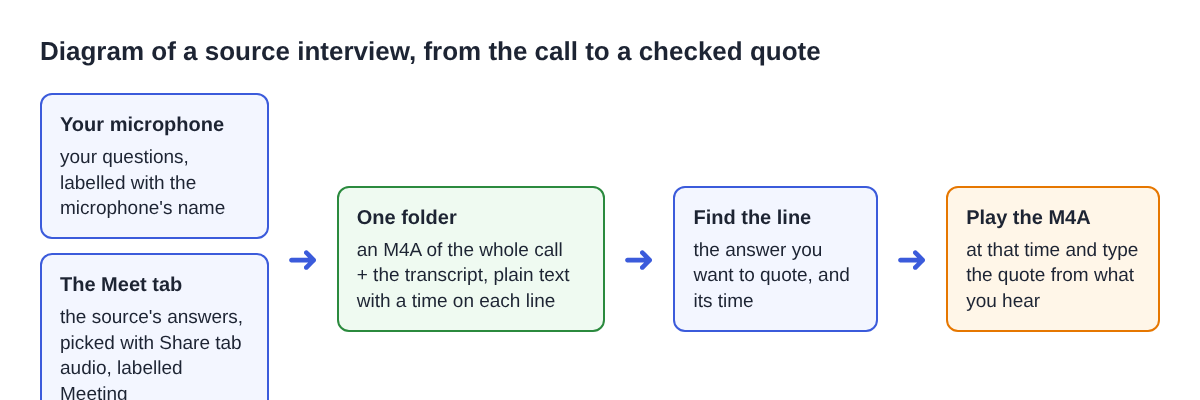
Open the recording's folder. You will find the M4A and transcript.txt, plain text with times and speaker names that opens in any text editor. Each line is labelled with the sound source that was loudest: your microphone's name for your questions, and Meeting for your source's answers. You can type a real name into the box for each label and press Save captions to write the transcript again with the names.
Now the rule that matters most: the transcript is a map, not the quote. Speech recognition can mishear names, numbers and words that sound alike, and one missed word such as "I think" or "maybe" changes what a sentence claims. Chrome also reports a time for each line, not each word, so the times are close rather than exact. Use the time to find the moment, then type the quote from what you hear.
A worked example
Say you interviewed a city transit director for a local news piece, and your notes say 6:10, 11:40, 18:00 and 23:50. You open the transcript and find the Meeting lines near each time:
- 00:06:12, "we cut the bus route in march". You play the M4A from just before 6:12 and hear "We cut the number 9 route in March." The transcript dropped the route number. You quote the recording.
- 00:11:40, "the budget went up four percent". In the audio she says "The budget went up, I think, four percent." You keep "I think" in the quote, or you check the figure before you print it.
- 00:18:05, "nobody told the drivers". The audio continues: "until the week before." The short version changes the meaning, so you quote the full sentence.
- 00:23:51, "that was off the record". Your note says OFF, and so does the audio. Nothing from that stretch goes in.
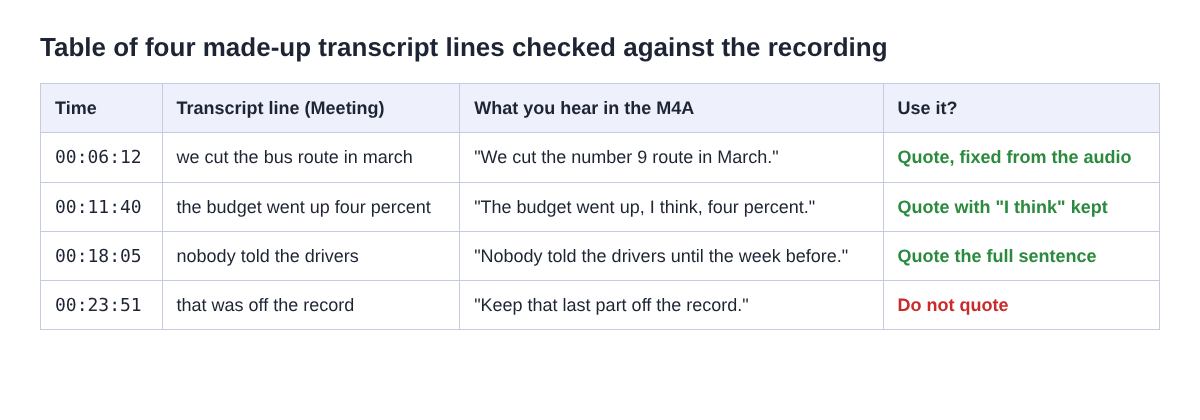
Three of the four lines needed a change before they could be quoted. That is normal, and it is the whole reason to check.
What the recording and transcript cannot do
A few limits are worth knowing before you rely on this for a story:
- One label for the far side. Everyone on the other end of the call shares the Meeting label. If your source brings a press officer along, the transcript will not tell them apart; your jotted notes and your ears will.
- The live transcript uses Google. While it is on, Chrome sends the microphone audio to Google. The recording itself is saved in the folder you chose and leaves your computer only if you use Convert. If a source asks that nothing leave your computer, tell them this before you start.
- The AI button sends text. If you press an AI button on the recording, the transcript with its speaker names is sent to Anthropic. Nothing is sent unless you press one. For a sensitive interview, you may decide not to.
- It does not judge accuracy for you. The recording proves what was said. It does not prove that what was said is true; facts still need checking like any other claim.
More detail on labels and times is in the live transcript guide.
Frequently asked questions
Do I have to tell the source I am recording?
Yes. Ask in the chat before the call and again out loud once recording starts, so their agreement is on the file. The law differs from place to place, and some places need everyone to agree.
Can I quote straight from the transcript?
No. Use the transcript to find the moment, then play the recording at that time and type the quote from what you hear. Speech recognition can mishear names and numbers, and the times are per line, not per word.
Can I add a transcript to the recording later?
No. The transcript is only made live while you record. If it was off, there is no way to add one to that recording afterwards, so check it is on before you press Start recording.
What if my source's voice disappears halfway through?
If "Meeting audio sharing stopped." appeared, the tab share ended and the rest of the call is silent on that side. Stop, pick the Meet tab again with Share tab audio ticked, and start a new recording.
Get started
The Free plan needs no card and gives you 12 hours of recording time with the live transcript, and your files stay on your computer. Open a Meet tab, run a one-minute test with a friend, and you are ready for your next source interview. Start recording for free.
Screen recording that is cheap and easy.
Visit cheaprecorder.com↗