
Family history interview: record a grandparent on a call
Record a family history interview with a grandparent over Google Meet in Chrome: sound only, a timed transcript, one folder per session, names checked by ear.
Your grandmother tells the same three stories at every holiday, and each time you think someone should write them down. If she lives far away, the easiest way to catch them is on a video call you already make. A family history interview recorded in Google Chrome with Cheap Recorder gives you her voice as an audio file and a timed transcript, saved in a folder on your own computer, so the stories outlast the call.
This post is for the grandchild on one end of a Google Meet call and the grandparent on the other. If you sit together in one room, the school project interview post covers that setup.
Why a family history interview is worth recording
Notes miss the best parts. While you type one answer, she is already on the next story, and the line you wanted to keep is gone. A recording lets you listen and ask the next question instead of writing.
The voice matters too. A transcript keeps the words, but the audio keeps the way she says them: the laugh before a punchline, the pause before a hard memory. Years from now, that is what the family will want to hear.
And a call removes the travel. You do not need to wait for a visit. You need a quiet hour, headphones and a calendar slot she agrees to.
Ask first, and plan short sessions
Tell your grandparent you want to record before the call, and ask again once you have started, so her yes is on the recording. The Google Meet guide says to tell everyone on a call that you are recording, and that the law on recording calls differs from place to place, with some places needing everyone to agree.
Then plan sessions, not one marathon. Older voices tire, and a long call drifts. Pick one theme per session and write five or six open questions for it:
- Childhood: where she was born, what the house looked like, what she did after school.
- Work and moving: her first job, why the family moved, what they brought with them.
- Family: how she met your grandfather, what she wants the grandchildren to know.
Open questions ("What did your street sound like?") get stories. Yes or no questions get one word. Send her the theme a day ahead so she can dig out names and dates.
Set up the call and the recorder
Cheap Recorder runs in Chrome, and the Meet call has to be open in a Chrome tab too. Her voice reaches the recording through that tab; yours comes through your microphone, and both are mixed into one file. The Google Meet recording guide has every step; here is the short version for a sound-only interview:
- Open the Meet call in one Chrome tab and Cheap Recorder in another.
- Under Where to save, press Choose folder and pick a folder such as "Family history".
- In the Microphone tile, use Change or add microphones to tick the microphone you speak into.
- Press Pick the call tab, choose the Meet tab, tick Share tab audio (some versions of Chrome say "Also share tab audio") and press Share. The tile changes from "not captured" to "on" and the tab's name.
- Switch the webcam off and do not pick a screen. The recording is then an M4A audio file instead of an MP4.
- Type the session's name in Name this recording, then press Start recording.
Wear headphones, so her voice does not come out of your speakers and back into your microphone, and leave Record the microphone untouched unticked for calls. On a Mac, a Bluetooth headset used as a microphone drops into a low-quality mode, so listen on it and speak into a wired or USB microphone.
Keep the Meet tab open until you press Stop. If it closes, the recorder shows "Meeting audio sharing stopped." and her side goes silent. Picking the tab again does not add it back to a running recording, so stop and start a new one. The guide also suggests a one-minute test call with a friend first, played back, so you know both voices come through.
A worked example: three sessions with Grandma Rosa
Ana lives in another country from her grandmother Rosa. They already talk on Google Meet every Sunday. Ana plans three sessions of about 40 minutes, one per theme, on the Free plan, which needs no card and gives 12 hours of recording time a month.
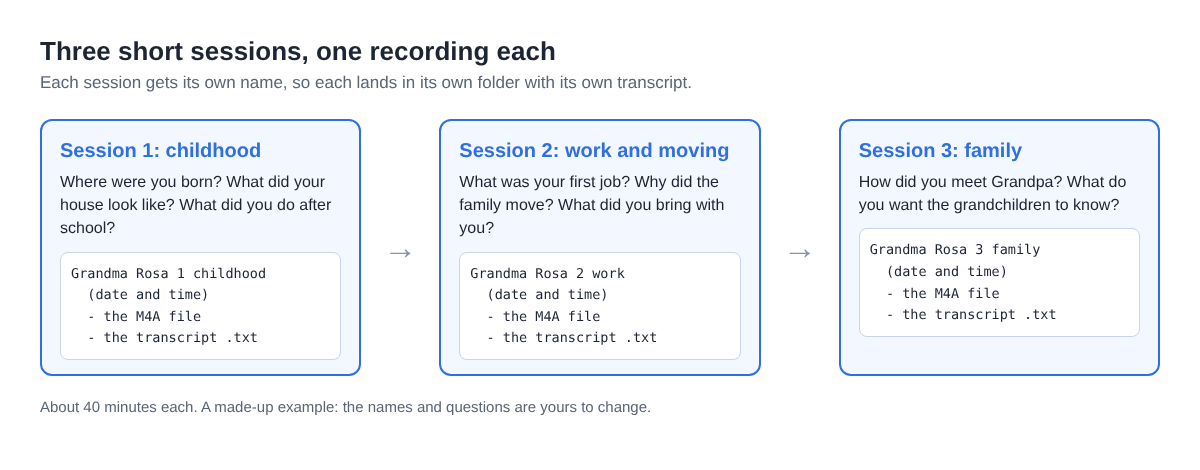
Three sessions of 40 minutes come to 2 hours, so the whole project fits inside one month's 12 hours with room for a fourth session if a story runs long.
Before each call, Ana types a name like "Grandma Rosa 1 childhood" in Name this recording. Every recording gets its own folder, named with that name and then the date and time. Inside it are the M4A file and the transcript, a plain text file with the time of each line. After three Sundays, the "Family history" folder holds three tidy folders in order, each with her grandmother's voice and words.
Rosa sometimes switches to Spanish mid-story. The live transcript offers 25 languages, but Chrome listens for one language per recording, and switching halfway gives odd results. Ana picks the language Rosa uses most for each session. The audio keeps every word in either language, even where the transcript stumbles.
Fix names and places in the transcript
The live transcript uses Chrome's own speech recognition, and it guesses at things it has never heard: a great-uncle's name, a village, a street. So read each transcript with the audio open.
On plans that include speaker detection, each line is labelled with the loudest sound source. On a call, that is "Meeting" for the other side and your microphone's name for you. There is one Speaker box per label: type "Grandma Rosa" for Meeting and your own name for the microphone, then press Save captions and the transcript is written again with the new names. The live transcript guide explains the boxes. If a parent joins the call from Rosa's end, they share the Meeting label with her, since everyone on the far end of a call is in the same track.
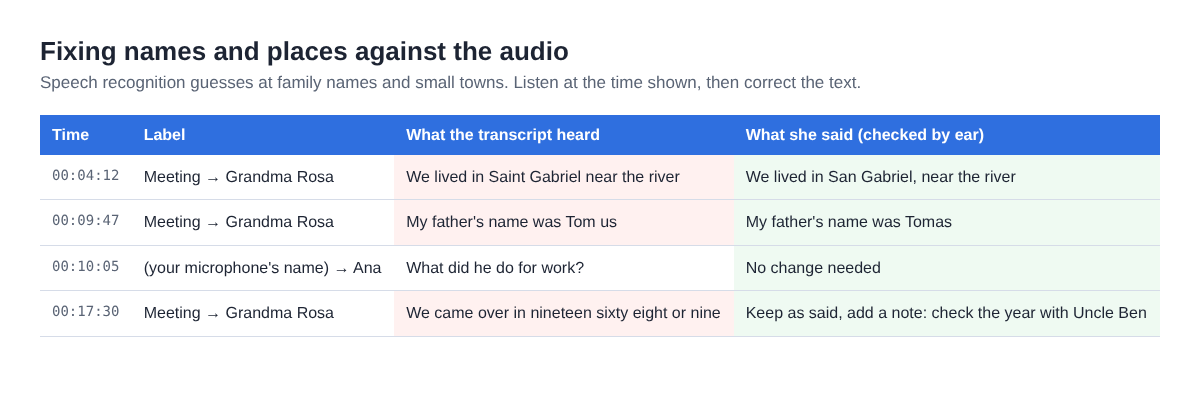
Use each line's time to find the spot in the audio. Times are close, not exact, so start a few seconds early. When she is unsure of a year, keep her words as she said them and add a note to check it with another relative. A family history keeps what was said, and marks what still needs checking.
Keep the family's words safe
The recordings live in the folder you chose, on your computer. That makes them yours to keep, and yours to lose, so make copies:
- Copy the whole "Family history" folder to a second drive, and give a copy to a parent or cousin.
- Keep the folder names as they are, so the session and date stay with each file. The guide to where recordings are saved shows what each folder holds.
- If a relative needs another format, Convert or Download MP3 sends the file to the server to be converted and deletes it there as soon as that finishes. The original in your folder is never changed.
Know what leaves your computer. While the live transcript is on, Chrome sends the microphone audio to Google to turn it into text, and it needs an internet connection, which a call has anyway. The AI buttons send the transcript, with the speaker names you typed, to Anthropic, and nothing is sent unless you press one. The recorder's activity log holds the folder and file names you chose and your microphones' names, so name sessions with that in mind.
Frequently asked questions
Does my grandparent need Cheap Recorder too?
No. You run the recorder in Chrome on your computer, with the Meet call open in another Chrome tab, and her voice reaches the recording through that tab.
Should I record video or just sound?
Sound only keeps it simple: an M4A file and a transcript. If you want a picture too, choose one under What to capture, as the Google Meet guide shows, and the recording is an MP4 instead.
What if she speaks two languages?
Choose the language she uses most before you press Start recording, because Chrome listens for one language per recording. The audio keeps everything she says either way.
How long should each session be?
Around 30 to 45 minutes on one theme works well. Several short, named sessions are easier to listen back to than one long one.
Get started
Pick a theme, write five open questions and ask your grandparent for a Sunday. Start recording with Cheap Recorder for free, no card needed, and keep her stories in a folder the whole family can copy.
Screen recording that is cheap and easy.
Visit cheaprecorder.com↗

