
School project interview: record it as audio with a transcript
Record a school project interview in Chrome as sound only: an M4A file and a timed transcript in your own folder, so you can quote your interviewee word for word.
A teacher asks you to interview someone: a grandparent about how life used to be, a nurse about their job, a shop owner about your town. The hard part is not the questions. It is keeping the answers word for word so you can quote them later. You can record a school project interview as sound only in Google Chrome with Cheap Recorder, and get an M4A audio file plus a timed transcript in a folder on your own laptop.
Why record a school project interview at all
Notes on paper miss things. While you write one answer down, the person is already on the next story, and the best line of the day is often the one you did not catch. A recording lets you listen and ask good follow-up questions instead of scribbling.
The transcript is what saves you time afterwards. It is a plain text file with a time on each line, so you can search it for a word, copy a sentence into your report, and jump to that moment in the audio to check it. Sound only is enough here. Most school interviews end up as quotes in a written report or a slide, not as a video.
Ask permission before you press Start
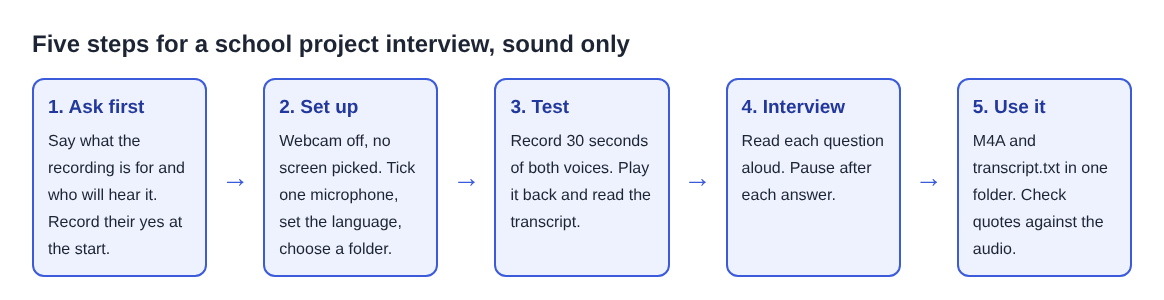
Tell the person what the recording is for, who will hear it or read it, and how long you will keep it. The law on recording differs from place to place, and some places need everyone to agree, so the Google Meet guide says to tell people you are recording. For a school project, also check your teacher's rules, and ask a parent if you are interviewing someone you do not know well.
A simple habit: make your first question "Is it okay if I record this for my project?" Then their yes is at the top of both the audio and the transcript.
Set up the recorder for sound only
Open Cheap Recorder in Chrome. The live transcript uses Chrome's own speech recognition, so it needs Google Chrome, a microphone and an internet connection.
- Switch off Record my webcam and do not pick a screen. With no screen and no webcam, the recorder saves an M4A audio file.
- In the microphone tile, press Change or add microphones and tick the one you will use. If you plug one in now, press Rescan. Each ticked microphone has a level bar that moves with its sound.
- Make sure Live transcript is ticked. It is on by default. In the menu beside it, pick the language the interview is in. There are 25, and the language is set when the recording begins, so choose it first.
- Under Where to save, press Choose folder... and allow Chrome to edit files there.
- Type a name into Name this recording in the start bar, such as "History project Mr Okafor".
The live transcript guide has the full detail on each setting.
Place the microphone, then run a 30-second test
The transcript works from what Chrome hears on your microphone. A laptop's built-in microphone hears you clearly because you sit in front of it, but the other person may be further away and quieter. A headset or desk microphone beats the built-in one in a noisy room, so if you have a USB or wired microphone, put it on the table between you, a little closer to the person you are interviewing.
Avoid a Bluetooth headset as the microphone. On a Mac it switches into a low quality mode, and that makes both the audio and the transcript worse. Choose a quiet room, turn off the television, and sit at a table rather than walking around.
Then record a 30-second test before the real interview and play it back. Ask the person to say their name and what they had for breakfast, then say a sentence yourself. While you test, watch the level bar move for both voices. Then stop, listen, and read the transcript.
If the other voice is faint, move the microphone closer to them and test again. This minute is the cheapest fix you will ever make. A quiet answer that the transcript missed cannot be added later, because the transcript is only made live while you record. If it was off, there is no way to add one afterwards.
A worked example: Maya interviews Mr Okafor
Maya, a student, is writing a report on how her town changed. She interviews her neighbour, Mr Okafor, at his kitchen table with her laptop and a USB microphone.
- She sets up as above, names the recording "History project Mr Okafor", and runs a 30-second test. His voice is quiet, so she moves the microphone toward him.
- She presses Start recording and asks if she may record. He says yes.
- She reads each question aloud from her list and waits a moment after each answer before the next one, so lines in the transcript stay apart.
- After 20 minutes she stops. Her folder now holds the M4A and a text file named after the recording.
- She opens the text file. Every line carries the microphone's name, because both voices went into one microphone.
That last step matters. Each transcript line is labelled with the sound source that was loudest, such as the microphone's name. Two people on one microphone share one label, so the label cannot tell Maya from Mr Okafor. She marks who spoke herself.
Turn the transcript into quotes you can trust
The transcript is saved next to the recording, named after it, as plain text with the time of each line. It opens in any text editor. Make a copy first, then edit the copy: put the speaker's name in front of each line, and fix names, places and numbers that speech recognition heard wrong.
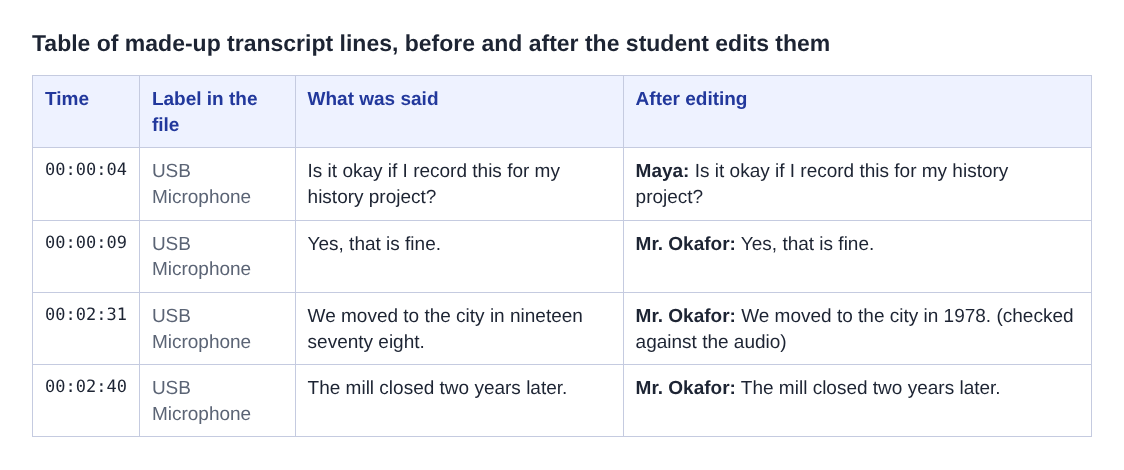
Before a quote goes in your report, play that moment in the audio and check it word for word. Times are measured from the start of the recording and are close, not exact, so start a few seconds early. Dates and numbers are the most common slips: "nineteen seventy eight" may come out as words, or as the wrong year.
The AI button in Cheap Recorder sends your transcript with the speaker names to Anthropic, and nothing is sent unless you press it. For schoolwork, check what your teacher allows before you use any AI tool, and write the report in your own words.
What leaves your computer, and what stays
The recording stays in your folder. Cheap Recorder keeps no copy of it; the one exception is Convert. Download MP3 and Convert send the file to the server, and it is deleted as soon as the conversion finishes. The original in your folder is never changed.
The transcript is different. Chrome sends the microphone audio to Google to turn it into text. If the interview must not leave your computer in any form, untick Live transcript before you press Start recording, and write your notes by listening back instead. Tell the person you interview about this too, so their yes covers it. The where recordings are saved guide lists every file in the folder.
Frequently asked questions
Can I interview someone over a video call instead?
Yes, if the call is open in a Chrome tab: pick it with Pick the call tab so the other side's voice is recorded. Everyone on the far end then shares one label in the transcript.
Why does every line in my transcript have the same name?
Labels follow sound sources, not voices. Two people on one microphone share one label, so add the names yourself in a copy of the text file.
Can I rename the label to a real name?
On plans that include speaker detection, type a name into the Speaker box for that label and press Save captions. With one microphone, that renames both of you at once.
Does it cost anything for a school project?
The Free plan needs no card and gives 12 hours of recording a month with the live transcript, which covers a school interview easily.
Get started
Write your questions, ask permission, and run your 30-second test. Then open Cheap Recorder on the Free plan and record your interview as sound only. For a longer room recording on one microphone, see how to record a church sermon as audio with a transcript.
Screen recording that is cheap and easy.
Visit cheaprecorder.com↗

