Dictate a novel chapter out loud, then edit the transcript
Dictate a novel chapter in Chrome: speak it from a beat list as sound only, take the live transcript as your rough draft, and edit it in your manuscript.
If you think faster than you type, you can dictate a novel chapter out loud and edit the words afterwards. You talk through the chapter, the recorder keeps your voice as a sound file and writes down what it hears, and you turn that rough text into prose in your own manuscript. This guide shows how to do it in Google Chrome, with one worked example from a beat list to an edited page.
You need a computer with Chrome, a microphone close to your mouth, and an outline of what happens in the chapter. Everything is saved in a folder on your own computer.
Why dictate a novel chapter instead of typing it
Many writers stall because they draft and edit in the same moment. Speaking makes that harder to do. You say the next sentence, then the next one, and the chapter keeps moving because there is no cursor to fuss over.
What you get back is not a finished page. It is a rough transcript of your own words, with mistakes in it, and that is still easier to rework than a blank screen. You also keep the recording itself, so when a line in the text makes no sense, you can listen to what you actually said.
This guide is about getting your words down and into your manuscript. It makes no claims about how fast you will write or how good the draft will be.
Set up the recorder for sound only
Cheap Recorder runs in Google Chrome on macOS, Windows and Linux. The Free plan needs no card and gives 12 hours of recording time a month on one device at once, and the live transcript is part of the Free plan and every plan above it.
- Choose a folder. Make one called Novel drafts and pick it with Choose folder. The recorder does not remember the folder between visits, so you choose it again each time you open the recorder.
- Switch off the picture. For a sound-only recording, switch off Record my webcam and do not pick a screen. The recorder then saves an M4A audio file, which is all dictation needs.
- Pick a close microphone. The transcript is made from what Chrome hears on your microphone, so a headset or a desk microphone beats a laptop's built-in one in a noisy room.
- Check the transcript and its language. Under Options, Live transcript is ticked by default, and the menu beside it has 25 languages. Choose before you start, because the language is set when the recording begins.
Then record a short test. Read one line of your chapter in the voice you will use, stop, and play it back. The no sound guide points out it is much quicker to find a sound problem in a thirty-second test than in an hour-long recording.
Plan the beats before you speak
Dictation goes better with a loose outline. You do not need a script, only beats, so you never stop mid-take to ask what happens next. Write four or five lines on paper and keep them in front of you.
Next to the beats, write a spelling list: every invented name and place in the chapter, spelled the way you want it. The transcript is a machine's guess at what it heard, and an invented name like Maren can come back as a common word. You will fix those against this list later, not while you talk.
Give the recording a name that sorts well, such as Novel ch07. Every recording gets its own folder named with the name you typed, then the date and the time the recording began, so a second session on the same chapter lands in its own folder beside the first.
Talk through the chapter
Press Start recording and tell the story from your beat list. Your words appear as captions on the preview and settle into a finished line when you pause. That gives you a simple habit: pause at the end of each sentence, and the transcript keeps your sentences on separate lines with their times.
A few habits help with the edit later:
- Say who is speaking. "Maren said, I am not going back there." You can rewrite the line later, but you cannot recover a speaker you never named.
- Say invented names slowly and the same way every time. It will not stop every mistake, but it keeps the mistakes the same, which makes them easier to find.
- Stay in one language. Chrome listens for one language per recording, and switching halfway through gives odd results.
- Do not expect commands. No page says the transcript adds punctuation or acts on words like "new paragraph". If you say them, expect to see them as words, and treat them as notes to yourself.
Long pauses are fine while you think. If Chrome's speech recognition stops listening during a silence, the recorder starts it again for as long as you are still recording. When you reach the last beat, press Stop and finish.
Edit the transcript into your manuscript
Open the recording's folder. It holds Novel ch07.m4a and, if the live transcript heard speech, Novel ch07 - transcript.txt: plain text with the time of each line, which opens in any text editor. The where recordings are saved guide shows the full layout.
If your writing app reads Markdown, the Transcript button on the recording's card gives you a .md file with the formatting kept. The live transcript guide explains that this button and the Captions .srt button only appear when the transcript caught some speech.
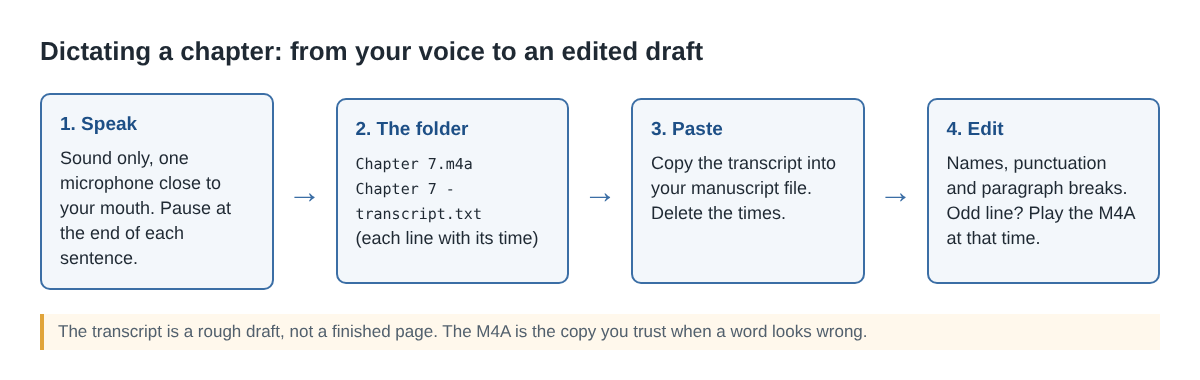
Copy the text into a new file next to your manuscript, not into the manuscript itself, so you always have the untouched transcript to go back to. Keep the times while you edit; they tell you where to listen when a line looks wrong.
Now edit, and treat the text as raw material. Spoken sentences run long, and the punctuation and formatting fiction needs are still your job. Work in passes, each with one goal:
- Names. Go down your spelling list and fix every invented name and place with find and replace.
- Sentences and paragraphs. Add full stops and capital letters, join lines that belong together, and start a new paragraph where the scene turns.
- Dialogue. Put speech in quotation marks and rewrite the "she said" lines into the form you use in the rest of the book.
- Doubtful lines. Where a line makes no sense, read its time, play the M4A at that point, and type what you really said. Chrome gives a time for each line, not each word, so start listening a moment early.
Only then delete the times and move the text into your manuscript.
A worked example: one 18-minute chapter
Here is how one made-up session might go, using only the steps above.
- Before: the writer lists four beats for chapter 7 (Maren reaches the harbour at dawn, the ferry office is shut, an argument on the pier, the key under the net shed) and a spelling list with Maren and the harbour's name. They record a ten-second test and hear it back clearly.
- The take: they name the recording
Novel ch07, check that English is chosen, and talk for 18 minutes, pausing at the end of each sentence. - The edit: the transcript has Maren as "marine" eleven times; one find and replace fixes them. They add punctuation and paragraph breaks, rewrite the dialogue, and at 14:30 a line reads "hissed hissed", so they play the M4A there and keep one.
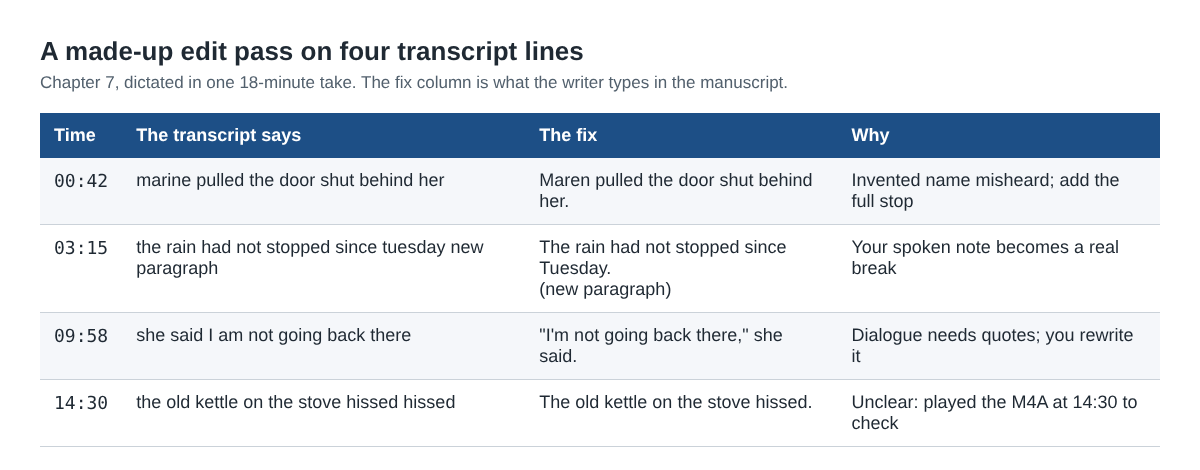
One 18-minute chapter a week comes to about 72 minutes a month, a small part of the Free plan's 12 hours.
What leaves your computer
An unpublished novel is private, so here is what goes where. Cheap Recorder saves each recording into the folder you chose on your own computer. While the live transcript is on, Chrome sends the microphone audio to Google to turn it into text, so you need to be online. If a chapter must not leave your computer in any form, untick Live transcript before you press Start recording; you still get the M4A, but you will be typing from it, because the transcript is only made live and cannot be added to that recording afterwards.
The activity log keeps the folder and file names you chose, for as long as your account exists, so keep names plain, like Novel ch07, and leave plot details out of them. The privacy page lists everything the log holds. If you would rather read finished pages aloud than draft new ones, the sample audiobook chapter post covers that, and the voice note post covers quick ideas between sessions.
Frequently asked questions
Does the transcript add punctuation for me?
Do not count on it. No page promises punctuation, so plan to add full stops, quotation marks and paragraph breaks in your edit pass.
Why are my character names wrong in the transcript?
The transcript is Chrome's guess at what it heard, and invented names are hard to guess. Keep a spelling list and fix them all at once with find and replace.
Can I add a transcript to a chapter I already recorded?
No. The transcript is only made live, while you record, so check that Live transcript is ticked and the language is right before you press Start recording.
Is the Free plan enough to dictate a novel?
The Free plan includes the live transcript and 12 hours of recording time a month. A chapter of about 20 minutes a week uses well under 2 hours of that.
Get started
Write four beats and a spelling list for your next chapter, open Cheap Recorder in Chrome, switch off the webcam and record a ten-second test. Then press Start recording and talk the chapter through. Start free, no card needed.
Screen recording that is cheap and easy.
Visit cheaprecorder.com↗