
Sample audiobook chapter: record one in your own voice
Record a sample audiobook chapter in Chrome as a sound-only M4A file, one short section per take, then check your read against the text with the transcript.
A sample audiobook chapter answers a question you cannot settle by reading silently: does this book sound right in your voice? This guide shows how to record one chapter in Google Chrome as a sound-only file, in short sections you can redo one at a time, and how to check what you read against the page with a transcript.
You need a computer with Chrome, one microphone, a quiet room and the text. Nothing is filmed, and every file lands in a folder on your own computer.
Why record a sample audiobook chapter first
Reading a whole book aloud is a long job. One chapter tells you most of what you need to know before you commit: whether your pace holds, whether your voice tires after twenty minutes, and how many slips you make on a page. It is also something you can send to a friend, a writing group or an author who asked to hear you read.
A sample also shows you your own habits. Many readers speed up on dialogue, drop the ends of sentences or take a loud breath before every line. You only hear these on playback, so the plan below is built around recording small pieces and listening to each one soon after.
One thing this guide does not cover: the rules of any audiobook store or publisher. If you plan to sell a book, read that store's own requirements before you record the full thing, and treat this chapter as practice.
Set up Chrome for sound only
Cheap Recorder runs in Google Chrome and saves each recording to a folder you choose. For a voice-only file, switch off Record my webcam and do not pick a screen. The recorder then saves an M4A audio file instead of an MP4. The no sound guide explains this and what to check if a level bar stays still.
Use a wired or USB microphone if you have one. The recorder warns you when a Bluetooth microphone is selected, and on a Mac a Bluetooth headset used as a microphone switches to a low-quality mode. For a long read that will be listened to closely, that is the wrong trade.
Under Options you will find Record the microphone untouched. It turns off the echo, noise and volume correction. The podcast guide says to tick it for good microphones in a quiet room and leave it unticked for a laptop microphone or a noisy room. Volume correction can make a quiet reading voice rise and fall, so a reader with a decent microphone usually wants it ticked.
Before the real read, record a 30-second test: the first paragraph of the chapter, at the voice you plan to use. Press Stop and finish, play it back with headphones, and change one thing at a time until it sounds like you.
Cut the chapter into sections
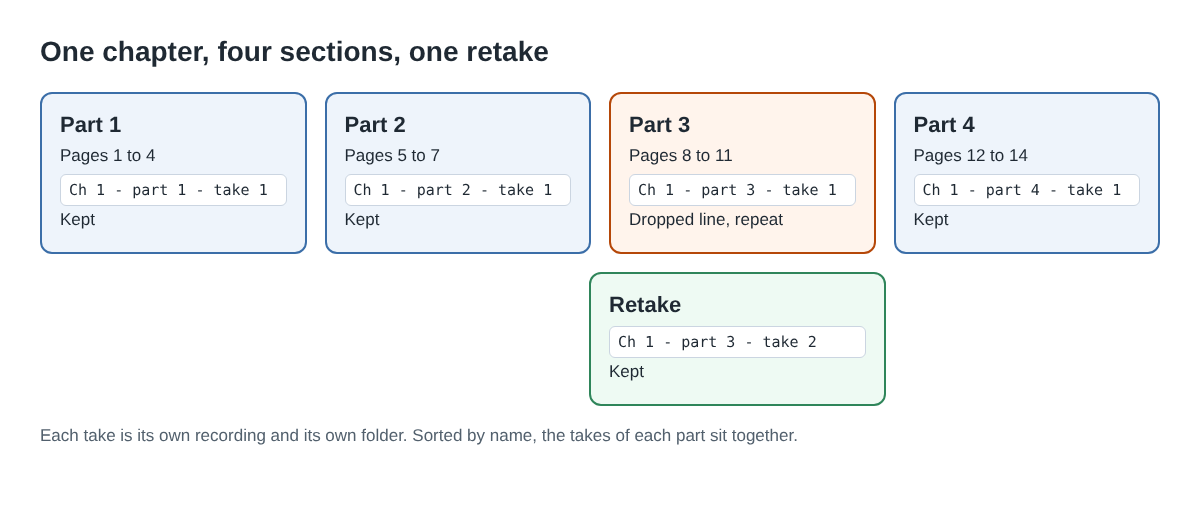
Do not try to read the whole chapter in one take. A slip in minute eighteen should not cost you the first seventeen. Instead, mark the text into sections of a few pages each, ending at a scene break or the end of a paragraph, and record each section as its own recording.
Name every take in the Name this recording box before you press Start. A pattern like Ch 3 - part 2 - take 1 works well. Each recording gets its own folder named with that name and the date and time it began, so sorting the folders by name groups every take of a section together, oldest first. Names are cut at 60 characters, so keep them short. The where recordings are saved guide shows the folder layout in full.
The recorder does not remember the folder between visits, so choose it again with Choose folder each time you open the recorder page. A folder per book keeps things simple.
Read evenly from start to finish
An even read is mostly about rhythm you can keep for an hour. A few habits help:
- Print the text or put it on a second screen at a size you can read without leaning in.
- Mark the hard words and names in the margin and say them once out loud before you start the section.
- Read the first sentence of each section at the same speed as the last sentence of the one before. Play the end of the last take first if you need to match it.
- When you slip, stop, pause for two seconds and read from the start of the sentence. You can cut the slip later, or redo the section.
- Keep water nearby and stop between sections, not in the middle of one.
Silence is fine. If Chrome's speech recognition stops listening during a long pause, the recorder starts it again, so a breath between paragraphs will not cost you the transcript.
Check the read against the text with the transcript
This is where a recorder with a transcript helps a reader. Under Options, leave Live transcript on and pick the language you will read in before you start, because the language is set when the recording begins. The folder then holds a plain-text transcript beside the M4A, with the time of each line. The live transcript guide covers the settings.
Open the transcript next to the book and read along. Look for three things: a line that is missing words, a line where a word is different, and a line that repeats because you went back after a slip. Each one has a time, so you can play that exact moment instead of listening to the whole take again.
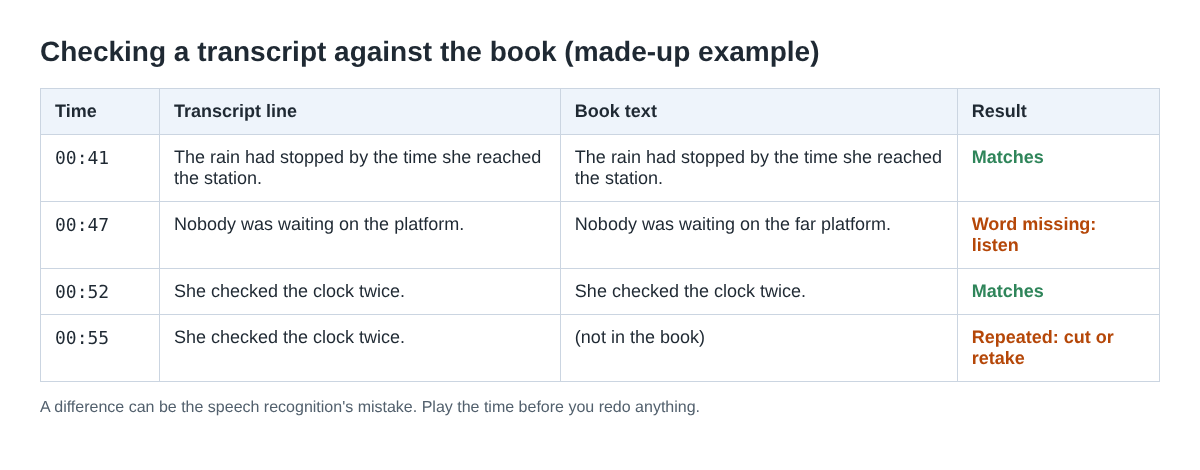
Remember that the transcript is machine text. A difference may be the speech recognition's mistake, not yours, especially on names. Treat each one as a place to listen, not as proof that you misread. While the transcript is on, Chrome sends the microphone's sound to Google to turn it into text, so you must be online. If the book is private, untick Live transcript and check by ear instead.
A worked example: one chapter in five sessions
Say your chapter is fourteen pages. Here is one way to record it over an evening:
- Record the 30-second test, play it back, and tick Record the microphone untouched if your microphone and room suit it.
- Time yourself reading the first page out loud. If it takes about two minutes, the chapter will run near half an hour.
- Mark four sections of three or four pages, each ending at a paragraph break.
- Record
Ch 1 - part 1 - take 1, stop, and check its transcript against pages one to four. Do the same for parts 2, 3 and 4. - Part 3 has a dropped line and a repeated sentence, so record
Ch 1 - part 3 - take 2and check it the same way.
That is five recordings of seven or eight minutes each, about 40 minutes in all. The Free plan gives 12 hours of recording a month, so you could record a sample chapter many times over before you decide anything. A full book read in this way takes much more; the Creator card shows 80 hours a month.
Share the chapter and keep the files
When a take is done, its card in the recorder shows a download button that follows the recording's format, so it reads Download M4A. That hands over the original file. To put the chosen takes together in an audio editor, many people prefer WAV: pick it under More formats, and you get 16-bit sound at 48 kHz with no compression. The convert guide lists every format.
Know where your file goes. Download M4A keeps everything on your computer. Download MP3 and Convert send the file to Cheap Recorder's server, which deletes it as soon as the conversion finishes, and the original in your folder is never changed. The activity log keeps the folder and file names you chose and the names of your microphones, so name takes after the chapter, not after anything private.
If you have recorded audio before, the guided meditation post covers a slower voice with planned pauses.
Frequently asked questions
Can I record a sample audiobook chapter without a camera?
Yes. Switch off Record my webcam and do not pick a screen, and the recorder saves only sound, as an M4A file in your folder.
Should I read the whole chapter in one take?
It is easier in sections. Name each section's take, and redo only the section with a slip instead of the whole chapter.
Does the transcript find every word I misread?
Not always. It is machine text, so use each difference as a time to listen to, and trust your ears over the transcript.
Will this meet an audiobook store's rules?
This guide does not cover any store's rules. Read the store's own requirements before you record a full book.
Get started
Open Cheap Recorder in Chrome, switch off the webcam, record a 30-second test of your first paragraph, and then the first section of your chapter. Start free, no card needed.
Screen recording that is cheap and easy.
Visit cheaprecorder.com↗

