
Voice note with a transcript: record one in Chrome
Record a voice note with a transcript in Chrome: sound only, saved as M4A in your folder, with a plain-text transcript beside it. Here is the route, step by step.
A voice note is the quickest way to get an idea out of your head, and the hard part comes later: finding it again. A voice note with a transcript solves that. You speak, Chrome writes the words down as you go, and you end up with an audio file and a text file side by side in a folder on your own computer. This post shows how to make one with Cheap Recorder, and where the two files go.
It is for notes you record alone at your desk: a to-do list for tomorrow, a fix you want to remember, the outline of an email. If you want to practise a talk on camera instead, read the post on practising a speech on webcam.
What a voice note with a transcript gives you
Audio alone is slow to use. You cannot skim it, search it or paste a line of it into a message. The text fixes all three.
- You can search it. The transcript is a plain text file, so your computer's own file search can find a word from last month.
- You can skim it. Each line has the time it was said, so you can read first and listen only to the line you doubt.
- You can reuse it. A line can go into an email, a ticket or a to-do list without you typing it again.
The audio is still there. When the words look wrong, you play that stretch and hear what you meant.
What you need before you start
- Google Chrome. The live transcript uses Chrome's own speech recognition. In other browsers the option is greyed out.
- An internet connection. While the transcript is on, Chrome sends your microphone audio to Google to turn it into text, so you need to be online.
- A microphone. A headset or desk microphone close to your mouth beats a laptop's built-in one in a noisy room.
- A Cheap Recorder account. The Free plan includes recording, the live transcript and captions, with 12 hours of recording a month and no card needed.
How to record a voice note with a transcript
Here are the steps, in the order the recorder shows them.
- Open the recorder in Chrome and sign in. Allow the microphone when Chrome asks. If you said no by mistake, press Allow microphone and camera in the Microphone box.
- Choose where to save. In step 1, Where to save, press Choose folder... and allow Chrome to edit files in it. The recorder does not remember the folder between visits, so you choose it each time. Until you do, the start bar says to choose a folder first.
- Make it sound only. Switch off Record my webcam and do not pick a screen. The recorder then saves an M4A audio file instead of an MP4.
- Pick your microphone. In the Microphone tile, open Change or add microphones and tick the one you speak into. If you just plugged it in, press Rescan.
- Check Live transcript. Under Options, Live transcript is ticked by default. Choose your language in the menu beside it now, because the language is set when the recording begins.
- Name the note. Type a name in Name this recording. If you leave it empty, the recording is called "Recording".
- Test for 30 seconds. Press Start recording, say a sentence, watch the level bar move, stop and play it back. The course guide suggests a 30-second test for exactly this reason: it catches a wrong microphone before you lose a note.
- Record the note, then press Stop and finish. A "Recording saved." message appears, and the card for your note shows the folder it was saved to.
If a Bluetooth headset is your only microphone, the recorder warns you. On a Mac, a Bluetooth headset used as a microphone switches into a low-quality mode, so use it to listen and speak into a wired or USB microphone.
Say the subject first, one idea per note
The transcript is only as clear as what you say, and a note that starts with its subject is easy to find later. Say the subject in your first sentence, then keep to one idea. If a second idea turns up, stop and record a second note.
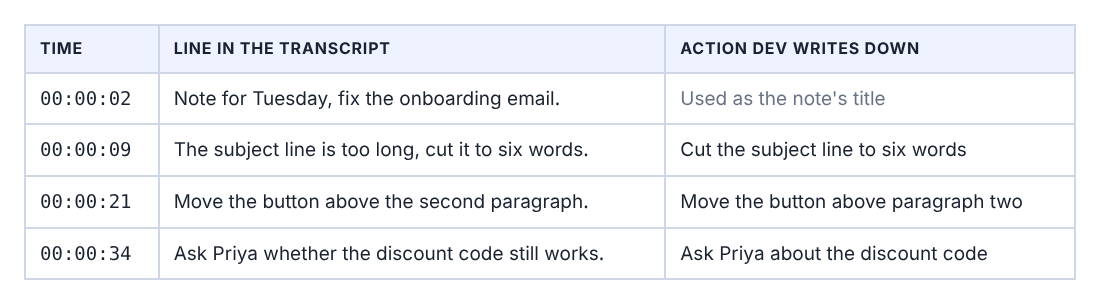
Here is a made-up example. Dev records a note named "Onboarding email fix" and says four things. The transcript file has a line for each, with the time it was said:
- 00:00:02, "Note for Tuesday, fix the onboarding email."
- 00:00:09, "The subject line is too long, cut it to six words."
- 00:00:21, "Move the button above the second paragraph."
- 00:00:34, "Ask Priya whether the discount code still works."
The first line works as a title. Dev can search the folder for "onboarding" next month and land on this note, and the last three lines are already a to-do list.
Where the audio and the text end up
Everything stays in the folder you chose. Each recording gets its own folder inside it, named with the name you typed, then the date and the time the recording began. A note called "Onboarding email fix" started at half past nine would be in a folder like Onboarding email fix - 2026-10-26 09.30. If you record a second note with the same name in the same minute, it gets (2) on the end.
Inside the folder are two files: the M4A audio, named after the note, and the transcript, Onboarding email fix - transcript.txt. The transcript is plain text with the time of each line, and it opens in any text editor.
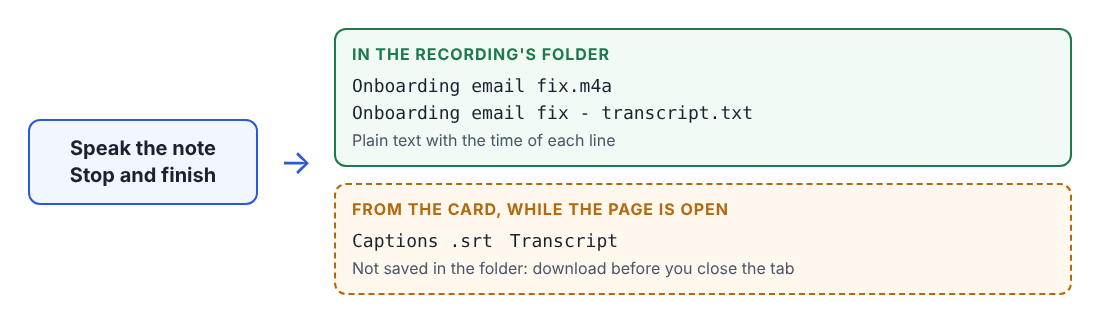
One detail catches people out. Caption files are not saved in the folder. If you want a caption file, press Captions .srt on the recording's card, or Transcript to download the transcript with its formatting. The card lasts while the recorder page stays open. After a reload it is gone, though your files are still in the folder, so download what you need before you close the tab.
Turn the transcript lines into something you can use
Open the transcript and read it once. Because it is made from what Chrome heard on your microphone, check names and numbers against the audio. Chrome reports a time for each line, not for each word, so a time can be a moment early or late. That is fine for finding a line, and you play the audio to check the exact words.
Each line is also labelled with the sound source that was loudest while it was spoken. For a note recorded alone, that is your microphone's name. If you would rather see your own name, type it in the Speaker box above the transcript and press Save captions, and the transcript is written again with the new name.
Then copy out what you need. The table below shows Dev's four lines turned into three actions.
If you turn a transcript into steps often, the post on turning a transcript into step-by-step instructions works the same way.
What leaves your computer
The audio is written to your own folder, and Cheap Recorder keeps no copy of it. A few things still travel, and you should know them before you record anything sensitive:
- Chrome sends the microphone audio to Google to turn it into text while the live transcript is on. If a note must not leave your computer in any form, untick Live transcript before you press Start recording. You then get the audio and no transcript.
- Download MP3 and Convert send the file to the Cheap Recorder server to be converted. The server deletes it as soon as it finishes, and the original in your folder is never changed. The card's first button, Download M4A, uploads nothing.
- The AI button sends your transcript to Anthropic, with the speaker names, only when you press it.
- The recorder's activity log holds the names you chose for folders and files, and the names of your microphones, so do not put anything private in a note's name.
If other people speak in your note, tell them you are recording before you start. The law on recording differs from place to place, and some places need everyone to agree.
Frequently asked questions
Can I add a transcript to a voice note I already recorded?
No. The transcript is only made live, while you record. If Live transcript was unticked when you pressed Start recording, that note has no transcript and none can be added afterwards.
Why is there no Transcript button on my card?
The Captions .srt and Transcript buttons only appear when the transcript caught some speech. Check that Chrome may use your microphone, that you are online and that the right language is chosen, then try a 30-second test.
Can I record a voice note in another language?
Yes. The menu beside Live transcript lists 25 languages, and you choose one before you start. Chrome listens for one language per recording, so a note that switches language halfway will not come out clean.
Can I record a voice note offline?
No. The live transcript needs you to be online, because Chrome sends your microphone audio to Google to turn it into text. Plan for a connection when you record.
Is the Free plan enough for voice notes?
Yes. Recording, the live transcript and captions are on the Free plan, with 12 hours of recording a month on one device. Short notes use very little of that.
Get started
Open Chrome, choose a folder, switch the webcam off and say your first note out loud, subject first. Start with the free plan, no card needed. To check your microphone before a longer session, read how to test your microphone before a long recording, and for every detail of the transcript see the live transcript and captions guide.
Screen recording that is cheap and easy.
Visit cheaprecorder.com↗

