Chess coaching call: record the lesson and replay each move
Record a chess coaching call in Chrome: film the tab with the board, take the call's sound once, and say each move back so the transcript can find it.
To record a chess coaching call, open the call in a Chrome tab, take its sound in Cheap Recorder with Pick the call tab... and Share tab audio, and film the tab that shows the board. Then say every move back out loud by its piece and square: the transcript is made from your own microphone, so the moves you speak become a timed list you can replay the lesson from.
This post does not teach chess. It covers the recording: your coach's agreement, which tab to film, why your own voice matters more than you would expect, and one 60-minute lesson worked through. The Free plan covers every step.
What a chess lesson leaves behind without a recording
A tournament game leaves a scoresheet. The FIDE Laws of Chess, in effect from 1 January 2023 and published in the FIDE Handbook, require each player to write down their own moves and the opponent's, move after move (Article 8.1.1). A lesson has no such rule. It leaves a position on a board and your memory of why a move was bad.
So the recording has to hold three things, and each comes from a different place:
- The board. That is the picture of whichever tab shows it.
- Both voices. Yours comes from your microphone. Your coach's comes from the call's tab.
- A way back to one move. That is the transcript, with a time on every line.
The third is the one to plan for. An hour of video has no index. To find what your coach said about move 14, you drag the player back and forth.
Film the tab that shows the board
The call and the board are not always in the same tab, and that decides what you pick under What to capture.
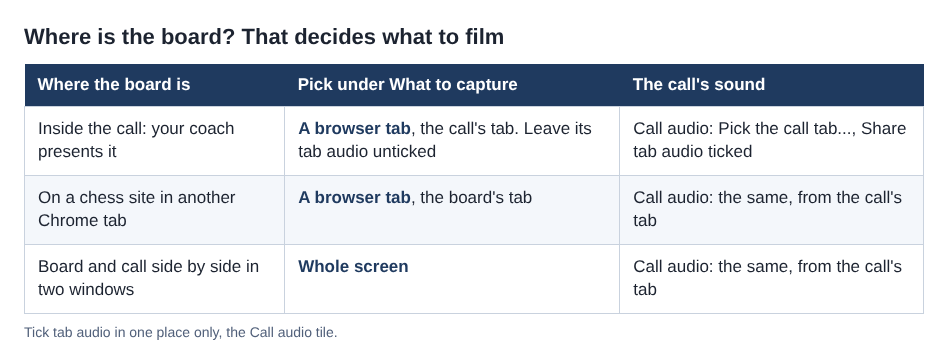
- Your coach presents a board inside the call. The board is in the Meet tab. Choose A browser tab and pick the Meet tab.
- You both look at a board on a chess site in another tab. The call only carries the voices. Choose A browser tab and pick the board's tab.
- The board and the call sit side by side in two windows. Choose Whole screen to film both.
In all three, the picture and the call's sound are separate choices. Chrome offers tab audio in its sharing window when you pick a tab to film. Leave it unticked for the Meet tab, or your coach's voice goes into the file twice. Leave Record my webcam off unless you want your own face in the video.
Ask your coach, then set up the chess coaching call
Ask before the day of the lesson, in writing: "May I record our lessons to review them? The file stays on my computer." Then say it again out loud once the recording runs. The law on recording calls differs from place to place, and some places need everyone to agree, so follow the rules where you and your coach are.
Open the call, or its waiting screen, in a Chrome tab. It has to be in Chrome, because Chrome only hands a web page the sound of another tab when you share that tab and tick its tab-audio option. Then open Cheap Recorder in another tab and sign in. The Google Meet guide has these steps in more detail.
- Under Where to save, press Choose folder... and pick a folder for your lessons. Each recording gets its own folder inside it.
- Check that the Microphone tile names the microphone you mean to use.
- In the Call audio tile, press Pick the call tab..., choose the Meet tab, tick Share tab audio, then press Share. The tile should say "on" followed by the tab's name.
- Under What to capture, pick the picture from the list above.
- Type a numbered name in Name this recording, such as "Chess 12 Two knights".
Wear headphones, so your coach's voice does not come out of your speakers and back into your microphone. Leave Record the microphone untouched under Options unticked, because it turns off the echo, noise and volume correction. Then record a 30-second test with your coach and play it back: you should hear both of you and see the board. If the call is silent, the no sound guide lists the causes.
Say each move back: the transcript hears your microphone
Here is the part people get wrong. The MP4 holds both voices, so it seems the transcript must hold both too. It does not have to. The transcript guide says the transcript is made from what Chrome hears on your microphone. The recorder's own code, read on 13 November 2026, starts Chrome's speech recognition without handing it the call tab's sound. The call's sound goes into the recording, not into the text.
With headphones on, your microphone does not hear your coach. So expect your coach's words in the video and your own words in the transcript.
The fix is a habit, not a setting. When your coach names a move, say it back with the reason:
Coach: "Here knight f3 was better." You: "Knight f3, because it guards e5."
That one sentence puts a line in the transcript with its time.
Say the piece and the square, not "that knight move". This is algebraic notation, the only system FIDE recognises for its own tournaments (Appendix C of the Laws). Every square has one name, a letter and a number. A piece's move is the piece and the square it lands on, written Nf3. A pawn's move is only the square, written e5. Spoken, "knight f3" is three syllables and points at one move. Add the move number when you know it: "Move 14, knight f3."
Without headphones, your microphone can pick up your coach from the speakers, and on plans that label speakers such a line is marked with the loudest source, Meeting for the far side of the call. But speakers bring echo. Headphones and saying it back is the cleaner way.
A worked example: a 60-minute lesson, six moves to replay
Say your twelfth lesson goes through one of your own games, a Two Knights opening you lost. The lesson runs 60 minutes. You say back six moves.
Afterwards your folder holds Chess 12 Two knights.mp4 and Chess 12 Two knights - transcript.txt, plain text with a time on each line.
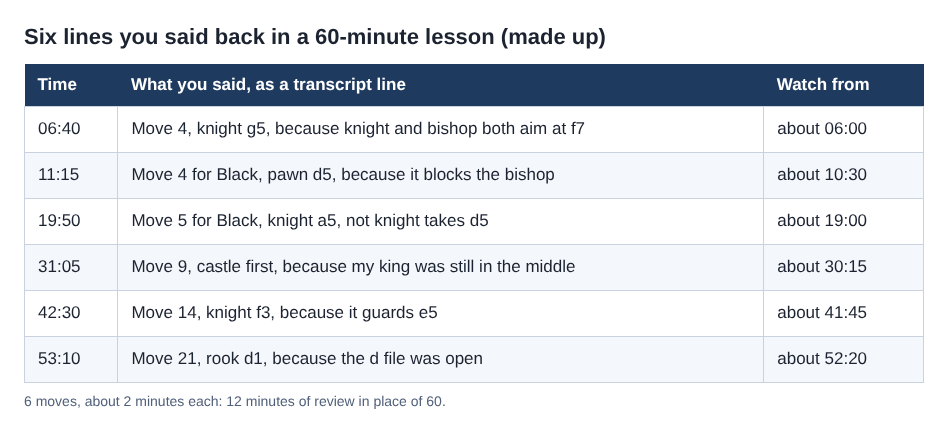
Open the transcript in a text editor and search for "move". Each hit is a line you spoke, with its time. Open the MP4 at that time, start a little earlier, and watch about two minutes: your coach's explanation, then your own sentence. Six moves at two minutes each is 12 minutes of review in place of 60.
Then set up each position on a board and play the better move yourself. The transcript's times are close, not exact, because Chrome reports a time for each line and not for each word.
The cost in plan time is small. The Free plan card shows 12 hours of recording time. Four 60-minute lessons a month are 4 hours, and four 30-second tests add 2 minutes.
Limits, and what is still unsettled
The strongest objection: the board already keeps the moves. If your coach's board can save the moves as a file, ask for it. That file lets you click through the game, which an MP4 cannot do. But it holds what was played, not why. The recording holds the why. Keep both.
The transcript writes words, not moves. No guide says how Chrome's speech recognition writes a spoken square, so "f3" may arrive as other words. Read your test transcript. If squares come out wrong, lean on the move number and the piece name when you search.
Markers do not replace this. You can press M or Add marker during the call, but with the usual single MP4 the marker notes are not saved. The spoken move is what stays.
A stopped tab share cannot be added back. If "Meeting audio sharing stopped." appears, your coach is silent in the file from then on. Stop and start a new recording.
Your microphone audio goes to Google while the live transcript is on. Chrome sends it there to turn it into text. If a lesson must not leave your computer in any form, untick Live transcript and write the times on paper.
For other lessons on a call, the guitar lesson post and the remote tutoring post cover the teacher's hands and a written recap.
Frequently asked questions
Can I record a chess coaching call on the Free plan?
Yes. The Free plan needs no card, shows 12 hours of recording time, and covers every step in the Google Meet guide, with the live transcript included.
Why are my coach's words missing from the transcript?
The transcript is made from what Chrome hears on your microphone, and with headphones on your microphone does not hear your coach. Their voice is still in the MP4. Say each move back so it lands in the text.
Does the recording save the moves as a game file?
No. You get an MP4 and a plain text transcript. Ask your coach for the moves from the board they used.
Do I need my coach's permission to record?
Tell your coach before you start. The law on recording calls differs from place to place, and some places need everyone to agree.
Get started
Ask your coach, record a 30-second test, and say the first move back. Start free with Cheap Recorder, no card needed.
Screen recording that is cheap and easy.
Visit cheaprecorder.com↗