Online guitar lesson on Google Meet: record it to practise later
Record an online guitar lesson on Google Meet in Chrome: the teacher's hands on video, every exercise named out loud, and a practice list for the week.
An online guitar lesson moves fast. Your teacher shows a chord shape, plays a pattern twice, says "now you", and moves on. By Wednesday you remember the name of the exercise but not where the fingers went. This post shows you how to record the lesson on Google Meet in Chrome with Cheap Recorder, so you keep the teacher's hands on video, every spoken instruction in a timed transcript, and a short practice list for the week.
It does not teach guitar, and it makes no promise about how music sounds through a video call. That part is between you, your teacher and Google Meet. It covers the recording: asking first, setting up the sound and the picture, naming each exercise out loud, and practising from the file afterwards.
Ask your teacher before the lesson
Ask first, in writing, before the day of the lesson. Something like: "Would you mind if I record our lessons so I can practise from them? The file stays on my computer and I will not share it." Your teacher may say yes, may ask you to record only the demonstrations, or may say no. All three answers are fine.
Then say it again out loud when the recording starts. The law on recording calls differs from place to place, and some places need everyone to agree, so follow the rules where you and your teacher are. A spoken yes at the start of the file is also a clear record that you asked.
What to record in an online guitar lesson
You need three things back from the lesson, and each comes from a different place:
- The teacher's hands. Where the fingers sit and how the strumming hand moves. That is in the picture of the Meet tab.
- The teacher's playing and voice. The instructions, the count, the tempo. That is in the sound of the Meet tab.
- You. Your questions and your playing, through your own microphone. Hearing your own take later shows you what to fix.
Your own face is not on the list, so leave Record my webcam off. The video you want is the teacher's view.
Set up the Meet tab, the sound and the picture
Open the lesson, or its waiting screen, in a Chrome tab. The call has to be in Chrome, because Chrome only hands a web page the sound of another tab when you share that tab and tick its tab-audio option. Then open Cheap Recorder in another tab and sign in. The Free plan covers every step below. The Google Meet guide has the same steps with more detail.
- Under Where to save, press Choose folder... and pick a folder for your lessons. Each recording gets its own folder inside it, named with the date, the time and the recording's name.
- Check the Microphone tile names the microphone you mean to use.
- In the Call audio tile, press Pick the call tab..., choose the Meet tab, tick Share tab audio, then press Share. The tile should say "on" followed by the tab's name.
- Under What to capture, choose A browser tab and pick the Meet tab again. This time leave its tab audio unticked. The sound already comes from Call audio.
- Type a numbered name in Name this recording, such as "Lesson 07 Barre chords", so the lessons sort in order.
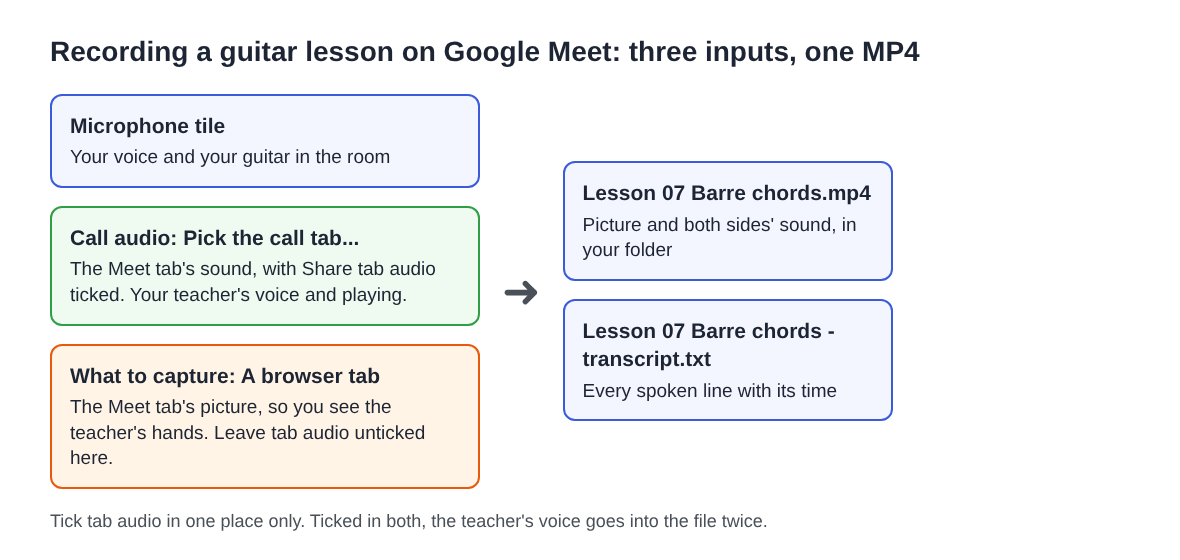
Tick tab audio in one place only. If you tick it in both, the teacher's voice goes into the file twice. Wear headphones too, so the teacher's playing does not come out of your speakers and back into your microphone. And leave Record the microphone untouched under Options unticked for calls, because it turns off the echo, noise and volume correction.
Do a 30-second test before the lesson starts
Join the call a few minutes early and record 30 seconds. Say a sentence, play one chord, and ask your teacher to say hello and play something short. Press Stop and finish, then play the result in the player on the page.
Check three things: you hear the teacher, you hear yourself, and the video shows the teacher's tab. If the Call audio tile says "that tab had no audio", you shared a window or left the box unticked; press Pick the call tab... again and tick it. The no sound guide covers the other causes. Delete the test and you are ready.
If you want to test your microphone on its own the day before, the microphone test post walks through it.
During the lesson: name each exercise out loud
Press Start recording. A timer appears at the top. Then do two small things all lesson.
Name each exercise out loud. Ask your teacher at the start: "Could you say the name of each exercise before you play it?" A spoken "Exercise two, F to C, at sixty" lands in the transcript with its time. A tempo or chord name you only see on screen does not.
Jot the timer. Keep a paper notebook next to you and write the time when each new exercise starts. You can press M or Add marker while you record, but with the usual single MP4 the marker notes are not saved, so the times on paper are what you keep.
Two things to know before you rely on the transcript. It writes down words, not music: it will hold "now play the C chord four times", not the chord itself. And on plans that label speakers, everyone on the far side of the call shares one label, Meeting, while your lines carry your microphone's name, so you can read who said what.
If you see "Meeting audio sharing stopped." during the lesson, the tab share ended, for example because the Meet tab was closed. From then on the teacher is silent in the file. Picking the tab again does not add it to a running recording, so stop and start a new recording, named "Lesson 07 Barre chords part 2".
A worked example: one 45-minute lesson, one practice list
Say your seventh lesson covers the F barre chord, the change from F to C, and a strumming pattern. You recorded it as "Lesson 07 Barre chords". Your notebook says 04:10, 12:35, 21:50, 33:20 and 41:05.
After the lesson you have a folder holding Lesson 07 Barre chords.mp4 and, if Live transcript was ticked under Options, Lesson 07 Barre chords - transcript.txt, plain text with the time of each line.
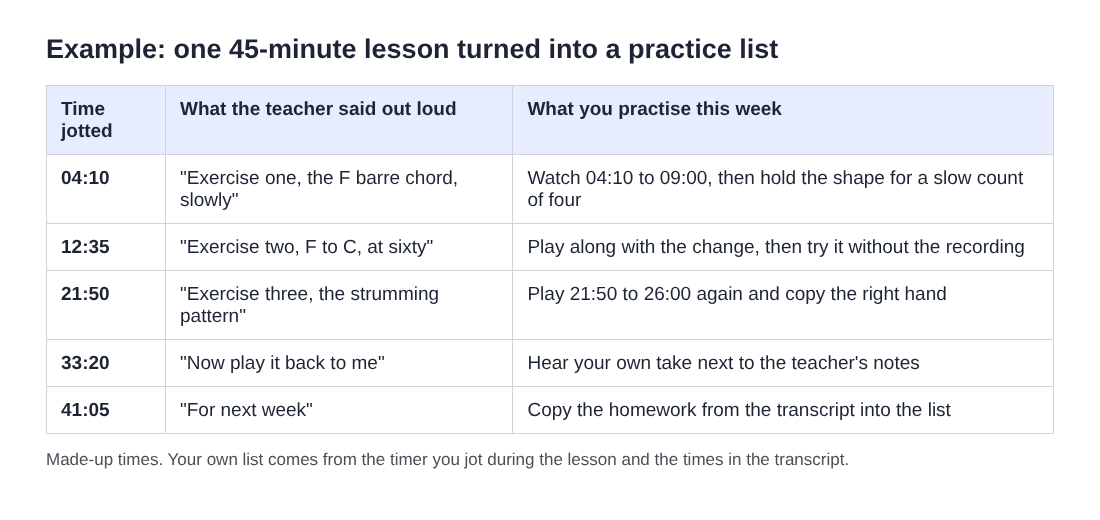
Open the transcript and find each jotted time. Copy the teacher's spoken words for that exercise into a short list, and write one practice task beside each. The homework at 41:05 holds the details that are easy to forget: which song, how slow, how many minutes a day. Copy those lines word for word.
Check any number or chord name against the video before you trust it. The transcript's times are close, not exact, and a tempo or a chord name can be misheard. Play the MP4 at that time and listen.
Practise from the recording during the week
Keep the practice list next to your guitar and open the MP4 in any video player. A few ways to use it:
- Watch, then play. Play the exercise once, pause, and copy it without the recording.
- Play along. Start the recording a few seconds before the teacher plays and join in.
- Listen to your own take. At 33:20 in the example, you played the pattern back to your teacher. Listen a day later, with the teacher's version just before it.
Before the next lesson, write down one question per exercise and ask it at the start. If you want the lesson as sound only for your phone, Download MP3, where the site offers it, gives you a copy. Download MP3 and Convert send the file to the server to be converted; otherwise the recording stays in your folder.
The same habits work for other lessons on a call. The language lesson post uses the transcript more, and the piano practice post covers recording yourself alone between lessons.
Frequently asked questions
Can I record an online guitar lesson on the Free plan?
Yes. The Free plan needs no card and gives you 12 hours of recording time, and it covers every step in the Google Meet guide.
Will the transcript write down the chords and notes?
No. It writes down spoken words, using Chrome's own speech recognition, so ask your teacher to say each exercise's name and tempo out loud.
Why do I hear my teacher twice in the recording?
Tab audio was ticked both in Call audio and in the browser tab share. Tick it in Call audio only, and wear headphones against echo.
Does my lesson recording get uploaded?
No. It is saved in the folder you chose and only leaves your computer if you use Convert or Download MP3. While the live transcript is on, Chrome sends your microphone audio to Google to turn it into text.
Get started
Ask your teacher, join early, and record a 30-second test before your next lesson. Start free with Cheap Recorder, no card needed.
Screen recording that is cheap and easy.
Visit cheaprecorder.com↗