
Record a language lesson in Chrome and review it afterwards
Record a language lesson in Chrome with your voice and your tutor's, mark corrections as they happen, and turn the transcript into a short study list on your own computer.
You can record a language lesson in Chrome and keep it on your own computer: your voice, your tutor's voice and a transcript, from one Start recording press. This post shows the setup for an online lesson, what to check in the first 30 seconds, where the transcript falls short for language learners, and how to turn one lesson into a short study list.
Why record a language lesson
An hour of conversation goes by fast. You hear a correction, nod, and lose it two minutes later. A recording lets you hear it again at your own speed.
- Your own mistakes, in your own voice. A wrong ending or a swallowed vowel is much easier to hear on playback than mid-sentence.
- The exact words your tutor used. A new phrase is easy to mishear and hard to spell from memory.
- A record of progress. Lesson 03 next to lesson 20 shows how your pace has changed.
The review habit is the same one used for speaking practice on camera, which the job interview practice post walks through.
Ask your tutor before you press record
Ask first, and ask at the start of the lesson, not after it. The law on recording calls differs from place to place, and some places need everyone to agree. Say you want the recording for your own study.
Your tutor may say yes or may prefer not to be recorded, and that is their call. You can still use the recorder alone: read your homework aloud, record it, and review it the same way.
Set up the recorder in five minutes
You need:
- Google Chrome on macOS, Windows or Linux, with the lesson open in a Chrome tab.
- A free Cheap Recorder account. The Free plan has recording, live transcript and captions, and 12 hours of recording a month on one device. No card is needed.
- A microphone close to your mouth. A wired or USB one is best. On a Mac, a Bluetooth headset used as a microphone drops to a low-quality mode, so use it to listen only.
- Headphones, so your tutor's voice does not come out of your speakers and back into your microphone.
Do the setup before the lesson, not while your tutor waits.
- Choose a folder. Under Where to save, press Choose folder... and pick one. If Start recording is greyed out, the words beside it say why. Each recording gets its own folder named with the date, the time and the recording's name.
- Name the recording. Type something like
Spanish lesson 12in Name this recording. Numbers keep your lessons in order. - Add your tutor's sound. In the Call audio tile press Pick the call tab..., choose the lesson's tab, tick Share tab audio (some versions of Chrome say Also share tab audio) and press Share. The recorder keeps only that tab's sound and mixes it with your microphone.
- Check Options. Live transcript is ticked by default. Set its language (see below). Leave Record the microphone untouched unticked, because that is the right setting for calls.
- Choose audio or video. For sound only, switch Record my webcam off and pick no screen. You get an M4A file instead of an MP4, which is often all a lesson needs.
- Run a 30-second test. Press Start recording, say a sentence, ask your tutor to say one, press Stop and finish and play it back.
The Call audio steps are the ones in the Google Meet recording guide, and the Teams guide covers Teams. For any other lesson service, treat the 30-second test as the proof that its tab sound is captured.
Two things go wrong here. If you also film the lesson tab through A browser tab with its tab audio ticked, your tutor's voice goes into the file twice, so tick tab audio in one place only. And if the share ends, you see Meeting audio sharing stopped. and the other side is silent from then on. Picking the tab again does not add it to a recording already running, so stop and start a new one.
What the transcript does well and where it falls short
The live transcript is made from what Chrome hears on your microphone, so your own speech is the part to trust. Your test shows how much of your tutor's side it catches in your setup. Each line is labelled by the loudest source, such as your microphone's name or Meeting for the call tab.
For language learners, one limit matters most. Chrome listens for one language per recording, set when the recording begins, and switching halfway gives odd results. A lesson that moves between your language and your tutor's will not come out clean. Pick the language you will speak most, treat the lines in the other language as rough, and check the menu before every lesson: it goes back to its default each time the recorder page opens. The menu lists 25 languages.
Speech recognition also stumbles on a language you are still learning. That is useful in its own way: when the transcript misreads a word, check how you said it.
Chrome sends your microphone audio to Google to turn it into text while the transcript is on. If a lesson must not leave your computer in any form, untick Live transcript before you start. A transcript cannot be added to a recording afterwards.

Mark corrections while you record
Press M or Add marker when your tutor corrects you or teaches a phrase. A short note confirms the time. Markers are saved to files only when Also save every source separately is ticked under Options before you start. With the default single MP4 the notes show while recording but are not saved, so write the times on paper.
That same option saves each source as its own file: your microphone in one, and the other side of the call as audio_meeting_far_end.webm, in a Separate sources folder inside the recording's folder. It is handy for replaying only your own speaking. It cannot be added later, so decide before you press Start.
Worked example: one lesson, four marks
Say you have Spanish lesson 12 with a tutor, Marta, for 55 minutes. You pressed M four times. Afterwards you press Stop and finish, open Spanish lesson 12 - transcript.txt and look at the lines around each time. The transcript has times for each line and opens in any text editor. If your tutor's lines are in the file, rename the Speaker boxes to your names and press Save captions, so each line starts with a name.
Then you build a list like this one (the times and phrases are made up):
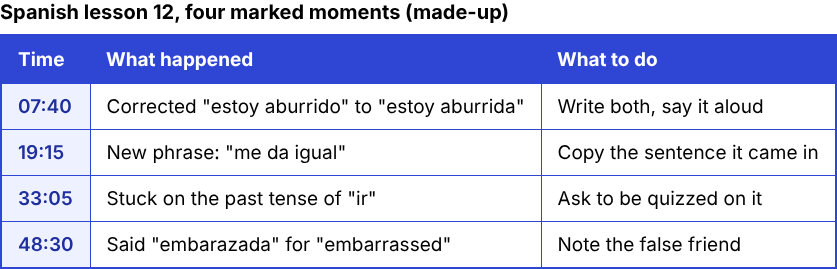
Twenty minutes later you have four items, each with the sentence in context. Replay each spot in the recording, say the sentence aloud, and bring the list to lesson 13 so Marta can quiz you on it.
Keep the lessons in order
Name every lesson with a number and keep each folder. Sorted by name they stay in order, and you can listen to lesson 03 and lesson 20 back to back. Your files are in the folder you chose; they are not uploaded, except when you use Convert or Download MP3, which send the file to the server and delete it there when done. The where recordings are saved guide lists what each folder holds, and the live transcript guide covers the .srt and transcript downloads. Caption files are not saved in the folder on their own, so download Captions .srt from the recording card while the recorder page is open.
Frequently asked questions
Can I record a language lesson in Chrome for free?
Yes. The Free plan includes recording, live transcript and captions, and 12 hours of recording a month on one device. No card is needed.
Why can I not hear my tutor in the recording?
Your microphone only picks up you. Press Pick the call tab..., choose the lesson's tab and tick Share tab audio, then confirm with a 30-second test. The lesson has to be open in a Chrome tab.
Does the transcript work for a lesson in two languages?
Not cleanly. Chrome listens for one language per recording, so pick the one you speak most and expect the other to be rough.
Do I have to tell my tutor I am recording?
Yes. Some places need everyone to agree to a recording, so ask at the start of the lesson.
Can I add a transcript after the lesson?
No. The transcript is made live, so tick Live transcript before you press Start recording.
Get started
Pick the folder, add the call tab, run a 30-second test, and your next lesson is ready to record. Start on the free plan. It needs no card, and your recordings stay on your own disk.
Screen recording that is cheap and easy.
Visit cheaprecorder.com↗

