
Job interview practice on webcam: record it and review it
Job interview practice on webcam in Chrome: record your answers, read the timed transcript, and score each take on the first sentence, length, filler words and ending.
Saying your answers in your head feels fine. Out loud, on camera, you find out which ones wander. Job interview practice works best when you can watch it back and read what you said. This post shows how to record your answers on webcam in Chrome, read the timed transcript, and score each take with a short scorecard.
Why a recording beats rehearsing in your head
In your head, every answer is clear. On a recording, you can see that the first sentence is a warm-up, that one answer ran twice as long as the others, and that you looked at your own face instead of the lens.
A recording also gives you something to compare. It is the same idea as practicing a speech on webcam and reading the transcript back, only with shorter answers and more of them.
Set up job interview practice on webcam in Chrome
Cheap Recorder runs in Google Chrome on macOS, Windows and Linux. The Free plan covers recording, the live transcript and captions, with 12 hours of recording a month and no card. Here is the flow, step by step.
- Open the recorder and allow the camera and microphone. When Chrome asks, allow both. If you said no by mistake, press Allow microphone and camera in the Microphone box.
- Choose a folder. Press Choose folder..., pick a place for your practice takes, and allow Chrome to edit files there. The recorder does not remember the folder, so you pick it again on each visit.
- Name the recording. In Name this recording, type something like
Interview practice 01 - Support analyst. The name is used for the file and its folder, and the folder name also carries the date and time the take began. Numbering keeps takes in order. - Pick Webcam only. Under What to capture, choose Webcam only. It records just your camera and microphone, with no screen shared, and the Layout menu disappears because there is only one picture.
- Check the transcript. Under Options, Live transcript is ticked by default. Look at the language menu beside it, because it goes back to its default every time the page opens. If the transcript is off, you cannot add one afterwards.
- Press Start recording. If the button is greyed out, read the note beside it. It gives the reason, such as choosing a folder first.
When you finish, press Stop and finish and the take appears on the page with a player, already saved in your folder. If the interview will include sharing a screen, such as a portfolio, the screen and webcam guide explains the layouts.
Test the sound and the background first
Record 30 seconds, say your name and one sentence, stop, and play it back. This takes a minute and saves you from a 20-minute take with no sound.
- Microphone. Open Change or add microphones and tick the one you will use in the real interview. While you record, its level bar should move when you speak.
- Headset. On a Mac, a Bluetooth headset used as a microphone drops into a low-quality mode and your voice sounds thin, like an old phone line. Use a wired or USB microphone for your voice if you can.
- Transcript. The transcript is made from what Chrome hears on your microphone. A headset or desk microphone close to your mouth beats a laptop's built-in one in a noisy room.
- Background. None and Blur are on every plan. If you will blur your background on the real call, practice with it, and set it before you press Start recording, because the file keeps the one that was on at that moment.
Choose questions and shape each answer
Pick a mix of five or six, not only the one you fear. Common ones: tell me about yourself, why this role, a time you handled a disagreement, a project that did not go as planned, your biggest weakness, and do you have questions for us.
For experience questions, a four-part shape keeps you from rambling: the situation in one sentence, your part in it, what you did, and the result. Put the result in your last sentence, so the answer ends on something concrete.

Say each question out loud before you answer it. That puts the question in the transcript, so you can find each answer later. If a friend reads the questions to you, note that two people on one microphone share one label in the transcript.
A worked example: three takes of one answer
This example is made up. Sam is practicing for a support analyst role and records five questions in one take, then works on the one that went worst: "Tell me about a time you handled an unhappy customer."
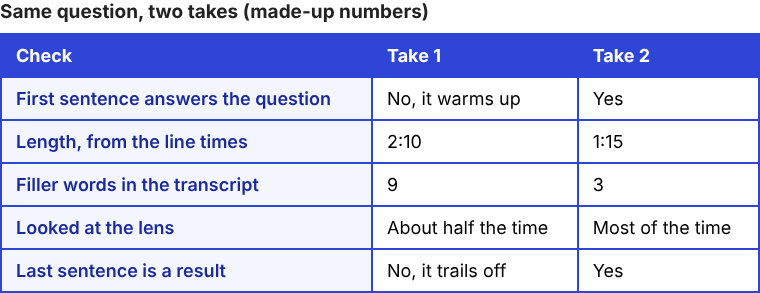
Sam opens the transcript text file and looks at the time of the first line of that answer and the first line of the next one. The answer ran 2 minutes 10 seconds. The first line starts with "So, at my last job, we had a lot of tickets", which is background, not the answer. Searching the text for "like" and "basically" finds nine hits.
Sam changes one thing: start with the result, then give the story. Take two runs 1 minute 15 seconds and has three filler words. Take three is saved as Interview practice 03 - Support analyst, so the folder names show the order.
Review with the transcript and a scorecard
Review twice. First watch the video once, straight through, with the sound on, and note how it feels as a viewer. Then read the transcript with the sound off.
If the live transcript caught speech, your recording folder holds a plain-text file named after the recording, with the time of each line. It opens in any text editor. Chrome gives a time for each line, not each word, so use the times to find the right area, then listen to confirm.
The card on the page also offers Captions .srt and Transcript. Caption files are not saved in the folder, and the card lasts only while the recorder page is open, so download what you want before you close the tab.
Then score each take. Five checks cover most of what an interviewer notices:
- First sentence. Does it answer the question, or warm up?
- Length. Subtract the line times. If one answer runs far longer than the rest, cut the middle.
- Filler words. Search the transcript for "um", "uh", "like", "you know" and "basically". Aim for fewer than last time, not zero.
- Eye contact. In the video, check whether you look at the lens when you speak.
- Ending. Does the last sentence land on a result?
Pick one thing to fix per round, record the same question again, and compare. Sort the folders by name to group the takes of one question, or by date to see them in the order you made them.
On plans that include cutting words from the transcript, a Remove filler words button marks um, uh, erm, hmm, like, you know, basically, sort of and kind of in red. In a normal one-file recording that changes the transcript and captions, not the video, which is fine for a practice review. Check What you can do on this plan in the menu under your name, and read the filler words guide.
What the transcript cannot tell you
The transcript is words and times. It does not tell you whether you looked at the lens, smiled, or sounded flat. That is why you watch once with the sound on. And the speech recognition may skip a mumble, so confirm a count by ear before you worry about it.
One privacy note: while the live transcript is on, Chrome sends your microphone audio to Google to turn it into text. If a practice take should not leave your computer in any form, untick Live transcript before you press Start recording. Recordings are not uploaded, except with Convert or Download MP3. If you press M or Add marker at each question, remember the markers are written to files only when Also save every source separately is ticked.
Frequently asked questions
Can I practice a job interview without installing anything?
Yes. Cheap Recorder runs in Google Chrome on macOS, Windows and Linux, and the Free plan covers recording and the live transcript.
Where is my practice video saved?
In the folder you choose with Choose folder..., in its own folder named with your recording name and the date and time. You choose the folder again on each visit.
Can I get a transcript of my answers?
Yes, if Live transcript is ticked under Options before you start. You get a plain-text transcript in the folder if it heard speech, and Captions .srt and Transcript downloads on the card.
Can I practice with a friend playing the interviewer?
Yes. Tell them you are recording. Two people on one microphone share one label in the transcript, so read it by the question you said aloud.
Get started
Pick three questions, record a 30-second test, then record your first take and score it. Do the same questions again tomorrow and compare. Start recording on the free plan, no card needed, and your files stay in a folder on your own computer.
Screen recording that is cheap and easy.
Visit cheaprecorder.com↗

