
Piano practice recording: hear your mistakes as audio
Record your piano practice in Chrome as a sound-only M4A file, in short named takes, then listen back with the score to hear the mistakes you miss while playing.
A piano practice recording lets you hear what your hands are too busy to notice: a rushed run, a left hand that drowns the tune, a pedal held through a chord change. This guide shows how to record your practice in Google Chrome as a sound-only audio file, in short takes you can find again, and how to listen back so the mistakes stand out.
You need a computer with Chrome near the piano, one microphone and a folder for the takes. Nothing is filmed, and every file lands on your own computer.
Why a piano practice recording shows what you miss
While you play, most of your attention goes to the next note. You hear the music, but not the way someone across the room hears it. A recording gives you that seat. Played back a few minutes later, uneven quavers, a late entry or a phrase that never gets quiet are much easier to hear than they were in the moment.
Recording also gives you a record over weeks. If every take of a hard passage is saved with its name and date, you can play this week's take next to last month's and hear whether it is really getting better.
Cheap Recorder works for this because it can record sound only. Switch off Record my webcam, do not pick a screen, and the recorder saves an M4A audio file instead of an MP4, as the no sound guide explains. The file goes straight into a folder you choose on your own computer.
Set up one microphone near the piano
Use a wired or USB microphone if you have one. If you pick a Bluetooth headset, the recorder shows Bluetooth microphone selected. That is a warning, not a fault, but on a Mac a Bluetooth headset used as a microphone drops to a low-quality mode that sounds like an old phone line, which is the last thing you want for a piano.
- Open the recorder in Chrome and allow the microphone when Chrome asks.
- In the Microphone tile, open Change or add microphones and tick the one you will use. If it is missing, plug it in and press Rescan. Each one shows wired or bluetooth beside its name.
- Switch off Record my webcam and leave the screen choice empty, so the take is saved as sound only.
- Under Where to save, press Choose folder… and pick a folder such as "Piano". The recorder does not remember it between visits, so you choose it again each time you open the page.
Where to put the microphone is a matter of trying a spot and listening, which is what the test in the next section is for. For more on the test itself, see testing your microphone before a long recording.
Test the microphone untouched setting by ear
By default Chrome cleans up the microphone's sound: it corrects echo, noise and volume. Under Options, Record the microphone untouched turns all of that off. The podcast tracks guide says to tick it for good microphones in a quiet room and to leave it unticked for laptop microphones or a noisy room. It also says the volume correction is what makes a very quiet voice pump up and down.
No page says which setting is right for a piano, so let your ears decide with two short tests:
- Leave the box unticked. Record about 30 seconds: your softest bars, then your loudest. Press Stop and finish.
- Tick Record the microphone untouched and record the same 30 seconds again.
- Play both back. Listen for soft passages that come up too loud, loud chords that sound squashed, and notes that fade too fast.
Keep whichever sounds more like the piano in the room. While you record, the microphone's level bar should move with the music; if it stays still, check the microphone's own mute switch and your computer's sound settings.
Make each piano practice recording a short, named take
One long recording of a whole practice is hard to listen back to. Short takes of one passage are easy. Before each take, type a name in Name this recording, for example "Nocturne bars 17 to 24 take 1".
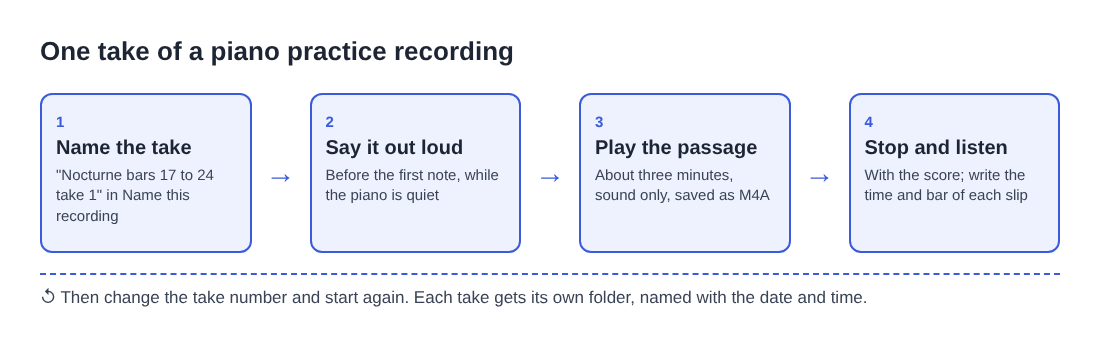
Every recording gets its own folder inside the one you chose, named with what you typed, then the date and the time the recording began. Sorting the folders by name groups all the takes of one passage together, oldest first. Names are cut at 60 characters, and characters a file name cannot hold, such as a colon, are left out, so keep names short and plain.
Say the take's name out loud before you play. If Live transcript is ticked under Options, the spoken name lands in the transcript text file in the folder with its time. The transcript is made for speech, so treat it only as a label for the take, not a record of the music. If you would rather nothing leaves your computer, untick Live transcript before you press Start recording; while it is on, Chrome sends the microphone's sound to Google to turn it into text.
Listen back to hear the mistakes
Wait a few minutes before you listen, so you hear the take fresh. Then listen three times, each time for one thing:
- Pass one, without the score. Just listen, as an audience would. Note where the music stops sounding sure of itself.
- Pass two, with the score. Follow along and mark wrong notes, missed rests and rhythms that drift.
- Pass three, for one detail. Pick the one thing your teacher keeps mentioning, such as balance between the hands or the pedal, and listen only for that.
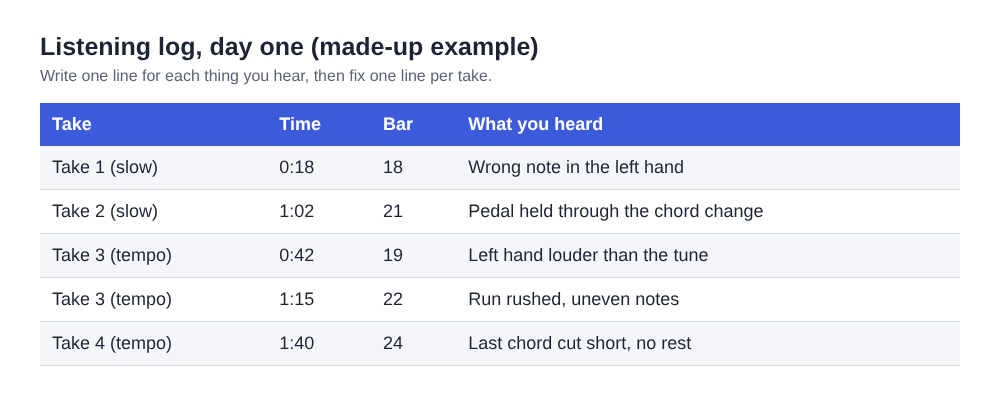
Each time something is wrong, write down the time the player shows and the bar it belongs to. The M4A is an ordinary audio file, so you can listen on the computer, or copy it to your phone for a walk.
A worked example: one week on a hard passage
Say you are learning bars 17 to 24 of a nocturne and have six practice days this week. Each day you record four takes of about three minutes each: two at a slow tempo, two at the tempo you are aiming for.
That is 12 minutes a day, or 72 minutes over the week. Over a month of weeks like this you record about five hours, well inside the 12 hours of recording a month on the Free plan, which needs no card. If you would rather record every full hour of practice, five days a week, you need over 20 hours a month, so check the plan cards on the home page before you start. Recording only the passage you are working on keeps the hours down and gives you takes short enough to listen to.
On day one, your log might show the left hand too loud at 0:42 in take 3 and a rushed run at 1:15. On day four, you play take 3 from day one next to take 3 from day four. If the run at 1:15 is now even, you move on; if not, it is next week's job.
Send a take to your teacher, and what leaves your computer
After Stop and finish, the recording's card shows Download M4A, which hands over the original file with no upload. The file is also already in your folder, so you can attach it to an email or a message from there. The where recordings are saved guide shows exactly what is in each folder.
If your teacher asks for an MP3 or a WAV, use Download MP3 or Convert on the card. Both send the file to the Cheap Recorder server to be converted, and the server deletes its copy as soon as it finishes. The converted file is saved in the take's folder next to the original, which is never changed. WAV comes out at 16-bit, 48 kHz.
Cheap Recorder does not keep copies of your recordings. Its activity log does keep the folder and file names you chose and the names of your microphones, so name takes after the music, not after anything private.
Frequently asked questions
Can I record my piano practice without filming myself?
Yes. Switch off Record my webcam and do not pick a screen, and the recorder saves only sound, as an M4A file in your folder.
Should I tick Record the microphone untouched for a piano?
Test it both ways. Record 30 seconds of your softest and loudest bars with the box unticked and then ticked, and keep the setting that sounds more like the piano in the room.
Will the transcript write down the notes I played?
No. The transcript is made from speech, so it is only useful for the take names you say out loud. Untick Live transcript if you do not want your microphone's sound sent to Google.
How many hours of practice can I record for free?
The Free plan gives 12 hours of recording a month. Four three-minute takes, six days a week, come to about five hours a month; a full hour, five days a week, comes to over 20.
Get started
Open Cheap Recorder in Chrome, switch off the webcam, record a 30-second test of your loudest and softest bars, and then your first named take. Start free, no card needed.
Screen recording that is cheap and easy.
Visit cheaprecorder.com↗

