Writers critique group on Google Meet: record the feedback
Record the feedback on your pages in a writers critique group on Google Meet, mark each member as they start, and turn the transcript into a revision list.
In a writers critique group, the half hour when your pages are discussed goes by fast. You hear five good ideas, write down two, and spend the rest of the evening trying to remember who said the opening drags. If your group meets on Google Meet, you can record the feedback on your own pages, listen while it happens, and turn it into a revision list afterwards. This post shows how to do that in Chrome with Cheap Recorder, as sound only, with a mark each time a new member starts talking.
Why record feedback in a writers critique group
Notes taken during a critique are thin. You write the verdict and miss the reason, and the reason is what you need when you sit down to revise.
- You listen instead of scribbling. You hear the whole point, including the part after "but".
- You keep who said what. Two members flagging the same page counts for more than one, and you can only see that if you know who spoke.
- You stop defending. When you know you can hear it again, it is easier to stay quiet and take it in.
This is a narrower job than recording a whole meeting. In the study group post, one person records the session and shares notes with everyone. Here you record only your own turn, for yourself, and keep a list of changes to make.
Ask the group before you record
Critique groups run on trust. People say honest things about unfinished work, and some of them will speak differently if they know a file exists. So ask in the group chat before the session, not when the call has started.
When my chapter comes up on Thursday, would you mind if I record that part, sound only? It is just for me, so I can listen instead of taking notes. It stays on my computer and I will not share it.
Then say it again out loud before you press Start. Tell the people on the call that you are recording before you start. The law on recording calls differs from place to place, and some places need everyone to agree. If one member is not comfortable, do not record. Ask a friend in the group to take notes for you instead, and offer to do the same for them.
Record only your own turn. The feedback on another member's pages belongs to them.
Set up the recorder for your turn
You need Google Chrome on a Mac, Windows or Linux computer, with the Meet call open in a Chrome tab. The Free plan covers every step here: no card needed, 12 hours of recording a month, the live transcript, and files saved on your own computer.
- Join the call in a Chrome tab. The call's sound can only be recorded from a Chrome tab.
- Choose a folder. Under Where to save, press Choose folder.... Each recording gets its own folder inside it, named with the date, the time and the recording's name.
- Name the recording. Type something like
Critique - Chapter 4in Name this recording. Name it after your pages, not after anything a member might say. - Add the group's voices. In the Call audio tile, press Pick the call tab..., choose the Meet tab, tick Share tab audio (some versions of Chrome say Also share tab audio) and press Share. Your microphone and the call are mixed into one recording.
- Keep it to sound. Switch your webcam off in the recorder and do not pick a screen. The recording is then an M4A audio file instead of an MP4.
- Check the transcript language. Live transcript is under Options. Chrome listens for one language per recording, picked from 25 in the menu beside it, so choose it before you start.
Wear headphones, so the group's voices do not come out of your speakers and back into your microphone. Before your first recorded session, do a one-minute test call with a friend and play it back to check both sides can be heard. The Google Meet guide has each step with pictures.
Set everything up while the group discusses the piece before yours, then press Start recording when your pages come up. Press Stop and finish when the group moves on.
Mark each member as they start
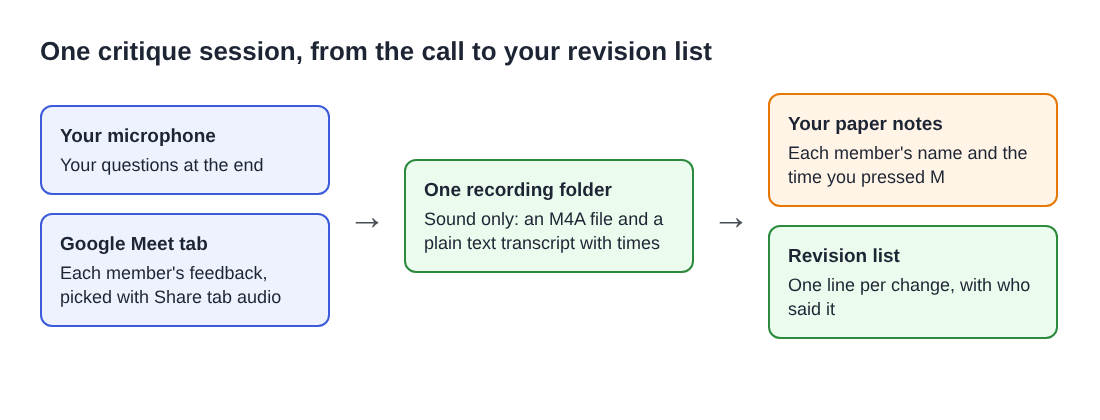
Press M or Add marker each time a new member starts giving feedback. A short note confirms the time. With the default single file, those marker notes appear while you record but are not saved, so jot each time on paper with the member's name next to it. That list of names and times is your index to the transcript.
Your microphone picks up you, and the Meet tab picks up everyone else. On plans that include speaker detection, every member shares the Meeting label, because they all reach you through the same tab. That is why the names on paper matter: they tell you where one person stops and the next begins.
Two things can go wrong mid-session. If the recorder shows Meeting audio sharing stopped., the tab share has ended. From then on the group is silent in the recording, and picking the tab again does not add it back to a running recording. Press Stop and finish and start a new recording. Also check your minutes before a long session: open your name in the top right to see how many are left, because a recording stops if they run out.
Turn the transcript into a revision list
When you stop, the transcript is saved in the recording's folder as plain text with a time on each line. It opens in any text editor, and the downloaded transcript has the lines and times on every plan. If your plan includes speaker detection, type Group in the Meeting speaker box, your own name in the other, and press Save captions.
Now read around each time on your paper. Chrome gives a time for each line, not each word, so look a few lines either side. For each point, write one line in a document called Revisions - Chapter 4:
- The change, in your own words, as something to do.
- Who said it, from your paper notes.
- How many agreed. A point two or three members made goes to the top.
Praise goes on the list too, as "keep as it is". It tells you what not to break while you fix the rest. The live transcript guide explains the labels in full.
Worked example: one chapter, four marks
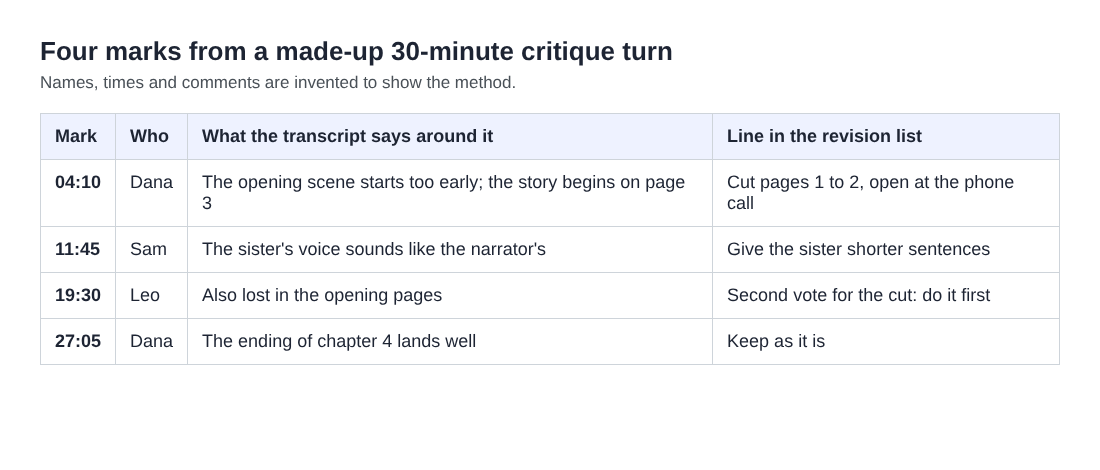
Say Mia brings chapter 4 of a novel to her group: Dana, Sam and Leo. The names, times and comments here are made up. Mia records Critique - Chapter 4 for 30 minutes, sound only, and writes four marks on a sticky note: 04:10 Dana, 11:45 Sam, 19:30 Leo, 27:05 Dana again.
After the call she opens the transcript and reads around each time. Dana says the scene starts too early and the story begins on page 3. Sam says the sister sounds like the narrator. Leo also got lost in the opening pages. Dana comes back at the end to say the last scene lands well.
Mia's revision list has three lines. First, cut pages 1 to 2 and open at the phone call, because two members flagged it. Second, give the sister shorter sentences. Third, keep the ending as it is. Reading the transcript and writing the list takes about fifteen minutes, and she can start revising the same evening.
Keep the file private and short-lived
The recording and transcript are saved in the folder you chose on your computer. They leave it only if you use Convert. While the live transcript is on, Chrome sends the microphone audio to Google to turn it into text, so untick it if your group would rather nothing went through Google, and rely on your paper notes and the audio.
Once your revision list is written, you can delete the audio. Do not forward the recording or the transcript to the group, or quote a member's words back to them in a later session. You said it was just for you. A short thank-you in the group chat, with the one change you are making first, says more than a file would. The mentoring call post uses the same idea for advice from one person.
Frequently asked questions
Do I need a paid plan to record my critique?
No. The Free plan covers everything in this post, with 12 hours of recording a month and no card needed. Speaker labels need a plan that includes speaker detection, but the lines and times are in the transcript on every plan.
Can the transcript tell group members apart?
No. Everyone on the call comes through the Meet tab and shares the Meeting label. Press M and jot the member's name when each person starts, and you can split the transcript by person yourself.
Should I record the whole session?
Record only your own turn, with the group's agreement. Feedback on other members' pages is theirs, and a shorter file is quicker to read back.
What if I forgot to turn on the transcript?
The transcript is only made live, so there is no way to add one to that recording afterwards. You still have the M4A file and your paper times to listen back to.
Get started
Before your next critique session, open Cheap Recorder for free, choose a folder called Critique, and do a one-minute test call with a friend in the group. Then ask the group, and keep your next round of feedback word for word.
Screen recording that is cheap and easy.
Visit cheaprecorder.com↗