Record a mentoring call on Google Meet and keep the advice
Record a mentoring call on Google Meet in Chrome, mark each piece of advice as you hear it, and keep a short advice file you will actually reread.
A mentor can give you more useful advice in 45 minutes than you get in a month of meetings, and most of it is gone by the next morning. If you record a mentoring call held on Google Meet, you can listen properly while it happens and keep the exact words afterwards. This post shows how to record the call in Chrome with Cheap Recorder as sound only, mark each piece of advice as you hear it, and turn the transcript into a short advice file you will actually reread.
Why record a mentoring call
When you take notes during a mentoring call, you write down the first half of each sentence and miss the second. You also stop asking good follow-up questions, because you are busy writing. A recording fixes both.
- You stay in the conversation. You listen, ask, and push back, instead of writing.
- You keep the exact wording. Names, book titles and the order of steps your mentor suggested survive.
- You see what repeats. After a few calls, the advice your mentor gives twice is usually the advice you have not acted on yet.
This is a different job from a coach recording a client. In the coaching session post, the coach records and sends the client a transcript. Here you, the mentee, record for yourself and keep only the advice.
Ask your mentor first
Your mentor is giving you their time, so ask before the call, in the message where you agree the date. Tell people on the call that you are recording before you start. The law on recording calls differs from place to place, and some places need everyone to agree.
Would you mind if I record our call, sound only? It is just for me, so I can listen instead of taking notes. The file stays on my own computer and I will not share it.
Then say it again out loud when the call starts. If your mentor says no, take notes by hand. Some people speak more freely with no recording, and the relationship matters more than the file.
Set up the recorder before the call
You need Google Chrome on a Mac, Windows or Linux computer, with the Meet call open in a Chrome tab. The Free plan covers every step here: no card needed, 12 hours of recording a month, the live transcript, and files saved on your own disk.
- Join the call in a Chrome tab. The call's sound can only be recorded from a Chrome tab.
- Choose a folder. Under Where to save, press Choose folder.... Each recording gets its own folder inside it, named with the date, the time and the recording's name.
- Name the recording. Type something like
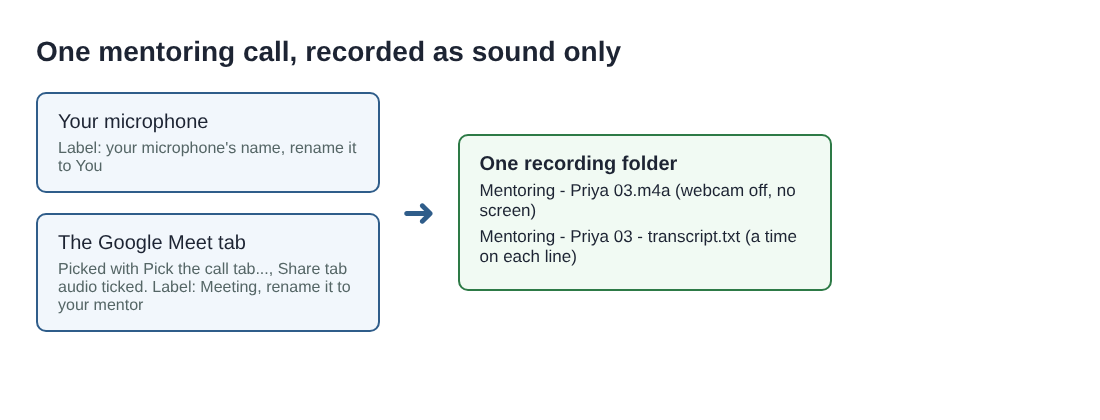
Mentoring - Priya 03in Name this recording. The number keeps your calls in order. - Add your mentor's voice. In the Call audio tile, press Pick the call tab..., choose the Meet tab, tick Share tab audio (some versions of Chrome say Also share tab audio) and press Share. Your microphone and the call are mixed into one recording.
- Keep it to sound. Switch your webcam off and do not pick a screen. The recording is then an M4A audio file instead of an MP4, which is all a mentoring call needs.
- Check the transcript. Live transcript is under Options and ticked by default. Chrome listens for one language per recording, picked from 25 in the menu beside it, so choose it before you start.
Wear headphones, so your mentor's voice does not come out of your speakers and back into your microphone. Before your first recorded call, do a one-minute test call with a friend and play it back to check both sides can be heard. The Google Meet guide has each step with pictures.
Mark the advice while you listen
Press M or Add marker the moment your mentor says something you want to keep. A short note confirms the time. With the default single file, those marker notes are not saved, so jot the time on paper next to a word or two. That scrap of paper is your index to the transcript.
Two things can go wrong mid-call. If the recorder shows Meeting audio sharing stopped., the tab share has ended: your voice carries on, but your mentor is silent from then on, and picking the tab again does not add it to the running recording. Press Stop and finish and start a new recording. Also keep an eye on your minutes: open your name in the top right to see how many are left, because a recording stops if they run out.
Read the transcript after the call
When you press Stop and finish, the transcript is saved next to the recording, named after it, as plain text with a time on each line. It opens in any text editor. The downloaded transcript has the lines and times on every plan.
On plans that include speaker detection, each line is also labelled with the loudest source: your microphone's name for you, and Meeting for everything that came through the Meet tab. In a one-to-one call, Meeting is your mentor. Type their name in that Speaker box, your own name in the other, and press Save captions.
Chrome gives a time for each line, not each word, so the times are close, not exact. Look a few lines either side of each time you jotted. The transcript is only made live, so if you forgot to tick it, there is no way to add one afterwards. The live transcript guide explains the labels in full.
Worked example: one call, three pieces of advice
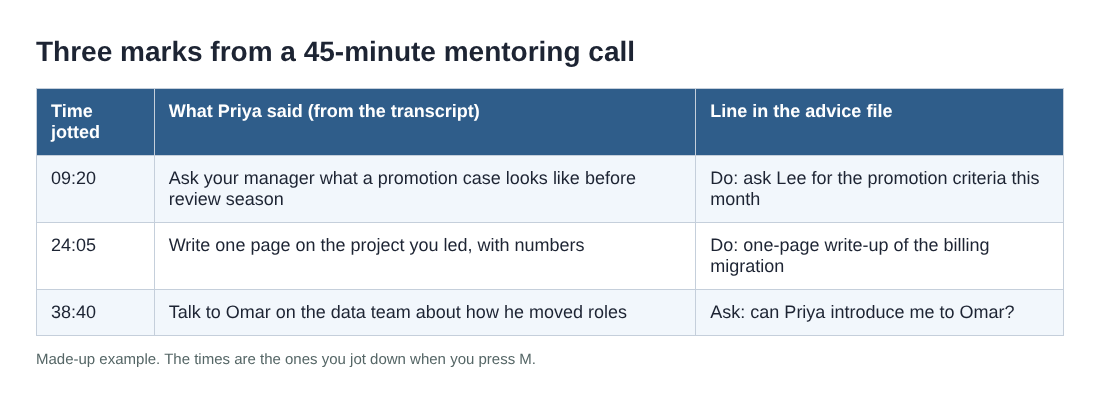
Say Alex is a junior engineer and Priya is their mentor. The names and times here are made up. Alex records Mentoring - Priya 03, 45 minutes, sound only, and presses M three times, writing the times on a sticky note: 09:20, 24:05 and 38:40.
After the call, Alex opens the transcript, renames Meeting to Priya, and reads around each time:
- 09:20. Priya says to ask the manager what a promotion case looks like before review season, not during it.
- 24:05. Priya says to write one page on the project Alex led, with numbers.
- 38:40. Priya suggests talking to someone on the data team who moved roles last year.
Alex copies those three lines into one document called Advice from Priya, under the date, and rewrites each as a thing to do or a thing to ask. That takes ten minutes. The 45-minute file can now sit untouched in its folder.
Keep one advice file across calls
One recording helps you remember one call. The advice file is what helps over months.
- Same folder, same names. Choose the same parent folder each time and number the calls: 01, 02, 03.
- One file per mentor. Add each call's lines under its date, newest on top.
- Read it before the next call. Open with what you did about last time's advice. Mentors notice when you act on what they said.
If you would rather not keep the audio, delete it once the advice file is written. The recording is not uploaded and only leaves your computer if you use Convert. While the live transcript is on, Chrome sends the microphone audio to Google to turn it into text, so untick it if a call must not go through Google in any form.
Afterwards, send your mentor a short thank-you with the two or three points you took away, in your own words. Do not send the recording or the transcript unless they ask; you said it was just for you. The one-on-one meeting post covers a similar note for a manager.
Frequently asked questions
Do I need a paid plan to record a mentoring call?
No. The Free plan covers everything in this post, with 12 hours of recording a month and no card needed. Names on transcript lines need a plan that includes speaker detection, but the times and text are there on every plan.
Can I record only my mentor's voice?
Your microphone and the Meet tab are mixed into one recording. In the transcript, your mentor's lines carry the Meeting label on plans with speaker detection, so you can still find their words quickly.
What if my mentor shares a document on the call?
This post records sound only, as an M4A file. If you want the picture too, pick a screen before you start and you get an MP4 instead.
Does the recording go to the cloud?
No. It is saved in the folder you chose and only leaves your computer if you use Convert. The live transcript does send your microphone audio to Google while it is on.
Get started
Before your next mentoring call, open Cheap Recorder for free, choose a folder called Mentoring, pick a test call tab, and record 30 seconds. Play it back, and you are ready to listen properly next time.
Screen recording that is cheap and easy.
Visit cheaprecorder.com↗