Voice dream journal: record each morning and read it back
Keep a voice dream journal in Chrome: one sound-only recording each morning, a transcript as the written entry, and folders that line up by date to read back.
A voice dream journal lets you catch a dream the moment you wake, before you are awake enough to write. You talk for a minute or two, and the recording keeps your words. This guide shows how to keep one in Google Chrome: one sound-only file each morning, a transcript as the written entry, and folders that line up by date so you can read a week back in one sitting.
You need a computer with Chrome near your bed, a microphone, and about two minutes. Everything is saved in a folder on your own computer.
Why keep a voice dream journal
Writing by hand right after waking is slow, and the details you want are the ones you lose while you look for a pen. Speaking is faster. You can say "a red door, my sister, a train that would not stop" in the time it takes to write one word, and you can keep your eyes half closed while you do it.
The transcript gives you the written page as well, so you can skim a week of entries in a few minutes instead of listening to all of them.
This guide is about keeping the journal, not about what dreams mean. It makes no claims about sleep. If you are worried about your sleep or recurring nightmares, talk to a doctor; the entries can be something useful to show them.
What you need before the first morning
Set this up the evening before, so the morning takes one or two clicks.
- Google Chrome on a computer you can reach from bed. Cheap Recorder runs in Chrome on macOS, Windows and Linux. Leave the computer where you can open it without getting up.
- A microphone. The computer's own microphone works. A wired or USB microphone is better. If the recorder shows Bluetooth microphone selected, that is a warning, not a fault, but on a Mac a Bluetooth headset used as a microphone switches to a low-quality mode, and a sleepy morning voice is quiet already.
- A folder just for the journal. Make one called Dream journal, so the entries never mix with anything else you record.
- A Cheap Recorder account. The Free plan needs no card and gives 12 hours of recording time a month on one device at once.
One thing to know: the recorder does not remember the folder between visits, so you choose it again each time you open the recorder.
Set up the recorder for sound only
Open the recorder and press Choose folder, then pick your Dream journal folder. For a sound-only entry, switch off Record my webcam and do not pick a screen. The recorder then saves an M4A audio file instead of a video, which is all a dream entry needs.
Tick the microphone you will use. Before the first real morning, record a short test: say one sentence in the quiet voice you will use at 6 a.m., watch the microphone's level bar move, then stop and play it back. The no sound guide notes it is much quicker to find a sound problem in a thirty-second test than in a long recording, and it lists what to check if the bar stays still.
Under Options, leave Live transcript on if you want the written entry, and choose the language you dream and talk in. Choose before you start, because the language is set when the recording begins, and the menu goes back to its default each time the recorder page opens, so glance at it every morning.
Record each morning under one name
This is the part that makes a pile of recordings into a journal. Type the same name in Name this recording every day: Dream journal. You do not need to type the date. Every recording gets its own folder named with the name you typed, then the date and the time the recording began on your own clock. So Tuesday's entry lands in a folder like Dream journal - 2026-11-03 06.38.
Because every entry starts with the same words, sorting the folders by name lines them up oldest first, one per morning. If you record two dreams in the same minute, the second gets (2) on the end, so it never mixes with the first.
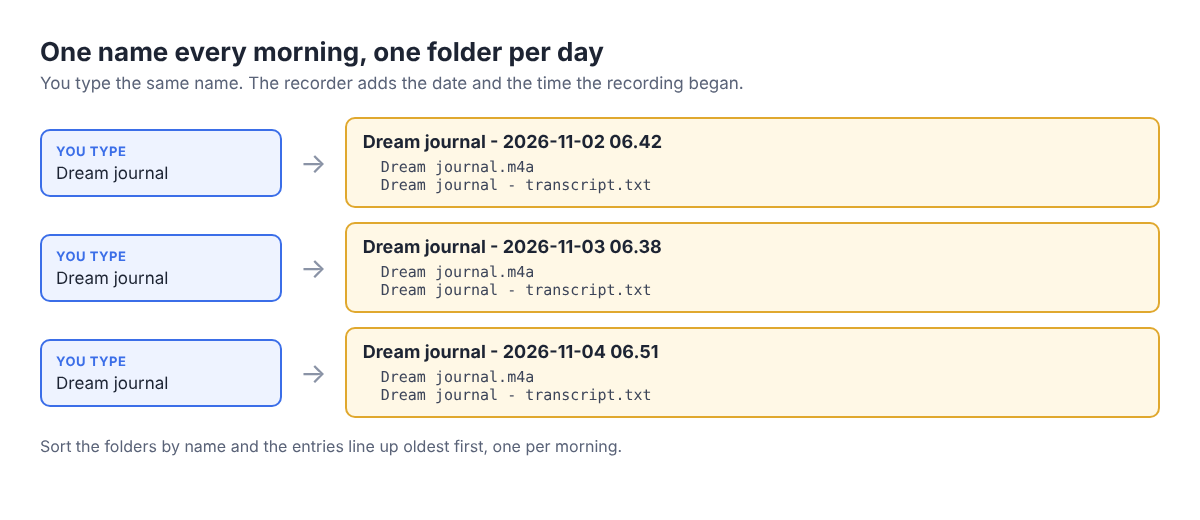
Inside each folder you will find the sound file, Dream journal.m4a, and, if the transcript heard speech, Dream journal - transcript.txt: plain text with the time of each line, which opens in any text editor. The where recordings are saved guide shows the full layout.
The morning routine is short: open the recorder, choose the folder, check the name and the language, press Start recording, and talk before you check anything else.
Say what you remember in the order it comes back, even if it is out of order in the dream. Name people and places plainly, because those are the words you will look for later. Say how you felt. If you only remember one image, say that one image; a short entry is still an entry. When you run out, stop.
Pauses are fine. If Chrome's speech recognition stops listening during a silence, the recorder starts it again for as long as you are still recording, so a slow, sleepy entry still ends up in the transcript.
Read your dream journal back by date
Once a week, sit down with the folder sorted by name and open each transcript in turn. The transcript is a machine's guess at what it heard, and a mumbled word can come out wrong, so when a line makes no sense, play the M4A and listen to that part.
A simple way to read back: copy the first line of each entry into one note, one line per morning, and add a few tags of your own, such as the people, places and feelings that keep coming back. After a few weeks the tags show what repeats, and the folder dates tell you which recordings to play again.
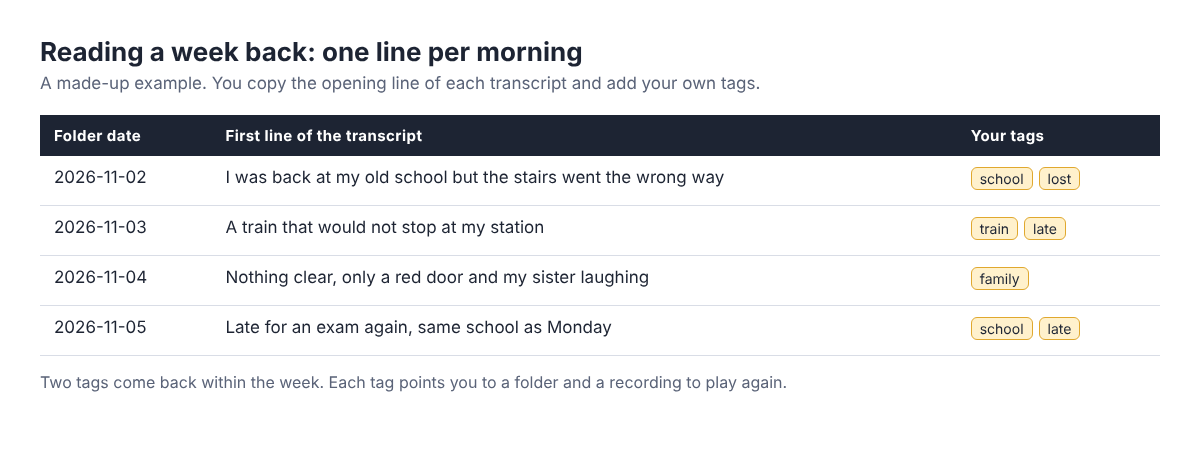
A worked example: one week of entries
Here is how one person might run the first week, using only the steps above.
- Sunday evening: they make a folder called Dream journal, open the recorder, switch off the webcam, tick their USB microphone and record a ten-second test in a quiet voice. The level bar moves, the playback is clear.
- Monday to Friday, on waking: they choose the folder, check that the name says
Dream journaland that the transcript language is right, and talk for one to three minutes. Wednesday they remember almost nothing and record twenty seconds anyway. - Saturday: they sort the folders by name, open the five transcripts in order and copy each first line into one note with two or three tags. School and being late both come up twice. They play Monday's M4A where the transcript reads oddly and fix the word in their note.
Five entries of about two minutes each, plus the test, come to well under 15 minutes for the week. On the Free plan's 12 hours a month, a whole month of mornings uses only a small part of it.
What leaves your computer
Dreams can be private, so here is what goes where. Cheap Recorder saves each recording into the folder you chose, on your own computer, not on its servers. Two things do leave your computer. While the live transcript is on, Chrome sends the microphone audio to Google to turn it into text, so you need to be online; untick it and you still get the M4A. And the activity log keeps the folder and file names you chose, for as long as your account exists, so keep names plain, like Dream journal, and leave the dream's details for the recording itself. The privacy page lists everything the log holds.
If you want a copy of an entry elsewhere, the recording's card has a download button that follows its format, so it reads Download M4A and hands over the file with no upload. Converting to another format sends the recording to the server, which does the work and sends the new file back. For single notes on other subjects, the voice note post covers saying the subject first, and the guided meditation post shows another sound-only recording you might make for the evening.
Frequently asked questions
Do I need the transcript for a dream journal?
No. The M4A in a dated folder is already a journal entry. The transcript makes reading a week back faster, but you can untick it if you prefer that no audio goes to Google.
Do I have to type the date in the name?
No. Type the same name every morning; the recorder puts the date and the time the recording began in the folder name for you.
What if I remember nothing?
Record a few seconds saying so, or skip the day. A short entry still keeps the morning in the right place when you sort by name.
Can I record on my phone instead?
Cheap Recorder runs in Google Chrome on macOS, Windows and Linux, so this routine is for a computer near your bed.
Get started
Tonight, make a folder called Dream journal, open Cheap Recorder in Chrome, switch off the webcam and record a ten-second test in your morning voice. Tomorrow, record your first entry before you check anything else. Start free, no card needed.
Screen recording that is cheap and easy.
Visit cheaprecorder.com↗