Voice acting demo reel: record clean reads at home as audio
Record the raw reads for a voice acting demo reel at home in Chrome: one sound-only take per read, names that sort, and a transcript to check each line.
A voice acting demo reel starts as a pile of short reads: a narration, a character, an advert, each in a different voice. Before anyone can cut them together, you need clean takes of every read, kept in order and easy to compare. This guide shows how to record those raw reads at home in Google Chrome, one sound file per read, with a transcript that lets you check every line against your script.
You need a computer with Chrome, a microphone, your scripts, and a quiet room. Every take is saved in a folder on your own computer.
Which pieces go on a reel, how long it should run and who you send it to are choices for you and the people you work with. This guide makes no claim about any of that.
It covers the part before: getting every read recorded cleanly, named so it sorts, and checked against the words on the page. Joining the chosen takes into one file is a job for an audio editor, which this guide does not cover. What you bring to that editor is a tidy folder of good takes, one per read, instead of one long recording you have to hunt through.
Plan your voice acting demo reel as a read list
A read list is your scripts in the order you will record them, each with a number and a short name. Next to each one, note the voice you mean to use and how fast it should go. For example:
- 01 Warm narration: a calm paragraph, steady pace.
- 02 Game villain: six short lines, low and slow.
- 03 Radio spot: a short shop advert, bright and quick.
- 04 Cartoon sidekick: four lines, high and fast.
Put the reads in the order that is kindest to your voice. It can help to start with the read closest to your own voice and leave the hardest character for later, once you are warmed up. Keep water nearby and the list in front of you, printed or on a second screen, so you are not clicking between windows while you read.
If someone else reads a line with you, such as a partner in a two-voice scene, ask them first and tell them the recording may be shared. Let people know they are being recorded before you press anything.
Set up a sound-only recording in Chrome
Cheap Recorder runs in Google Chrome on macOS, Windows and Linux. The Free plan needs no card and gives 12 hours of recording time a month on one device at once, and the live transcript is part of the Free plan and every plan above it.
- Choose a folder. Make one called Demo reel and pick it with Choose folder. The recorder does not remember the folder between visits, so you choose it again each time you open the recorder.
- Switch off the picture. For a sound-only recording, switch off Record my webcam and do not pick a screen. The recorder then saves an M4A audio file, and a reel needs nothing else.
- Tick the right microphone. Your voice comes from the microphones ticked in the Microphone tile. A webcam, a monitor or a headset can each have its own microphone, and the one ticked may not be the one you speak into. Tick the one in front of your mouth.
- Check the transcript and its language. Under Options, Live transcript is ticked by default, and the menu beside it has 25 languages. Choose the language of the scripts before you start.
Run a thirty-second test first
Before the first real read, record a take named Reel test: the first two lines of read 01, in the voice you will use. Stop, then play the M4A back with headphones.
Listen for three things: the voice sounds like you in the room, there is no hum or hiss you did not hear while speaking, and your loudest moment does not crackle. If the villain's growl or the advert's big finish breaks up, try that line a little further from the microphone and test again. The no sound guide puts the reason well: it is much quicker to find a sound problem in a thirty-second test than in an hour-long recording.
Delete the test folder once you are happy, so it does not get mixed in with real takes.
Record each read as its own take
The name you type before each take keeps the reel in order. Every recording gets its own folder named with the name you typed, then the date and the time the recording began. So name each take after its read, with a two-digit number in front:
Reel 01 Warm narrationReel 02 Game villainReel 03 Radio spot
Two digits (01, not 1) keep read 10 after read 09 in lists that sort letter by letter. Keep names plain. Characters a file name cannot hold, such as : and ?, are left out, and long names are cut at 60 characters.
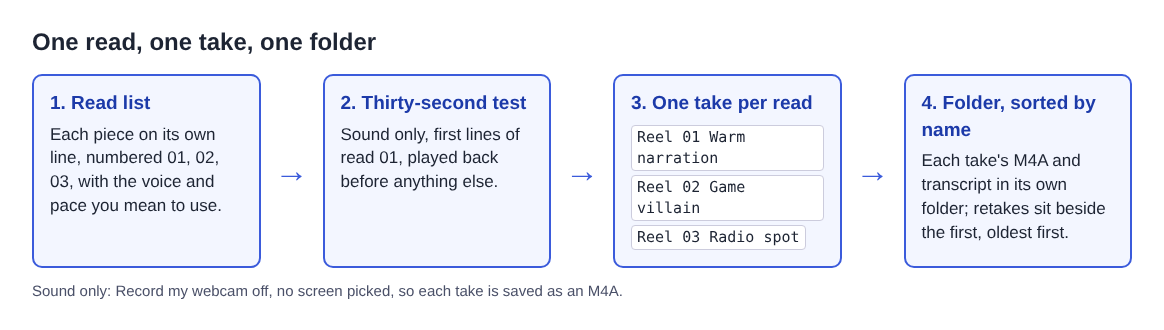
For each read, type the name, press Start recording, wait a breath, read, wait another breath, and press Stop and finish. The quiet at each end gives you room to trim later without clipping a word.
Want another go? Record the read again under the same name. Sorting the folders by name groups each recording's takes together, oldest first, so the new Reel 02 Game villain lands right below the old one. If you start the second take within the same minute, its folder gets (2) on the end, so it never mixes with the first. To see everything in the order you made it, sort by date instead.
A worked example: one evening, four reads
Here is how one made-up session might go, using only the steps above.
- Setup: the Demo reel folder chosen, webcam off, the desk microphone ticked, English chosen for the transcript.
- The test: two lines of the narration, played back in headphones. A fan hum shows up, so the fan goes off and the test is recorded again, then deleted.
- The reads: 01 Warm narration in one take. 02 Game villain twice, because one line rushed in the first take. 03 Radio spot and 04 Cartoon sidekick in one take each.
- The choice: with the folders sorted by name, both villain takes sit together. The second one wins, and the first folder is deleted.
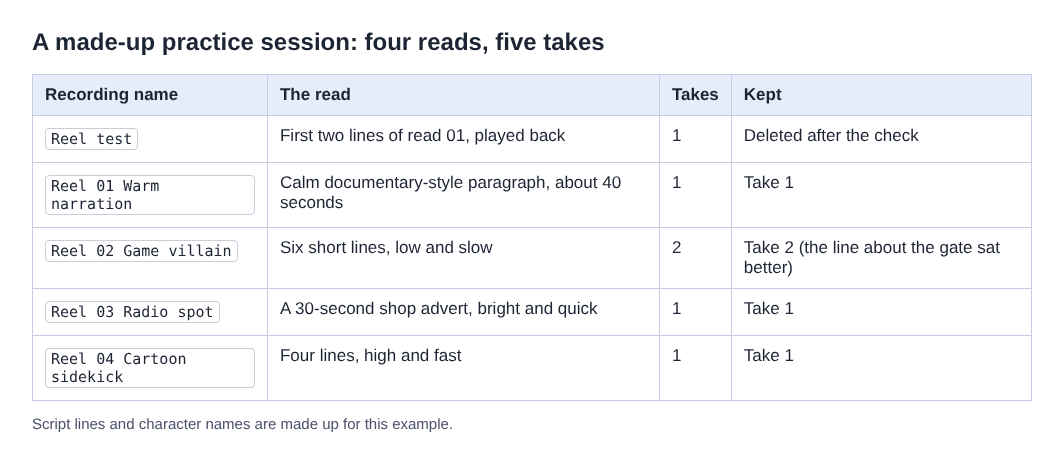
All of that is well under an hour of recording, a small part of the Free plan's 12 hours a month. You can record the same reads again next week, after more practice, and compare.
Check each read against the script with the transcript
Open a take's folder. It holds the M4A and, if the live transcript was on and heard speech, a file such as Reel 02 Game villain - transcript.txt: plain text with the time of each line. The where recordings are saved guide shows the full layout.
Put that text next to your script. A dropped word, a swapped word or a line you skipped stands out at once, and you can retake that read before the session ends. Pause at the end of each sentence while you read: your words settle into a finished line when you pause, which keeps the transcript in clean lines that match the script.
Treat the transcript as a guide, not proof. The transcript is made from what Chrome hears on your microphone, and a strange character voice or a made-up name may come out wrong even when you said it right. Chrome reports a time for each line, not for each word, so when a line looks off, play the M4A a moment before that time and listen. The live transcript guide covers the details.
Decide before you record, not after. The transcript is only made live: if it was off, there is no way to add a transcript to that take afterwards.
What leaves your computer
Each take is saved into the folder you chose on your own computer. While the live transcript is on, Chrome sends the microphone audio to Google to turn it into text, so you need to be online. If you would rather keep a read entirely on your machine, untick Live transcript before you press Start recording; you still get the M4A, without the text.
The activity log keeps the folder and file names you chose and your microphones' names; the privacy page lists everything it holds. Names like Reel 03 Radio spot are fine there. If you want a single long read instead of many short ones, the sample audiobook chapter post covers that.
Frequently asked questions
Do I need a video file for a voice reel?
No. Switch off Record my webcam and do not pick a screen, and each take is saved as an M4A audio file.
How do I keep the reads in order?
Start every recording's name with a two-digit number, such as Reel 01 and Reel 02. Each take's folder starts with that name, so sorting by name keeps them in the order of your read list.
What do I do with the takes once they are recorded?
Listen to each read, keep the best take and delete the rest. Then bring the folder of kept takes to the audio editor you use to put the reel together.
Is the Free plan enough to record my reads?
For most people, yes. The Free plan gives 12 hours of recording time a month, and a session of short reads with a few retakes usually takes well under an hour.
Get started
Write your read list tonight, with a number and a voice for each piece. Then open Cheap Recorder in Chrome, switch off the webcam, record a thirty-second test, and record read 01. Start free, no card needed.
Screen recording that is cheap and easy.
Visit cheaprecorder.com↗