
Record a how-to video for a family member who is stuck
Record a how-to video for a family member who is stuck: one task, your own screen and voice, a transcript they can read, and a file they can replay.
A parent calls and says the screen looks wrong. You cannot see it, they cannot describe it, and the call goes in circles. A better way to help is to record a how-to video on your own screen: you do the task once, say out loud what you click and what they should see, and send the file. They can pause it, replay it tomorrow and follow it at their own speed.
Why a video helps when you cannot see their screen
On the phone, "click the blue button" depends on both of you seeing the same thing. A recording removes the guessing. They see the real screen, in order, with your voice beside it, and they can go back to step four without calling you again.
It also keeps working. You record it once, and the same file helps the next relative who asks the same question. If you already answer questions this way at work, the post on a video answer to a customer question uses the same idea.
Decide what the video covers before you press anything
Write the goal as one sentence your relative would say: "Open the photo my cousin sent and save it to my computer." One video, one goal. If they are stuck on three things, make three short videos. A three-minute clip is easier to follow than a twelve-minute tour.
Two limits are worth knowing first:
- It records a computer screen in Chrome. The recorder runs in Google Chrome on Mac, Windows and Linux. Phone and tablet browsers cannot record the screen, so a problem that only exists on their phone is not one this video can show.
- It records your screen, not theirs. Yours may look a little different from theirs. Ask what they see first, and use the words they read out to you, so the video matches their screen as closely as it can.
Record a how-to video in Chrome in six steps
The Free plan covers all of this, and it needs no card.
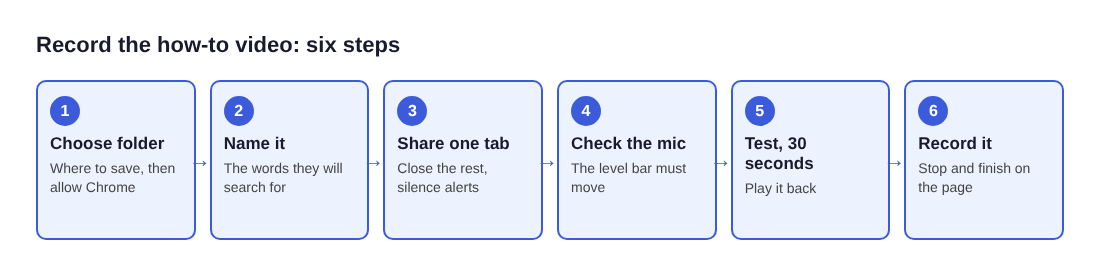
- Choose the folder. Open the recorder, sign in, and press Choose folder... under Where to save. Chrome asks whether the page may save files there; allow it. Until you do, Start recording stays greyed out, and the note beside it says what is missing.
- Name it the way they will look for it. Type "Save the photo from the email" into Name this recording, not "Video 1". The name is used for the file and for its folder.
- Share one tab or one window. Under What to capture, choose A browser tab or A window, and pick it in Chrome's sharing box. Anything on the shared screen ends up in the file, so close the tabs you do not need and silence notifications. Sharing one tab keeps the rest of your computer out of shot.
- Check the microphone. Each ticked microphone has a level bar. Speak, and watch it move. If it stays still, check the microphone's own mute switch and your computer's sound settings.
- Record a thirty-second test. Press Start recording, say two sentences, press Stop and finish, and play it back. It catches a wrong microphone before you lose the real take.
- Record the real video. Do the task slowly. When you finish, press Stop and finish on the page. Chrome's own Stop sharing bar also ends the recording, so use the page's button instead.
Your camera is optional. Leave Record my webcam off and the screen is the only picture. Turn it on if your face would calm them down; the preview shows exactly what the file will hold.
What to say while you click
Talk like you are sitting next to them. Four habits cover most of it:
- Open with the goal. "This is how to save the photo from the email. It takes about two minutes."
- Name the thing, then click it. Use the words that are on the screen, not your own names for them.
- Go slower than feels natural. Pause for a second after each click so the screen settles.
- Say what they should see. "The photo is now open in its own window. That means it worked." People who are stuck often cannot tell whether they are on the right track.
If you click the wrong thing, say so and go back. It shows them that a mistake can be undone, which is what a nervous beginner needs to hear. If the take goes badly wrong, stop and record again; a short video is quick to redo.
A made-up example
Say your aunt Rosa cannot open a photo her cousin emailed. These numbers are made up to show the shape. You record one tab for about two and a half minutes. In the first ten seconds you say the goal. Then there are three moves, each with a click and, where it helps, a sentence saying what Rosa should see afterwards. You finish by repeating the goal in one line.
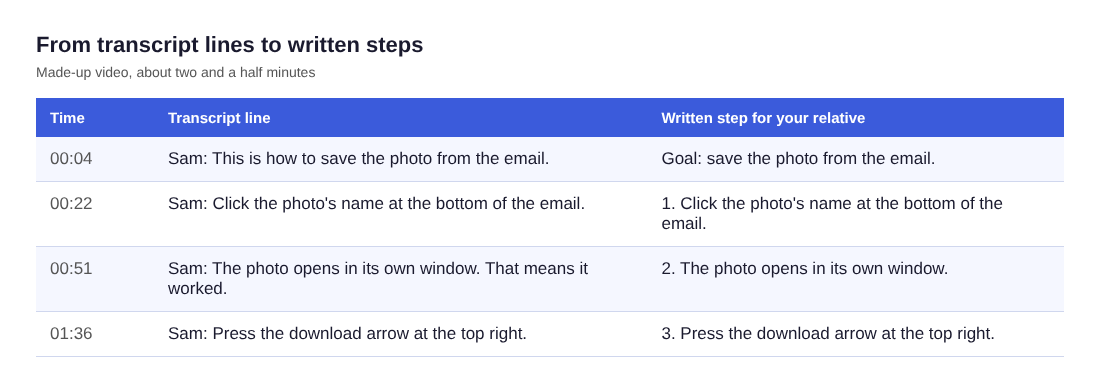
The recorder writes the time of each line, so you can read the transcript and cut each line down to one written step, as the table shows.
Add a transcript they can read
Under Options, Live transcript is ticked by default, on the Free plan and every plan above it. While you talk, your words are written down with the time of each line. When you press Stop and finish, the recorder saves the transcript as plain text next to the video. It opens in any text editor and is easy to paste into an email.
Three details matter for a family video:
- Pick the language they read best. The menu beside Live transcript has 25 languages, and the language is set when the recording begins. Chrome listens for one language per recording, so choose before you start and speak only that language.
- Put a name on your lines. Each line starts with your microphone's name. Type "Sam" in the Speaker box above the transcript and press Save captions, and every line begins "Sam:".
- It must be on before you record. If it was off, there is no way to add a transcript to that recording afterwards.
Be plain about where the words go. While the transcript is on, Chrome sends your microphone audio to Google to turn it into text. If you would rather it did not, untick Live transcript before you start. The live transcript guide has the rest.
Send the file and keep it
The recording is an MP4 with H.264 video and AAC sound, which plays almost anywhere, and it is already in your folder when you stop. Cheap Recorder saves it straight to your computer rather than to our servers, so there is nothing to upload first: use whatever way you already share files with that person.
Two things to do before you close the page. The card with the Download MP4 and Captions .srt buttons lasts only while the recorder page stays open; after a reload it is gone, though the files stay in the folder. And caption files are not saved in the folder, so download the .srt from the card if you want one. The guide to where recordings are saved lists exactly what lands in the folder.
When you send it, add one line: what it covers and how long it is. Keep each video in its own folder with a name your relative would search for, and the next time the question comes up you already have the answer.
What to keep out of the video
You are recording your own screen, so use your own account or a sample page, not theirs. Never type a password, a card number or a private message while recording. If your relative is sitting beside you and talking, their voice goes into the recording, so tell them before you start.
If your voice is missing, the no sound guide goes through the fixes. For a longer walkthrough, the spreadsheet tutorial video post shows how to split it into short parts.
Frequently asked questions
Can I record a how-to video for a problem on their phone?
Not with the recorder in a browser. Phone and tablet browsers cannot record the screen. It suits problems you can show on a computer in Chrome.
Do I need to install anything?
No. It runs in Google Chrome on Mac, Windows and Linux. You sign in, choose a folder, pick a tab and press Start recording.
Is the free plan enough?
Yes. The Free plan includes recording, live transcript and captions, 12 hours of recording a month and one device, with no card needed.
Why is Start recording greyed out?
Read the short note beside it. It says what is missing, for example that you have not chosen a folder yet. Fix that, then read the note again.
My relative speaks another language. Can the transcript follow?
Yes, if you speak that language in the video. The menu has 25 languages, and Chrome listens for one language per recording, so pick it before you start.
Get started
Pick the one thing your relative is stuck on and write it as a single sentence. Then open the recorder on the free plan, choose a folder, share one tab and talk them through it. The finished MP4 stays on your own computer, and you decide who gets it.
Screen recording that is cheap and easy.
Visit cheaprecorder.com↗

