
Spreadsheet tutorial video: record one with your voice in Chrome
Record a spreadsheet tutorial video in Chrome with your voice: prepare a practice sheet, share one tab, narrate each step, then check the transcript before you send it.
A written spreadsheet walkthrough gets long fast. "Click column D, open the Data menu, pick the second option" is hard to write and harder to follow. A spreadsheet tutorial video lets you show the cells, say why you are doing each step and send one file. This post shows how to record one in Google Chrome with Cheap Recorder, with a voice track and a transcript.
What a spreadsheet tutorial video needs
You need Google Chrome on macOS, Windows or Linux, a microphone and a folder on your computer for the recording. The Free plan covers recording, live transcript and captions and 12 hours of recording a month, with no card needed. Nothing else is required for a lesson.
The microphone matters more than anything on screen. The live transcript is made from what Chrome hears on your microphone, so a headset or a desk microphone close to your mouth beats a laptop's built-in one in a noisy room. A clear voice also gives you a clearer transcript.
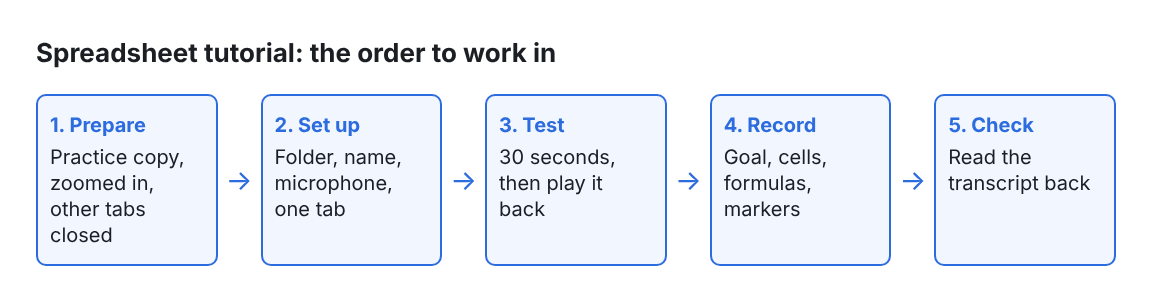
Prepare a practice copy of the sheet
Everything you share ends up in the file, so ten minutes of preparation saves you retakes.
- Use a practice copy. Swap real names, salaries and customer details for made-up data that looks realistic.
- Start from a known state. To teach a formula, begin with the empty column. To teach a filter, begin with the data untouched.
- Zoom in. Raise the zoom so cell contents and the formula bar are readable on a small screen.
- Close other tabs. Share the sheet's own tab or window, not the whole screen. Sharing one window or one tab keeps your other tabs, apps and private things out of the recording.
- Write a three to five line outline. One line per step. You will not read it out, it just stops you wandering.
Set up the recorder for a voiced tutorial
Open the recorder in Chrome and go down the page in this order.
- Folder. Under Where to save, press Choose folder... and allow Chrome to edit files in it. Until then Start recording stays greyed out, and the note beside the button says why.
- Name. The name becomes the file and folder name. For a series, number it, for example
Sheets 03 lookups, so takes stay in order. - Microphone. In the Microphone tile, tick the microphone you speak into. Press Rescan if you just plugged one in.
- What to capture. Pick A browser tab, or A window if your spreadsheet is an app. Chrome opens its own sharing box: choose the sheet and share it.
- Webcam. For a pure spreadsheet lesson switch Record my webcam off. If you want your face on screen, the Layout menu offers Picture in picture, Side by side, Screen only and Camera only. The preview is the recording, so keep the camera away from the cells you will use.
- Transcript. Live transcript is ticked by default under Options. Check the language menu beside it before every recording, because it goes back to its default each time the page opens, and Chrome listens for one language per recording.
Test your voice for 30 seconds first
Before the real take, record a 30-second test and play it back. It catches a wrong microphone or a muted setup before you have talked for twenty minutes. While you record, each ticked microphone has a level bar that moves with its sound. If it stays still while you talk, check the microphone's own mute switch.
Our post on testing your microphone before a long screen recording goes through the checks in more detail.
Record the tutorial and narrate each step
Press Start recording when the note beside the button reads ready to record. The screen shows what you click, so use your voice for what the screen cannot show.
- Say the goal first. "I want the total for each region" tells the viewer what to watch for.
- Say the cell or range. "Cell F2" or "B2 to B200" beats "this one" or "here". The transcript will then make sense on its own.
- Read a formula as you type it. Viewers who cannot read the formula bar clearly can still follow.
- Move slowly and pause after each result. Give people a beat to see the number change.
- Mark each new part. Press M or Add marker when you move from one topic to the next. A short note confirms the time.
Markers are saved to files only when Also save every source separately is ticked under Options. With the default single MP4 the notes show while you record but are not saved, so jot down any times you want to keep.
When you are done, press Stop and finish, not Chrome's own Stop sharing bar, which also ends the recording. The recording then appears on the page with a player, and it is already saved in your folder.
A worked example (made up)
Say you teach a new hire to total sales by region. Your outline has three lines: sort the data, write the total formula, check it against a filter.
You name the recording Sheets 01 sales totals, share the sheet's tab, and record 30 seconds of "testing, one, two" while scrolling. It plays back fine.
In the real take you say "I want the total for each region", click the first empty cell next to the first region, and read the formula as you type it. You press M before the filter part. At the end you press Stop and finish and open the transcript to see whether the cell names came out right.
Check the transcript and cut the filler words
Your folder holds an MP4 named after the recording and, if the live transcript heard speech, a plain-text transcript with the time of each line. Caption files are not saved in the folder. Press Captions .srt or Transcript on the card to download them, and do it while the recorder page is open, because the card lasts only while the page is open.
Read the transcript once. Wrong cell names there usually mean you were too fast or too quiet at that spot. On the card you can also type a real name into the Speaker box in place of the microphone's model name and press Save captions, and each line then starts with that name.
On plans that include cutting words from the transcript, a Remove filler words button marks the ums and ahs. In a one-file recording these cuts change the transcript and captions, not the MP4. The cutting filler words guide shows how to get a shorter video file, and our post on a voiceover recorded in one take covers keeping slips to a minimum.
Send the video to the people who need it
The simplest way is the MP4 itself: use Download MP4 on the card or send the file from your folder. It plays almost anywhere. For a few seconds of a tricky step in a chat or document, Convert can make a GIF, which is silent, 640 pixels wide and 12 frames a second, and gets very large for anything long.
Convert and Download MP3 send the file to the Cheap Recorder server, which deletes its copy when it finishes. Nothing else in a recording is uploaded. Two things do leave your computer: while the live transcript is on, Chrome sends your microphone audio to Google to turn it into text, and the activity log keeps the folder and file names you chose and your microphones' names. The privacy page has the details.
For a team that keeps lessons in one place, the post on a how-to video for a team wiki shows where the video and transcript go.
Frequently asked questions
Can I record just the spreadsheet and not my whole screen?
Yes. Under What to capture, choose A browser tab or A window. Only what you share goes into the recording, so your other tabs and apps stay out.
Do I have to pay to record a spreadsheet tutorial?
No. The Free plan includes recording, live transcript and captions and 12 hours of recording a month, with no card needed.
Can I add a transcript after I finish recording?
No. If Live transcript was off, a transcript cannot be added to that recording afterwards. It is ticked by default under Options, so check it before you start.
Where is my tutorial saved?
In the folder you choose under Where to save, on your own computer. Recordings are not uploaded, except when you use Convert or Download MP3.
What if the recording stops early?
Either the month's recorded minutes ran out, or Chrome's own Stop sharing bar was pressed, which finishes the recording. Use Stop and finish to end a take.
Get started
Open your practice sheet, pick a folder and record a 30-second test. Then record the real lesson and read the transcript back. Start on the free plan, no card needed. If you are comparing tools first, see our comparison with Loom, Camtasia, Descript and Riverside.
The free plan needs no card. Try Cheap Recorder in Chrome, and your recordings stay on your own disk.