
Design portfolio video: walk a hiring manager through your work
Record a design portfolio video in one Chrome tab: three projects, four beats each, your camera in a corner, and a list of start times for the hiring manager.
A design portfolio video lets a hiring manager hear why your work looks the way it does, not just see the finished screens. You pick the projects, the order and the parts worth pausing on, and you say in your own voice what you did. This guide shows you how to plan a short walkthrough of two or three projects, record it in one Chrome tab with your camera in a corner, and send the hiring manager the video plus a list of where each project starts.
Why send a design portfolio video at all
A portfolio link asks a busy person to find your best work on their own. A video takes them straight to the parts you want them to see, in the order you chose.
It also answers the questions a page of images cannot. What was the problem? What part was yours, and what was the team's? What did you try and throw away? A hiring manager who has heard you explain three projects already knows how you think before the first interview.
Pick the projects and give each one four beats
Choose the projects that match the job you are applying for, not the ones you are proudest of. If the role is mostly mobile app work, lead with the app.
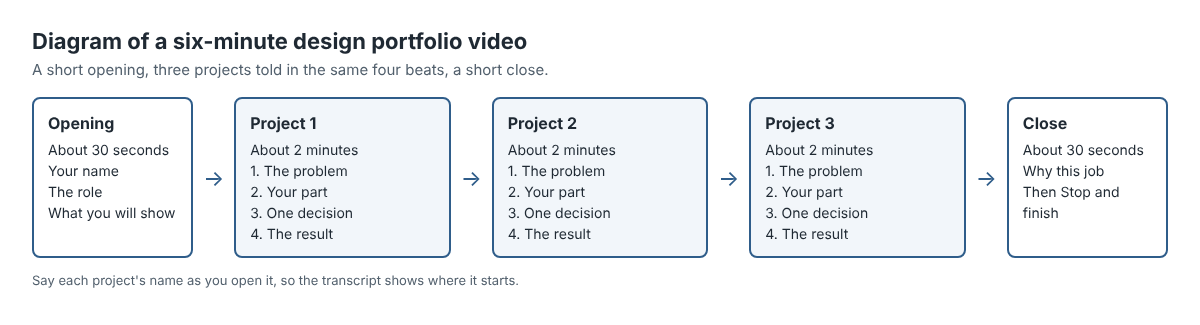
Then tell every project in the same four beats, so the hiring manager knows what is coming:
- The problem. One or two sentences. Who had it, and why it mattered.
- Your part. Say plainly what you did and what others did. "I led the research and the flows; another designer did the visual style."
- One decision. Show one screen and the choice behind it, including what you tried first.
- The result. What changed after it shipped, or what the team learned. Only share numbers you are allowed to share.
Write the four beats for each project on a card or a note on your phone, not on the screen you are recording. Then add a 30-second opening (your name, the role you are applying for, and what you will show) and a 30-second close.
Put your whole portfolio in one Chrome tab
Cheap Recorder runs in Google Chrome on Mac, Windows and Linux. Under What to capture you choose Whole screen, A window or A browser tab. Chrome then opens its own sharing box, where you pick the tab and press Share.
For a portfolio, pick A browser tab. Anything on the shared screen ends up in the file, and sharing just one tab keeps your email, your chat and your other job applications out of shot. Your portfolio site, a case study page or a prototype that opens in the browser all work, as long as it is all in that one tab. If a project lives in several places, link them from one page before you record so you never leave the tab. The Chrome tab demo post covers why other tabs stay out.
Two things to know before you start:
- Do not press Chrome's Stop sharing bar. The recorder takes it as the end and finishes the recording. Use Stop and finish instead.
- Check for work you cannot show. If a project is under an agreement with a client or a past employer, ask before it goes in a video.
Place your camera where it hides nothing
A small picture of your face helps a hiring manager connect the voice to a person. Turn on Record my webcam, and your camera sits over the tab in the Preview. The default layout is picture in picture, bottom right. You can drag the camera to any spot and set its size with the Size slider, from 12% to 50% of the width of the picture.
Portfolio pages often put a caption or a button in the bottom right, so look at your busiest page and move the camera to a corner that covers nothing on it. Keep it small, around the low end of the slider, because your work is the point. The preview is the recording, so where the camera sits there is where it sits in the file. The screen and webcam guide has every layout.
If the room behind you is untidy, the Background choices sit right under the camera switch. Blur keeps you sharp and softens the room, and None and Blur are always there. Set it before you press Start recording, because the recording keeps the background that was on at the start. The green screen and blur guide explains each choice.
Prefer not to be on camera? Switch the webcam off and the file holds the tab alone.
A worked example: three projects in about six minutes
Say you are Sam, applying for a product designer role at a company that makes booking software. You have a portfolio site with three case studies: a clinic booking app, a city recycling website and a small design system for a coffee shop.
- Open your portfolio's home page in one tab and close every other tab you do not need. Silence notifications.
- In the recorder, press Choose folder under Where to save and pick a folder called "Job applications". Each recording gets its own folder inside it, named with the date and the name you give the recording.
- Under What to capture, pick A browser tab and choose the portfolio tab.
- Turn on Record my webcam, drag the camera to the top right, and set the size small.
- Under Options, check that Live transcript is ticked and pick the language you will speak. The language is set when the recording begins.
- Record a 30-second test and play it back. It catches a wrong microphone before you lose a whole take.
- Type "Portfolio for Northwind" into Name this recording and press Start recording.
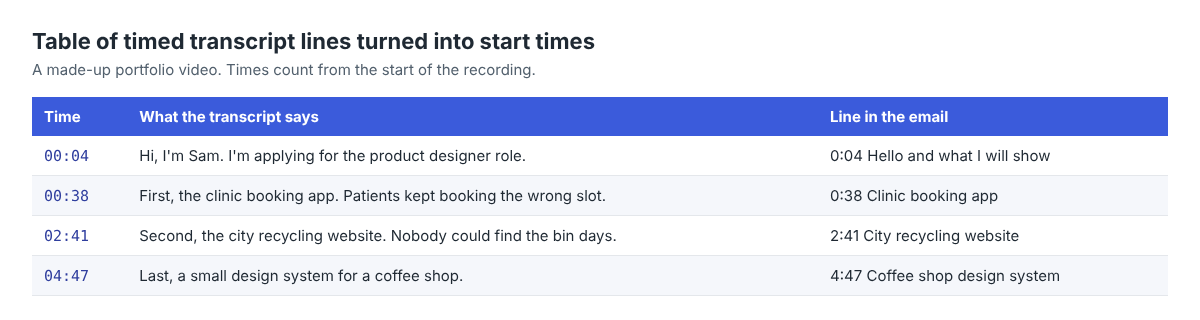
- Open: "Hi, I'm Sam. I'm applying for the product designer role. I'll show you three projects in about six minutes."
- Say each project's name out loud as you open it: "First, the clinic booking app." Then the four beats.
- Close with one sentence on why you want this job, then press Stop and finish.
The Your recording card opens with a player and Download MP4, and the file is already in the folder, with "Portfolio for Northwind - transcript.txt" next to it. Watch it once before you do anything else.
Turn the transcript into a list of start times
The transcript is plain text with times and speaker names, measured from the start of the recording. It opens in any text editor and is easy to paste into an email. The live transcript guide explains the files.
Because you said each project's name as you opened it, finding where each one starts takes a minute. Search the transcript for the names and copy the times into your email, so a hiring manager who only has time for one project can jump straight to it.
Fix any word the speech recognition got wrong, such as a company or product name, before you paste it.
What to check before you send it
- Play it back to the end. Check your voice is clear and that each project you name is on screen when you name it.
- Send the file your way. The MP4 opens almost anywhere. Cheap Recorder saves it to your folder and does not upload it, so attach it or share it from the file service you already use, with the start times in your message.
- Know what left your computer. The recording is not uploaded, unless you use Convert or Download MP3, which send it to the Cheap Recorder server and delete it there when done. While the live transcript is on, Chrome sends your microphone audio to Google to turn it into text, so untick it before you start if a project is sensitive. The activity log holds the folder and file names you chose and your microphone's name, and the AI button sends the transcript to Anthropic only when you press it.
Getting ready for the interview that follows? The job interview practice post covers rehearsing your answers on webcam.
Frequently asked questions
How long should a design portfolio video be?
About six minutes for two or three projects. A short video is easier to watch to the end, and your portfolio link has the rest.
Does the hiring manager need Cheap Recorder to watch it?
No. You send an MP4, which opens almost anywhere, and the start times go in your message as plain text.
Can I record one version and send it to several companies?
You can, but a short opening that names the company and the role reads as more personal. Record a fresh take for each application and give each one its own name, such as "Portfolio for Northwind".
What if I make a mistake halfway through?
Press Stop and finish and record it again. Each take gets its own folder, so you can keep the best one.
Get started
The Free plan needs no card and includes 12 hours of recording a month, with screen, microphone and webcam and a live transcript. Create a free account, open your portfolio in one Chrome tab, and record your first take.
Screen recording that is cheap and easy.
Visit cheaprecorder.com↗

