Child reading aloud: record it at home to track progress
Record your child reading aloud in Chrome as a sound-only file, read the same page again every two weeks, and follow the words with a timed transcript.
A recording of your child reading aloud lets you hear something you miss while you sit beside them: how their reading of the same page changes over a few weeks. This guide shows how to record it in Google Chrome as a sound-only file, read the same passage again later, and follow the words with a timed transcript.
You need a computer with Chrome, one microphone, a quiet room, a book your child already knows a little, and their yes. Nothing is filmed, and every file stays in a folder on your own computer.
Why record your child reading aloud
When you listen live, you are also helping. You point at a word, you say "good", you turn the page. That makes it hard to notice the small things: where they stop, which words they guess, and whether they read the second half of a page as smoothly as the first.
A recording removes that job. You can play it later, alone or with your child, and listen only. Two recordings of the same page a few weeks apart give you a fair comparison, because the text is the same and only the reader has changed.
What this guide does not do is measure reading level or compare your child with anyone else. It does not give speeds or targets. If you have a question about how your child is doing, ask their teacher, who can use the school's own checks. The recordings are for you and your child, and they can be something useful to play for the teacher.
Ask first, and keep the files at home
Record only your own child, and only when they know about it and agree. Tell them what the recording is for: "We will listen to it together, and in a few weeks we will read this page again and hear the difference." If they say no today, try another day. A child who feels tested often reads worse than usual, so keep it light.
Cheap Recorder saves every recording into a folder you pick on your own computer, not on its servers. Two things leave your computer that you should know about. First, the live transcript: while it is on, Chrome sends the microphone audio to Google to turn it into text, so you need to be online. You can untick it and still get the sound file. Second, the activity log keeps the folder and file names you chose, for as long as your account exists, so use the book and page in names, not your child's full name. The privacy page lists everything the log holds.
Set up Chrome for sound only
Open the recorder in Chrome and pick a folder with Choose folder. The recorder does not remember the folder between visits, so you pick it again each time. Make one folder just for reading, so the takes do not mix with anything else.
For a voice-only file, switch off Record my webcam and do not pick a screen. The recorder then saves an M4A audio file instead of a video. Tick the microphone you will use and put it on the table, about an arm's length from the book, not in your child's hands.
Use a wired or USB microphone, or the computer's own. If the recorder shows Bluetooth microphone selected, that is a warning, not a fault, but on a Mac a Bluetooth headset used as a microphone switches to a lower quality mode. A small child's voice is quiet, so that matters more than usual.
Then record a short test. Have your child read one sentence, watch the level bar for the microphone move, press stop and play it back. The no sound guide notes it is much quicker to find a sound problem in a thirty-second test than in a long recording, and it lists what to check if the bar stays still.
Pick one passage and read it again later
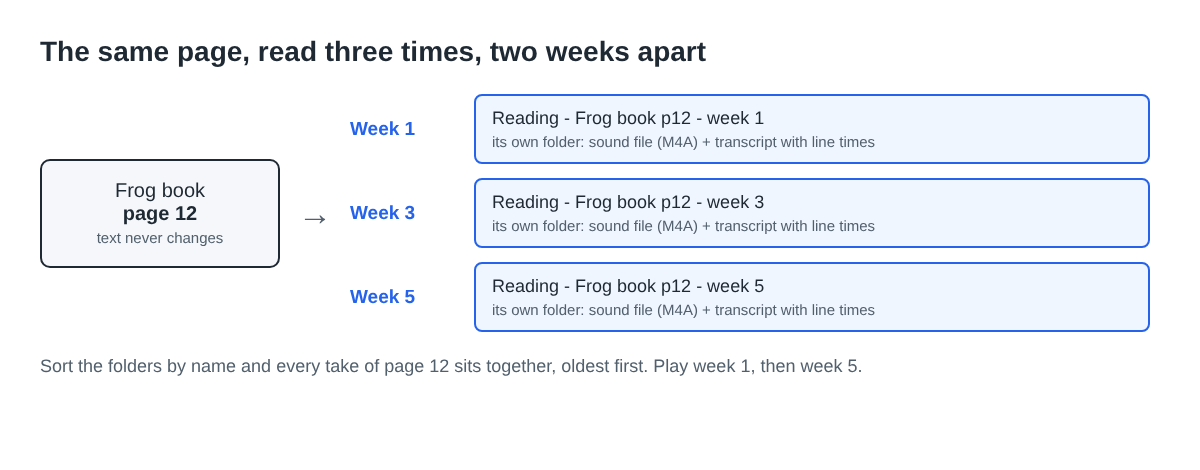
The comparison only works if the text stays the same. Choose a passage your child can mostly read, about one page, and keep a copy or mark the page. Record it once now, then again in two weeks and again two weeks after that. In between, they read whatever they like as usual.
Type a name in Name this recording before every take. A pattern like Reading - Frog book p12 - week 1 works well. Every recording gets its own folder named with that name and the date and time it began, so sorting the folders by name keeps each page's takes together, oldest first. Long names are cut at 60 characters, so keep them short. The where recordings are saved guide shows the full folder layout.
Keep each session short. One page and a chat about the story is enough. If your child stumbles badly or gets upset, stop, delete the take and try another day. A bad day does not tell you much.
Follow the words with the transcript
Under Options, leave Live transcript on and choose the language your child reads in before you start, because the language is set when the recording begins. If speech recognition stops listening during a long pause, the recorder starts it again while you are still recording, so slow readers are fine. When the transcript heard speech, the folder holds a plain-text file beside the M4A, with the time of each line. The live transcript guide covers the settings.
Put the transcript next to the book and read along. Where the two differ, play the recording at that time and listen. The transcript is a machine's guess at what it heard, and it can mishear any reader, so a difference is a place to listen, not proof of a misread word. What you are looking for are patterns you then hear for yourself: a word skipped every time, a line read twice, a long pause before the same tricky word.
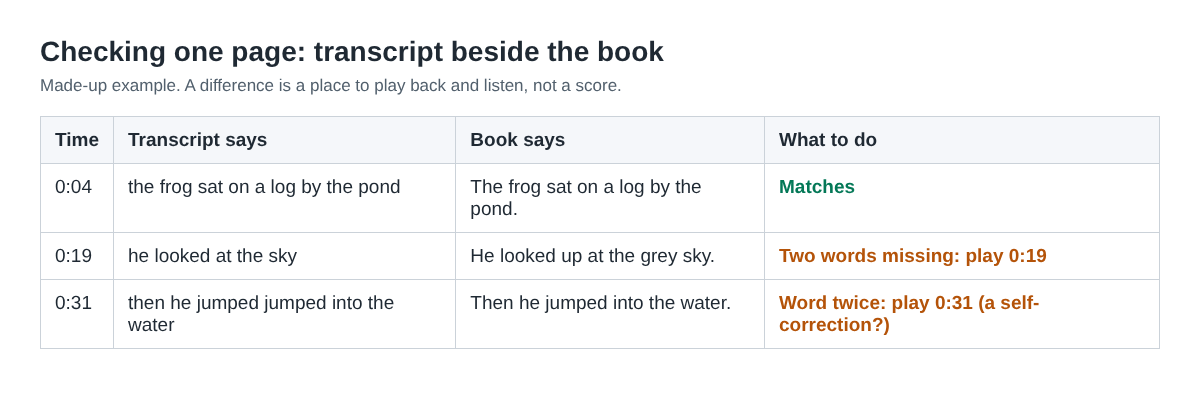
Your own voice will be in the transcript too, if you speak. Try to stay quiet during the read, and save praise and help for after you press stop.
A worked example: one page over six weeks
Here is how one family might do it, using only the steps above.
- Week 1: the child picks page 12 of a book they like. The parent makes a folder called Reading, records a one-sentence test, then the page as
Reading - Frog book p12 - week 1. It takes about three minutes. They listen together once. - Week 3: same page, same chair, same microphone, named
week 3. The parent opens both transcripts side by side and marks two lines that look different from the book. Playing those times shows one skipped word and one word the recognition simply got wrong. - Week 5: the third take. The parent plays week 1 and week 5 one after the other. The child hears the change too.
- Before a teacher meeting: the parent downloads week 1 and week 5 to bring along.
Three takes plus three short tests come to about 20 minutes. On the Free plan, which gives 12 hours of recording time a month with no card needed, that leaves nearly all of the month for anything else you record.
Play the takes back and share them
Each recording's card in the recorder has a download button that follows its format, so it reads Download M4A and hands over the original file with no upload. Other formats go through the server: converting sends the recording to it and sends the new file back, so use the M4A when you want the file to stay with you. The convert guide lists every format.
If your child enjoys it, they might want to record a whole story for a relative. The sample audiobook chapter post shows how to record a longer read in short sections.
Frequently asked questions
Do I need the transcript to track progress?
No. The sound file is enough to compare two takes by ear. The transcript helps you find the spot to listen to, but you can untick it if you prefer that no audio goes to Google.
Will the transcript show exactly what my child read?
Not always. The transcript can mishear words, so treat each difference from the book as a place to play back and listen, not as a mistake.
How often should we record?
Often enough to hear a change and rarely enough that it stays fun. Every two weeks on the same page is a simple rhythm; your child's teacher can tell you what fits them.
Can I record a video instead?
Yes, leave Record my webcam on and you get a video. For reading practice, sound only is usually enough and keeps your child's face out of the files.
Get started
Ask your child, pick a page, open Cheap Recorder in Chrome, switch off the webcam and record a one-sentence test. Then record the page and put a note in your calendar for two weeks from today. Start free, no card needed.
Screen recording that is cheap and easy.
Visit cheaprecorder.com↗