Audio walking tour: narrate your town stop by stop
Make an audio walking tour of your town in Chrome: walk the route, write a stop list, record one sound-only take per stop with names that sort in order.
An audio walking tour lets someone walk your town with your voice in their ears, stop by stop. You know which corner has the best story and where to stand to see the flood mark on the bridge. This guide shows how to turn that into a set of sound files, one per stop, recorded in Google Chrome and named so they stay in route order.
You need a computer with Chrome, a microphone, and a notebook for one walk around the route. Everything you record is saved in a folder on your own computer.
Plan an audio walking tour as separate stops
A tour is not one long talk. A listener stops, looks, listens, then walks on. If the whole tour is one file, they have to scrub back and forth to find their place every time they pause at a crossing.
So record one short take per stop. Each take tells one story about what is in front of the listener, says where to stand, and ends with how to reach the next stop. Two to four minutes per stop is a fair aim: long enough for a story, short enough to listen to standing up.
This guide covers making the files. How you share them, and how listeners play them, is up to you; nothing here depends on one app or service.
Walk the route first and write a stop list
Do the walk once on your own with a notebook before you record anything. At each place you might stop, write three things:
- Where the listener stands. "Middle of the bridge, facing upstream" is something a stranger can follow. "By the bridge" is not.
- What they should look at. The thing your story is about, in words that point: the clock, the carved date over the door, the line on the wall.
- How to get to the next stop. Left or right, which landmark to aim for, and roughly how long the walk takes.
Then cut the list. Five to eight stops make a tour most people will finish. Give each stop a number and a short name, and you have your stop list. Keep it next to you when you record.
If a neighbour, a shop owner or a friend is going to speak in a stop, ask them first and tell them the recording will be shared. Let people know they are being recorded before you press anything.
Set up the recorder for sound only
Cheap Recorder runs in Google Chrome on macOS, Windows and Linux. The Free plan needs no card and gives 12 hours of recording time a month on one device at once, and the live transcript is part of the Free plan and every plan above it.
- Choose a folder. Make one called Walking tour and pick it with Choose folder. The recorder does not remember the folder between visits, so you choose it again each time you open the recorder.
- Switch off the picture. For a sound-only recording, switch off Record my webcam and do not pick a screen. The recorder then saves an M4A audio file, which is all a tour needs.
- Use a close microphone. The transcript is made from what Chrome hears on your microphone, so a headset or a desk microphone beats a laptop's built-in one in a noisy room. A quiet room at home works better than the street itself.
- Check the transcript and its language. Under Options, Live transcript is ticked by default, and the menu beside it has 25 languages. Choose before you start, because the language is set when the recording begins.
Record a short test first: read the first line of stop one, stop, and play it back. The no sound guide puts it well: it is much quicker to find a sound problem in a thirty-second test than in an hour-long recording.
Record one take per stop, with names that sort
The name you type for each take is what keeps the tour in order. Every recording gets its own folder named with the name you typed, then the date and the time the recording began. So name each take after its stop, with a two-digit number in front:
Tour 01 Station squareTour 02 Old mill bridgeTour 03 Market hall
Two digits (01, not 1) keep stop 10 after stop 09 in file lists that sort letter by letter. Keep names short and plain. Characters a file name cannot hold, such as : and ?, are left out, and long names are cut at 60 characters, so "Stop 3: Market?" would turn into something you did not type.
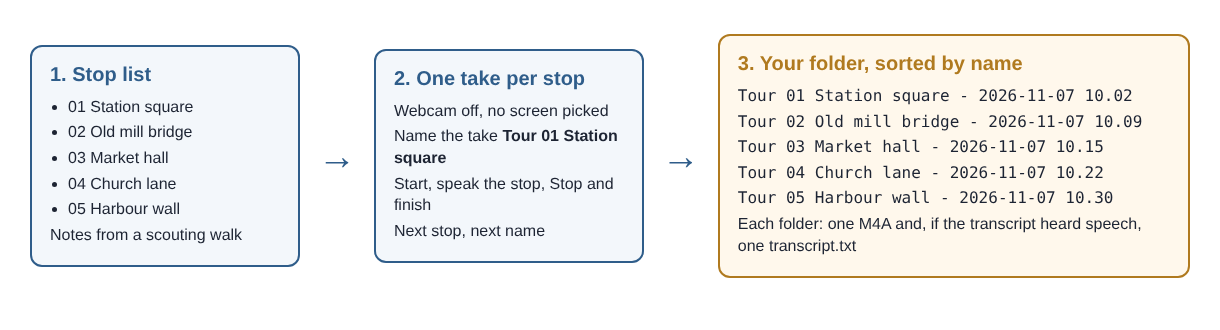
For each stop, type the name, press Start recording, speak the stop from your notes, and press Stop and finish. Start every take the same way, with the stop's number and where to stand, so a listener who loses their place can tell where they are from the first sentence.
Pause at the end of each sentence. Your words settle into a finished line when you pause, which keeps the transcript in clean lines you can use later.
Retakes are easy. Record the stop again under the same name. Sorting the folders by name groups each recording's takes together, oldest first, so the new take of Tour 03 Market hall lands right below the old one. Listen to both, keep the better, and delete the other folder. If you start a second take within the same minute, its folder gets (2) on the end, so it never mixes with the first.
A worked example: a five-stop tour
Here is how one made-up tour might go, using only the steps above.
- The scouting walk: a Saturday morning loop from the station to the harbour. The notebook ends up with eight places; three are cut because there is nothing to look at, only a story.
- The stop list: five stops, each with where to stand, what to look at, one story, and a time to aim for.
- The session: back at home, they choose the Walking tour folder, switch off the webcam, check that English is chosen, and record a ten-second test. Then five takes, one per stop, about 13 minutes of speaking in all.
- The retake: stop 02 runs long because the flood story wanders, so they record it again under the same name. The two folders sit next to each other; they keep the shorter one.
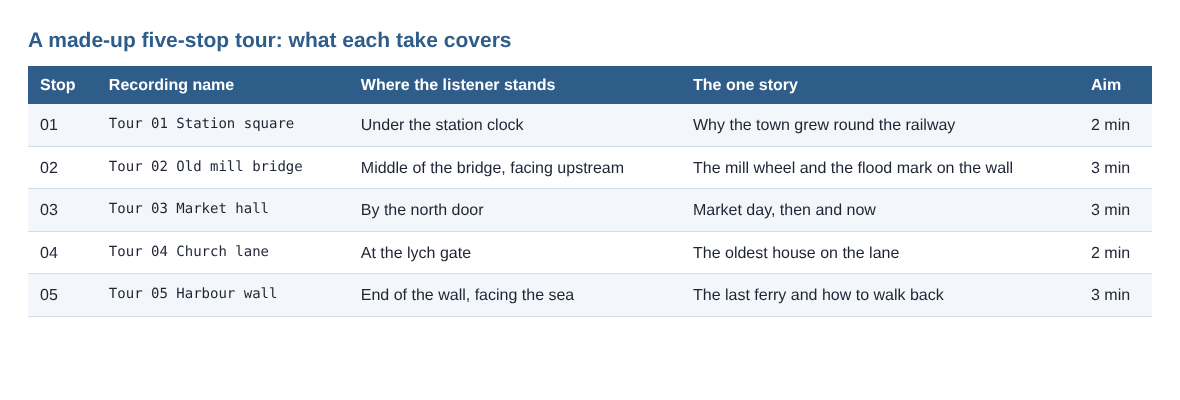
Thirteen minutes of takes, plus a retake and a test, is a very small part of the Free plan's 12 hours a month. You could record the whole tour twice over and barely notice.
Use the transcript as each stop's text
Open the folder for a stop. It holds the M4A and, if the live transcript was on and heard speech, Tour 01 Station square - transcript.txt: plain text with the time of each line. The where recordings are saved guide shows the full layout.
That text is useful well beyond the recording. Tidy it into a short paragraph and you have the words for a printed tour sheet, a page for people who would rather read, or a check that you said every street name the way you meant to. The live transcript guide covers the details.
Treat it as a draft, not a finished text. Local place names are easy for a machine to mishear, so fix each one against your stop list. Chrome reports a time for each line, not for each word, so when a line looks wrong, play the M4A a moment before that time and type what you actually said.
Two things to settle before you record, not after. Chrome listens for one language per recording, and switching language halfway through gives odd results, so record a tour in each language as its own set of takes. And the transcript is only made live: if it was off, there is no way to add a transcript to that take afterwards.
What leaves your computer
Cheap Recorder saves each take into the folder you chose on your own computer. While the live transcript is on, Chrome sends the microphone audio to Google to turn it into text, so you need to be online. If you would rather keep a take entirely on your machine, untick Live transcript before you press Start recording; you still get the M4A, without the text.
The activity log keeps the folder and file names you chose, and your microphones' names, for as long as your account exists. Stop names like Tour 03 Market hall are fine there; just keep private addresses out of the names. The privacy page lists everything the log holds. If you want a single longer piece in your own voice instead of many short stops, the guided meditation post covers that.
Frequently asked questions
Should I record the tour while I walk it?
You can, but you will fight wind and traffic. Walk the route with a notebook, then record each stop in a quiet room with a close microphone.
How long should each stop be?
Two to four minutes is a fair aim. That is long enough for one story and short enough for a listener standing on a pavement.
How do I keep the stops in the right order?
Start every recording's name with a two-digit stop number, such as Tour 01 and Tour 02. Each take's folder starts with that name, so sorting by name puts the tour in order.
Is the Free plan enough for a whole tour?
Yes, for most tours. The Free plan gives 12 hours of recording time a month, and a tour of eight stops at three minutes each is under half an hour.
Get started
Walk your route this week with a notebook and write a stop list. Then open Cheap Recorder in Chrome, switch off the webcam, record a ten-second test, and record stop 01. Start free, no card needed.
Screen recording that is cheap and easy.
Visit cheaprecorder.com↗