
Tabletop game session on a call: keep a recap from the recording
Record a tabletop game session on Google Meet in Chrome as sound only, then turn the timed transcript into a short recap your players read before next game.
A long campaign lives on its details. Three weeks after the last game, nobody remembers the miller's name, who kept the map or which door the party never opened. If your group plays over Google Meet, you can record each tabletop game session in Chrome with Cheap Recorder, keep the sound and a timed transcript in a folder on your own computer, and write a short recap from it instead of from memory.
Why a recording beats notes at the table
The game master is the worst person to take notes. You are voicing characters, tracking turns, rolling for monsters and keeping the story moving. Players who take notes miss the scene they are writing about.
A recording takes that job off everyone. You play the game, then spend fifteen minutes afterwards pulling out what the recap needs: where the party went, who they met, what they found and what is still open. The transcript gives you a time for each of those moments, so you can play back a scene when your memory and the text disagree.
The recording is not the recap. Four hours of play holds a lot of jokes, rules talk and snack breaks. The recap is the five to ten lines your players read before the next game.
Ask every player first
The law on recording calls differs from place to place, and some places need everyone to agree. The Google Meet guide says to tell the people on the call that you are recording before you start. At a game table, do it twice.
- Ask in the group chat before the first recorded session, and say what the recording is for and who will hear it.
- After you press Start recording, ask again out loud, so the answer is the first thing in the transcript.
- If a player says no, do not record. Take the recap by hand that night.
Set up the call before the players join
Cheap Recorder runs in Google Chrome on a Mac, Windows or Linux computer, and the Meet call has to be open in a Chrome tab on the same computer. The Free plan covers every step here.
- Open the Meet call in a Chrome tab. Open Cheap Recorder in another tab.
- Under Where to save, press Choose folder... and pick a folder for the campaign. Each recording gets its own folder inside it, named with the name you type and the date and time it began.
- Check the Microphone tile shows the microphone you will speak into.
- In the Call audio tile, press Pick the call tab.... Choose the Meet tab, tick Share tab audio (some versions of Chrome say Also share tab audio) and press Share. The tile changes from not captured to on, followed by the tab's name.
- Switch the webcam off and do not pick a screen. The recording is then an M4A audio file instead of an MP4, which is all a recap needs.
- Open Options. Keep Live transcript ticked and pick the language your group plays in, because it is set when the recording begins. Leave Record the microphone untouched unticked for a call.
- Type a name in Name this recording, such as "Session 12".
Wear headphones. They stop the players' voices coming out of your speakers and back into your microphone. Before the first recorded game, do the guide's one-minute test call with a friend and play it back: you should hear both of you.
Run the tabletop game session so the transcript helps
Every player's voice reaches the recorder through the one Meet tab, so everyone on the far end of the call is in the same file. In the transcript they share one label, Meeting. On plans that include speaker detection your own lines carry your microphone's name, and every player is Meeting. The transcript cannot tell the rogue from the cleric.
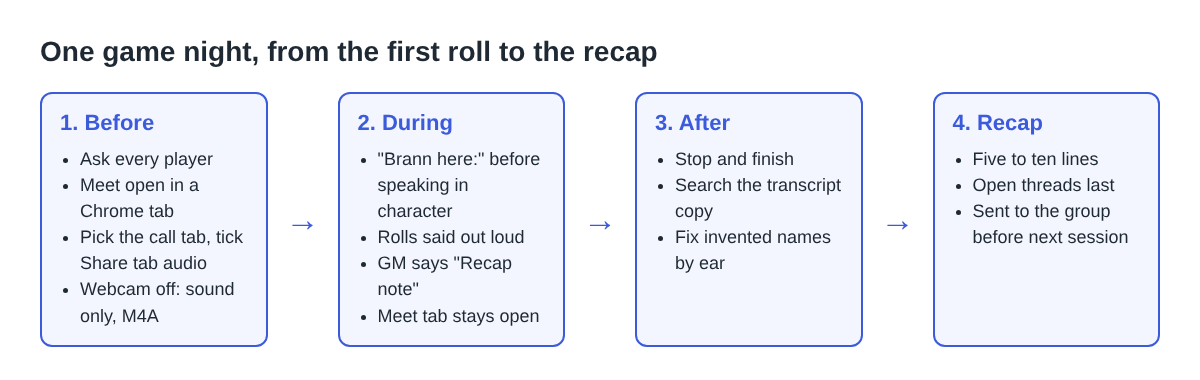
A few table habits fix that, and they can help the game too:
- Players say their character's name before speaking in character: "Brann here: I open the chest."
- Say rolls and results out loud. A result shown on a die or a dice site never reaches a sound recording.
- As game master, say "Recap note" before anything the recap needs: a name, a clue, a promise, a debt.
- Spell an invented name once when it first appears. The transcript writes what it hears, and a word it does not know may come out as something else.
- End with a short spoken summary of open threads. It becomes the last lines of the recap.
Leave the Meet tab open the whole time, breaks included. If it closes, or its sharing is stopped from Chrome's bar, the recorder shows Meeting audio sharing stopped. From then on every player is silent in the recording while your voice carries on, and picking the tab again does not add it back. If that happens, press Stop and finish and start a new recording named "Session 12 part 2".
For a long game, the where-saved guide notes that Chrome writes the recording to disk as you go, about once a second, instead of holding it all in memory.
A worked example: from four hours to a recap
Priya runs a fantasy campaign for four players every other Saturday on Meet. Each game runs about four hours, so two games a month use about 8 of the Free plan's 12 hours. If the group moved to every week, that would be about 16 hours, more than the Free plan holds; the plan cards on the home page show the Creator plan with 80 hours.
When the game ends she presses Stop and finish. The M4A file and a plain text transcript sit in the Session 12 folder. The transcript opens in any text editor, and each line has a time.
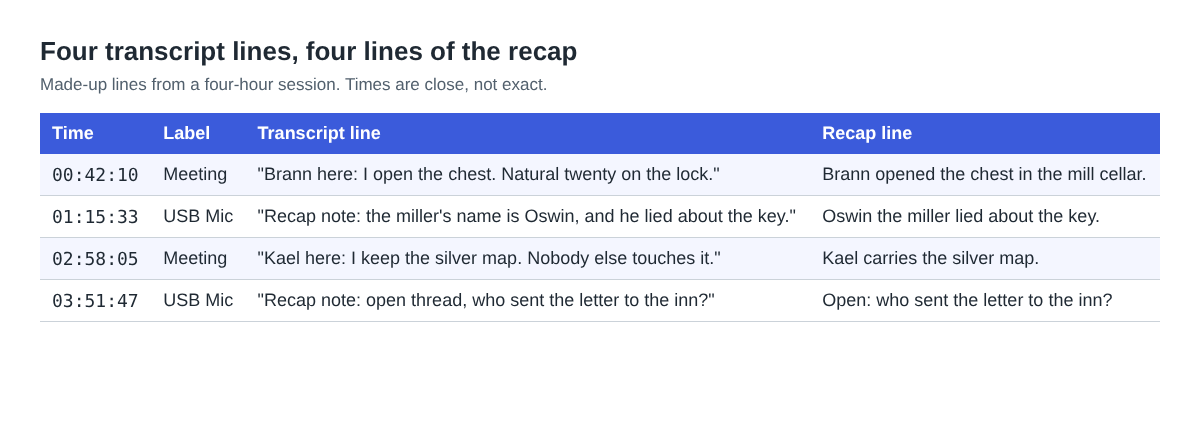
Priya works in a copy of the text file and searches for three things: "Recap note", each character's name followed by "here", and "open thread". In about fifteen minutes she has her draft:
- The party reached the mill. Brann opened the chest in the cellar.
- Oswin the miller lied about the key.
- Kael carries the silver map.
- Open: who sent the letter to the inn?
Before she posts it, she checks every invented name by ear. Times are measured from the start of the recording and are close, not exact, so she starts each one a few seconds early. Where the transcript wrote a name wrong, she writes the recap from what she hears, not from the text.
On a plan with speaker detection she could also type "GM" into the Speaker box for her microphone and press Save captions. Meeting stays one label for every player. For a smaller group talking about one thing, see how to record a book club discussion on a call.
What leaves your computer, and what stays
The recording is saved in the folder you chose, and Cheap Recorder keeps no copy. It only leaves your computer if you press Convert or Download MP3, which send the file to the server to make the new format; it is deleted there as soon as that finishes. The where recordings are saved guide lists every file in the folder.
The transcript works differently. While it is on, Chrome sends the microphone audio to Google to turn it into text. The AI button sends the transcript with the speaker names to Anthropic, and only when you press it. The recorder's activity log keeps the folder and file names you chose, so name sessions by number, not by a player's real name. Agree with your group how long recordings are kept, and delete each one once the recap is posted if that is what they want.
Frequently asked questions
Do I need video to write a recap?
No. Switch the webcam off and pick no screen, and the recording is an M4A audio file with the transcript beside it, which is all a recap needs.
Will the transcript show which player said what?
Only partly. On plans that include speaker detection your microphone gets its own label, while every player on the call shares the Meeting label, so ask players to say their character's name first.
Can I add a transcript to an old session afterwards?
No. The transcript is only made live while you record, so tick Live transcript under Options before you press Start recording.
Is the Free plan enough for my group?
For a game every other week of about four hours, yes: it needs no card and gives 12 hours of recording a month with the live transcript. A weekly four-hour game needs more hours than that.
Get started
Ask your players in the group chat, then run your one-minute test call before game night. Open Cheap Recorder on the Free plan and pick the Meet tab before the first roll. To make more of the transcript, read the live transcript and captions guide.
Screen recording that is cheap and easy.
Visit cheaprecorder.com↗

