
Book club discussion on a call: record it with a transcript
Record a book club discussion on a Google Meet call in Chrome, get a timed transcript, and turn it into short notes for the members who could not come.
A book club discussion on a call goes fast. Someone makes a great point about chapter twelve, two people talk at once, and by the next meeting nobody remembers who said what. If you host the club on Google Meet, you can record the call in Chrome with Cheap Recorder and get a timed transcript on your own computer. That transcript becomes short notes for the members who could not come.
Why record a book club discussion at all
Most clubs have someone who misses a month. A recording lets them catch up without asking three people for a summary. A transcript is even better, because it reads in five minutes and you can search it for a name or a page number.
It also helps the host. You stop taking notes during the meeting and listen instead. Afterwards, you pull the questions, the best points and next month's book out of the transcript in one pass.
This guide uses Google Meet, because Cheap Recorder has a step by step guide for recording a Meet call. The call has to be open in a Chrome tab on a Mac, Windows or Linux computer, since the recorder hears the call through that tab.
Before the meeting: agreement and a test call
Ask the club first. Send a short message a few days before: you would like to record the discussion so members who miss it can catch up, and the file stays on your computer. Then say it again at the start of the call, on the recording. The law on recording calls differs from place to place, and some places need everyone to agree, so follow the rules where you and the members are.
Then do a one-minute test call with a friend. Record it, play it back in the player on the page, and check that you can hear both of you. Open the transcript too, and check that your friend's lines are there with the label Meeting. If they are, the real meeting will work the same way.
Wear headphones if you have them. They stop the other members' voices coming out of your speakers and back into your microphone, which causes echo.
Set up the recorder next to the Meet tab
Open the Meet call, or its waiting screen, in one Chrome tab. Open Cheap Recorder in another tab and sign in. Then:
- Under Where to save, press Choose folder... and pick a folder. Each recording gets its own folder inside it, named with the date, the time and the recording's name.
- Check the Microphone tile names the microphone you want.
- In the Call audio tile, press Pick the call tab..., choose the Meet tab, tick Share tab audio and press Share. The tile should say on, followed by the tab's name.
- Open Options and make sure Live transcript is ticked. In the menu beside it, pick the language the club speaks. Chrome listens for one language per recording, so choose before you start.
- For a sound-only record, switch Record my webcam off and pick no screen. You get an M4A audio file instead of an MP4, which is plenty for a discussion.
- Type a name such as
Book club Octoberin Name this recording and press Start recording.
Leave Record the microphone untouched unticked. It turns off the echo, noise and volume correction that calls need. Keep the Meet tab open for the whole meeting too. If the tab share ends, you will see Meeting audio sharing stopped., and picking the tab again does not add it back to a recording that is already running. Stop, then start a new recording for the rest.
Run the meeting so the transcript knows who spoke
Here is the part most hosts miss. The transcript does not know people. It labels each line with the sound source that was loudest while it was spoken. Your voice comes from your microphone. Everyone else comes from the one Meet tab, so every other member shares one label: Meeting.
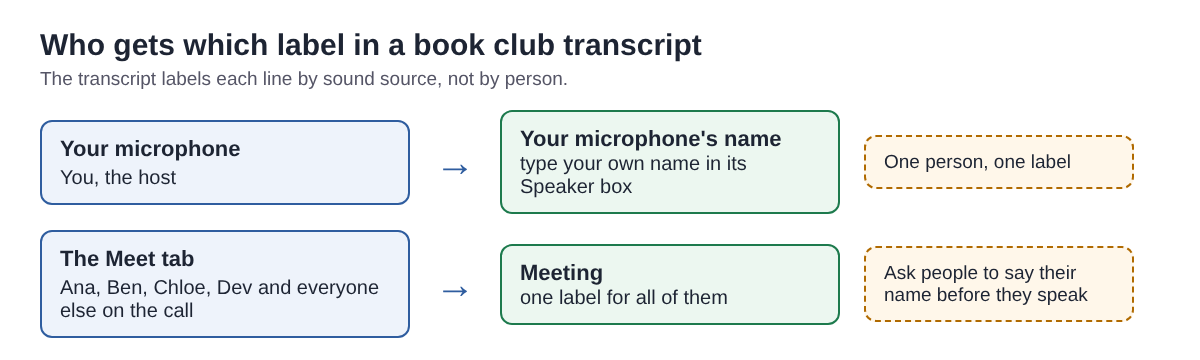
A few habits fix that, and they make the meeting easier to follow anyway:
- Names first. Ask members to start with their name when they speak: "Ana here" or "It's Ben". The name then sits at the start of the line in the transcript.
- Read each question aloud. Say "Question one" before you ask it. You can later search the transcript for "Question" and find every section.
- One voice at a time. When two people talk over each other, the line is hard to read back. A gentle "Ana first, then Ben" keeps both points.
- Say page numbers. "Page 214" is easy to find in the text later. "That bit near the end" is not.
- Mark the good moments. Press M or Add marker when someone says something worth quoting, so you can find it again.
On plans that include speaker detection, the Transcript fold in your recording's card has one Speaker box per label above the transcript. Type your own name in your microphone's box, and something like Club in the Meeting box, then press Save captions. Every line then starts with that name.
A worked example: from transcript to club notes
When you press Stop and finish, the transcript is saved next to the recording, named after it: Book club October - transcript.txt. It is plain text with the time of each line, and opens in any text editor. Times count from the start of the recording, and they are close, not exact.
Say Sam hosts a 60-minute meeting about a novel. Priya is away. Sam reads the transcript once and copies only five kinds of line into the notes: the agreement to record, each question, each point with a name, page numbers and next month's book.
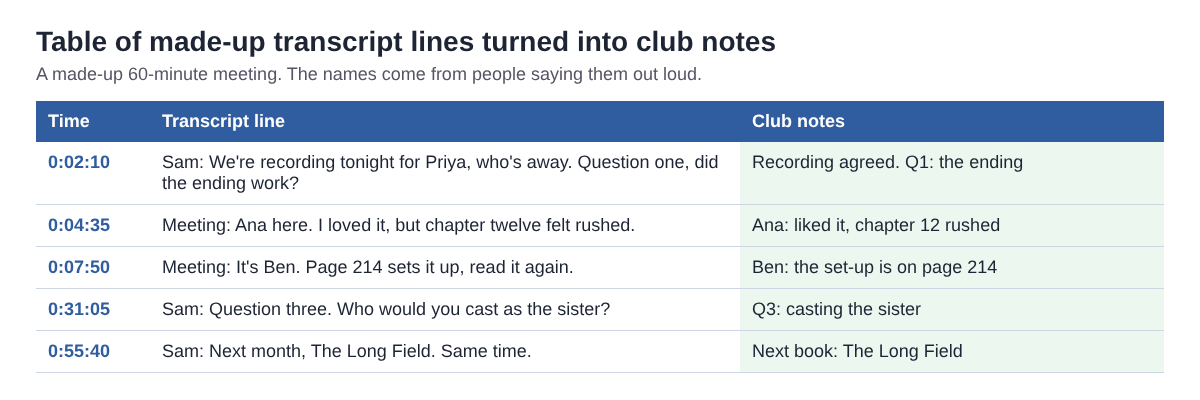
The notes Sam sends Priya fit in one message:
- Q1, the ending: Ana liked it but found chapter 12 rushed. Ben says page 214 sets it up.
- Q3, casting the sister: see the transcript from 0:31.
- Next book: The Long Field, same time next month.
That took Sam ten minutes, not a second listen. If Priya wants more, the full transcript and the times tell her exactly where to look in the audio. For more ways to turn a transcript into notes, see recording a one-on-one meeting and keeping the transcript as notes.
Sharing it, and what leaves your computer
The recording and the transcript are saved in the folder you chose. They are not uploaded anywhere. The transcript file is small, so it goes into an email or a group chat easily. An hour of audio is bigger; share it the way your club already shares files, and only with members who agreed to be recorded.
Be honest with the club about three things, all from the privacy page and the guides:
- While the live transcript is on, Chrome sends the microphone audio to Google to turn it into text.
- The recorder's activity log keeps the folder and file names you chose and your microphones' names.
- If you press an AI button, the transcript with the speaker names is sent to Anthropic. Nothing is sent unless you press one. Convert or Download MP3 also sends the file to the server to make the new format.
Mind your minutes too. Each plan has recorded minutes a month, and if they run out mid-recording, the recording stops. Open your name in the top right to see how many are left. A monthly 90-minute meeting uses an hour and a half of the Free plan's 12 hours.
Frequently asked questions
Can I get each member's name in the transcript automatically?
No. Everyone on the far end of a call comes from one Chrome tab, so they share the Meeting label. Ask members to say their name before they speak, and the name lands in the text.
Can I add a transcript after the meeting?
No. The transcript is only made live, while you record. Check that Live transcript is ticked before you press Start recording.
Does it work if the club speaks a language other than English?
Yes, if it is one of the 25 languages in the menu beside Live transcript. Chrome listens for one language per recording, so a meeting that switches languages halfway gives odd results.
Do the other members need Cheap Recorder?
No. Only the person recording needs it. Everyone else joins the Meet call as usual.
Get started
The Free plan needs no card and includes 12 hours of recording a month and the live transcript. Read the live transcript guide once, do your test call, and start recording free before your next book club discussion.
Screen recording that is cheap and easy.
Visit cheaprecorder.com↗

