
Record a sales call you take in Chrome and review it afterwards
Record a sales call in Chrome with your voice and the buyer's, mark objections with one key, and review the timed transcript on your own computer afterwards.
You can record a sales call in Chrome and keep it on your own computer: your voice, the buyer's voice and a timed transcript, from one Start recording press. This post shows the setup, what to check in the first 30 seconds, how to mark objections while you talk, and how to turn the transcript into a scorecard you can use before the next call.
Why record a sales call and review it
On a live call you are listening, thinking about your next question and watching the clock. You cannot also judge how you did. A recording lets you do that later, once, without the pressure.
- What the buyer actually said. Notes from memory drift. The transcript has the exact words and the time.
- How you handled the hard moment. An objection you rushed past is easy to see when you read it back.
- What was agreed. A date, a name or a number said near the end is easy to lose and costly to get wrong.
It is the same habit as the follow-up message in the follow-up video for a prospect post, only aimed at your own call instead of at the buyer.
Tell the buyer before you press record
Say it at the start of the call: "I'm recording this so I can take notes properly. Is that all right?" The law on recording calls differs from place to place, and some places need everyone to agree, so follow the rules where you and the buyer are. Your company may also have its own rule, so check it.
If the buyer says no, stop there. You can still use the recorder alone after the call: say your own summary out loud and review that.
Set up the recorder in five minutes
The recorder hears the other side of a call only when the call is open in a Chrome tab. If your calls run in a desktop app, check first whether your calling tool has a version that opens in Chrome. You need:
- Google Chrome on macOS, Windows or Linux, with the call open in a Chrome tab.
- A free Cheap Recorder account. The Free plan has recording, live transcript and captions, and 12 hours of recording a month on one device. No card is needed.
- A wired or USB microphone if you have one. On a Mac, a Bluetooth headset used as a microphone drops to a low-quality mode, so use it to listen only.
- Headphones, so the buyer's voice does not come out of your speakers and back into your microphone.
Do this before the call starts, not while the buyer waits.
- Choose a folder. Under Where to save, press Choose folder... and pick one. If Start recording is greyed out, the words beside it say why. Each recording gets its own folder named with the date, the time and the recording's name.
- Name the recording. Type something like
Acme discovery callin Name this recording. The name is used for the file and its folder. - Add the buyer's sound. In the Call audio tile press Pick the call tab..., choose the call's tab, tick Share tab audio (some versions of Chrome say Also share tab audio) and press Share. The tile changes to "on" followed by the tab's name.
- Check Options. Live transcript is ticked by default. Leave Record the microphone untouched unticked, because that is the right setting for calls.
- Run a 30-second test. Press Start recording, say a sentence, ask a colleague to say one, press Stop and finish and play it back.
The Call audio steps are the ones in the Google Meet recording guide. For any other calling tool, treat the 30-second test as the proof that its tab sound is captured.
Two things go wrong here. If you also tick tab audio in a browser tab share, the buyer's voice goes into the file twice, so tick it in one place only. And if the tab share ends, you see Meeting audio sharing stopped. and the other side is silent from then on. Picking the tab again does not add it to a recording that is already running, so stop and start a new one. Use Stop and finish at the end, not Chrome's Stop sharing bar.
Mark moments while you talk
Press M or Add marker when the buyer raises a question, pushes back on price or says something that sounds like a buying signal. A short note confirms the time. It costs you one key press and no eye contact.
Markers are saved to files only when Also save every source separately is ticked under Options before you start. With the default single MP4 the notes show while recording but are not saved, so write the times on paper if you rely on them. That same option saves the buyer's side as audio_meeting_far_end.webm and your microphone as a file of its own, in a Separate sources folder. It cannot be added afterwards.

What the transcript gives you, and what it does not
The live transcript is made from what Chrome hears on your microphone, so your own speech is the part to trust. Your 30-second test shows how much of the buyer's side it catches in your setup. Each line is labelled by the loudest source: your microphone's name, or Meeting for the call tab. Everyone on the far end shares the one Meeting label, so a call with three buyers will not tell them apart.
Two limits matter for sales. Chrome listens for one language per recording, set when it begins, and switching halfway gives odd results. And a transcript cannot be added to a recording afterwards, so Live transcript must be ticked before you press Start recording.
Chrome also sends the microphone audio to Google to turn it into text while the transcript is on. If a call must not leave your computer in any form, untick Live transcript before you start.
Worked example: one discovery call, four lines
Say you ran a 30-minute discovery call with a buyer at a company called Acme (a made-up call). You pressed M four times. Afterwards you open the transcript file beside the MP4, a plain text file with times and speaker names, and read the lines around each mark. Rename the Speaker boxes to real names and press Save captions if you want names on every line.
Twenty minutes of reading gives you this scorecard (the times and quotes are made up):
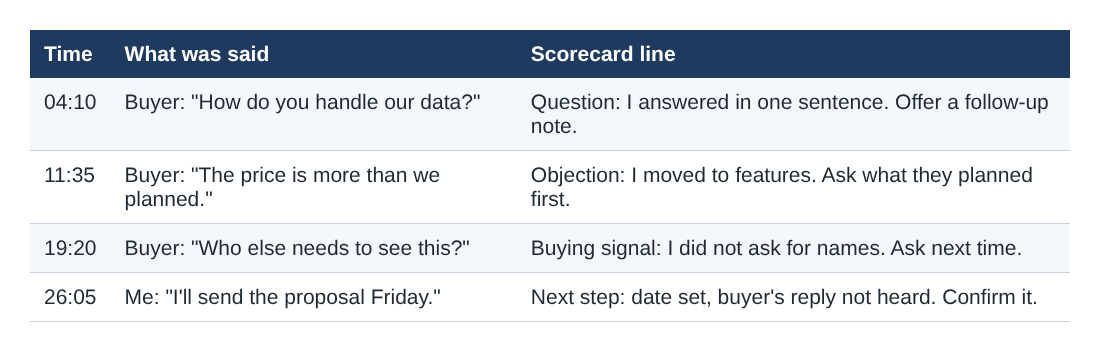
None of these is a verdict on the call. Each is one thing to do differently: offer a data note, ask what they planned before talking features, ask for names, confirm the Friday proposal in writing. Open the next call with the list on your desk.
Keep your calls in order
Name each call with the company and the stage, such as Acme discovery call and Acme demo call, and keep each recording's folder. Your files stay in the folder you chose; they are not uploaded, except when you use Convert or Download MP3, which send the file to the server and delete it there when done. The where recordings are saved guide lists what each folder holds. Caption files are not saved in the folder on their own, so download Captions .srt or the transcript from the recording card while the recorder page is open.
If your call is with an existing customer rather than a prospect, the customer onboarding call post covers what to keep from that one.
Frequently asked questions
Can I record a sales call in Chrome for free?
Yes. The Free plan includes recording, live transcript and captions, and 12 hours of recording a month on one device. No card is needed.
Why is the buyer silent in my recording?
Your microphone only picks up you. Press Pick the call tab..., choose the call's tab and tick Share tab audio, then confirm with a 30-second test. The call has to be open in a Chrome tab.
Do I have to tell the buyer I am recording?
Yes. Some places need everyone to agree to a recording, so say it at the start of the call and stop if the buyer says no.
Can the transcript tell several buyers apart?
No. Lines are labelled by sound source, and everyone on the far end shares the Meeting label, so you add names by hand when you review.
Can I add a transcript after the call?
No. The transcript is made live, so tick Live transcript before you press Start recording.
Get started
Pick the folder, add the call tab, run a 30-second test, and your next sales call is ready to record. Start on the free plan. It needs no card, and your recordings stay on your own disk.
Screen recording that is cheap and easy.
Visit cheaprecorder.com↗

