
Follow-up video for a prospect after a sales call
Record a follow-up video for a prospect after a sales call in Chrome: recap, one answer, one next step, one browser tab, a 30-second test, and how to send the MP4.
The best follow-up video for a prospect is short: two minutes, recorded in Chrome right after the sales call, with your face in the corner and one browser tab on screen. It repeats what they told you, answers the one question you could not answer live, and asks for one thing. This post gives you the three parts, a script you can copy, the recording steps in Cheap Recorder and a plain way to send the file.
Why send a video after a sales call
A follow-up email is easy to skim. A video has your voice and your face in it, so the prospect hears how you talk about their problem.
A video also lets you show, not tell. If they asked "how would this look for my team?", you open the one page that answers it and walk through it. That is hard to do in an email.
The work is small. Cheap Recorder gives you one MP4 on your own computer when you press Stop and finish, so the job ends when the take ends.
The three parts of a follow-up video for a prospect
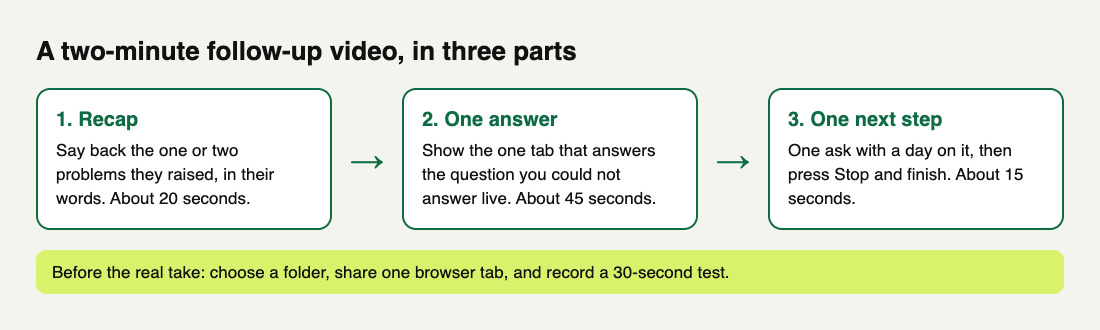
- A recap in their words. Say back the one or two problems they raised. Use their wording, not your product's.
- One answer. Pick the question you could not fully answer live, or the one that mattered most. Answer only that one.
- One next step. A single action with a day on it. "Reply with a time on Thursday" is clearer than "let me know how you'd like to proceed".
Leave out the pitch you already gave. They sat through it once.
A script you can copy
Write three or four lines for each part, not a full script. Reading word for word sounds stiff, while notes you glance at sound like a person.
Hi Dana, thanks for the time today. You said your team rebuilds the same status update by hand every Monday, and new hires take weeks to learn it. That is what I would focus on. You asked how this works with people in different time zones. Let me show you. [open the one tab that answers it and walk through it for 30 to 45 seconds] Next step: if that looks right, reply with a time on Thursday and I will set up a short session with your team lead. Talk soon.
That is about 150 words, roughly a minute. If the answer needs a longer tour, say so and send a separate recording. Our post on recording a product walkthrough covers how to build a longer one.
Set up, test and record in Chrome
Do this once before the call ends, so the take is ready when you hang up. Cheap Recorder runs in Google Chrome on macOS, Windows and Linux.
- Choose a folder. Under Where to save, press Choose folder... and allow Chrome to edit files in it. Start recording stays greyed out until it can start, and the words next to the button say why.
- Name the recording. Type something like
Dana Acme follow-upinto Name this recording. The name is used for the file and its folder, with the date and time added after it. - Share one tab. Under What to capture, choose A browser tab, then pick the tab in Chrome's own sharing box and press Share. A browser tab keeps your other tabs and apps out of the video.
- Turn on your webcam. Switch on Record my webcam. The preview is the recording, so where the camera sits and how big it is in the preview is what the prospect sees. Layouts depend on your plan, and What you can do on this plan, in the menu under your name, lists yours.
- Check the transcript. Live transcript is under Options. While it is on, Chrome sends your microphone audio to Google to turn it into text. The language menu is not remembered between visits, so check it before you start.
If you want only your face and no screen, choose Webcam only. It records just your camera and microphone. For more on the camera, see the guide on recording your screen with your webcam in the corner.
Record 30 seconds, say one sentence and play it back. This catches a wrong microphone or a muted tab, the usual causes of a silent video, before the real take rather than after it.
Then record the real one in a single take. Press Stop and finish when you are done. Do not use Chrome's own Stop sharing bar, because that finishes the recording too and the card is where the player and downloads are. Our post on recording in one take has more on keeping a take clean. If you stumble, record it again: a two-minute video is quick to redo.
A worked example: a follow-up for Dana, step by step
This example is made up, to show the order of the work. Say you sold a status reporting tool, and on the call Dana asked about time zones.
- At 14:05 the call ends. You open the recorder, choose the folder
Follow-upsand name the recordingDana Acme follow-up. - You open the one page of your product that shows time zones in its own tab, choose A browser tab and share it. Record my webcam is on.
- You record 30 seconds, say "Testing, testing", and play it back. The sound is fine.
- You record the take. The recap takes about 20 seconds, the walkthrough 45 and the ask 15. Total: about 80 seconds.
- You press Stop and finish. The folder is named
Dana Acme follow-up, then the date and time. - You send the email in the next section. At 14:15 it is in Dana's inbox.
Send the video and write the email
Cheap Recorder saves the recording on your own computer and keeps no copy, except while a Convert runs. So the recorder gives you no share link. You choose how it reaches the prospect: attach the MP4 if your email allows a file that size, or put it on the file sharing or video hosting you already use and paste that link.
If Live transcript heard speech, the folder also holds a plain-text transcript with times, easy to paste into an email. Captions .srt and Transcript download from the card, which lasts only while the recorder page is open, so download them before you close the page.
The email can be short:
Subject: Your time zone question, answered in two minutes Hi Dana, I recorded a short video with a recap and the answer to your time zone question: [link]. If it looks right, reply with a time on Thursday and I will set up the session with your team lead.
Put the ask in the email as well as the video, because some people read the email and never press play.
If you want to hand over a recording with its transcript as one package, Creator and up has a publish page. You tick Also save every source separately before you record and send the whole recording folder, zipped. The details are in the guide on recording a client demo and handing over a page file. For a quick follow-up, a plain MP4 is usually enough.
Mistakes to avoid
- Making it too long. If it runs past two minutes, you are probably answering more than one question.
- Sharing the whole screen. Other tabs and other customers' names can end up in the file. Share one tab.
- Skipping the test. Thirty seconds of playback is cheaper than a silent video sent to a buyer.
- Giving three next steps. One ask gets one answer.
- Sending it with no note. Say in the email what the video covers and what you want back.
- Forgetting to tell people. If anyone else is on screen or in the audio, say you are recording; the rules on recording people differ by place.
The same habit works inside your company too. Our post on a weekly team update shows how.
Frequently asked questions
How long should a follow-up video to a prospect be?
Aim for one to two minutes. That is enough for a recap, one answer and one next step. If the answer needs more, record a separate walkthrough.
Do I need a paid plan to record one?
No. The Free plan includes recording with screen, microphone and webcam, the live transcript, 12 hours of recording a month and 1 device, with no card needed.
Where is my follow-up video saved?
In the folder you pick under Where to save, on your own computer. Each recording gets its own folder named with your recording name, the date and the time.
Can I record only my face, with no screen?
Yes. Choose Webcam only under What to capture. It records your camera and microphone and shares no screen.
Does Cheap Recorder send the video to the prospect?
No. It saves the file on your computer. You attach it to an email or upload it to a service you already use and send the link.
Get started
Do your next follow-up on video. Choose a folder, record a 30-second test, then record the real one in a single take. If you want to see how Cheap Recorder compares with other tools, read our comparison. When you are ready, start on the free plan. It needs no card, and your recordings stay on your own disk.