
Practice a thesis defense on webcam and review the recording
Practice a thesis defense in Chrome with two recordings: your timed talk with slides, then a mock committee on a call, reviewed from the transcript.
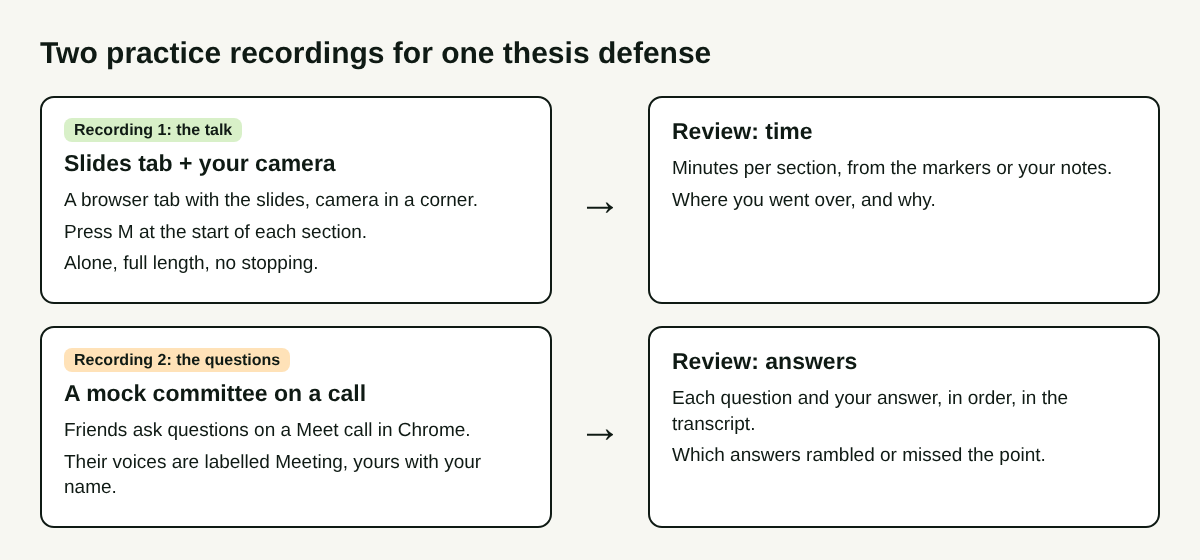
The best way to practice a thesis defense is to record two things, not one: the talk on its own, then a mock committee asking you questions. The talk recording tells you where your time goes. The question recording, with its transcript, shows you exactly how you answered each question. This guide walks you through both in Google Chrome with Cheap Recorder, on the Free plan.
Why one practice run is not enough
A defense has two halves, and they fail in different ways. The talk usually fails on time: one section grows, and the end gets rushed. The questions fail on content: you start an answer, lose the thread, and finish somewhere else.
If you record both in one long take, the problems blur together. Split them. Record the talk alone so you can time it section by section. Then record a short call with two or three friends playing the committee, so you can read every question and every answer afterwards.
What you need
- Google Chrome on a Mac, Windows or Linux computer. The recorder runs in Chrome, and for the second recording the call must be open in a Chrome tab too.
- Your slides open in a browser tab.
- A webcam, a microphone and headphones.
- A Cheap Recorder account. The Free plan gives you 12 hours of recording time with no card needed, which is plenty for several full practice runs.
Recording 1: your talk, timed by section
Before you start, write your outline with a planned length for each section. You will compare against it later.
- Under 1 Where to save, press Choose folder... and pick a folder. Each take gets its own folder inside it, named with the date and the name you type.
- Under 2 What to capture, choose A browser tab, pick your slides tab in Chrome's sharing box and press Share. Sharing one tab keeps email and chat out of the recording.
- In the Layout menu, keep Picture in picture, bottom right. Drag the camera off any chart and set the Size slider, anywhere from 12% to 50% of the width of the picture.
- Record a 30-second test and play it back. It catches a wrong microphone before you lose a whole run.
- Name the take, for example "Defense talk take 1", and press Start recording.
- At the start of each section, press M or Add marker. A short note confirms the time. Markers are saved to files only when Also save every source separately is ticked under Options; otherwise, jot down the time each note shows.
- Give the whole talk without stopping, then press Stop and finish. Do not press Chrome's own Stop sharing bar; the recorder takes that as the end and finishes the recording.
Treat it like the real day. If you stumble, keep going. A committee will not let you restart a slide, so practice recovering instead.
For more on placing the camera and sharing a tab, see the screen and webcam guide.
Recording 2: practice a thesis defense question round on a call
Ask two or three people to play your committee: a labmate, a friend from another field, someone who will ask the awkward question. Send them your slides first. Start a Google Meet call in Chrome, and tell everyone you are recording before you start; the law on recording calls differs from place to place, and some places need everyone's agreement.
- Put on headphones, so their voices do not come back through your microphone and echo.
- In the Call audio tile, press Pick the call tab..., choose the Meet tab, tick Share tab audio (some versions of Chrome say "Also share tab audio") and press Share. The tile changes from "not captured" to "on".
- Under What to capture, choose Webcam only, so the recording shows your face while you answer. Leave Record the microphone untouched unticked for calls.
- Name it, for example "Defense questions take 1", press Start recording, and let the committee ask away for 15 to 20 minutes.
Keep the Meet tab open the whole time. If "Meeting audio sharing stopped." appears, the tab share has ended and the committee is silent from then on; start a new recording for the rest. The Google Meet guide has every step with more detail.
Read the questions back in the transcript
This is where the second recording pays off. Each transcript line is labelled with the sound source that was loudest. Your committee's voices come through the call, so their lines are labelled Meeting. Your lines carry your microphone's name. On plans that include speaker detection, type your name into the Speaker box above the transcript and press Save captions, and your lines start with your name instead.
The result reads like a script: a question, then your answer, then the next question. The transcript is saved as a plain text file next to the recording, with the time of each line. Note that the whole committee shares the one Meeting label, so it will not tell you which person asked what. Jot that down during the call if it matters to you.
Read it with three questions in mind:
- Did I answer the question asked? Put the question and the first sentence of your answer side by side. If the first sentence does not answer it, rewrite it.
- How long did each answer run? Each line has a time, so you can see an answer that ran three minutes when one would do.
- Which questions did I dodge? Mark them. They are the ones to rehearse again.
Chrome gives a time for each line, not each word, so treat the times as close, not exact. The transcript guide covers the Speaker boxes and the downloads.
A worked example: a 20-minute talk that ran 25
Say your department gives you 20 minutes for the talk. You record take 1 with a marker at each of five sections. Reading the marker times against your outline gives you the table below.
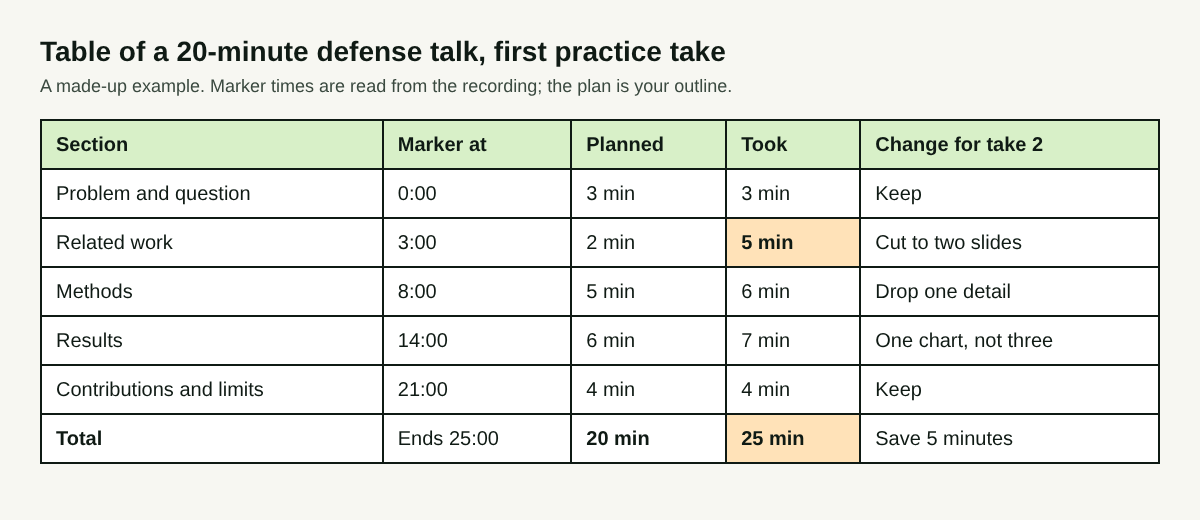
The fix is not to talk faster. Related work ran three minutes over, so cut it to two slides. Methods and results each ran a minute over, so drop one detail and one chart. That saves five minutes on paper. Record take 2 and check the markers again; you want each section within a minute of its plan.
Then run the question round. Suppose the transcript shows a Meeting line asking "Why this sample size?" and your answer opens with two minutes on how the lab chose its equipment. Write a two-sentence answer that starts with the number and the reason. Ask a friend to ask it again on the next call, and compare the two answers in the two transcripts.
Two takes of the talk and two question rounds is roughly an hour and a half of recording, well inside the Free plan's 12 hours. You can see more ways to review a take in our posts on practicing a speech on webcam and job interview practice.
What the recording cannot do
A recording shows you what happened. It does not judge your research or tell you what your committee will ask. Your advisor is still the best guide to the likely questions.
Chrome listens for one language per recording, so if your defense switches between languages, the transcript will not come out clean. Pick the language you will defend in, from the 25 the menu lists.
Know what leaves your computer. The recording itself is saved in your folder and not uploaded, unless you use Convert or Download MP3, which send the file to the server and delete it there when done. While the live transcript is on, Chrome sends the microphone audio to Google to turn it into text. The recorder's activity log holds the folder and file names you chose and your microphones' names, and the AI button, if you press it, sends the transcript with the speaker names to Anthropic. If your thesis is under embargo, keep that in mind before you name files or turn on the transcript.
Frequently asked questions
How many times should I practice a thesis defense?
Record the talk until each section lands within a minute of its plan, often two or three takes. Run the question round at least twice, with different people if you can.
Can I record the talk and the questions in one go?
You can, but two recordings are easier to review: one for timing, one for answers. Each gets its own folder and its own transcript.
Will the transcript show who on the committee asked each question?
No. Everyone on the far end of the call shares the Meeting label. Note who asked what during the call if you need it.
Does my committee need Cheap Recorder?
No. They join an ordinary Google Meet call. Only you need the recorder, open in Chrome next to the Meet tab.
Get started
Open your slides, choose a folder and record your first timed take today. Start free with Cheap Recorder, no card needed.
Screen recording that is cheap and easy.
Visit cheaprecorder.com↗

