
Parent-teacher meeting on Google Meet: record it and keep notes
Record a parent-teacher meeting on Google Meet in Chrome as sound only, with a timed transcript in your own folder, then turn it into notes with every date checked.
A parent-teacher meeting is short, and a lot happens in it. The teacher names a test date, a reading level, a worry about homework, and a plan for the next few weeks. By dinner you remember the mood but not the dates. If your parent-teacher meeting is on Google Meet, you can record it in Chrome with Cheap Recorder and keep the sound and a timed transcript in a folder on your own computer, then turn that into a few lines of notes you can trust.
Why record a parent-teacher meeting at all
Taking notes while someone talks about your child is hard. A recording lets you give the teacher your attention and catch the details later. It also helps the parent who could not join, and when you write back to the teacher you can quote the date they gave instead of guessing it.
Sound only is usually enough. You need the words, not a video of the teacher's face.
Ask the teacher first, and check the school's rules
Do this before anything else. The law on recording calls differs from place to place, and some places need everyone to agree, so the Google Meet guide says to tell the people on the call that you are recording before you start. Your school may have its own policy too.
- Ask in your message when you book the meeting: "Would you mind if I record our call so my partner can hear it too?"
- Ask again at the start of the call, after you press Start recording, so the yes is the first thing in the transcript.
- If the teacher or the school says no, do not record. Write notes by hand and send a short summary afterwards instead.
If you are the teacher, the same rule applies the other way: ask the parent and follow your school's policy.
Set up the recorder before the meeting starts
Setting up takes about a minute. Cheap Recorder runs in Google Chrome on a Mac, Windows or Linux computer, and the Meet call has to be open in a Chrome tab too. The Free plan covers every step here.
- Open the Meet call, or its waiting screen, in a Chrome tab. Open Cheap Recorder in another tab and sign in.
- Under Where to save, press Choose folder... and pick a folder. Each recording gets its own folder inside it, named with the name you type and the date and time it began.
- Look at the Microphone tile. To use a different microphone, open Change or add microphones and tick it.
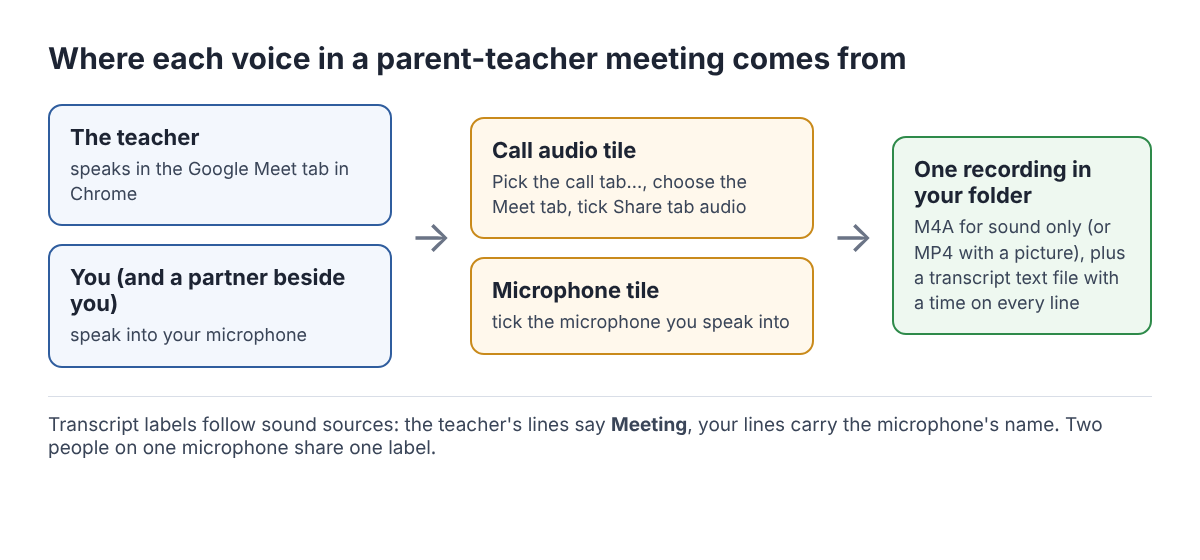
- In the Call audio tile, press Pick the call tab.... In Chrome's sharing window choose the Meet tab, tick Share tab audio (some versions of Chrome say Also share tab audio), and press Share. The tile changes from not captured to on, followed by the tab's name.
- Switch off Record my webcam and do not pick a screen. The recording is then an M4A audio file instead of an MP4.
- Open Options. Make sure Live transcript is ticked and pick the language the meeting will be in. Leave Record the microphone untouched unticked, because it turns off the echo, noise and volume correction a call needs.
- Type a name in Name this recording at the bottom of the page, such as "Sam teacher meeting".
Wear headphones if you have them. They stop the teacher's voice coming out of your speakers and back into your microphone. On a Mac, do not use a Bluetooth headset as the microphone: it switches into a low quality mode and your voice sounds thin. Use it to listen and speak into a wired or USB microphone, or the laptop's own.
Run a one-minute test call first
The guide's advice before an important call is a one-minute test call with a friend. Start a Meet call with someone, pick that tab as above, record a minute, then press Stop and finish and play the result in the player on the page. You should hear both of you, and the transcript should have lines from both sides.
If the Call audio tile says that tab had no audio, you shared a window or the whole screen, or left the tab audio box unticked. Press Pick the call tab... again, choose the Meet tab from the tab list and tick the box. The transcript is only made live while you record, so a missing side cannot be added afterwards.
During the meeting: keep the Meet tab open
Press Start recording, say hello, and ask for the teacher's yes. Then just talk.
Leave the Meet tab open until the end. If it closes, or its sharing is stopped from Chrome's bar, the recorder shows Meeting audio sharing stopped. From then on the teacher is silent in the recording while your voice carries on, and picking the tab again does not add it back to a running recording. If that happens, stop and start a new recording for the rest.
When the call ends, press Stop and finish. The recording appears on the page with a player and is already in your folder, with the transcript text file beside it.
A worked example: from transcript to five lines of notes
Ana and her partner join a 15-minute meeting with their son Sam's teacher, sitting side by side at one laptop with one USB microphone. The teacher agreed to the recording when Ana asked.
Afterwards Ana opens the transcript. It is plain text with a time on every line, so it opens in any text editor and pastes easily into notes or an email. Her plan includes speaker detection, so each line also carries a label: the teacher's lines say Meeting, the label for the other side of a call picked with Pick the call tab, and Ana's and her partner's lines all carry the microphone's name. Labels follow sound sources, not voices, so two people on one microphone share one label. The same goes for the far end: if a second teacher joined, both would sit under Meeting.
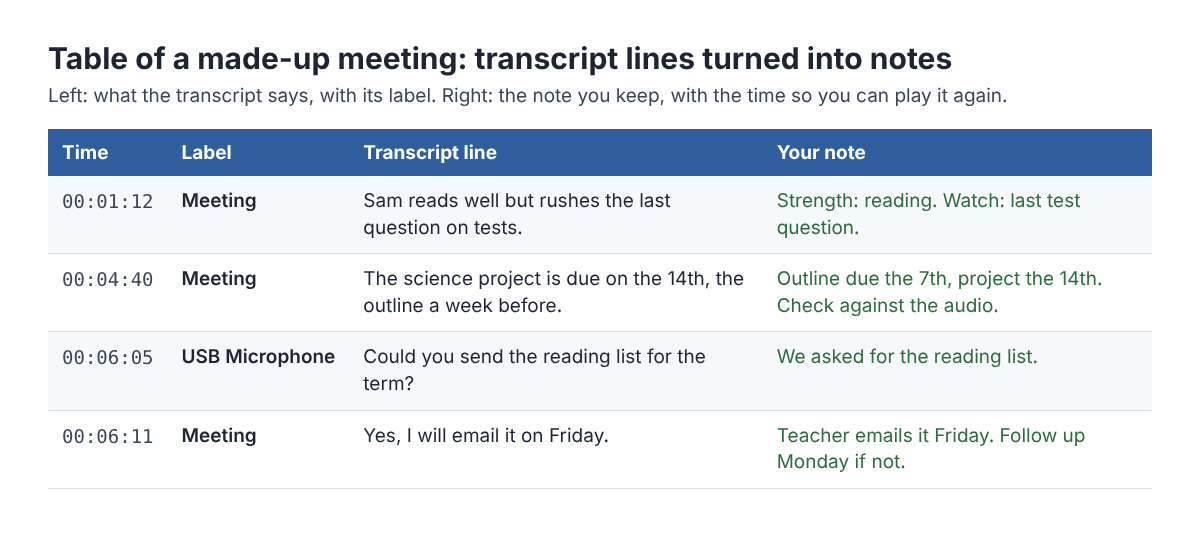
In a copy of the file, Ana keeps only the lines that matter:
- Strength: reading. Watch: rushing the last test question (00:01:12).
- Science outline due the 7th, project the 14th (00:04:40).
- Teacher emails the term's reading list on Friday (00:06:11).
- We read with Sam for 15 minutes on school nights.
- Next check-in after the project is handed in.
Before she sends the notes to her partner, she plays each dated line in the audio. Times are measured from the start of the recording and are close, not exact, so she starts a few seconds early. She checks dates and numbers most carefully, because "the 14th" and "the 40th" sound alike.
She could also type the teacher's name into the Speaker box for Meeting and press Save captions; she and her partner would still share one name. For a meeting with one person on each side, see how to record a one-on-one meeting and keep the transcript as notes.
What leaves your computer, and what stays
The recording is not uploaded. It is saved in the folder you chose, and Cheap Recorder keeps no copy. It only leaves your computer if you press Convert or Download MP3, which send the file to the server to make the new format; it is deleted there when that finishes. The where recordings are saved guide lists every file in the folder.
The transcript works differently. While it is on, Chrome sends the microphone audio to Google to turn it into text. If the meeting must not leave your computer in any form, untick Live transcript before you press Start recording and write notes by listening back. The AI button sends the transcript with the speaker names to Anthropic, and only when you press it. Tell the teacher about both when you ask, and delete the recording when you no longer need it.
Frequently asked questions
Do I need the teacher's permission to record?
Ask every time. The law differs from place to place, some places need everyone to agree, and your school may have its own rules, so record only after a clear yes from the teacher.
What if I usually join Meet from my phone?
For these steps, join from Chrome on the computer you record on. The recorder hears the call only when it is open in a Chrome tab there.
Will my partner and I show up as two speakers?
No, not on one microphone. On plans that include speaker detection, everyone on one microphone shares its label, and everyone on the far end shares the Meeting label, so mark who spoke in a copy of the text file.
Is the Free plan enough?
Yes. It needs no card and gives 12 hours of recording a month with the live transcript, and a 15-minute meeting uses a small part of that.
Get started
Ask the teacher, join the meeting from Chrome, and run your one-minute test call. Then open Cheap Recorder on the Free plan and pick the Meet tab before the teacher joins. To get more from the text afterwards, read the live transcript and captions guide.
Screen recording that is cheap and easy.
Visit cheaprecorder.com↗

