Knitting tutorial video: film your hands with a webcam in Chrome
Film a knitting tutorial video in Chrome: a webcam pointed at your hands, every count said out loud, and a timed transcript you turn into written notes.
A knitting tutorial video lives or dies on one thing: can the viewer see your hands? This post shows you how to film one in Google Chrome with Cheap Recorder, using only your webcam pointed down at your hands, your voice saying each count, and a timed transcript you turn into written notes afterwards. No screen recording, no editing app, and the files stay on your computer.
It does not teach knitting. The stitches, the yarn and the pattern are yours. It covers the recording: where the camera goes, how to split the lesson, and how to get usable notes out of what you say.
What a knitting tutorial video needs to show
A viewer copying you needs three things, and they all come from your hands and your voice:
- The stitch, up close. Where the needle goes in, which way the yarn wraps, and what the loop looks like after.
- The count. How many stitches, which row, how many are left. If you only show it, a viewer who looks away loses their place.
- The pace. Slow enough to follow, with a pause before each new step.
Your face is not on that list. That is why this setup uses Webcam only with the camera aimed at the work, not a screen recording with a camera in the corner. If you want your face for a short hello at the start, record that as its own clip.
Set up Webcam only with the camera over your hands
Open the recorder in Chrome. Under What to capture, choose Webcam only, which sits beside the screen choices. It records only your camera and your microphone. No screen is shared, and the Layout menu is hidden because there is only one picture. The screen and webcam guide has the full set of capture choices if you want to compare.
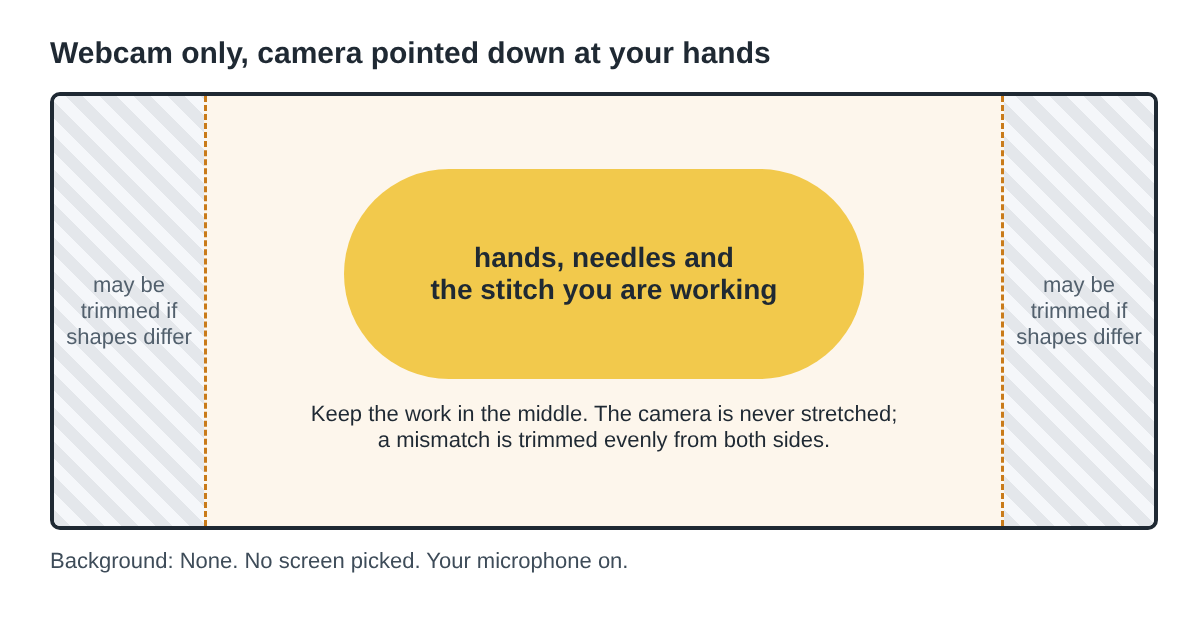
Point the camera down at your lap or the table where your hands work. If your laptop's camera cannot see your hands from where it sits, use a separate webcam you can aim down. Whichever you use, three things matter in the recorder:
- Check which camera you got. The recorder has no camera menu of its own. It uses the camera Chrome hands it, so look at the preview before you start and make sure it shows your hands, not your face.
- Keep the work in the middle. The camera is never stretched. If its shape does not match its box, it is trimmed evenly from both sides, so whatever is in the middle stays in the middle. Stitches at the far left or right edge can be lost.
- Leave Background on None. Blur and the background pictures use a person finder that keeps the biggest person in the frame. A close shot of hands and yarn is not what it is built for, and None shows the work as it is.
If the webcam box says no camera found, check that no other app, such as a video call, is using the camera, and that Chrome may use the camera in your computer's privacy settings. Then turn Record my webcam off and on again.
Split the lesson into short numbered recordings
One long take of a whole project is hard to film and hard to watch. Split it into one recording per step instead. The course and tutorial guide uses the same idea for lessons.
Before each step, type a numbered name into Name this recording, for example Scarf 01 Cast on. The name is used for the file and its folder, so the number keeps the steps in order when you sort by name. Each recording gets its own folder, named with the date and the name you typed.
Short recordings also mean a dropped stitch costs you one step, not the whole video. Stop, fix it off camera, and record that step again.
Record a 30-second test before you start
Record a 30-second test at the start of each session and play it back. For a knitting tutorial video, watch for these:
- Can you see each stitch clearly, or is the work too small, too dark or out of the frame?
- Do your hands stay in the middle when you move the way you will in the real take?
- Can you hear your voice clearly in the playback?
If any answer is no, move the camera or the light and test again. Then delete the test, so it does not sit among your numbered steps.
Say every count out loud for the transcript
Leave Live transcript ticked under Options. It uses Chrome's own speech recognition, and the text is saved beside the video as plain text with the time of each line, for example Scarf 01 Cast on - transcript.txt. The live transcript guide explains the settings.
The transcript only holds what you say, so say the things a viewer needs written down:
- The count, as you reach it: "That is 12. That is 24."
- The row: "Row 1 done. Row 2, same again."
- The warning: "Watch the yarn here, it goes to the back."
Knitting has long quiet stretches. That is fine: if Chrome's speech recognition stops listening during a silence, the recorder starts it again for as long as you are still recording. Chrome listens for one language per recording, and the times are close, not exact.
You can also press M or Add marker to mark a moment. Markers are only written to files when Also save every source separately is ticked under Options, so with the default single MP4, a spoken count is the more reliable way to find a step later.
While the transcript is on, Chrome sends your microphone audio to Google to turn it into text, so you need to be online. The video itself is not uploaded.
A worked example: a three-part scarf tutorial
Say you are teaching a beginner's scarf. This is made up, but the steps are the ones you would follow.
- Choose your folder under Where to save, pick Webcam only, and check the preview shows your hands in the middle.
- Record a 30-second test, play it back, and delete it.
- Name the first recording
Scarf 01 Cast on. Press Start recording, cast on slowly, and count out loud as you go. Press Stop and finish. - Name the next one
Scarf 02 First rows. Work rows 1 to 4, saying each row number as you finish it. - Name the last one
Scarf 03 Bind off. Bind off, saying how many stitches are left as you go.
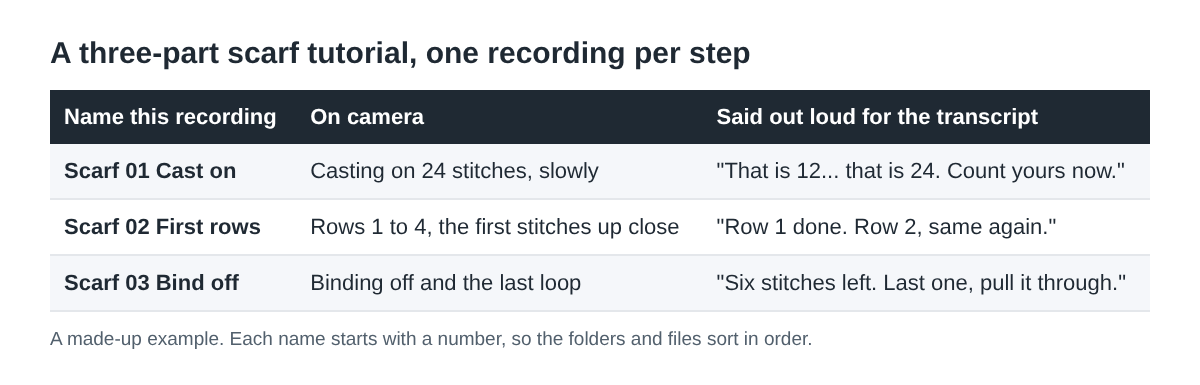
You now have three folders that sort in order, each with an MP4 and a transcript. When you press Stop and finish, Recording saved. appears and the card shows the folder it was saved to.
Turn the transcript into written notes
Open each transcript in any text editor. Your counts and warnings are already there, with times. Copy them into a short written version of the step:
- Keep the lines with numbers and instructions.
- Drop the "okay" and "so now" lines.
- Check any line where a number looks wrong against the video at that time. Speech recognition can mishear a count, and the video is the record.
Put the notes under the video wherever you share it, so a viewer can follow along on paper. If you want a fuller method for this, the recipe demo on webcam post turns a cooking transcript into a written recipe in the same way.
Cheap Recorder has no timeline editor. If you want the three steps joined into one video, do that in a video editing app.
Frequently asked questions
Do I need a second webcam to film my hands?
You need a camera you can point down at your work. The recorder uses whichever camera Chrome hands it, so check the preview shows your hands before you press Start recording.
Why are the edges of my knitting cut off?
The camera is never stretched. When its shape does not match its box, it is trimmed evenly from both sides, so keep the work in the middle of the frame.
Can I add my face to the knitting tutorial video?
Webcam only records one camera. Record a short hello as its own recording, then put it before the steps when you share them.
Is my video uploaded anywhere?
No. It is saved in the folder you chose on your computer. Only Convert or Download MP3 sends a file to Cheap Recorder's server, and it is deleted there when the conversion finishes.
Get started
The Free plan needs no card and gives you 12 hours of recording time a month on one device, with the live transcript and your files on your own disk. Point your webcam at your hands, pick Webcam only, and record your first knitting tutorial video step by step. Start recording for free.
Screen recording that is cheap and easy.
Visit cheaprecorder.com↗