
Recipe demo on webcam: record it with the steps as a transcript
Record a recipe demo on webcam in Chrome: camera only, your voice clear over the kitchen, and a timed transcript you turn into the written recipe.
A recipe demo on webcam needs one camera, your voice and a clear view of the bowl. With Cheap Recorder you film it in Google Chrome, say each step out loud as you do it, and get an MP4 plus a timed transcript on your own computer. That transcript is the first draft of the written recipe.
Why a recipe demo on webcam needs only the camera
Most screen recordings show a screen. A cooking demo shows your hands, the pan and the food. There is nothing on the computer to share, so a screen share only gets in the way.
Cheap Recorder has a choice for this. Under What to capture, pick Webcam only. It records just your camera and your microphone. No screen is shared, and the Layout menu is hidden because there is only one picture.
You also talk while you cook, and every word you say is a step someone will want later. The live transcript turns that talk into text with a time on each line. You end up with the video for people who want to watch, and the words for people who want to read.
Set up the counter and the camera first
Put the computer where its camera sees the counter. A laptop on a shelf or a stack of books at the end of the counter often works. Keep it away from the sink and the hob, because steam and splashes are not kind to a keyboard.
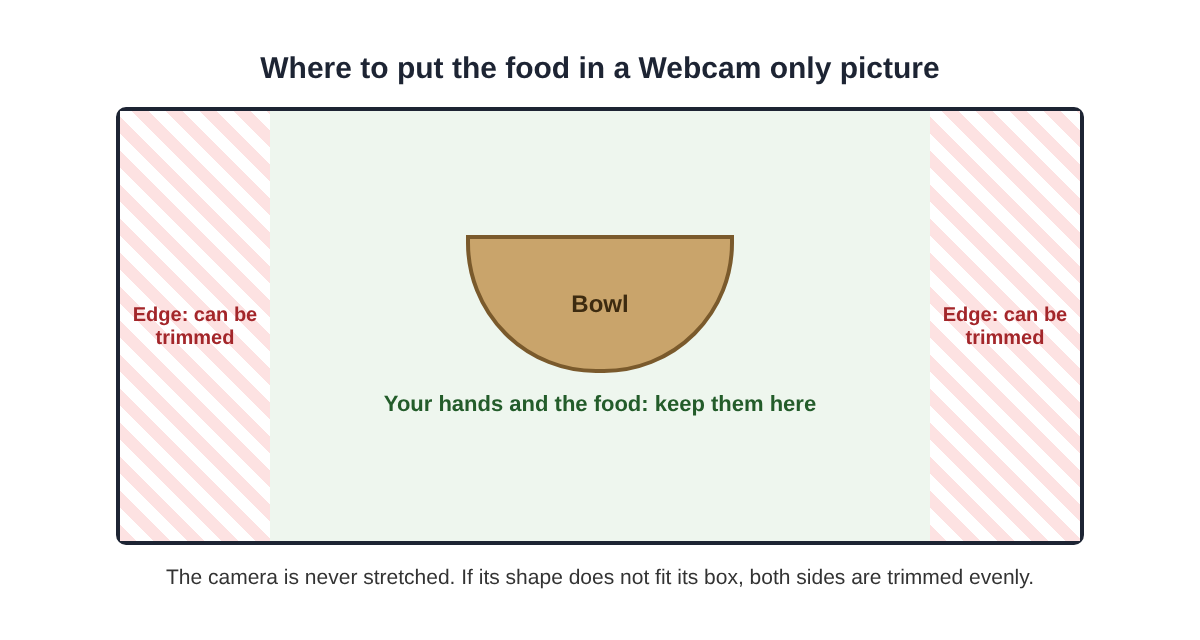
Then put the work in the middle of the picture. The screen and webcam guide says the camera is never stretched. If its shape does not match its box, it is trimmed evenly from both sides. A bowl in the middle stays in the middle. A chopping board at the very edge can lose a slice.
Check the background next. In the Webcam box, None and Blur are always there. Blur softens a busy kitchen behind you. The first time you press it, the word beside Background says loading... while it gets ready. The Background buttons stay greyed out while the webcam is off. Background pictures and the green screen tick come only on plans that include green screen.
When Chrome asks, allow the microphone and the camera. If the webcam box says no camera found, check that no other app, such as a video call, is using the camera.
Get your voice clear over the kitchen
A kitchen is loud. The extractor fan hums, the pan hisses and the mixer roars. The transcript is made from what Chrome hears on your microphone, so a headset or a desk microphone close to your mouth beats a laptop's built-in one in a noisy room.
Leave Record the microphone untouched unticked. That box turns off Chrome's echo, noise and volume correction, which helps a studio microphone in a quiet room. On a laptop microphone or in a noisy room, you want that correction on.
Two habits help more than any setting. Say the step before the loud part, not during it: "Now I blend for thirty seconds", then blend. And name amounts and times out loud, because the transcript can only write down what it hears.
Record the demo in six steps
- Open the recorder in Chrome and sign in. Under 1 Where to save, press Choose folder... and pick a folder for your recipes.
- Under What to capture, pick Webcam only. Check the preview: the bowl in the middle, your hands in shot.
- Open Options. Live transcript is ticked by default. Pick your language in the menu beside it; there are 25, and Chrome listens for one per recording.
- Type the dish into Name this recording. It becomes the name of the file and its folder.
- Record a 30-second test. Say the dish's name with the fan on, stop, and play it back. Check your voice and the frame.
- Press Start recording, cook, and press Stop and finish at the end.
Pauses are fine. Waiting for butter to melt is part of cooking. If Chrome's speech recognition stops listening during a silence, the recorder starts it again for as long as you are still recording.
You can press M or Add marker at the start of each step. In a normal recording the marker note only shows while you record. The markers are saved to files only when Also save every source separately is ticked under Options.
Watch the clock on long dishes. Each plan has recorded minutes a month, and if they run out mid-recording, the recording stops. Open your name in the top right to see how many are left. Recording a stew that simmers for two hours is rarely worth it; stop, and record the next step when it is ready.
A worked example: a made-up banana bread demo
This example is made up. Sam wants to show a friend how to make banana bread and send the recipe with it.
- Sam props the laptop on two cookbooks at the end of the counter and plugs in a headset. The mixing bowl goes in the middle of the preview.
- Sam chooses a Recipes folder, picks Webcam only and types "Banana bread" into Name this recording.
- The 30-second test, with the oven fan on, sounds clear. Sam presses Blur to soften the dishes behind.
- Sam records, saying each amount before adding it: "Three ripe bananas, mashed with a fork." The take runs about fourteen minutes, with a pause while the butter melts.
- After Stop and finish, the folder holds "Banana bread.mp4" and "Banana bread - transcript.txt".
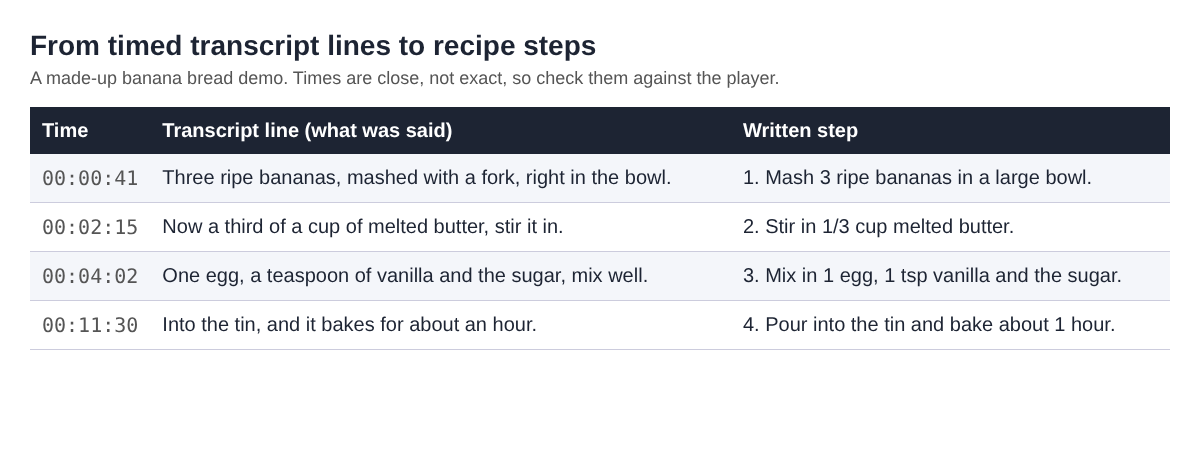
Sam opens the transcript in a text editor, copies the lines that name an amount or an action, and turns them into numbered steps. The times stay beside each step, so the friend can jump to the right moment in the video.
Turn the transcript into the written recipe
The transcript file sits next to the recording, named after it. It is plain text with the time of each line, and it opens in any text editor. That is enough to build a recipe in three passes.
- Ingredients. Read through once and copy every amount you said into a list.
- Steps. Read again and turn each action into one short numbered step.
- Times. Keep the time of each step beside it, so readers can find it in the video. The guide says times are close, not exact, so check a few against the player.
Read the numbers carefully. Speech recognition can mishear "fifteen" as "fifty", and that matters in an oven. The post on turning a transcript into step-by-step instructions covers this clean-up in more depth, and the show notes post uses the same timed lines for a different job.
What leaves your computer is worth knowing too. While the live transcript is on, Chrome sends your microphone audio to Google to turn it into text. The recording itself is saved straight into your folder. The privacy page says the recorder's activity log holds the folder and file names you chose and your microphones' names.
Frequently asked questions
Do I need a second camera for a recipe demo?
No. Webcam only uses the camera the recorder opens, so place the computer where that camera sees the counter. Keep the food in the middle, because the sides can be trimmed.
Can I blur my kitchen in the background?
Yes. None and Blur are always there in the Webcam box. Background pictures and the green screen tick come only on plans that include green screen.
Will the transcript catch my words over the fan?
It catches what your microphone hears, so a headset or desk microphone close to your mouth helps most. Say each step before the loud part, and check numbers when you read it back.
Where do the video and the transcript end up?
Both go into the recording's own folder inside the folder you chose: the MP4 and a transcript text file named after it. Caption files are not saved there; download them from the recording's card.
Get started
Pick a dish you know well, prop up the laptop and record a 30-second test with the fan on. The screen and webcam guide covers the camera settings, and the Free plan gives you 12 hours of recording a month with the live transcript and no card. Start recording free in Chrome.
Screen recording that is cheap and easy.
Visit cheaprecorder.com↗

