
HOA meeting on a call: record it and keep the minutes
Record an HOA meeting on Google Meet in Chrome as sound only, with a timed transcript in your own folder, and turn motions, votes and tasks into draft minutes.
An HOA meeting moves fast. In an hour the board of a homeowners association can hear three quotes, vote twice, hand out four tasks and set the next date, while the volunteer secretary tries to type it all. If your HOA meeting happens on Google Meet, you can record it in Chrome with Cheap Recorder, keep the sound and a timed transcript in a folder on your own computer, and write the minutes from that instead of from memory.
What a recording does for the minutes
Minutes are a short record of decisions, not a word for word copy of the talk. Most boards want the same few things: when the meeting started, who was there, each motion and who made it, how each vote went, who agreed to do what, and when the next meeting is.
Those are exactly the details that slip when you are also listening, speaking and voting. With a recording you can take light notes during the meeting and fill in the rest afterwards, with a time to jump to for each motion. The draft is still yours to write, and the board still approves it the usual way. Check your association's own rules on how minutes are kept and whether recordings may be kept at all.
Tell everyone, twice
The law on recording calls differs from place to place, and some places need everyone to agree. The Google Meet guide says to tell the people on the call that you are recording before you start. With a board and owners on the call, do it twice.
- Put it in the meeting notice: "This meeting will be recorded so the secretary can write the minutes."
- After you press Start recording, ask again out loud, so the answer is the first thing in the transcript.
- If someone objects, follow your association's rules. Without a clear yes, do not record, and take notes by hand.
Set up before people join
Cheap Recorder runs in Google Chrome on a Mac, Windows or Linux computer, and the Meet call has to be open in a Chrome tab on the same computer. The Free plan covers every step here.
- Open the Meet call, or its waiting screen, in a Chrome tab. Open Cheap Recorder in another tab.
- Under Where to save, press Choose folder... and pick a folder for the association's meetings. Each recording gets its own folder inside it, named with the name you type and the date and time it began.
- Check the Microphone tile shows the microphone you will speak into.
- In the Call audio tile, press Pick the call tab.... Choose the Meet tab, tick Share tab audio (some versions of Chrome say Also share tab audio) and press Share. The tile changes from not captured to on, followed by the tab's name.
- Switch the webcam off and do not pick a screen. The recording is then an M4A audio file instead of an MP4, which is all the minutes need.
- Open Options. Keep Live transcript ticked and pick the meeting's language now, because it is set when the recording begins. Leave Record the microphone untouched unticked for a call.
- Type a name in Name this recording, such as "Board meeting March".
Wear headphones. They stop the other voices coming out of your speakers and back into your microphone.
Run a one-minute test call first
The guide's advice before an important call is a one-minute test call with a friend. Do it the day before, on the same computer. Pick the test call's tab as above, talk for a minute, press Stop and finish, and play it back in the player on the page. You should hear both of you, and the transcript should have lines from both sides.
If the Call audio tile says that tab had no audio, you shared a window or the whole screen, or left the tab audio box unticked. Pick the Meet tab from the tab list again and tick the box. The transcript is only made while you record, so a side that was missing cannot be added later.
Run the HOA meeting so the transcript is useful
Here is the part most people miss. Every voice on the call reaches the recorder through the one Meet tab, so in the transcript everyone on the far end shares a single label, Meeting. On plans that include speaker detection your own lines carry your microphone's name; everyone else is Meeting. The transcript cannot tell the treasurer from an owner.
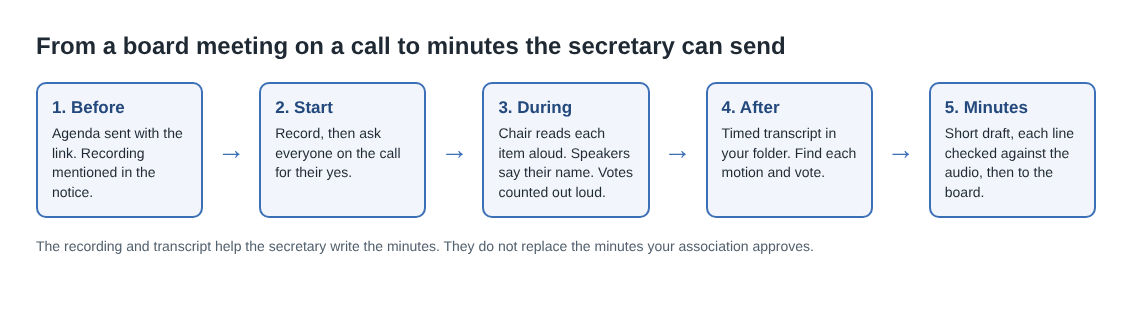
A few habits fix that, and they help everyone on the call anyway:
- Ask people to say their name before they speak: "Raj speaking."
- Have the chair read each agenda item aloud before discussing it.
- Have the chair say every motion, who made it and who seconded it.
- Count votes out loud: "Four for, one against, the motion passes." Raised hands do not reach a sound recording.
- Repeat every task with a name and a date: "Mei emails the pool company by Friday."
Leave the Meet tab open until the end. If it closes, or its sharing is stopped from Chrome's bar, the recorder shows Meeting audio sharing stopped. From then on everyone on the call is silent in the recording while your voice carries on, and picking the tab again does not add it back. If that happens, stop and start a new recording for the rest of the meeting.
A worked example: from transcript to draft minutes
Lena chairs a small board of seven and keeps the minutes this month because the secretary is away. She joins from home with a USB microphone, and the other board members and a few owners join on Meet. The meeting runs 75 minutes. On the Free plan's 12 hours a month, a monthly meeting of that length uses a small share.
When it ends she presses Stop and finish. The M4A file and a plain text transcript sit in the meeting's folder. The transcript opens in any text editor, and each line has a time.
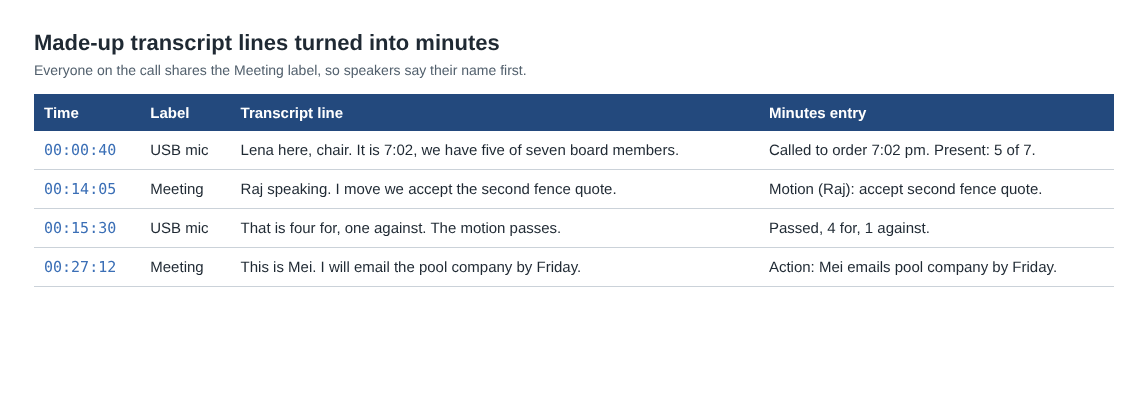
Lena works in a copy of the text file. She searches for the words the habits put there: "move", "second", "for", "against", "by Friday". Each hit becomes one line in her draft:
- Called to order at 7:02 pm. Present: 5 of 7 board members.
- Motion (Raj), seconded: accept the second fence quote. Passed, 4 for, 1 against.
- Action: Mei emails the pool company by Friday.
- Next meeting: the second Tuesday of next month.
Before she sends the draft to the board, she plays each motion and vote in the audio. Times are measured from the start of the recording and are close, not exact, so she starts a few seconds early. She checks every number twice: dollar amounts, vote counts and dates are where a misheard word does the most harm.
On a plan with speaker detection she could also type her own name into the Speaker box for her microphone and press Save captions. Meeting stays one label for everyone on the call. For a smaller group on one call, see how to record a book club discussion on a call.
What leaves your computer, and what stays
The recording is saved in the folder you chose, and Cheap Recorder keeps no copy. It only leaves your computer if you press Convert or Download MP3, which send the file to the server to make the new format; it is deleted there when that finishes. The where recordings are saved guide lists every file in the folder.
The transcript works differently. While it is on, Chrome sends the microphone audio to Google to turn it into text. If the meeting must stay entirely on your computer, untick Live transcript before you press Start recording and write the minutes by listening back. The AI button sends the transcript with the speaker names to Anthropic, and only when you press it. Decide with the board how long recordings are kept and who may hear them, and delete each one when that time is up.
Frequently asked questions
Can the recording replace the minutes?
No. The minutes are the short record the board approves; the recording and transcript are what you use to write them. Check your association's rules on whether recordings are kept after the minutes are approved.
Will the transcript show who said what?
Only partly. On plans that include speaker detection your microphone gets its own label, while everyone on the call shares the Meeting label, so ask people to say their name before they speak.
Do I need video for the minutes?
No. Switch the webcam off and pick no screen, and the recording is an M4A audio file with the transcript beside it, which is all the minutes need.
Is the Free plan enough for monthly meetings?
For most boards, yes. It needs no card and gives 12 hours of recording a month with the live transcript, and one meeting a month uses a small part of that.
Get started
Put the recording in the next meeting notice, join from Chrome and run your one-minute test call. Then open Cheap Recorder on the Free plan and pick the Meet tab before the board joins. To make more of the transcript, read the live transcript and captions guide.
Screen recording that is cheap and easy.
Visit cheaprecorder.com↗

