
Essay feedback video: grade an essay out loud in Chrome
Record an essay feedback video in Chrome: share only the essay's tab, talk through it in three passes, and send the student the MP4 with a timed transcript.
Written comments in the margin take you an hour per class set, and many students skim them. An essay feedback video lets you scroll through the student's essay and say what you think, in your own voice, while they see the exact sentence you mean. This guide shows you how to record one in Google Chrome with Cheap Recorder: share only the essay's tab, talk through it in three short passes, and send the student an MP4 with a timed transcript.
This is the teacher's side of a shared document. If you are the one receiving work, such as a site someone built for you, the website feedback video post covers that.
Why an essay feedback video helps the student
Tone is the first gain. "This paragraph needs work" reads as harsh on paper. Said out loud, with a reason and a suggestion, it sounds like what it is: help.
Detail is the second. In a margin you have room for three words. Out loud, in the same ten seconds, you can say what the sentence does, why it does not land yet, and what to try instead.
The third is that the student can come back to it. The video plays as often as they need, and the transcript lets them find one comment without watching the whole thing again. That matters most when they sit down to write the next draft.
Open the essay in one Chrome tab
Before you record, set up the page you will talk about.
- Open the student's essay in a Chrome tab: a shared document, or a file that opens in Chrome.
- Close the tabs and apps you do not need, and silence notifications. The course checklist puts it plainly: anything on the shared screen ends up in the file.
- Keep your marking notes, the rubric and your grade book in other tabs or on paper. Only the tab you share is recorded, so nothing else about the class shows.
- Read the essay once before you press record. Recording your first read gives a long, wandering video. A second read with a plan gives a short, clear one.
Share the tab and choose your camera
Sharing one browser tab keeps your email, your other students' work and your messages out of the recording. These steps come from the screen and webcam guide:
- Open the recorder in Chrome and sign in.
- Under Where to save, press Choose folder and pick a folder for the class. The recorder does not remember it between visits, so you choose it again each time you open the recorder.
- Under What to capture, choose A browser tab. Chrome opens its own sharing box. Pick the essay's tab and press Share. The preview appears at the bottom of the page.
- Leave the tab-audio box unticked. The essay makes no sound, and your voice comes from the microphone either way.
- Decide on your face. With Record my webcam on, you sit in a corner over the essay. Drag the camera where it covers no text and set its size with the Size slider, from 12% to 50% of the width. It is remembered for next time, so every video in the set looks the same.
The preview is the recording. If your camera hides the first line of each paragraph in the preview, it will hide it in the video too, so move it now.
Check the microphone tile names the microphone you mean to use, or tick another under Change or add microphones. If the recorder says "Bluetooth microphone selected" on a Mac, the headset has switched to a low-quality mode; speak into a wired or USB microphone instead. Then record a 30-second test and play it back, as the course checklist suggests. It catches a wrong microphone before you lose a whole essay.
Talk through the essay in three passes
A good feedback video is short and has a shape. Three passes work well, in this order:
- What works. One or two real strengths, each shown on the page. "Your opening question in paragraph one pulls me in."
- Two priorities. The two changes that would lift the essay most. Not every comma. Scroll to each one, read the sentence, and say why it does not land yet.
- One next step. A single thing to do in the next draft, said slowly so it sticks.
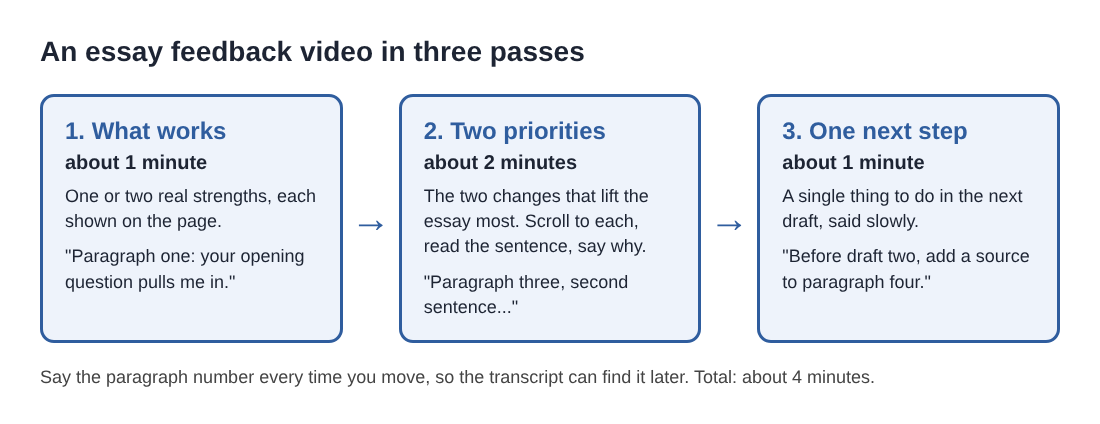
Say the paragraph number out loud every time you move: "Paragraph three, second sentence." You can press M or Add marker while recording, but with the default single MP4 the marker notes appear on screen and are not saved. The words you say are saved in the transcript, so saying the number out loud is what lets the student find the spot later.
Use your cursor as a pointer. Select or hover over the sentence you are talking about, so the student's eye lands where yours is. Do not type corrections into the student's essay during the video unless you mean to keep them.
When you are done, press Stop and finish. Chrome's own Stop sharing bar also ends the recording, so do not press it between paragraphs.
A worked example: a class set of 28 essays
Ms. Okafor teaches a class of 28 and wants to send every student a short video on their first draft. She uses the Free plan, which needs no card and gives 12 hours of recording time a month.
She aims for four minutes per essay. Twenty-eight essays at four minutes come to 112 minutes, just under 2 hours. That leaves about 10 hours that month for a second round on the final drafts, with plenty to spare. Each plan has its own number of recorded minutes a month, and if they run out mid-recording the recording stops, so she checks what is left under her name before a big batch.
She names each recording before she starts it, such as "Draft 1 - Sam" or "Draft 1 - 0412" with a student number. Every recording gets its own folder named with that name, then the date and the time. Characters a file name cannot hold, such as a colon, are left out, and names are cut at 60 characters, so short names work best. Sorting her class folder by name puts each student's videos together.
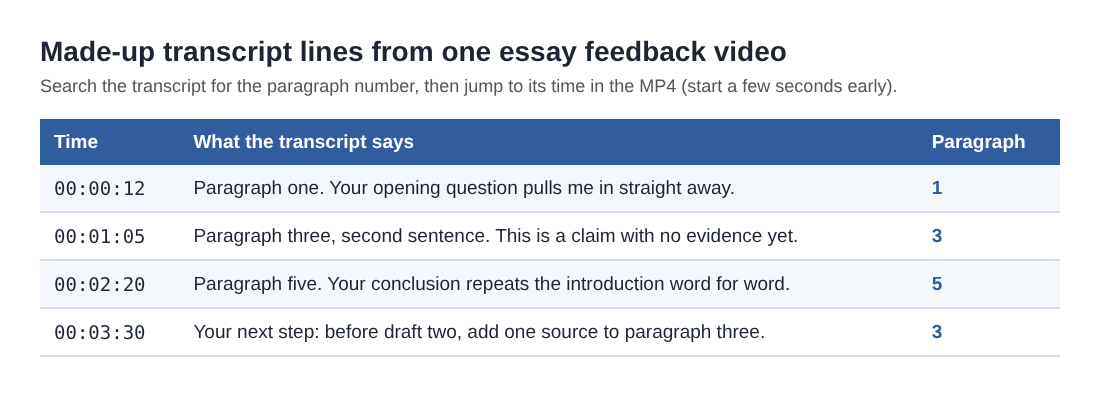
Inside each folder are two files: the MP4, and the transcript as a plain text file with the time of each line. Because she said "paragraph three" out loud, Sam can open the text file, search for "three" and jump to that time in the video. Times are close, not exact, so he starts a few seconds early.
Send the video and the transcript
Send both files, not just the video. The MP4 carries your voice and the page; the transcript is what the student reads when they revise, and it is easy to paste into notes. The live transcript guide explains each file. The captions are not drawn into the video, and the card's Captions .srt button gives you a caption file if your school's video system takes one.
Share the files the way your school already shares work, and follow its rules on student work and recordings. The recorder does not send them anywhere for you. The MP4 is already in the folder the moment you press Stop and finish.
A few habits help the transcript:
- Use a headset or a desk microphone. The transcript is made from what Chrome hears on your microphone.
- Pick the language you will speak under Options before you start. Chrome listens for one language per recording, from 25.
- Keep Live transcript ticked. It is only made while you record, so it cannot be added afterwards.
What leaves your computer
Student work deserves care, so know what goes where. The recording stays in the folder you chose. The only time it leaves your computer is when you press Convert or Download MP3; the file is sent to the server to be converted and deleted as soon as that finishes.
While the live transcript is on, Chrome sends your microphone audio to Google to turn it into text. If you press an AI button, the transcript, with the speaker names, goes to Anthropic; nothing is sent unless you press one. And the recorder's activity log holds the folder and file names you chose. That is why Ms. Okafor names recordings with a first name or a student number, not a full name.
Frequently asked questions
Does the student need Cheap Recorder to watch it?
No. They get an ordinary MP4 and a plain text transcript, which play and open on their own computer without the recorder.
Should my webcam be on?
It is up to you. A small camera in the corner makes the feedback feel personal; switch Record my webcam off and the video holds the essay alone.
How long should an essay feedback video be?
Three to five minutes is a good target. One strength, two priorities and one next step fit easily, and the student is more likely to watch it to the end.
Can I record a second video for the final draft?
Yes. Give it a new name, such as "Final - Sam", and it gets its own folder next to the first, so the student can compare both rounds.
Get started
Pick one essay from the pile, plan your three passes and record it. Start recording with Cheap Recorder for free, no card needed, and send your student feedback they can watch, read and use.
Screen recording that is cheap and easy.
Visit cheaprecorder.com↗

