Debate team practice on Google Meet: record it and time each speech
Record a debate team practice on Google Meet in Chrome, mark each speech, and use the transcript's line times to see which speeches ran over your limits.
A debate team practice on a video call is hard to coach from memory. Six speeches go by, you scribble notes while someone talks, and afterwards nobody agrees on who ran long or which answer fell flat. If your team practises on Google Meet, you can record the round in Chrome with Cheap Recorder, mark the start of each speech, and use the transcript's line times to see how long each speaker went.
Why record a debate team practice
Debaters rarely hear themselves the way a judge does. A recording lets each student listen back to their own speech, and the transcript lets you point at the exact sentence you mean in your feedback.
A recording also helps with time. In a live round you are listening, taking notes and watching the clock at once. With a recording, you can leave the clock alone for most of the round and check speech lengths later, then spend your attention on the arguments.
Before the round: tell everyone and test once
Say at the start of the call that you are recording, and why. The law on recording calls differs from place to place, and some places need everyone on the call to agree, so follow the rules where you and your debaters are. If your debaters are students, also follow your school's or club's own rules about recording them, and tell families if those rules ask you to.
Then test once. The Google Meet guide suggests a one-minute test call with a friend before an important call. Ask one debater to join five minutes early, record a minute of chat, and play it back on the recorder page. You should hear both of you clearly. If their voice is missing, the tab sound was not picked.
Wear headphones if you can. They stop the debaters' voices coming out of your speakers and back into your microphone, which would put each of them in the file twice.
Set up the recorder for a Meet round
You need Google Chrome on a Mac, Windows or Linux computer, and the Meet call open in a Chrome tab. The Free plan covers every step below.
- Open the Meet call, or its waiting screen, in a Chrome tab. Open Cheap Recorder in another tab and sign in.
- Under Where to save, press Choose folder… and pick a folder for the team's practices. Each recording gets its own folder inside it, named with the date, the time and the recording's name.
- In the Call audio tile, press Pick the call tab…, choose the Meet tab and tick Share tab audio (some versions of Chrome say "Also share tab audio"). The tile should change to "on" followed by the tab's name.
- For a practice round, sound is usually enough. Switch the webcam off and pick no screen, and the recording is saved as an M4A audio file instead of an MP4.
- Open Options and check that Live transcript is ticked (it is by default). In the menu beside it, choose the language the round is in. Chrome listens for one language per recording, and the language is set when the recording begins.
- Type a name in Name this recording, such as "Practice round 3 school uniforms", and press Start recording.
Your microphone and the Meet tab are mixed into one recording. If you would rather film the call so you can see faces, the guide explains how to pick the Meet tab as the picture too; leave tab audio unticked in that window, or the voices go into the file twice.
Make every speech easy to find
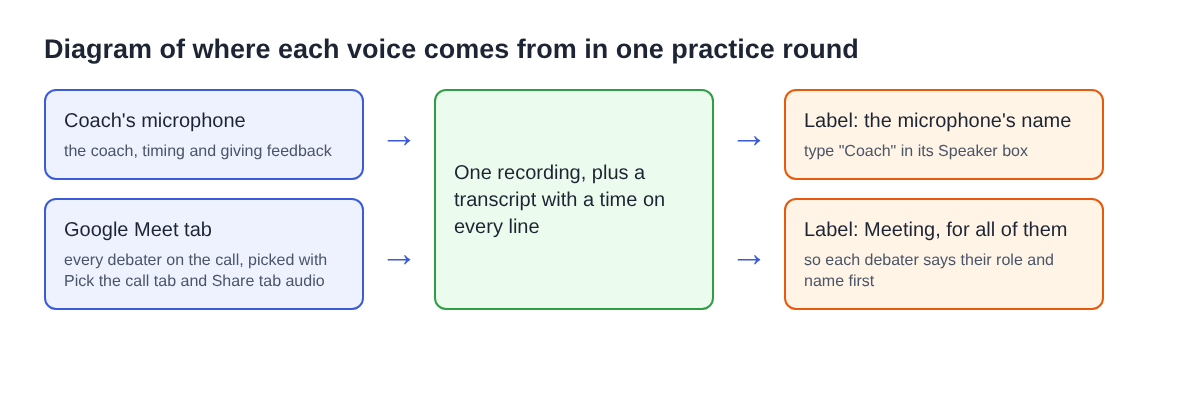
Here is the part that matters most for a debate. The transcript labels each line with the sound source that was loudest: your microphone's name, or "Meeting" for everything that came from the Meet tab. Every debater on the call comes through that one tab, so all of them share the Meeting label. On plans that include speaker detection you can rename the labels, but renaming Meeting to one student's name would be wrong for everyone else.
So build the names into the round itself:
- You call each speech out loud. Say "First affirmative, Priya, your four minutes start now." That line lands under your microphone's label with a time, and it says who is about to speak.
- Each debater opens with their role and name. "First affirmative, Priya." It costs two seconds and makes the transcript readable without the audio.
- Press M at the start of each speech. M, or Add marker, marks a moment you want to find again, so you can jump to the second negative without scrolling.
On those plans, after the round, open the Speaker boxes above the transcript, type "Coach" for your microphone's label, and press Save captions. Leave Meeting as it is.
One thing to watch: if you see "Meeting audio sharing stopped." during the round, the tab share has ended, for example because the Meet tab was closed. From then on the debaters are silent in the recording while your voice carries on. Picking the tab again does not add it back to a running recording, so stop, start a new recording, and carry on from the next speech.
Time each speech from the transcript
When you press Stop and finish, the recorder saves the transcript next to the recording, named after it, as plain text. Every line starts with a time measured from the start of the recording, and on every plan the downloaded file has those times.
To get a speech's length, take the time of the line where you called that speech and subtract it from the time where you called the next one. Chrome reports a time for each line, not each word, so the result is close, not exact. That is fine for spotting a speech that ran 30 seconds over. It is not a stopwatch.
Here is a worked example. Say your team practises with your own limits: four minutes for each opening speech and two minutes for each rebuttal. You call six speeches in a round. Reading your called lines from the transcript gives you this:
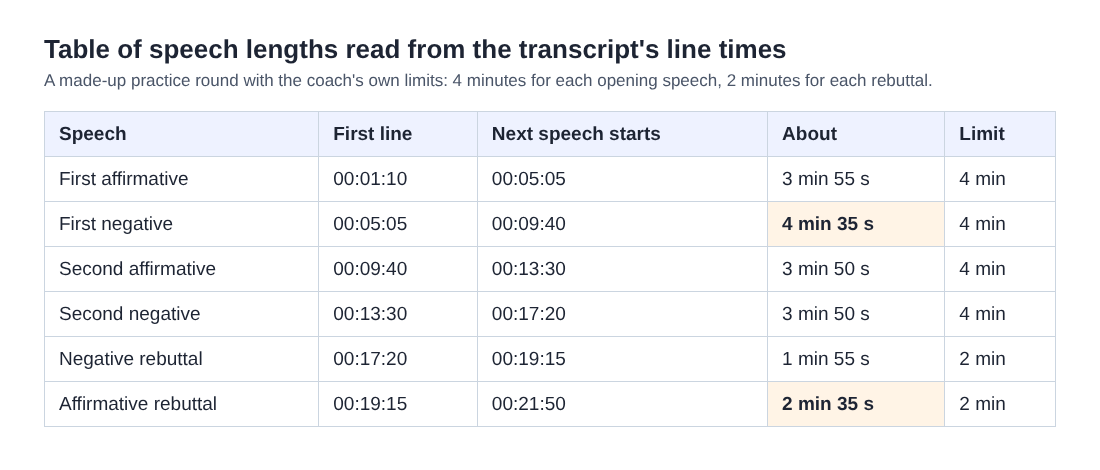
Two speeches stand out. The first negative ran about 35 seconds over, and the affirmative rebuttal about 35 seconds over a two-minute limit, which is a lot for a rebuttal. Now jump to their markers and listen to the last minute of each.
Plan your minutes too. A 45-minute round recorded twice a week comes to about six and a half hours a month, which fits inside the Free plan's 12 hours. Each plan has a number of recorded minutes a month, and if they run out mid-recording the recording stops, so open your name in the top right before a tournament week to see how many are left.
Turn the recording into feedback
The transcript file opens in any text editor, so you can copy one debater's speech into a message and write your notes under it. Quote the sentence you mean.
A short note for each debater works well:
- The speech's rough length against your limit.
- One line you want them to keep, quoted from the transcript.
- One line to rework, quoted, with the marker time so they can listen to it.
If a debater wants to hear their own speech, send them the M4A with the marker time. For a round that should never leave your computer, know what does: while the live transcript is on, Chrome sends the microphone audio to Google to turn it into text, and the transcript is only made live, so there is no way to add one afterwards. The recording itself is saved in your folder and is not uploaded, unless you use Convert. The recorder's activity log holds the folder and file names you chose, so avoid putting a student's full name in a recording's name if your rules ask you to keep it private. An AI button, if you press it, sends the transcript with its speaker names to Anthropic; nothing is sent unless you press it.
If your team also practises speeches alone, the post on how to practise a speech on webcam and read the transcript back covers the solo version. For a group call where the goal is notes rather than timing, see the book club discussion post, and the live transcript guide explains every file the transcript gives you.
Frequently asked questions
Can the transcript tell my debaters apart?
Not on its own. Everyone on the Meet call comes through one Chrome tab, so they all share the Meeting label; have each debater say their role and name before they speak.
Can I get each debater on a separate track?
No. The call's sound comes from one tab, so everyone on the far end is in the same file. To have separate tracks, each debater would have to record themselves.
Are the transcript's times good enough to time a speech?
They are good enough to see which speech ran long, not to time one to the second. Chrome gives a time for each line rather than each word, so times are close, not exact.
What if a debater's sound drops out partway through?
If the recorder shows "Meeting audio sharing stopped.", the tab share has ended and picking the tab again will not add it back. Stop, start a new recording, and continue from the next speech.
Get started
Before your next debate team practice, open the recorder in Chrome, pick the Meet tab with its sound, and record a one-minute test with one debater. Start free on Cheap Recorder; no card is needed.
Screen recording that is cheap and easy.
Visit cheaprecorder.com↗