
Pre-recorded conference talk: record it with a transcript
Record a pre-recorded conference talk in Chrome: slides in one tab, your camera in the corner, a 30-second test, then the MP4, captions and transcript for the organisers.
A pre-recorded conference talk is a talk you record ahead of the event and send in as a video file, so the organisers can play it on the day. This guide shows you how to record one in Google Chrome with your slides, your face in the corner and a transcript, then send the organisers a clean MP4 with captions they can use.
Read the speaker instructions first
Before you record anything, find the email or speaker page from the organisers and write down four things:
- The length they want, which can be shorter than your slot.
- The file format. The recorder saves an MP4. If they ask for something else, you can convert it later.
- Captions. Whether they want a caption file, and in which format. A
.srtfile is the most widely accepted. - The deadline and where to upload. Aim a day early, in case you want a second take.
Then write a short outline: the sections of your talk, in order, with a rough time for each. You will use it to place markers while you record.
Set up your slides and camera once
Open the recorder in Chrome on your computer and sign in. The recorder runs in Chrome on Mac, Windows and Linux; a phone or tablet browser cannot record the screen. When Chrome asks, allow the microphone and the camera.
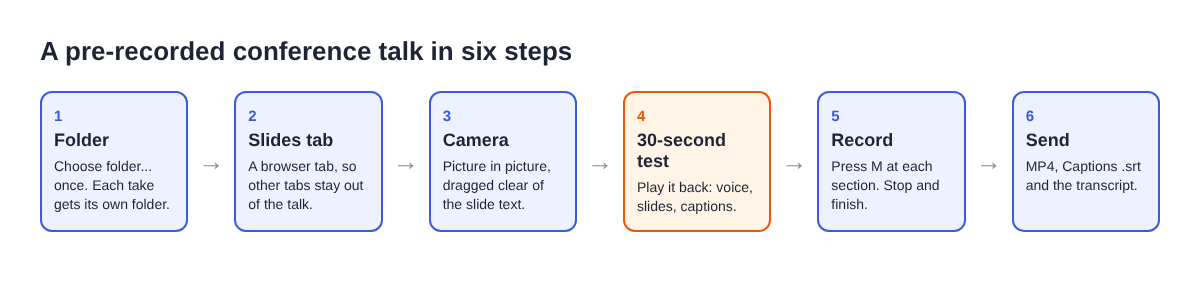
- Under 1 Where to save, press Choose folder... and pick a folder. Every take gets its own folder inside it, named with the date and the name you give the recording.
- Open your slides in their own Chrome tab, in presentation mode if your slide tool has one in the browser.
- Under 2 What to capture, choose A browser tab, pick the slides tab in Chrome's sharing box and press Share. Sharing one tab keeps your email, chat and other tabs out of the talk.
- If a slide plays a video with sound, tick the tab audio option in Chrome's sharing box. A shared window gives no sound, so use a tab for this.
- Leave Record my webcam on. In the Preview heading, keep the Layout on Picture in picture, bottom right, then drag the camera to a spot that covers no slide text. The Size slider runs from 12% to 50% of the width of the picture.
The preview is the recording. What you see there, including where the camera sits and how big it is, is exactly what the file will hold. The screen and webcam guide covers the other layouts, such as Side by side.
Check the microphone, then record a 30-second test
The Microphone box names the microphone it found. If you have a headset or desk microphone, open Change or add microphones, tick it, and press Rescan if you just plugged it in. The transcript is made from what Chrome hears on your microphone, so a microphone close to your mouth gives cleaner captions than a laptop's built-in one.
Open Options. Live transcript is ticked by default. In the menu beside it, choose the language you will speak; there are 25. Choose before you start, because the language is set when the recording begins, and Chrome listens for one language per recording. While the transcript is on, Chrome sends your microphone audio to Google to turn it into text, so stay online. The live transcript and captions are part of the Free plan and every plan above it.
If you want your section times saved to a file, tick Also save every source separately here too. Markers are written to a markers list and a chapters file only when it is ticked. With the default single MP4, the marker notes show while you record but are not saved, so you jot the times down yourself.
Name the test something like Test 1 in Name this recording, press Start recording, say your opening line, move to your second slide, and press Stop and finish. Then play it back on the card and check three things:
- Your voice is clear and comes from the microphone you picked.
- The slides fill the picture and the camera covers nothing important.
- The captions show the words you said, in the right language.
Our post on testing your microphone before a long recording goes deeper on what to listen for.
Record the talk in one take
Close tabs and apps you do not need and silence notifications, because anything on the shared tab ends up in the file. Check your remaining minutes too: open your name in the top right. Each plan has a number of recorded minutes a month, and if they run out mid-recording, the recording stops.
Type a clear name into Name this recording, such as Talk take 1. The name is used for the file and its folder, so numbered takes stay in order. Press Start recording and give your talk.
- At the start of each section in your outline, press M or Add marker. A short note confirms the time. Markers are not added while you are typing in a text box, so click on the slides tab, not a notes field.
- When you finish, press Stop and finish on the recorder page. Keep your mouse away from Chrome's own Stop sharing bar: pressing it also finishes the recording.
The Your recording card opens with a player. The MP4 is already in the take's folder, with the transcript beside it. If you want more practice before the real take, our post on practising a speech on webcam shows how to read the transcript back for pace and filler words.
Fix the captions before you send them
The captions you saw on the preview are not drawn into the video. Your MP4 stays clean, and the organisers add the caption file wherever they show your talk. That also means you can fix a wrong word before anyone sees it.
- Open the Transcript fold on the card and read it through. Look hardest at product names, people's names and numbers, and check each one against your slides.
- Each line is labelled with the sound source that was loudest, such as your microphone's name. On plans that include speaker detection, type your own name into the Speaker box and press Save captions, so lines start with your name instead of a microphone model.
- Press Captions .srt to download the caption file. Open it in a text editor and correct any word the transcript got wrong.
Chrome reports a time for each line, not for each word, so caption timings can be a moment early or late. The transcript and captions guide explains each file in detail.
Send your pre-recorded conference talk to the organisers
Send the files they asked for, named with your own name. The MP4 has H.264 video and AAC sound, which plays almost anywhere, so it is usually all they need for the video itself.
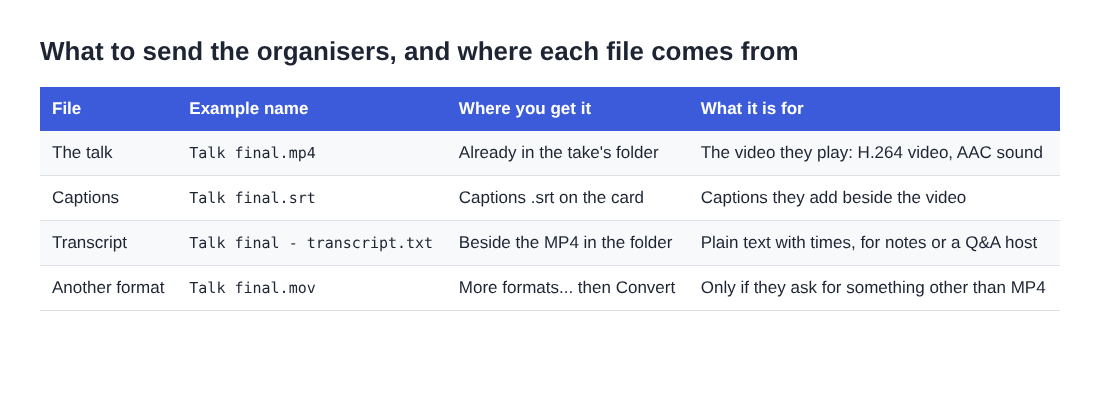
If the organisers want another format, open More formats... on the card; MOV is listed for QuickTime, Final Cut and Premiere. Converting sends the file to the Cheap Recorder server, which deletes it as soon as the conversion finishes.
A worked example: a 20-minute talk
Say your slot is 25 minutes, and the organisers want a 20-minute talk, an MP4 and an .srt file. Your outline has five sections: the problem, two examples, what you learned, and a closing slide.
- You choose a folder called
Conference, share the slides tab, and drag the camera to the bottom left, clear of the slide text. - You record
Test 1for 30 seconds and hear that the laptop microphone picked up a fan. You tick your headset in Change or add microphones and recordTest 2, which sounds clean. - You record
Talk take 1, press M five times, once per section, and stop at 19 minutes 40 seconds. - In the Transcript fold you see a product name spelled wrong in two lines. You download Captions .srt and fix both in a text editor.
- You send
Talk take 1.mp4andTalk take 1.srt, renamed with your surname.
The two tests and the take come to about 21 minutes of recording. The Free plan includes 12 hours of recording a month, so even three full takes fit easily.
Frequently asked questions
Can I record my slides and my face at the same time?
Yes. Share the slides tab under A browser tab and leave Record my webcam on; your camera sits in a corner of the picture, and the preview shows exactly what the file will hold.
Will the captions be burned into the video?
No. The MP4 stays clean, and you send the .srt file from Captions .srt so the organisers can show or hide captions themselves.
What if I make a mistake halfway through?
Pause and say the sentence again, then keep going. If the mistake is bigger, stop and record a new take with a new number; each take lands in its own folder.
Is my talk uploaded anywhere?
The recording is saved straight into the folder you chose and is not uploaded unless you use Convert or Download MP3. While the live transcript is on, Chrome sends your microphone audio to Google, the recorder's activity log keeps the folder and file names you chose and your microphones' names, and an AI button sends the transcript with speaker names only when you press it.
Do I need a paid plan?
No. The Free plan includes recording, the live transcript and captions, and 12 hours of recording a month, with no card needed. Naming the speaker in the transcript is on plans that include speaker detection.
Get started
Create a free Cheap Recorder account, share your slides tab, and record a 30-second test today. For a whole series of recordings, the course and tutorial checklist keeps every take looking the same.
Screen recording that is cheap and easy.
Visit cheaprecorder.com↗

