
Bedtime story video: record one for a grandchild far away
Record a bedtime story video for a grandchild far away: Webcam only in Chrome, the book held in the middle, a seven-minute plan, and one MP4 to send.
A bedtime story video lets you read to a grandchild who lives far away, at the time that suits their bedtime and not yours. You read once, in your own chair, and the family plays it on any night they like. This post shows how to record one in Chrome with only your webcam, how to hold the book so the pictures show, and how to send the file to the parents.
Everything here works on the Free plan, with the camera and microphone already built into your laptop. No editing is needed.
Why a bedtime story video needs only the camera
A live video call at bedtime depends on two households being ready at the same minute, often in different time zones. A recording does not. The parents press play when the pyjamas are on.
For this you do not share a screen at all. In Cheap Recorder, choose Webcam only, which sits beside the screen choices under What to capture. It records just your camera and your microphone. Because there is only one picture, the Layout menu is hidden, so there is nothing to arrange. The screen and webcam guide covers the other choices if you ever want them.
If you have recorded a cooking demo with the same setting, the recipe demo post uses Webcam only too. A story is different in one way: the thing you show is a book held up close, page after page, so where you hold it matters more than anything else.
Hold the book in the middle of the picture
The recorder never stretches your camera. If the camera's shape does not match the box it is recorded into, the picture is trimmed evenly from both sides, so a face in the middle stays in the middle. That is good for you, and it can be bad for the book.
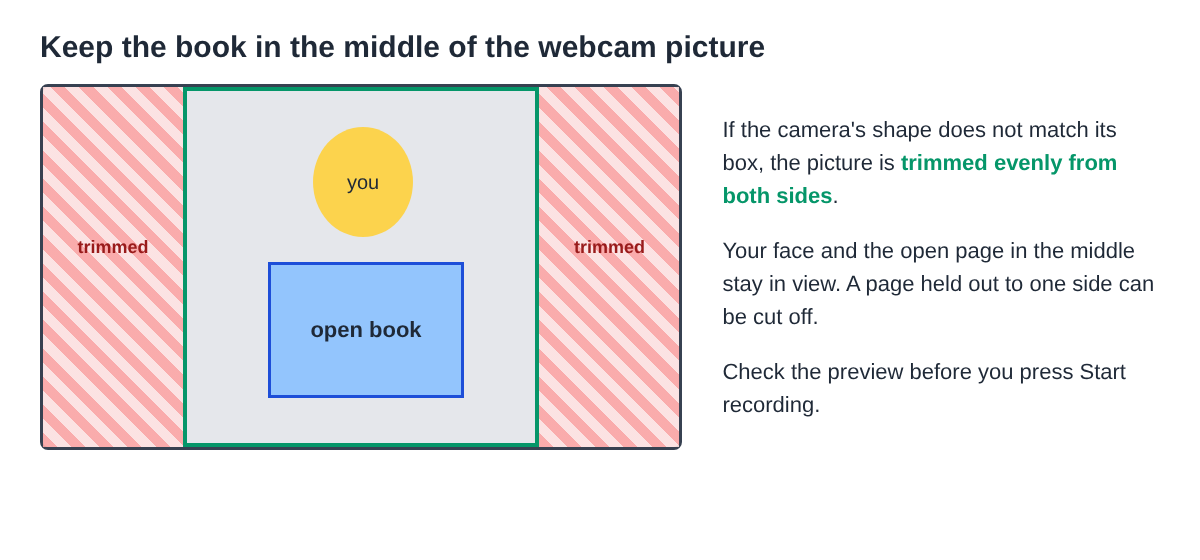
So sit square to the camera and hold the open book just below your face, in the centre. Do not hold it out to the side the way you would on a sofa with a child next to you. Look at the preview on the recorder page before you start: what you see there is what the file will show.
- Distance: hold the book close enough that a picture fills a good part of the preview, then lower it a little so your face stays in view too.
- Turning: turn the page, hold it still for a breath, then read. A still page is easier for a small child to look at than one that is moving.
- Glare: glossy pages can shine. Tilt the book a little until the preview shows the picture clearly.
Light, background and sound for a quiet voice
Light your face from the front. The green screen and blur guide gives this tip, and says a window behind you makes you darker than the room. A lamp beside the laptop, pointed at you and the book, is usually enough.
If the room behind you is untidy, press Blur in the Webcam box. None and Blur are on every plan. Set it before you start, because the recording keeps the background that was on when you pressed Start recording. Keep some distance from the wall so the edge around you looks clean.
For sound, the laptop's own microphone is fine in a quiet room. Leave Record the microphone untouched unticked under Options; that setting suits studio microphones, not laptop ones. Turn off the radio and the television, and close the door. Bedtime voices are soft, so a quiet room matters more than a fancy microphone.
Record your bedtime story video in six steps
- Open the recorder in Chrome and allow the camera and the microphone when Chrome asks. If you said no by mistake, press Allow microphone and camera in the Microphone box.
- Choose a folder with Choose folder..., so the recording is written to your own computer as you go.
- Choose Webcam only under What to capture, then set Blur if you want it.
- Name the recording in Name this recording, with a number first, for example Story 03 The Sleepy Fox. The name is used for the file and its folder, so numbers keep the stories in order.
- Record a 30-second test, say hello, hold up the cover, stop, and play it back. The course guide suggests this test because it catches a wrong microphone before you lose a whole take.
- Press Start recording, read the story, and press Stop and finish. The recording appears on the page with a player and is already saved in your folder.
If anyone else in the room joins in, a partner doing the voices for instance, tell them you are recording before you start.
A worked example: a seven-minute story night
Here is a made-up example. A grandmother in one city records a story for her four-year-old grandson in another. The book is a picture book of about fourteen spreads, and she plans for about seven minutes.
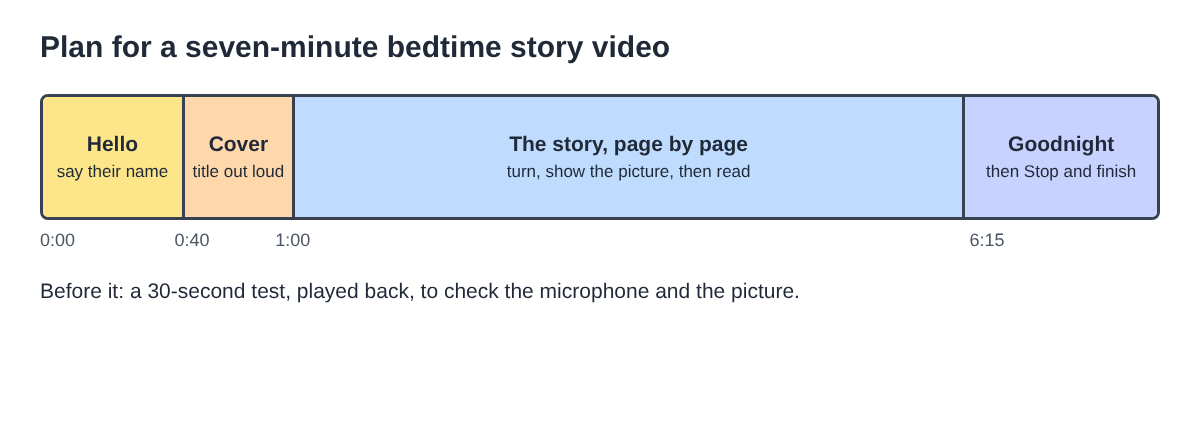
- 0:00 Hello. She says his name and something small from her day, so it feels like it was made for him.
- 0:40 The cover. She holds the cover in the middle of the picture and reads the title out loud.
- 1:00 The story. Turn, pause, read. She points at things in the pictures with a finger and asks a question he can answer to the screen, like "Can you see the fox?".
- 6:15 Goodnight. The same goodnight words every time, then Stop and finish.
She names it Story 01 The Sleepy Fox. The folder holds Story 01 The Sleepy Fox.mp4, and, because the live transcript was on, a text file with the time of each line. Seven minutes of the Free plan's 12 hours a month leaves plenty for a story every week.
Her second take is the one she keeps. In the first, she held the book out to her left and the trimmed picture cut off half of each page; the 30-second test would have caught it.
Send the MP4 to the parents
The recording is one MP4 file in the folder you chose. The where recordings are saved guide says it is an MP4 with H.264 video and AAC sound that plays almost anywhere. Cheap Recorder does not upload it or host it for you, so you send it yourself, the way your family already shares photos and videos: a shared folder, an email attachment, or a message.
A few things help the parents:
- Keep the numbers. Story 01, Story 02 and so on sort in order in their folder too, so a favourite is easy to find again.
- Send the transcript if it helps. The text file lists each line with its time. A parent can see at a glance where the story starts after your hello.
- Keep it in the family. This is a private video for your grandchild. If you ever want to post a reading of a published book publicly, check the publisher's rules first.
About privacy: while Live transcript is ticked, Chrome sends your microphone audio to Google to turn it into text. If you would rather it did not, untick Live transcript under Options before you start; the video itself is recorded either way.
Frequently asked questions
Can I record a bedtime story video on a laptop's own camera?
Yes. A built-in laptop camera and microphone are fine. Sit in a quiet room with a light in front of you.
Why are the edges of the book cut off in my recording?
The camera picture is trimmed evenly from both sides when its shape does not match the recorded box. Hold the book in the middle, just under your face, and check the preview first.
Can my grandchild watch it on a phone or tablet?
The file is an MP4 that plays almost anywhere, so the parents can play it on the device they use for videos. Send it the way your family already shares videos.
Does it cost anything?
The Free plan needs no card and includes 12 hours of recording a month with the live transcript. A seven-minute story uses seven minutes of that.
Get started
Pick a book, a quiet chair and a lamp. Open Cheap Recorder in Chrome, choose Webcam only, record a 30-second test, and read the first story tonight.
Screen recording that is cheap and easy.
Visit cheaprecorder.com↗

