
No webcam in screen recording? Fix it in Chrome
No webcam in your screen recording? Five checks in Chrome, in order: the Record my webcam switch, the layout, the screen pick, permission and a busy camera.
You record ten minutes, play it back, and your face is nowhere. If you got no webcam in screen recording, the cause is almost always one of five things: the webcam switch was off, the layout hides the camera, no screen was picked yet, Chrome refused the camera, or another app had it. This post checks them in that order, using Cheap Recorder, which runs in Chrome on macOS, Windows and Linux.
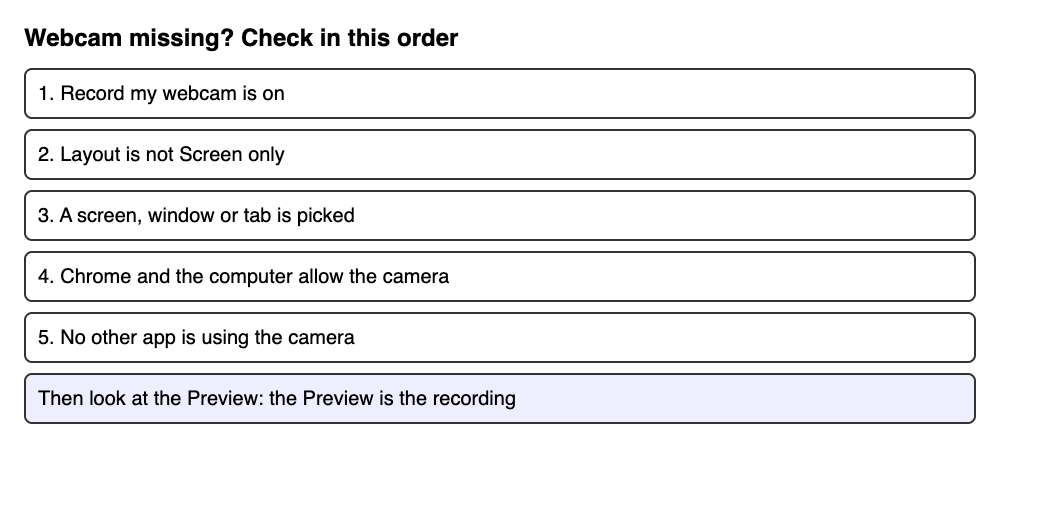
No webcam in screen recording: the Preview is the recording
In Cheap Recorder, what you see in the Preview box is exactly what the file will hold. That includes where the camera sits and how big it is. If your face is not in the Preview, it will not be in the file.
So the fastest test is free: look at the Preview before you press Start recording. Every fix below ends with that look.
Check 1: the Record my webcam switch
The simplest cause is the Record my webcam switch. When it is off, the file holds the screen alone. The recorder remembers in this browser whether the webcam was on or off, so it may be off from your last visit without you touching it.
If you want only your face and voice, choose Webcam only beside the screen choices. No screen is shared and the Layout menu is hidden, because there is only one picture.
Check 2: the layout
Open the Layout menu in the Preview heading. The standard choices are Picture in picture, bottom right (the default), Side by side, Screen only and Camera only.
- If it says Screen only, the camera is left out on purpose.
- In Picture in picture, you can drag the camera and set its size from 12% to 50% of the picture's width with the Size slider. Check it is not tucked at the small end.
- In Side by side, the camera has a fixed place on the right, and the drag handle and Size slider are hidden.
Which layouts you have depends on your plan. Open your name in the top right and read What you can do on this plan.
Check 3: a screen, window or tab is picked
Under What to capture, choose Whole screen, A window or A browser tab. Chrome opens its own sharing box; pick one there and press Share. Until you do, the Preview shows only the camera on its own. That tells you the screen is the missing part, not the camera.
Once you share, the camera sits over the screen in the Preview. The guide for this setup is Record your screen with your webcam in the corner.
Check 4: Chrome's permission, or a camera another app is using
When the recorder opens, Chrome asks for the microphone and the camera together. If you said no by mistake, Chrome keeps that answer.
Here is what the recorder does when it cannot open the camera. It switches Record my webcam off, the Webcam box says no camera found, and then it asks for the microphone on its own. That is why you can end up with a recording that has your voice but no face.
- Press Allow microphone and camera in the Microphone box.
- Check that Chrome may use the camera in your computer's privacy settings.
- Turn Record my webcam off and on again. Turning it on asks Chrome for the camera again. If Chrome still cannot open it, the switch goes back off.
The recorder has no camera menu of its own. It uses the camera Chrome hands it.
The same note appears when another app has the camera. A video call, for example, can have it open. Chrome then cannot give it to the recorder, and the Webcam box says no camera found. Leave the call, close the other app, then turn Record my webcam off and on again.
A worked example: the face that went missing
This one is made up, to show the order. Sam records a 5-minute walkthrough and the file has no face.
- Sam opens the recorder. The Preview shows the screen, with no camera on it.
- The switch Record my webcam is on. Check 1 is fine.
- The Layout menu says Screen only. Sam picks Picture in picture, bottom right.
- The camera still does not show, and the Webcam box says no camera found. A video call was open in another window.
- Sam leaves the call, turns the switch off and on, and sees a face in the Preview.
- A 30-second test with a sentence and a mouse move shows the camera in the file. Then Sam records the walkthrough.
Do a 30-second test before a long take
A short test catches almost every problem here. Name it Test in Name this recording, look at the Preview, press Start recording, say a sentence, then press Stop and finish. Play the file from the card and check the camera and the sound.
Run the test again whenever something changes: a new layout, a different screen, or a call you left open. It costs half a minute, and a missing face found in the test is one you do not have to re-record later.
Do not end a take with Chrome's own Stop sharing bar. The recorder takes that as the end and finishes the recording, so use Stop and finish instead.
If the test is for a talk, practise a speech on webcam and read the transcript back. To check your sound the same way, see test your microphone before a long screen recording.
Frequently asked questions
Why does the Preview show only the camera and not my screen?
You have not picked a screen yet. Under What to capture, choose Whole screen, A window or A browser tab, pick it in Chrome's sharing box and press Share.
Why did Record my webcam turn itself off?
Chrome could not open the camera, so the recorder switched it off and said no camera found. Check that no other app is using the camera and that Chrome may use it, then turn the switch off and on again.
Can I add the webcam to a recording after it is finished?
No. The Preview is the recording, so the camera has to be in the picture before you press Start recording. If you want a camera file to edit later, tick Also save every source separately before you record.
Can I choose a different camera inside the recorder?
No. The recorder has no camera menu of its own and uses the camera Chrome hands it.
Get started
Open the recorder in Chrome, allow the camera and microphone when asked, and check the Preview before you start. The Free plan has 12 hours of recording a month with no card needed. Start recording on the Free plan. Always tell people you are recording them.